

Creating a field
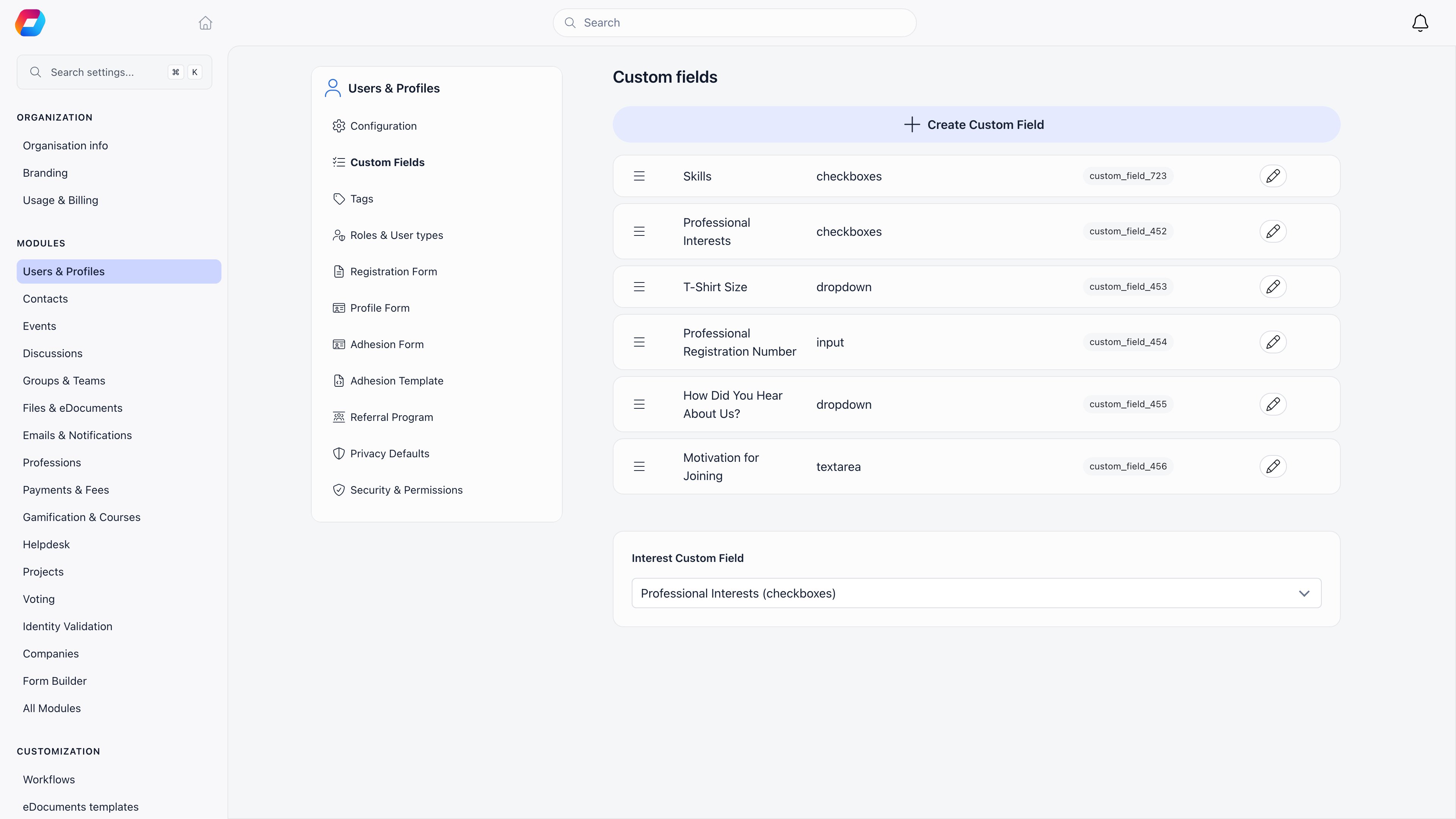
Settings → Users & Profiles → Custom Fields. Creating, editing, reordering and deleting fields all requireADMIN_TENANT.
1
Click Create Custom Field
The form opens inline at the top of the list.
2
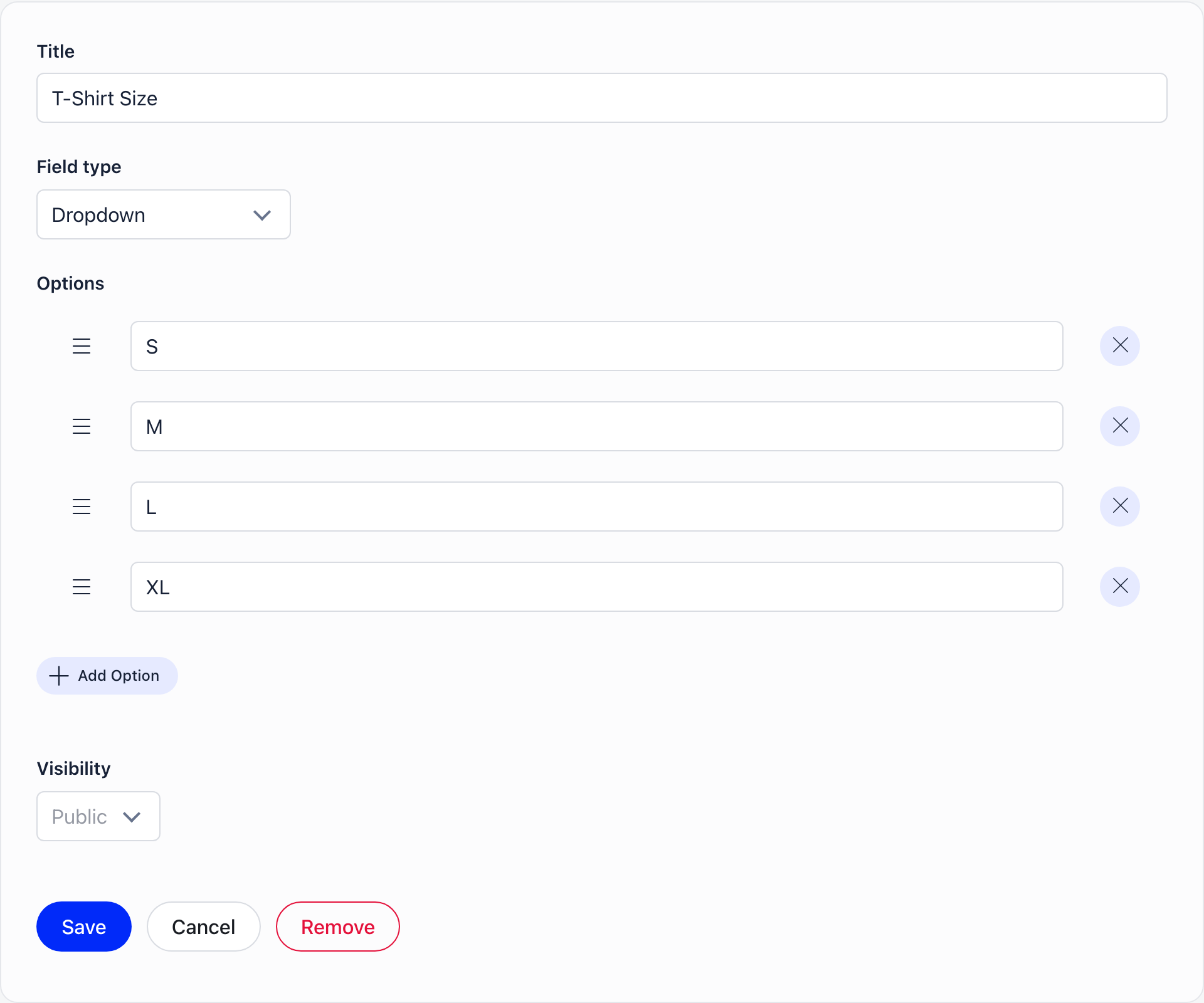
Enter a title and choose a field type
Both are required before Save is enabled.
3
Add options or allowed file types
Dropdown, Checkboxes and Radio choice fields start with two placeholder options: add, rename, remove and drag to reorder. File Upload fields need at least one allowed file type before saving.
4
Set visibility
Public, User or Admin, described below.
5
Save, then put it on a form
A new field exists but is not shown anywhere yet. Add it to the profile form, the registration form or the adhesion form.
Field types
There is no dedicated URL or email type. Use Input text for those.
Choice fields store the option’s position, not its text. Renaming an option therefore updates it everywhere, including in answers members already gave. Deleting an option does not delete the answers that pointed at it, but those answers no longer resolve to a label and display as a bare number. Prefer renaming over delete-and-recreate.
Visibility
Every field carries one of three levels, enforced on the server for both reading and writing.
“Your staff” means
HR_ASSISTANT_TENANT (implied by HR_TENANT and FINANCIAL_TENANT) organisation-wide, or HR_ASSISTANT_LOCAL (implied by HR_LOCAL, HR_PARENT_LOCAL, FINANCIAL_LOCAL and ADMIN_LOCAL) over a member in their own local center. Guest accounts see no custom field values at all.
Forms label User and Admin fields “(user only)” and “(admin only)”. Admin fields are excluded from the profile completion screen’s required-field check, so a member is never blocked by a field they cannot see.
Visibility is organisation-wide, not per user type; to vary the questions by type, use per-type registration forms.
Where a value actually saves
Visibility gates writing as strictly as it gates reading, and the write check asks who is signed in at that moment. On the public registration pages nobody is signed in yet, so nothing above Public passes. The value is dropped without an error: the applicant sees a normal success screen and the answer is simply not there.
“Your staff” is drawn slightly tighter on the profile edit form than elsewhere: the
form only offers Admin fields to
HR_LOCAL and above. Someone holding
FINANCIAL_LOCAL or HR_ASSISTANT_LOCAL can read an Admin field’s value on a
member’s profile but will not find it among the fields they can edit. Give them
HR_LOCAL on that chapter if editing is part of their job.
The practical rule: only Public fields belong on a registration form. If you need
the answer at sign-up but not on public display, collect it as Public and then
control who sees the member’s profile at all with
Privacy settings, or ask for it after joining on
the profile form, where the member is signed in
and User visibility works as intended.
Encryption at rest
Toggle encryption while creating or editing a field. OnlyADMIN_TENANT sees the toggle.
- Only Input text, Input numeric, Textarea and Date can be encrypted. Choice, switch and file fields cannot.
- 5 encrypted fields per organisation. To go past the cap, decrypt or delete an existing one; for identity documents use Identity Validation, which has its own encrypted storage.
- AES-256-GCM, bound to your organisation and to that specific field, so a value cannot be transplanted between fields or tenants.
- Turning it on re-encrypts stored values, turning it off decrypts them. Both run in the background after you save and are recorded in your organisation’s activity log.
- Every decrypting read is logged: who read it, from which address, through which endpoint.
Where custom fields are used
To collect something from every existing member, add the field to the profile form and mark it Required: members are prompted the next time they open Orgo.
Event registration forms and the standalone form builder create their own fields, scoped to that event or that form. Those do not appear on this settings page and are managed where they were created.
The Interest field
The selector at the bottom of the list designates one Dropdown, Checkboxes or Radio choice field as your interests field. That adds an interests filter to the member directory and an interests breakdown to organisation statistics, and gives the field its own section on member profiles instead of a plain form row. Create a Checkboxes field with your options, add it to the profile form, then select it here. Enable Skills Field (Settings → Users & Profiles → Configuration) does the same for skills, except Orgo creates the field and seeds it with a catalogue. While the setting is on the field cannot be deleted, though its options stay editable. Turning it off preserves members’ existing selections.Deleting a field
Deleting removes every answer members gave and strips the field from the profile, registration and adhesion form configurations, plus any per-user-type registration form. It is not reversible. To stop collecting a field without losing data, take it off the forms and leave the definition in place.Tags
Tags are a lighter alternative: a name administrators apply to member profiles for filtering and segmentation. Members never see or set their own tags, tags carry no value or type, and tag names are unique within your organisation regardless of capitalisation. Manage them at Settings → Users & Profiles → Tags.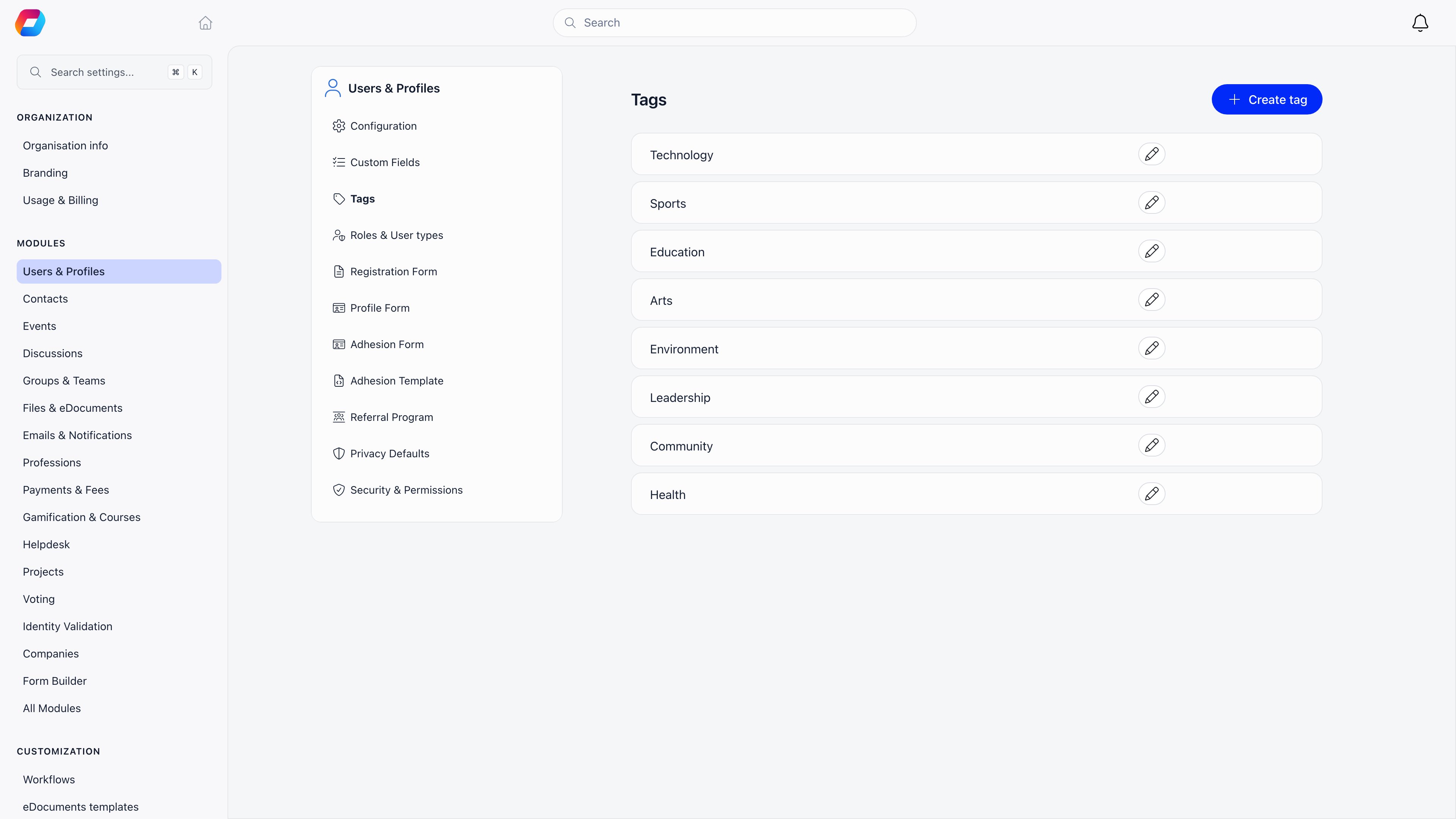
Troubleshooting
Answers from the registration form are missing for everyone
Answers from the registration form are missing for everyone
Check the field’s visibility. Anything above Public is discarded on the public
registration pages, because the write check asks who is signed in and, at
registration, nobody is. There is no error: the applicant fills the box, the
account is created, and the answer never reaches the profile.Set the field to Public if you need it at sign-up, or move the question to the
profile form, where the member is signed in and
User visibility behaves as documented. See the table under
Where a value actually saves.The same field on a
/join/<slug> form behaves slightly differently: Admin fields
are stripped before the page is built, so the applicant never sees them, while
User fields still render and are still discarded.A regional officer sees only Public fields on chapter members
A regional officer sees only Public fields on chapter members
Reading User and Admin values on someone else’s profile requires the Orgo
administrator flag or an organisation-wide staff permission (
ADMIN_TENANT,
HR_TENANT, FINANCIAL_TENANT or HR_ASSISTANT_TENANT), or a chapter staff
permission plus the reader and the member being in the same chapter.
The chapter comparison is a direct match, not
a walk up the hierarchy, so someone holding HR_PARENT_LOCAL over a region does
not pick up User and Admin values on members of the chapters below them: on those
profiles they see the Public fields only, like any other member.If a regional officer genuinely needs those values across the region, the only
permission that delivers them today is an organisation-wide one such as
HR_TENANT. Weigh that against the reach it grants, and prefer keeping the
sensitive questions in an organisation-level workflow instead.The custom field columns are not in the member directory
The custom field columns are not in the member directory
The column menu is the table icon above the list, and it only exists in the table
view, so a person sitting in Gallery will not see it at all. Both the menu and
the custom-field columns need
HR_TENANT, or ADMIN_LOCAL while looking at that
administrator’s own chapter list.A chapter administrator can therefore put a custom field on their own chapter’s
list, but not on the organisation-wide directory or on another chapter’s. For
those, use the profile, export the list, or ask an organisation administrator.I imported values into an encrypted field
I imported values into an encrypted field
Import writes custom field values straight to storage and does not run them through
encryption, so values loaded from a spreadsheet into an encrypted field are stored
as they were typed. Everything still reads back correctly in the interface, which
is exactly why this is easy to miss: nothing looks wrong.To bring imported rows under encryption, open the field, switch encryption off,
save, then switch it back on and save again. Each flip queues a background pass over
every stored value for that field, and the second pass encrypts everything it finds
in plain text, including the imported rows. Note what the first flip does: it writes
every value for the field back as plain text before the second flip re-encrypts them.If that window is unacceptable for the data in question, do not import into that
field. Collect the values through a form, or use
Identity Validation for identity documents, which
has its own encrypted storage.
I switched encryption on and off quickly and I am not sure what is stored
I switched encryption on and off quickly and I am not sure what is stored
Each flip queues a background pass, and a pass that notices the flag has changed
under it stops where it is rather than fighting the newer instruction. Flip twice
in quick succession and the first pass can end part-way, leaving some values
converted and some not.This is safe to read: every value carries its own marker, so Orgo decrypts the ones
that need it and returns the rest untouched, whatever state the field is in. It is
only untidy at rest. To settle it, leave the toggle alone for a few minutes, then
check your organisation’s Logs for the encryption entries, and if
you want certainty that every row matches the flag, flip it off and on once more
and let that pass finish.
Who read an encrypted value, and when
Who read an encrypted value, and when
Every request that decrypts at least one value files one entry in your
organisation’s Logs, recording who made the request, their IP
address, the endpoint they hit and how many values were decrypted.Read it as one entry per request, not one per value. Opening a member’s profile
files a single entry covering every encrypted field on it, and a screen that lists
many members at once files one entry with a large count. The entry is written just
after the response is sent, so allow a moment before it appears. Turning encryption
on or off is logged separately, with the field name and the direction of the change.
Related
- Profile Fields for putting fields on member profiles
- Registration Form for collecting them at sign-up
- Adhesion for membership applications
- Privacy Settings for the built-in profile data members control themselves
- Permissions for the permission names used above