

Which app your members install
Most organizations use the shared Orgo Community app. There is nothing to enable: any member of any Orgo organization can install it and sign in.
Orgo also builds branded apps: a separate App Store and Play Store listing under your own name and icon, with its own push credentials and its own deep links. A branded app is provisioned by Orgo, not self-served, because it needs entries in your Apple Developer and Google Play accounts. Contact Orgo if you want one.
Once a branded app exists, your organization record stores its two store URLs, and every “Download app” link in the product points at your listing instead of the shared one.
How members find the app
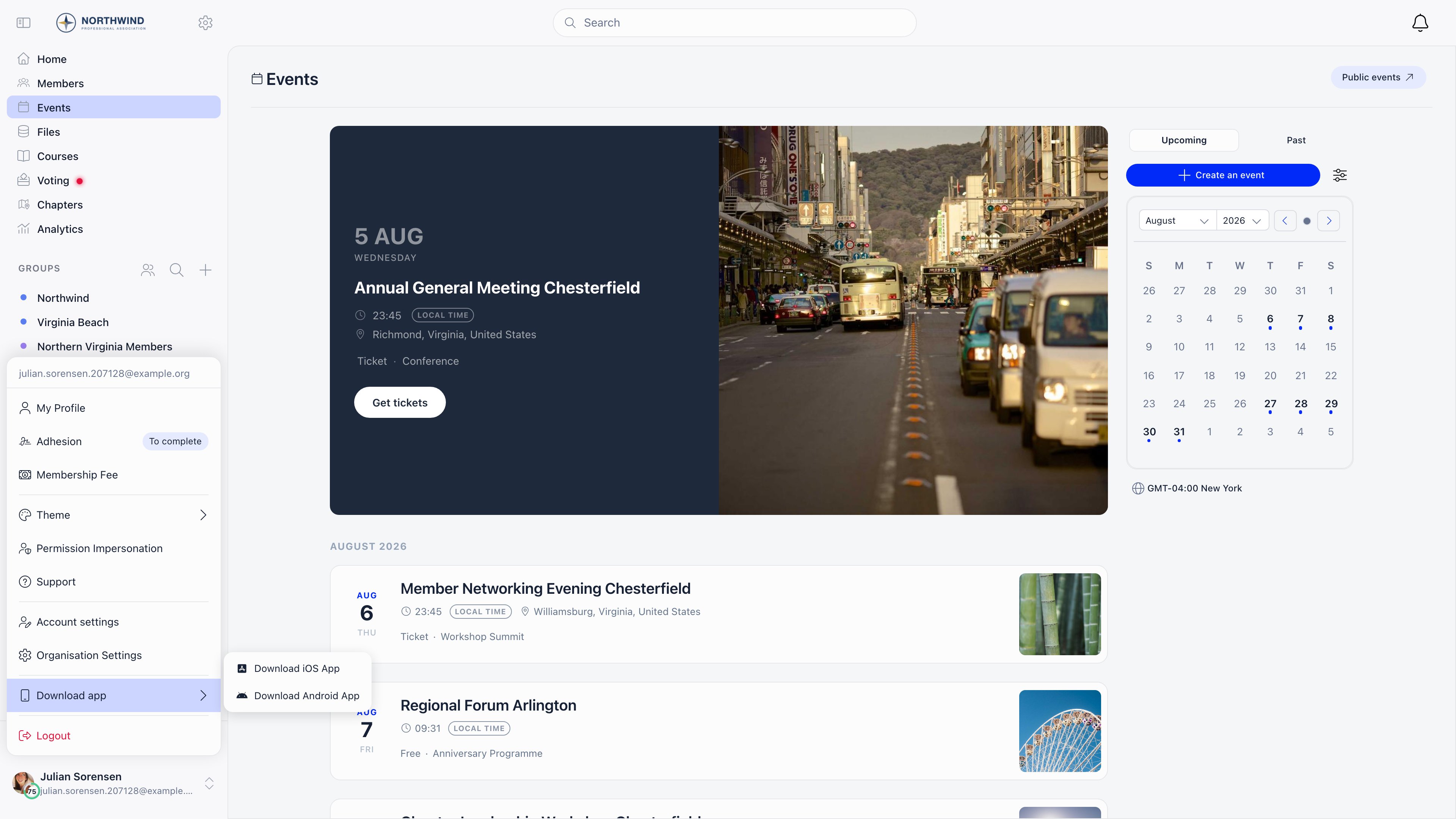
Two places surface the download, both automatic:- Download app in the user menu (sidebar on desktop, profile menu on mobile). It opens a submenu with Download iOS App and Download Android App. Hidden when the member is already inside the app.
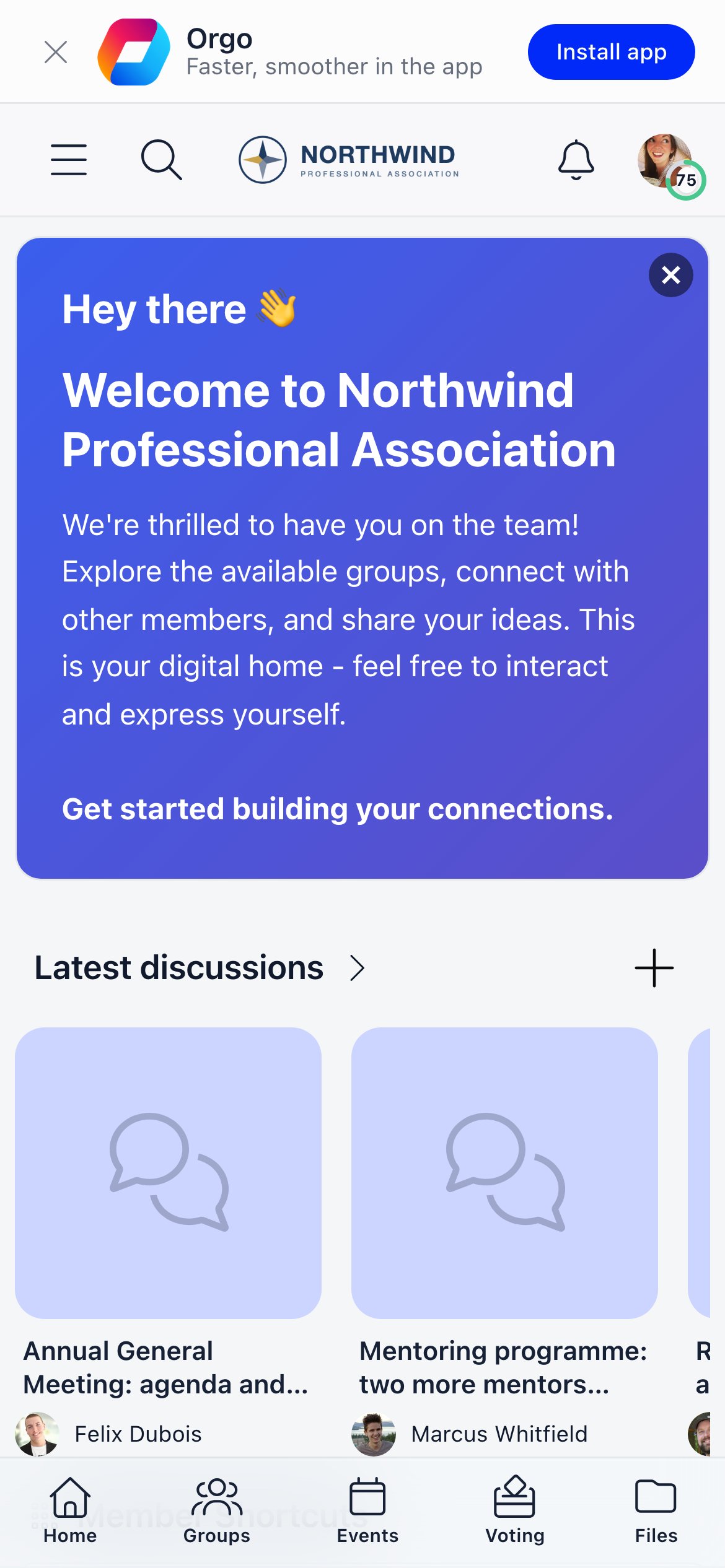
- An install banner at the top of the screen on mobile browsers, showing your app name and Install app. On a device that already has the app, the button becomes Open app and hands the current page over to it. Dismissing the banner is remembered on that device. It keys off the device, not the window: a phone or tablet browser shows it, a narrow desktop window does not, because there is nothing to install there.
Signing in
Members sign in with the same email and password they use on the web, or with any other method your organization allows: a one-time code, MFA, or Continue with Google, Microsoft or Apple where you have single sign-on switched on. There is no separate app account and no workspace code to type. A social sign-in returns into the app it was started from, including a branded app. If a member belongs to more than one Orgo organization under the same email address, signing in through the shared app signs them into all of them at once and they switch between organizations from the workspace switcher. Signing in through a branded app or a custom domain signs them into that organization only. Non-member ticket holders do not use this login at all. They reach the Event App through a one-time code sent to the email on their ticket. See Event App.Push notifications
Push has three moving parts, and all three must be true for a notification to arrive.1
The organization allows push
Settings → Emails & Notifications → Notification Preferences → Push Notifications sets the default for new members. Requires
ADMIN_TENANT.2
The member has push on
Push notification, mobile app & web browser on the Notifications tab of their profile (
/me/update). Members who never touched the toggle are treated as opted in.3
The device is registered
The app registers the device automatically the first time the member opens it while signed in, and again whenever the device’s push identity changes. Nothing to do by hand.
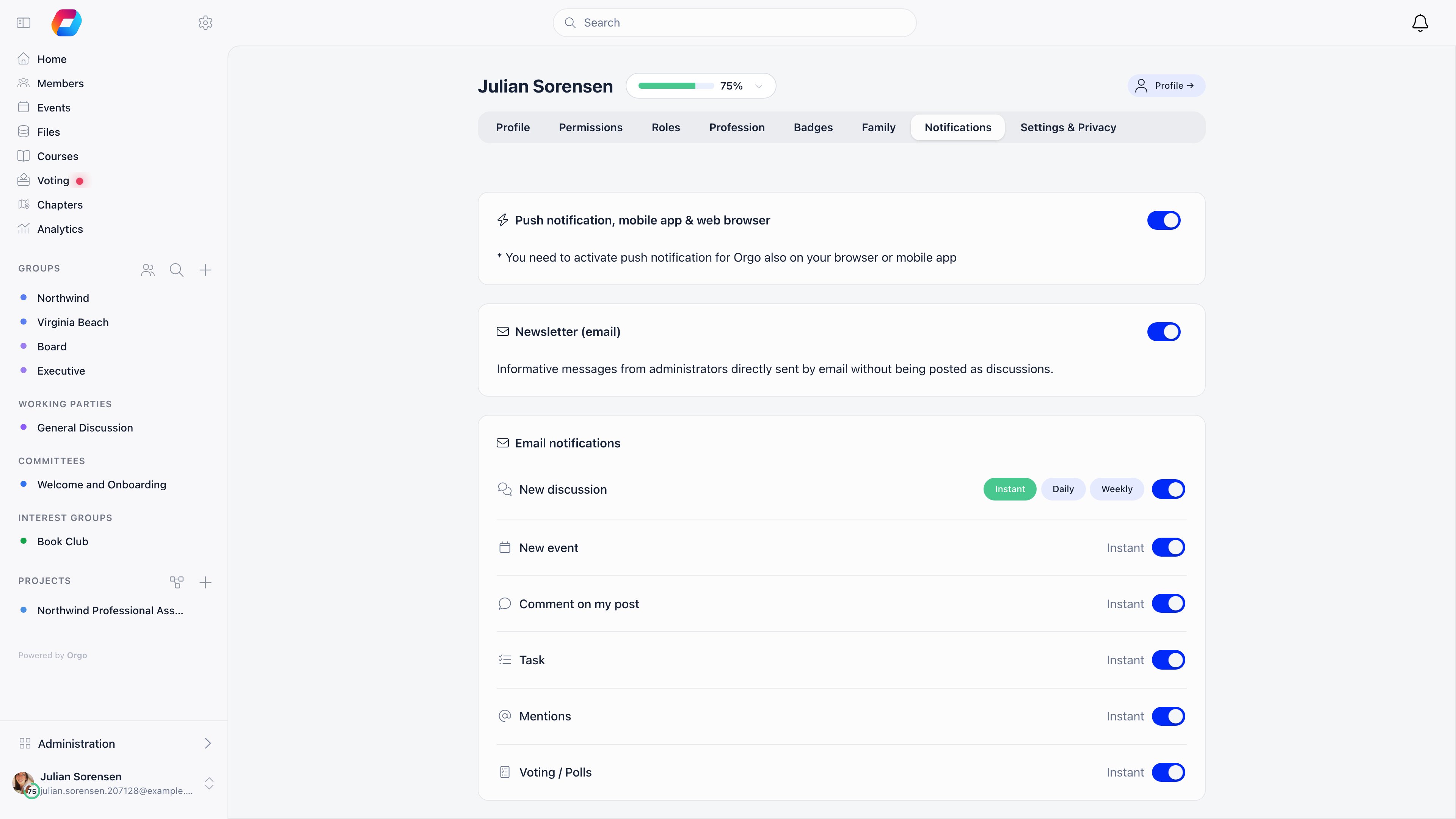
Turning the toggle on inside Orgo is not enough on its own: the member must also grant notification permission to the app or browser when the operating system asks. The setting screen says so.
Testing that push works
Admins withADMIN_TENANT can open /demo-notification and send a test push to their own devices or to a specific member id, with a title, body and target link. It is the fastest way to prove a device is registered before debugging anything else.
Deep links
Links Orgo sends to a mobile-capable surface are built as smart links on thel.orgo.space domain. Opened on a phone with the app installed, the operating system hands them to the app; on any other device they fall through to the web. Orgo publishes the Apple and Android verification files for that domain automatically, including one entry per branded app.
Smart links are used for:
- Push notifications for discussions and mentions, events and event feed posts, event networking invitations, connection requests, local center and unit membership, task assignment and status changes, and new media files.
- Email links for event invitations and registrations, discussion notifications, task assignment, and event networking invitations.
- Event ticket QR codes and vote share links, which always prefer the app.
Known limits
Members cannot pay fees inside the iOS app
Members cannot pay fees inside the iOS app
Payment buttons are hidden in the iOS app and replaced with “To make a payment, please access app in browser.” This is Apple’s in-app purchase policy, not an Orgo setting. Members pay from a mobile or desktop browser; the payment then shows in the app like any other.
Audio and video recording is disabled in the app
Audio and video recording is disabled in the app
Screens that record audio or video are blocked in current app builds and offer to reopen the page in the device browser instead. Uploading an already-recorded file works normally.
There is no offline mode
There is no offline mode
The app needs a connection for every screen. Nothing is cached for offline reading and posts are not queued while offline.
Adding Orgo to the home screen from a browser shows the Orgo icon
Adding Orgo to the home screen from a browser shows the Orgo icon
The web app’s install metadata carries Orgo’s own name and icon, so a browser “Add to Home Screen” shortcut is branded Orgo even for organizations with custom branding elsewhere. A branded app is the way to get your own icon on the home screen.
Notifications are not arriving on one device
Notifications are not arriving on one device
Check, in order: notification permission for the app in the device’s system settings; the member’s Push notification toggle; that the member has opened the app at least once while signed in to that organization. Then send a test from
/demo-notification. Signing out of the app removes that device’s registration.Related
- Notifications - notification types, channels and digests
- Event App - the attendee experience and its separate login
- Check-in - scanning ticket QR codes at the door
- Branding - logos and theming across the product
- Custom domain - your own address for the web app