

Requires ADMIN_TENANT. The page is unreachable and its contents are hidden for everyone else.
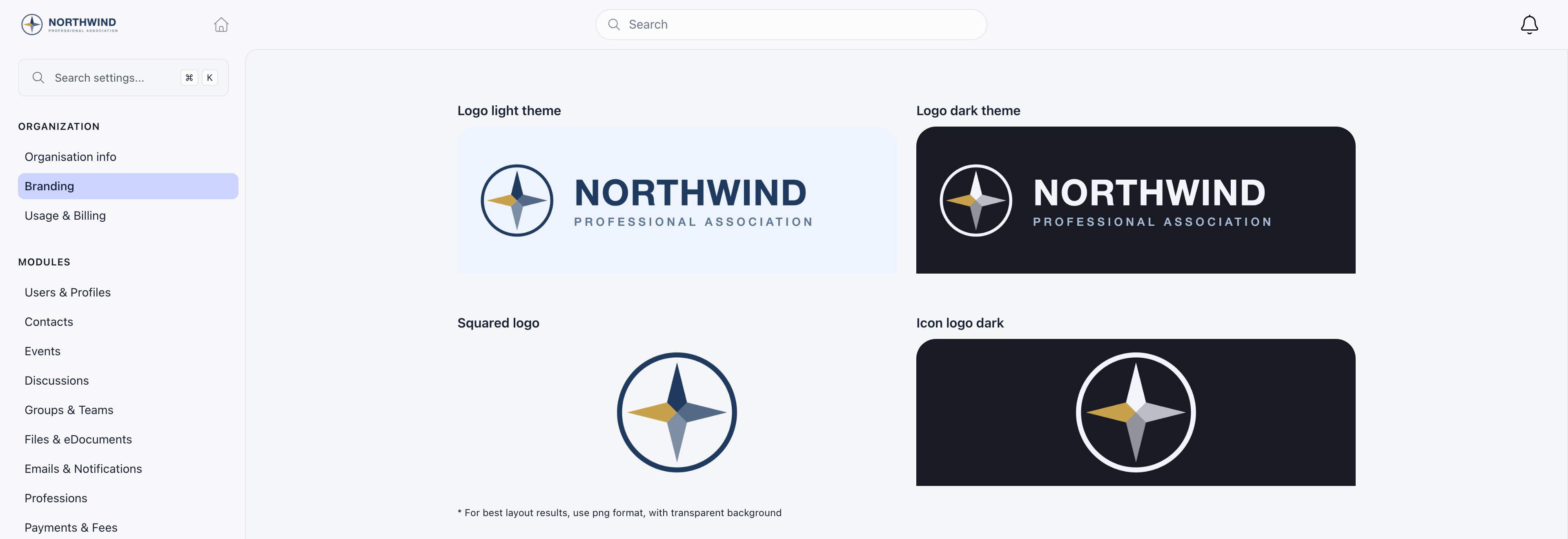
The four logo slots
Uploads accept PNG and JPEG. The page’s own hint is: for best layout results, use PNG with a transparent background.
Two behaviours are worth knowing:
The dark logo is not only for dark mode. In the app header it is used whenever the chrome is dark, which includes a dark menu theme on an otherwise light interface. If you skip this slot, a dark-on-dark logo becomes invisible for those members.
The first upload fills the empty slots. Upload the light logo while the other three are still empty and the same image is copied into all four. That is a starting point, not a finished setup: replace the dark and square variants so contrast and cropping are right.
If a slot is empty and nothing was copied into it, that slot alone falls back to Orgo’s own mark; the other three keep their own image. Logo dark theme falls back to the light logo first, both in its box here and in the app, so an empty dark slot shows your light logo rather than Orgo’s.
Login background

Default theme for your organization
Below the logos, Default theme for organization sets the chrome: the sidebar, header, and surface colours. Your primary brand colour is not part of it and does not change.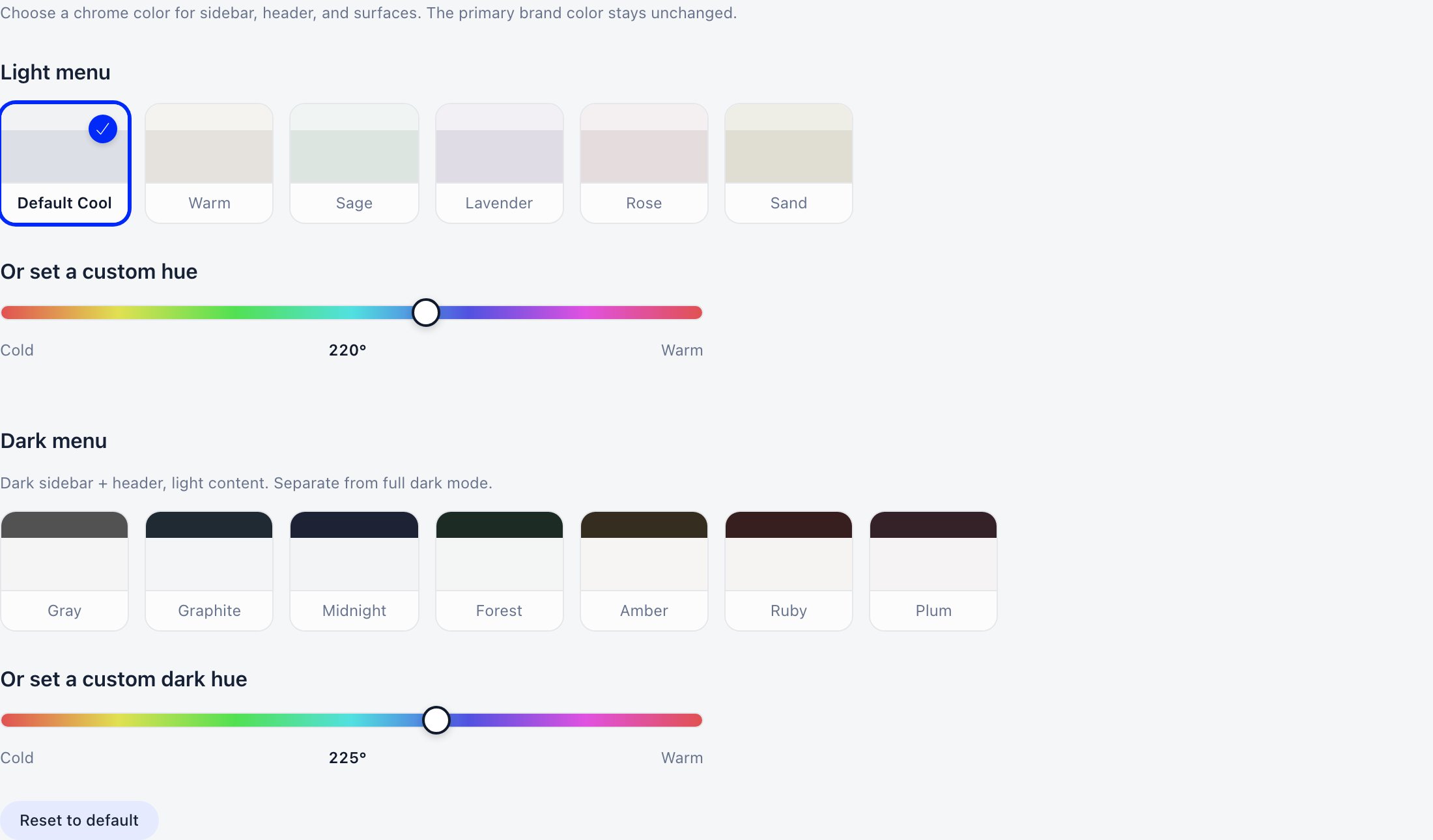
A dark menu preset gives you a dark sidebar and header with light content. That is not the same as full dark mode, which inverts the whole interface.
Clicking a swatch saves immediately: there is no separate Save button for the theme. Reset to default puts the organization back on Default Cool.
The theme a member actually sees is resolved in this order: the member’s own choice, then your organization default, then Orgo’s built-in default. Members pick their own from the theme sidebar, and their choice is stored separately for desktop and mobile. Setting an organization default therefore changes what new members and members who never chose will see, not what everyone sees.
If you are currently viewing Orgo in dark mode, the Light menu block is hidden and only the dark presets are offered.
What is not customisable
- The primary brand colour. It is a fixed design token with no per-organization input. Only the chrome hue is configurable.
- Fonts and layout.
- The mobile app icon. The shared Orgo app ships Orgo’s own icons; the Squared logo slot does not change them. Branded per-tenant apps are a separate arrangement, covered in Mobile Apps.
- Most email headers. The light logo is used on invoice emails and the invoice PDF. Other system emails use a shared layout with no logo.
Troubleshooting
The logo is cropped or stretched
The logo is cropped or stretched
Check which slot the file is in. The two Logo slots expect a wide image; Squared logo and Icon logo dark expect a square one. A wide file in a square slot is what produces cropping in the favicon and avatar.
The background image is not showing on the sign-in screen
The background image is not showing on the sign-in screen
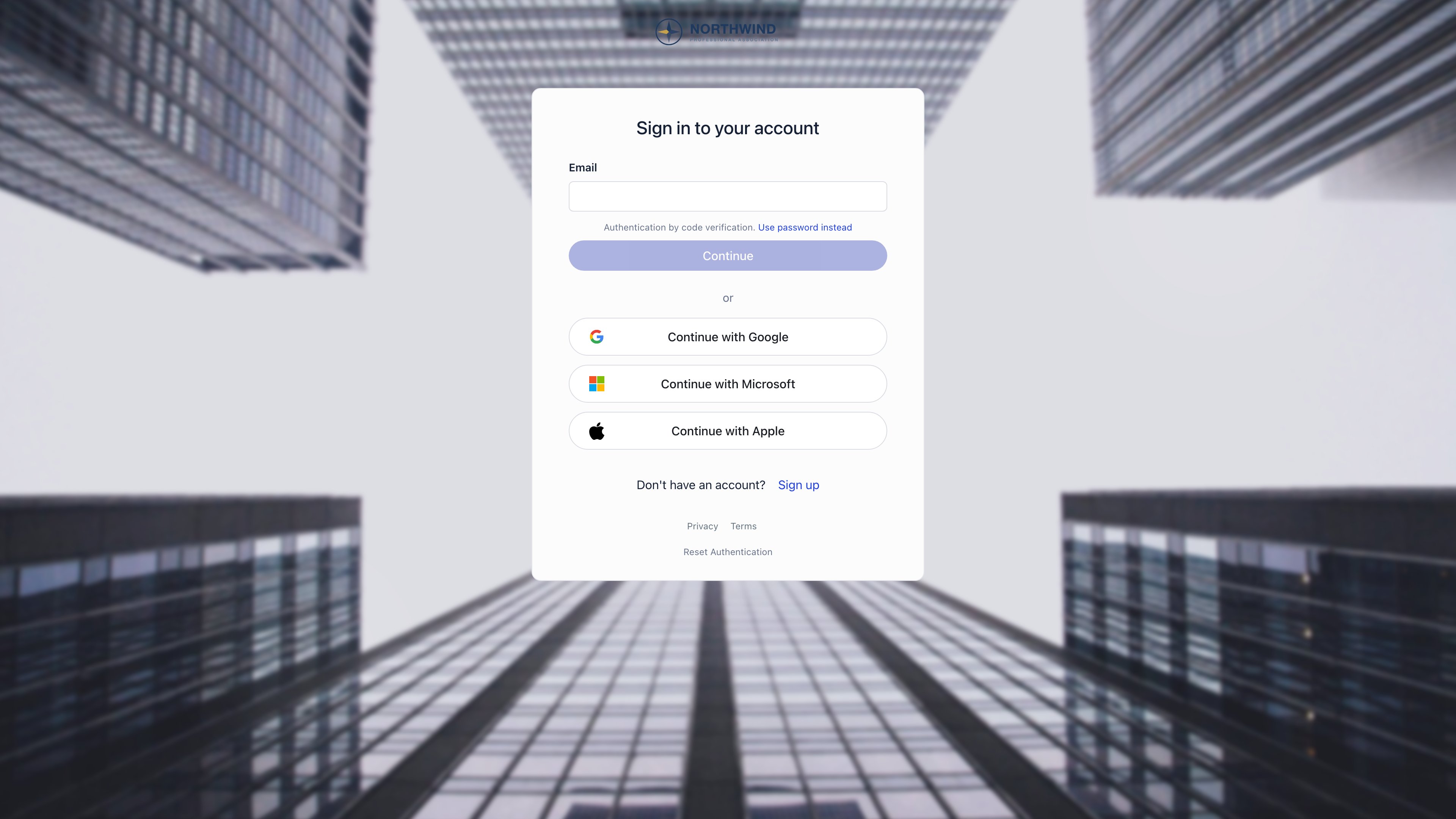
Open the URL in a private window with no session. If it does not load there, the host requires authentication or is not public. If it does load, check you are not on a phone: the background is desktop only.
The logo disappears when members switch theme
The logo disappears when members switch theme
The dark variant is missing or is the same file as the light one. Upload a light-coloured version to Logo dark theme and Icon logo dark. This also applies to a dark menu theme in an otherwise light interface.
The logo has a white box around it
The logo has a white box around it
The file is a JPEG, which has no transparency, or a PNG exported on a white background. Re-export as PNG with transparency.
I picked a hue I liked and it vanished for everyone else
I picked a hue I liked and it vanished for everyone else
Custom hues are not saved to the organization. Pick the closest named preset instead.
The admin Getting Started checklist has a Customization & Branding step whose first task, Add organisation’s logo, links straight to this page.
Related
- Organization Info - Name, contact email, and financial details
- Custom Domain - Serve the community from your own address
- Modules - Turn platform features on and off
- Labels and Terminology - Rename product vocabulary
- Mobile Apps - Shared app and branded apps