

Before you start
Five decisions carry the whole setup. Settle them on paper first: each one becomes a field, a switch or a price row later, and reversing some of them means re-billing your members.- Legal entity details collected for every member company: legal name, registration number, VAT number, billing address, town and country
- Seat policy decided: how many named people each corporate tier includes, and which tier (if any) is unlimited
- Invoicing direction agreed: your organization bills each member company centrally, because company fees never route to a region
- Payment method chosen: card through Stripe, bank transfer against an invoice, or an administrator recording money received elsewhere
- Primary contact named per company, plus the financial contact email that will receive the renewal ladder
Who this is for
Use this playbook when the entity that joins, pays and renews is an organization, and the people are attached to it:- a trade or industry association billing member firms an annual corporate fee;
- a chamber of commerce with tiered corporate memberships and a seat allowance per tier;
- an employer federation or umbrella body whose members are other associations;
- any body that sells team or corporate memberships alongside, or instead of, individual ones.
Modelling your members as companies
The company record
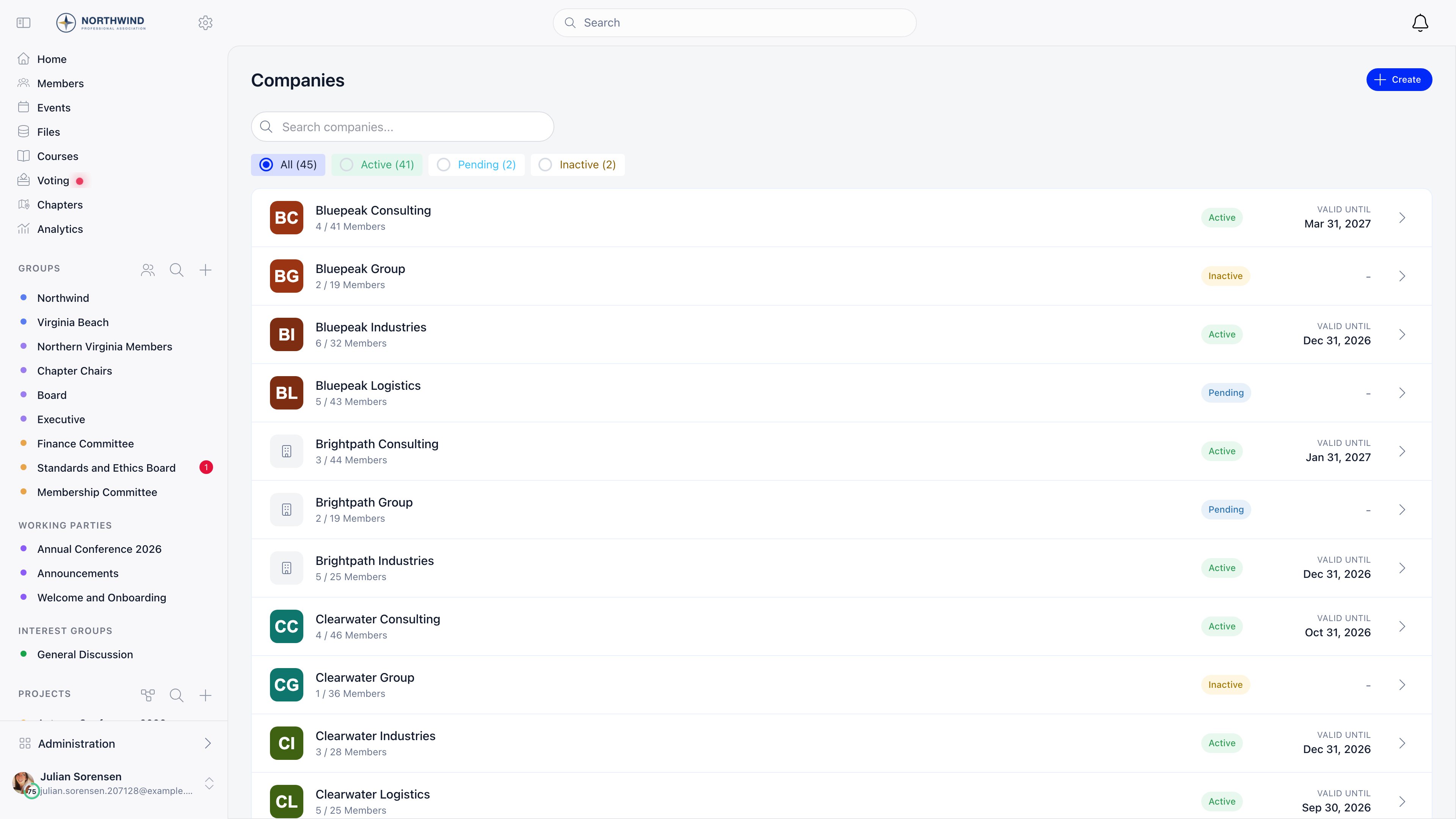
Companies in the sidebar, then Create. One form, three groups of fields. Only Company Name is required to save, but the billing block has to be complete before a payment can start.ADMIN_TENANT can also set the status by hand. Delete Company is a soft delete: the record moves to Deleted and disappears from every list, and only ADMIN_TENANT can do it.
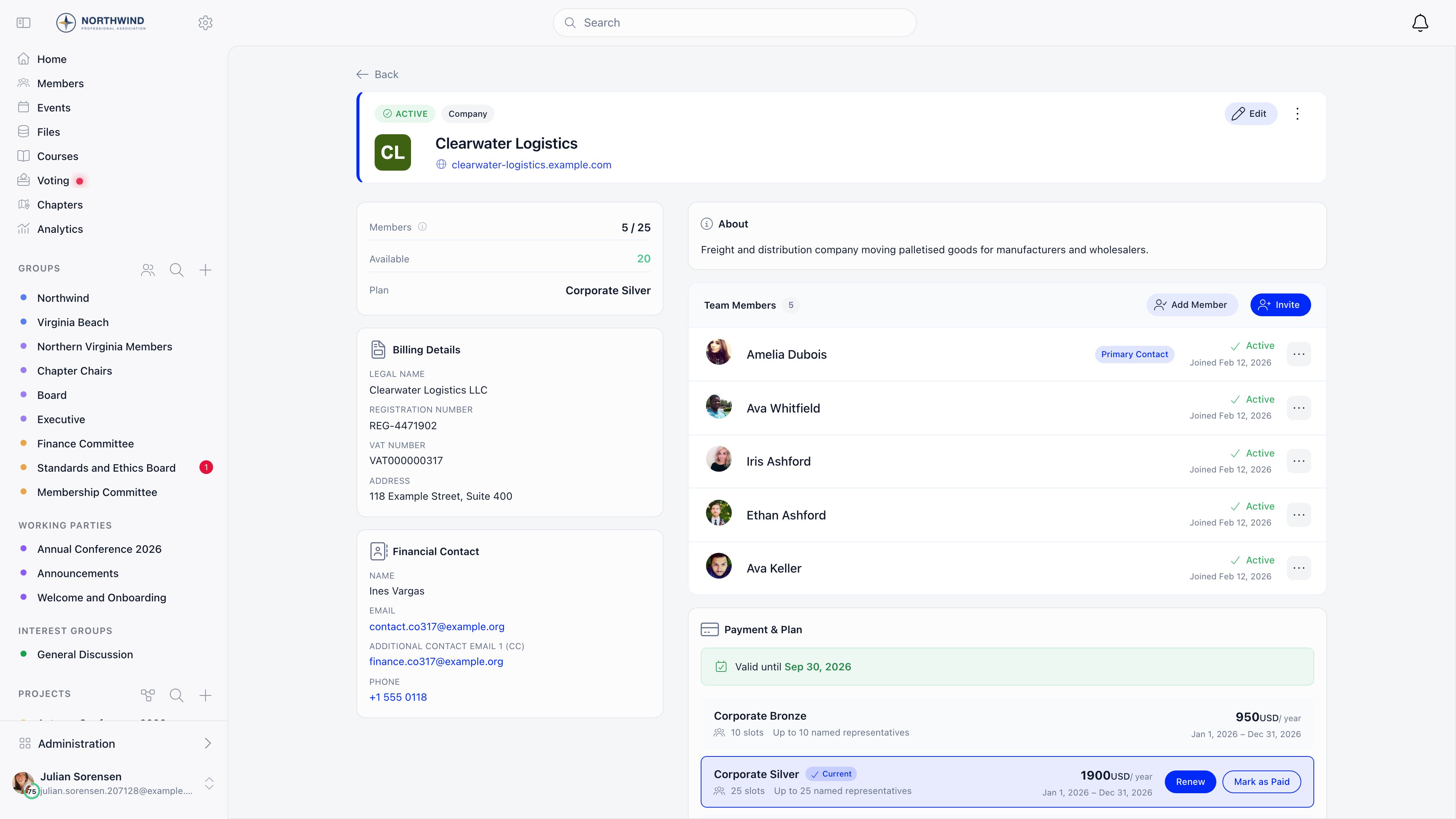
Once saved, the company page becomes the single screen your staff and the member’s own primary contact both work from. Reading down the left column and then the right: the status header, the seat counter with the current plan, the Billing Details and Financial Contact cards, the member list, and the Payment & Plan panel.
One company, many people, one membership
A membership row inside a company points at either a User (someone with an account) or a Contact (a record in your database with no account). Both appear in the member list and both occupy a seat. Only user memberships inherit the company’s validity date, because a contact has no fee date to write to.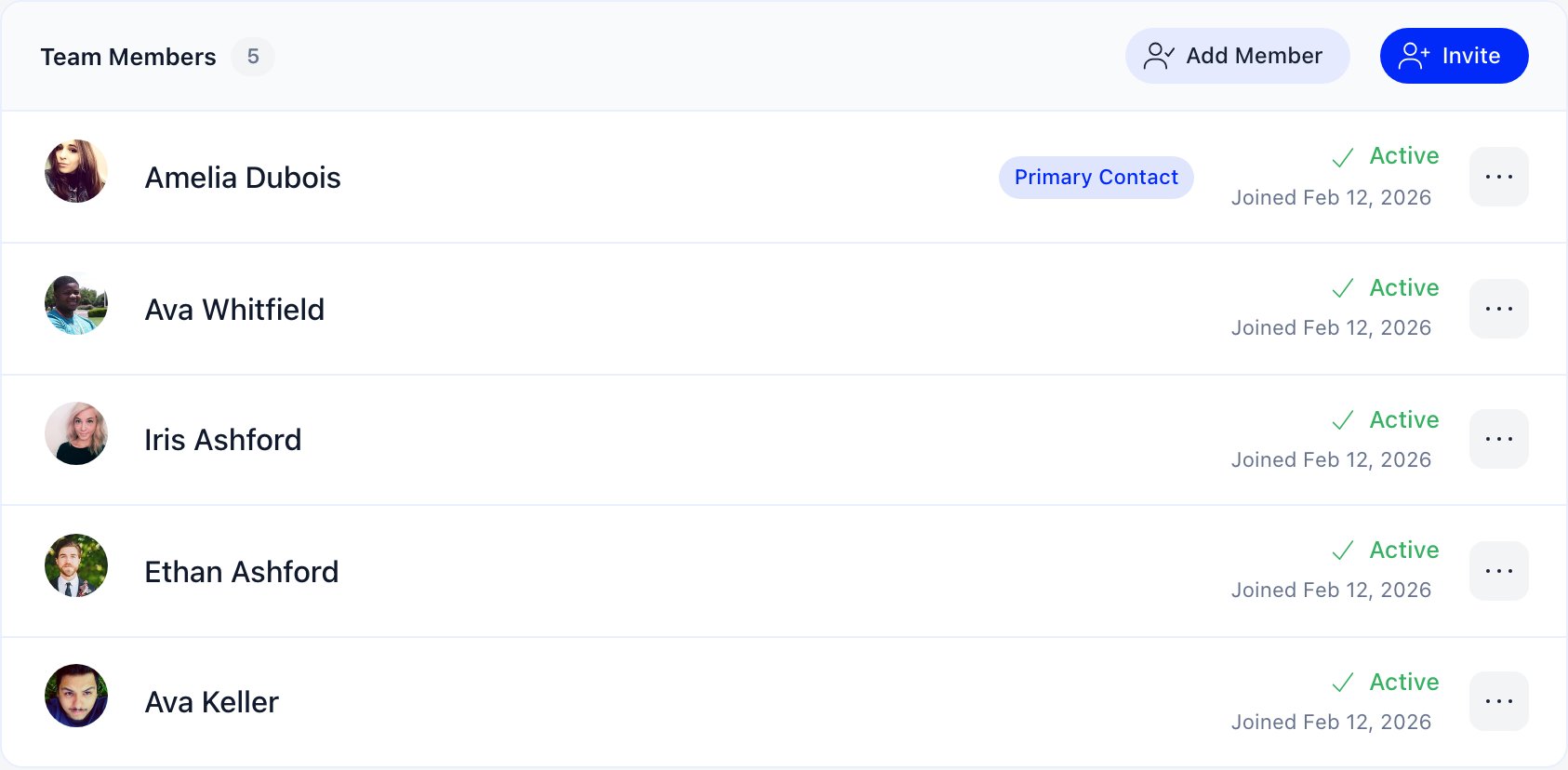
Seats, and what happens when they run out
Seats are not typed in on the company. They come from the fee price the company bought: every Company only price carries a Company slots number, and paying for that price writes the number onto the company. 0 means unlimited. The count is active members plus pending invitations, so an outstanding invitation holds a place. Memberships that have ended, and those whose user was deleted, are not counted. When the allowance is full, Invite and Add Member disappear from the company page.How an employee joins
Three routes, and you will use all three: invitations for new names, Add Member for people already in your database, and automatic domain matching for the ones who turn up at your events.Invitation, the normal route
/company-invitation/{hash}. Accepting joins the person to the company and emails them a one-time login code, creating the account first if they have none. Invitations expire after 30 days and can be resent (which resets the 30 days) or revoked.Done when the person appears in the Team Members panel with a pending invitation, and the seat counter at the top of the company has gone up by one.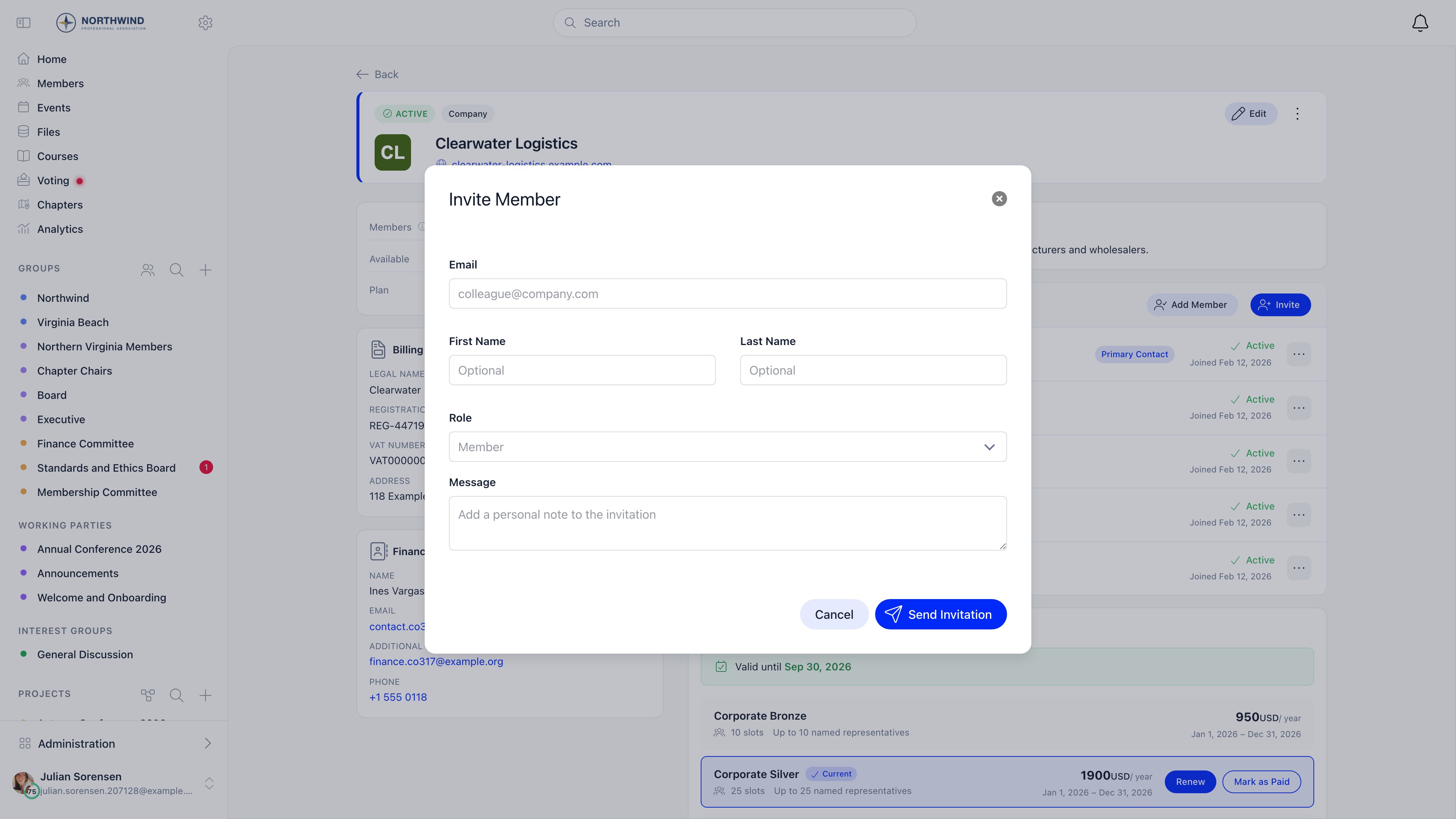
Add Member, for people already in your database
ADMIN_TENANT only, and only while seats are free.Done when the person is listed as Active in Team Members straight away, with no invitation email involved.Email domain match, automatic
What to turn on
Every switch below needsADMIN_TENANT, and the Settings screens themselves also need the Orgo administrator flag on your profile. See Permissions.
Companies, first
Settings → Modules → Companies → Configuration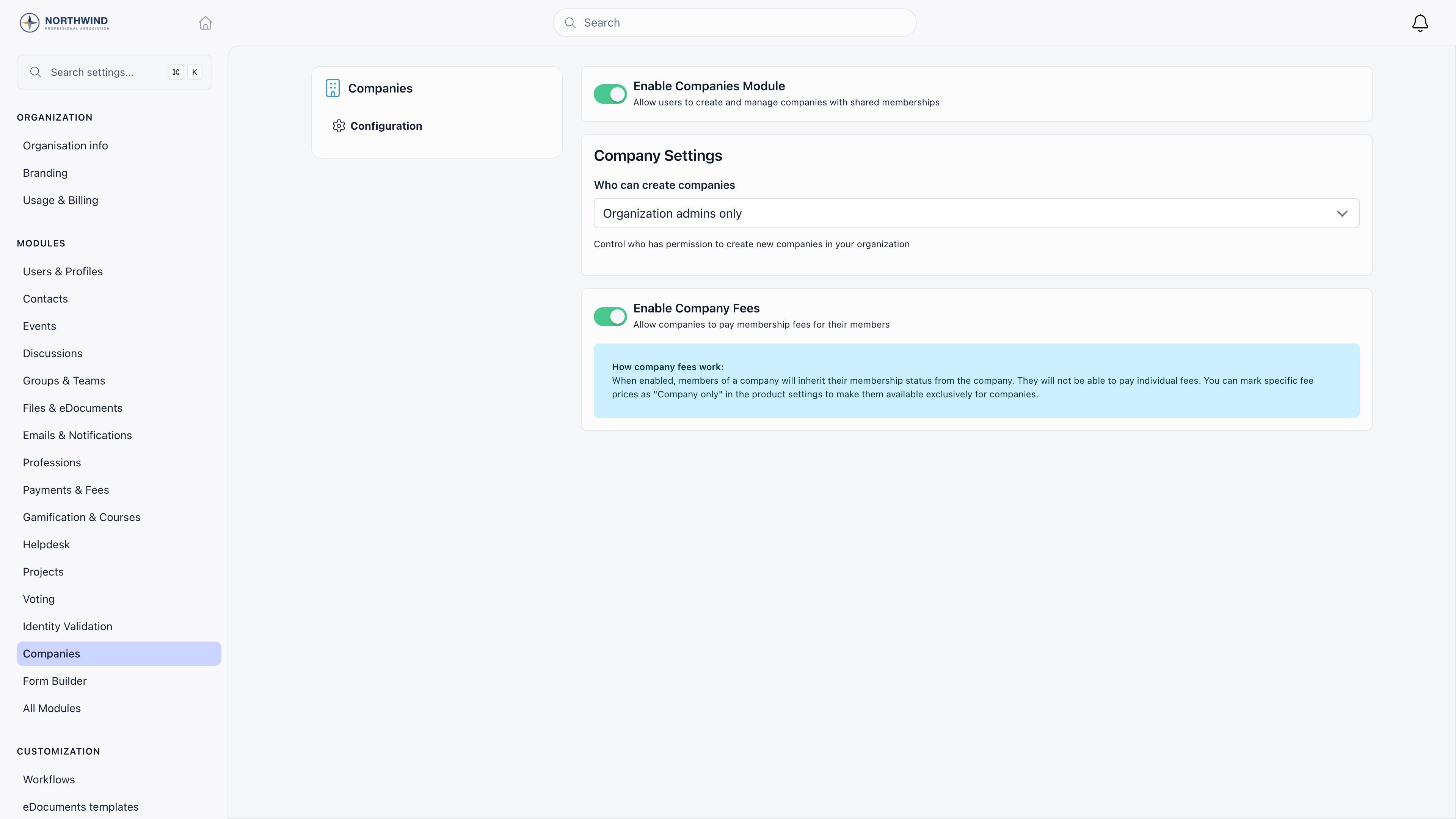
Payments and fees
Settings → Modules → Payments & FeesInvoices
Switch Invoices on in Settings → Modules → All Modules, then set Manual Invoice Product under Payments & Fees → Invoice Product. Without that product, invoice creation fails. The same tab holds Send invoice emails automatically (on by default) and Invoice membership fee payments.Chapters, only if you have a geographic tier
Settings → Modules → Groups & Teams → Local Centers → Enable Local Centers Module. Skip this unless the answer to “does a region of ours hold its own members, events and budget?” is yes. See Adding a geographic tier.Setup order
Work through these in order. Steps 1 to 4 build the money side, 5 turns the member companies on, and 6 to 9 get your real data in and the enforcement switched on last.Connect Stripe
Create the membership fee product
Add one price per corporate tier
0 slots means unlimited.Prices without Company only stay available to individual members, so a federation with associate individual members can run both from one product.Done when each corporate tier is listed on Prices & Options carrying a Company price tag, and opening one shows the slot number you typed.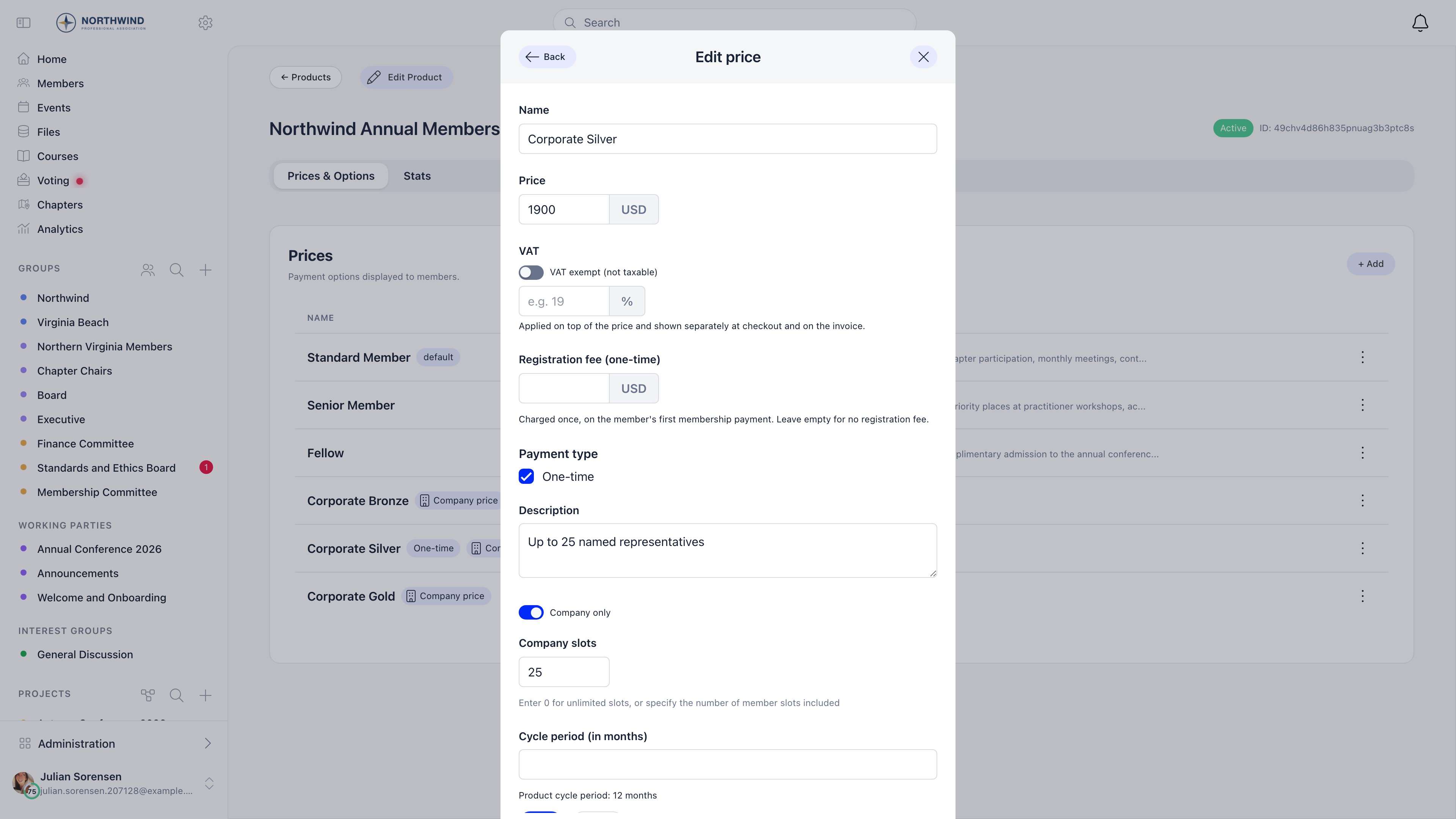
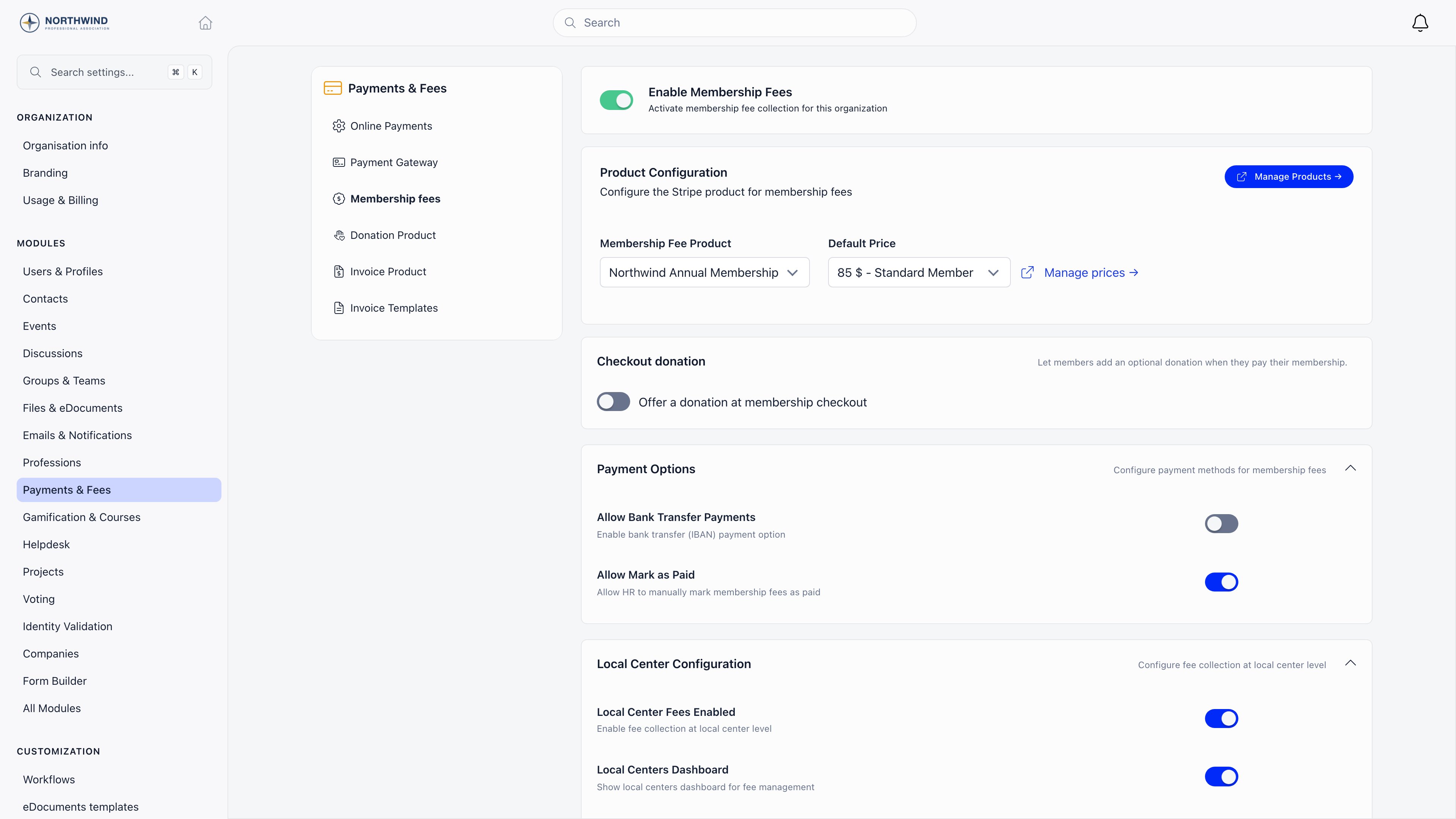
Point the organization at the product
Turn on Companies and company fees
Turn on invoicing
Import your member companies
Name a Primary Contact in each company, then invite the rest
Decide on the lockout last
Billing companies
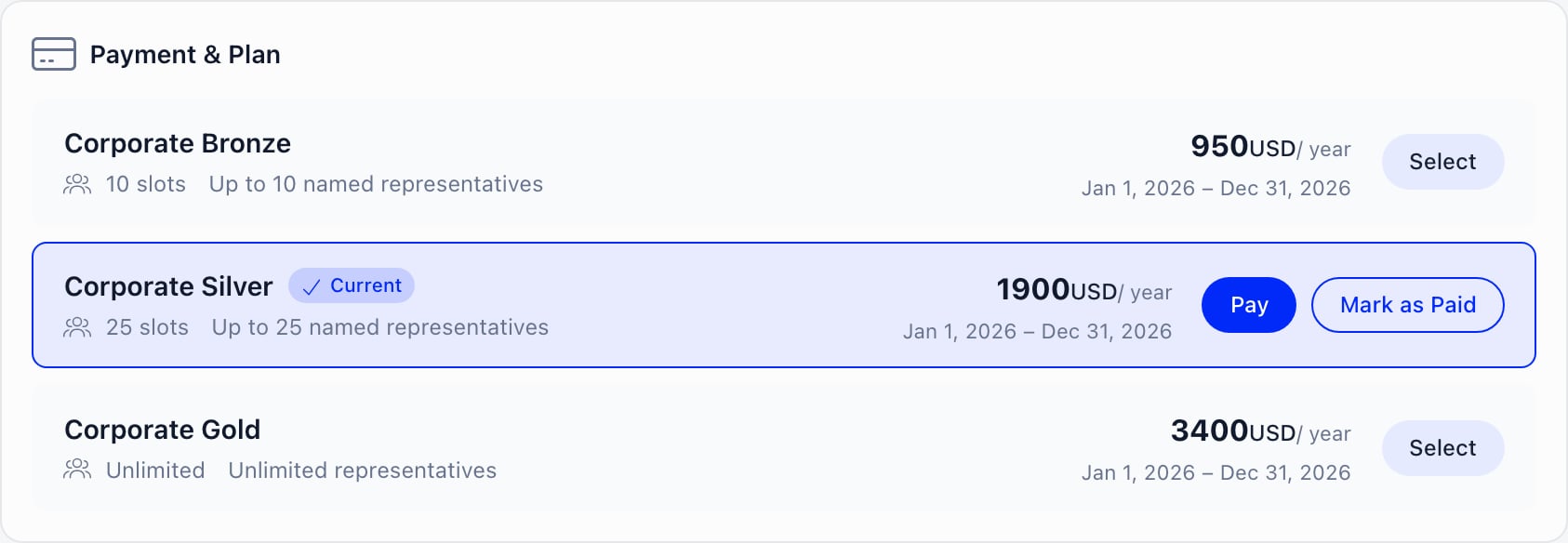
The Payment & Plan panel on a company lists every non-archived Company only price on your organization’s fee product, with its slot count and amount. It is visible to the Primary Contact (and any legacy Financial Rep) and toADMIN_TENANT.
The tier the company is on is marked Current and carries the action buttons; the others offer Select to move the company across.
Where the money goes
A company fee checkout always charges your organization’s Stripe account. There is no chapter routing for company fees and no revenue split: the full amount lands in one account, and any onward distribution to regions or member bodies happens in your own accounting, not in Orgo. Orgo takes no commission of its own; the platform application fee is present in the code but forced to zero on every charge, so what you lose is Stripe’s processing fee.The three ways a company pays
Invoices
A company only ever has one open renewal invoice. The renewal reminder flow and the Get invoice for bank transfer button share it: an unpaid membership invoice matching the current period and plan is reused, a stale one is voided and replaced, and a new one is created otherwise. While the Invoices module is active, the renewal reminder emails carry that invoice as a PDF attachment. Marking a membership invoice paid is what extends the company’s membership, which is why the Membership switch on a manual invoice matters: an invoice without it is just a document. Every invoice carries a number (the highest used in your organization plus one, never reset) and a five-character series. Voided and refunded invoices keep their number. Full detail in Invoices and Cancelling invoices.What a company payment does to its people
When a payment lands, Orgo:- sets the company’s valid-until date, never shortening one that is already further out;
- sets the company Active if it was Pending;
- writes the plan’s Company slots onto the company;
- copies the valid-until date onto every active member who has an account.
When a company fee lapses
Companies have their own reminder ladder, separate from the individual one: about a month before expiry, 7 days before, 1 day before, on the expiry day, then 7, 14 and 30 days after. Each goes To the Financial contact email, copying the active Primary Contacts and the two Additional contact email addresses. Without a financial contact email, the first Primary Contact is promoted to the To line, and a company with nobody reachable is skipped. Only Active and Pending companies are reminded, so setting one to Inactive stops both the reminder and the renewal invoice attached to it. The post-expiry rungs are exact day counts, so a company 3 days lapsed hears nothing that day. With Company Fee Payment Mandatory on and the membership lapsed:ADMIN_TENANT and fee-exempt user types, and nothing else.
HR_TENANT and FINANCIAL_TENANT through; the company gate does not. A staff member of yours who happens to belong to a member company with a lapsed fee is locked out unless they hold ADMIN_TENANT.Adding a geographic tier, if you need one
Chapters (called local centers in the data model, the API and the permission names) are optional. Turn them on when a region genuinely holds its own members, events, files and budget, and skip them otherwise: they add a permission scope, a second fee, and a second set of admin screens to every screen you already run. Settings → Modules → Groups & Teams → Local Centers → Enable Local Centers Module. What it changes:HR_TENANT, because the link decides who administers the branch.
Two grouping tools that are not chapters and are worth knowing before you build a hierarchy you cannot undo:
- Regions (Enable Regions) are a flat label on a chapter, used for filtering and grouping. They grant nothing on their own, and they are not a layer of the chapter tree.
- Role groups are spaces whose membership is a query over roles, age, gender, region or fee tier, recalculated as your data changes. They are the right tool for “every Primary Contact” or “every company representative in the north”, and the wrong tool for a permanent tier of your organization.
Permissions
Company access is decided by a company-specific check, not by the chapter permission family.ADMIN_LOCAL.
ADMIN_LOCAL check is not scoped to anything: a chapter admin who qualifies reaches every company in the organization, not the ones “in their area”. Set Who can create companies to Organization admins only if that is not what you want.
Two more things worth knowing before you delegate:
- The Company tab appears on a member’s own profile only. An administrator looking at somebody else’s profile cannot see which company they belong to from there; go through the company record, or read the fee column on the members list.
- Renewal correspondence follows the company record, not permissions. Whoever is in Financial contact email and Additional contact email 1 and 2 receives the ladder, regardless of what they can do in the platform.
Reporting
/fee/stats, FINANCIAL_TENANT) adds a fees-by-chapter table: chapter, status, active member count and fees paid for a chosen period, with chapters under Minimum Members per Local Center or Minimum Active Members Percentage highlighted for ADMIN_TENANT.
Limits worth knowing before you start
- A person belongs to at most one company. There is no way to attach somebody to two member companies, and an invitation to a second one is refused.
- Companies are organization-wide. A company has no chapter field, so it cannot be owned by a region, filtered by one, or billed through one.
- Voting Representative is a label. Nothing in the voting module reads it: every employee with an account votes as an individual, and there is no one-company-one-vote weighting.
- Contacts occupy seats but inherit nothing. A contact has no fee date, so company membership sync skips them. Use contacts for people you communicate with, not for people who need to sign in.
- Domain matching ignores the seat allowance. An event registration that matches a company’s website domain adds the person even when the company is full, so a company can end up over its allowance without anyone acting.
- Company fees replace individual fees entirely for those people. There is no “company pays half” arrangement, and no way to leave an individual fee in place beside a company one.
- One Stripe account for company money. Company fees never route to a chapter account, and Orgo performs no split between tiers.
- Renewal is windowed. A company cannot pay several periods in advance: the Pay button and the bank-transfer invoice both wait for the 60 day window.
- The company gate is all or nothing. With Company Fee Payment Mandatory on, only
ADMIN_TENANTand fee-exempt user types are spared.
Setup checklist
Work down this list once and your federation is live. Each line is an outcome you can see on screen, in the same order as Setup order above.- Organization country set under Organisation info, and Stripe connected on the Payment Gateway tab
- Membership fee product created with the right Period and Cycle beginning (both lock on save)
- Company fee prices created on that product: one Company only price per corporate tier, each carrying its own Company slots allowance
- Organization pointed at the product: Enable Membership Fees on, with a Membership Fee Product and a Default Membership Fee Price selected
- Companies module on, Who can create companies deliberately chosen, and Enable Company Fees on
- Invoices module on and a Manual Invoice Product set, so renewal reminders can carry a PDF
- Member companies imported, each with legal name, billing address and VAT number filled in
- One Primary Contact named per company, and a Financial contact email on every Financial Contact card
- Employees invited or added, with each company’s seat counter below its allowance
- First billing round settled, then Company Fee Payment Mandatory switched on or left off as a decision
Troubleshooting
The company paid, but its people still show as unpaid
The company paid, but its people still show as unpaid
Get invoice for bank transfer is missing or fails
Get invoice for bank transfer is missing or fails
Invite and Add Member have disappeared from a company
Invite and Add Member have disappeared from a company
0 slots is unlimited.Someone was added to a member company nobody invited them to
Someone was added to a member company nobody invited them to
Our own staff member is locked out by a company fee
Our own staff member is locked out by a company fee
ADMIN_TENANT and fee-exempt user types, and nobody else. The individual mandatory-fee gate is more forgiving (it lets HR_TENANT and FINANCIAL_TENANT through), which is why this only bites on the company side.If the person genuinely belongs to a member company, the honest fix is to settle that company’s fee. If they were attached to a company by mistake, or by domain matching, remove the membership: that clears their fee date and fee price, and the individual rules take over again.A member of a company wants to pay their own fee
A member of a company wants to pay their own fee
Can a region bill its own member companies?
Can a region bill its own member companies?
Can we give each member company one vote?
Can we give each member company one vote?
An administrator cannot see which company a member belongs to
An administrator cannot see which company a member belongs to
We deleted a company and its people still look like members
We deleted a company and its people still look like members
Related
- Companies - the full company record, roles, seats and invitations
- Membership Fees - cycles, proration, validity and the mandatory-fee settings
- Products - fee products, Company only prices and Company slots
- Invoices - numbering, templates, and getting the document to the payer
- Stripe Integration - which account receives what, and what breaks without it
- Chapters - the optional geographic tier and its permission scopes