

How to access
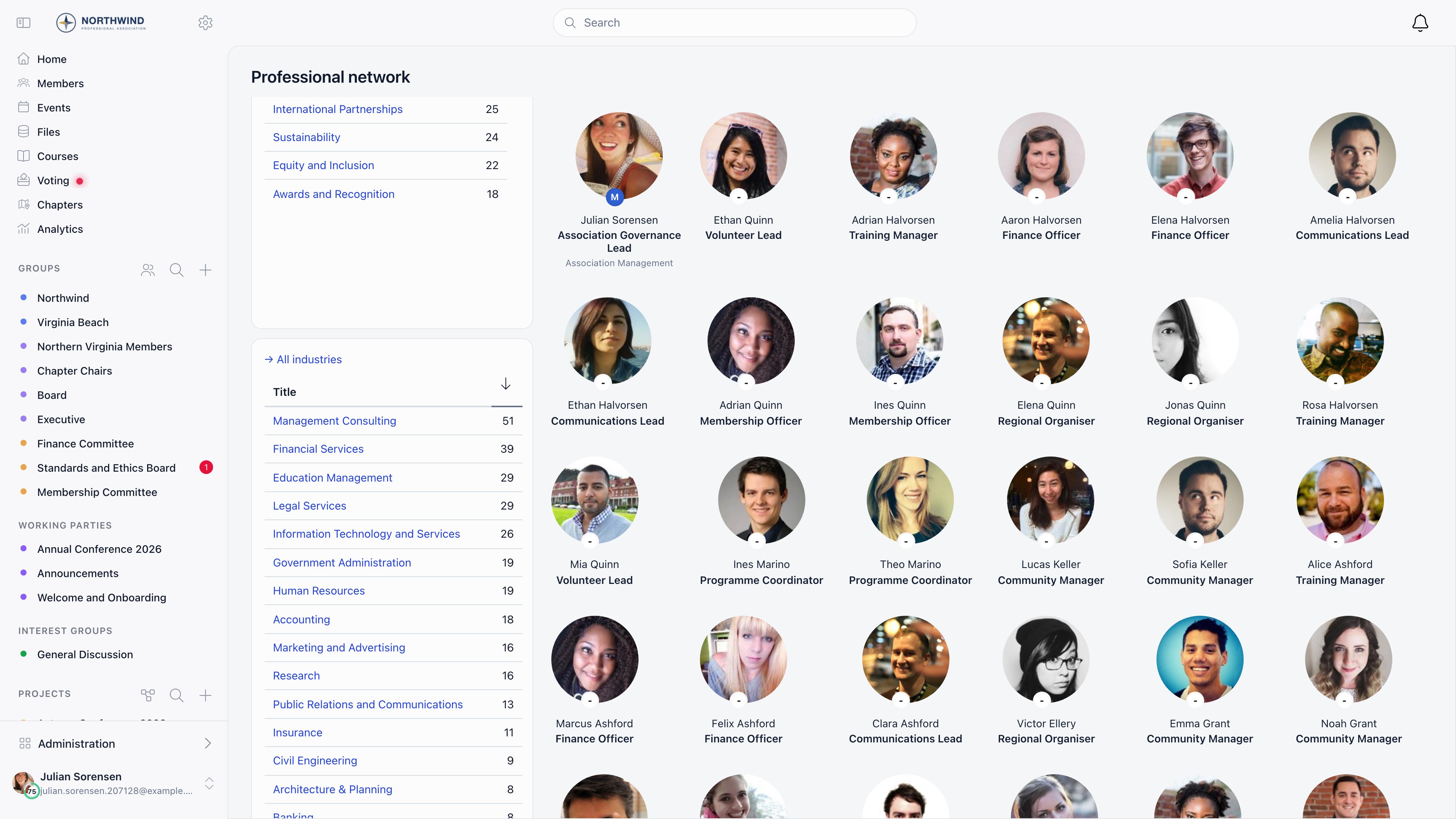
The directory lives at/professional-network. It is not in Orgo’s default sidebar, so add a Professional network item through the Menu Organizer. Clicking an industry on someone’s profile also lands here, pre-filtered. Being signed in is the only requirement, subject to Who can see whom. Admins configure it under Settings → Modules → Professions, which requires ADMIN_TENANT.
Turning it on
Four switches, saved the moment you flip one.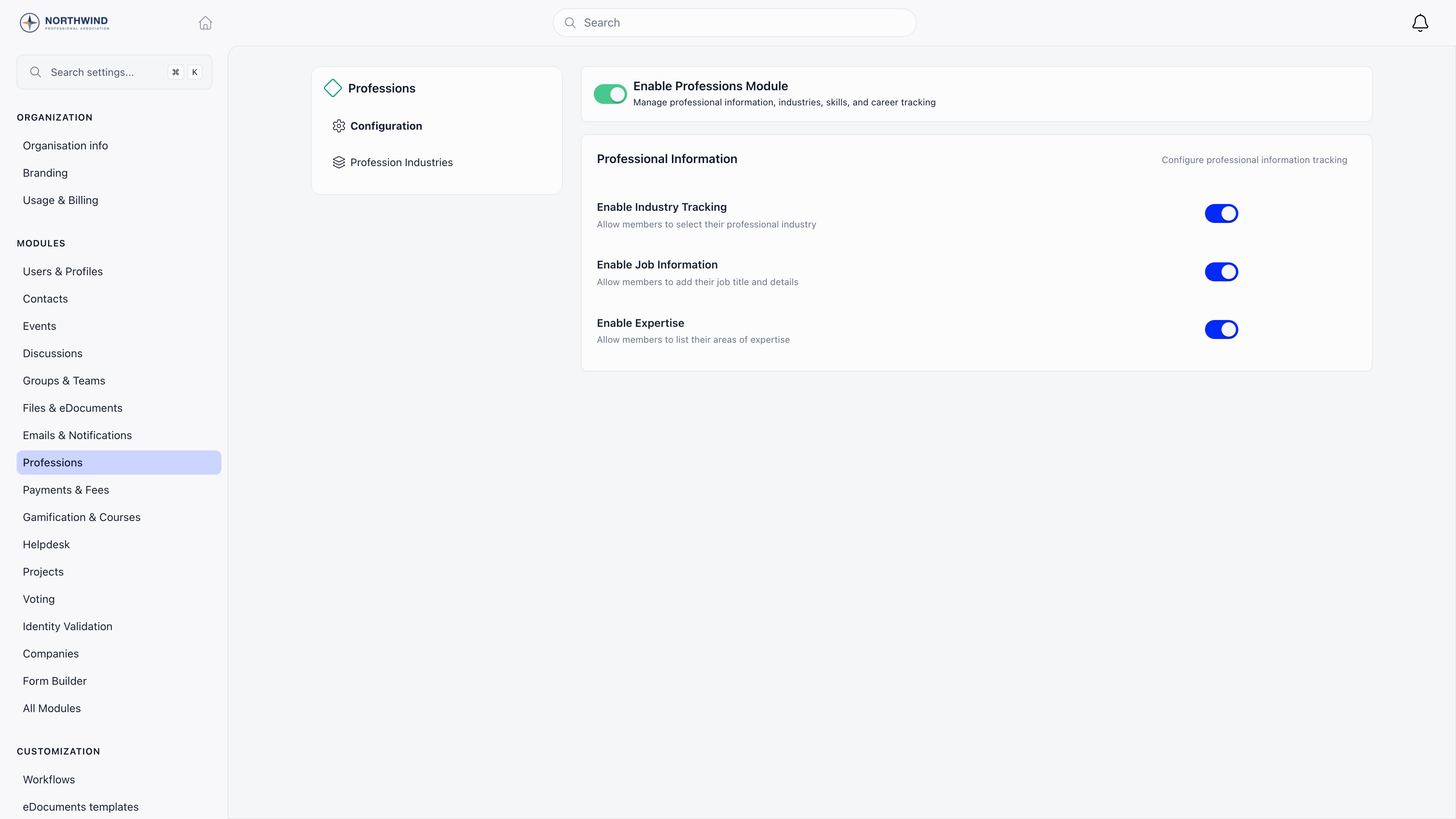
Headline, sector and the current-organisation fields are not switches here. They are rows on the profile form.
What members fill in
The Profession tab on a profile shows only the fields you have enabled. Members edit their own; an admin needsADMIN_LOCAL or higher over that member.
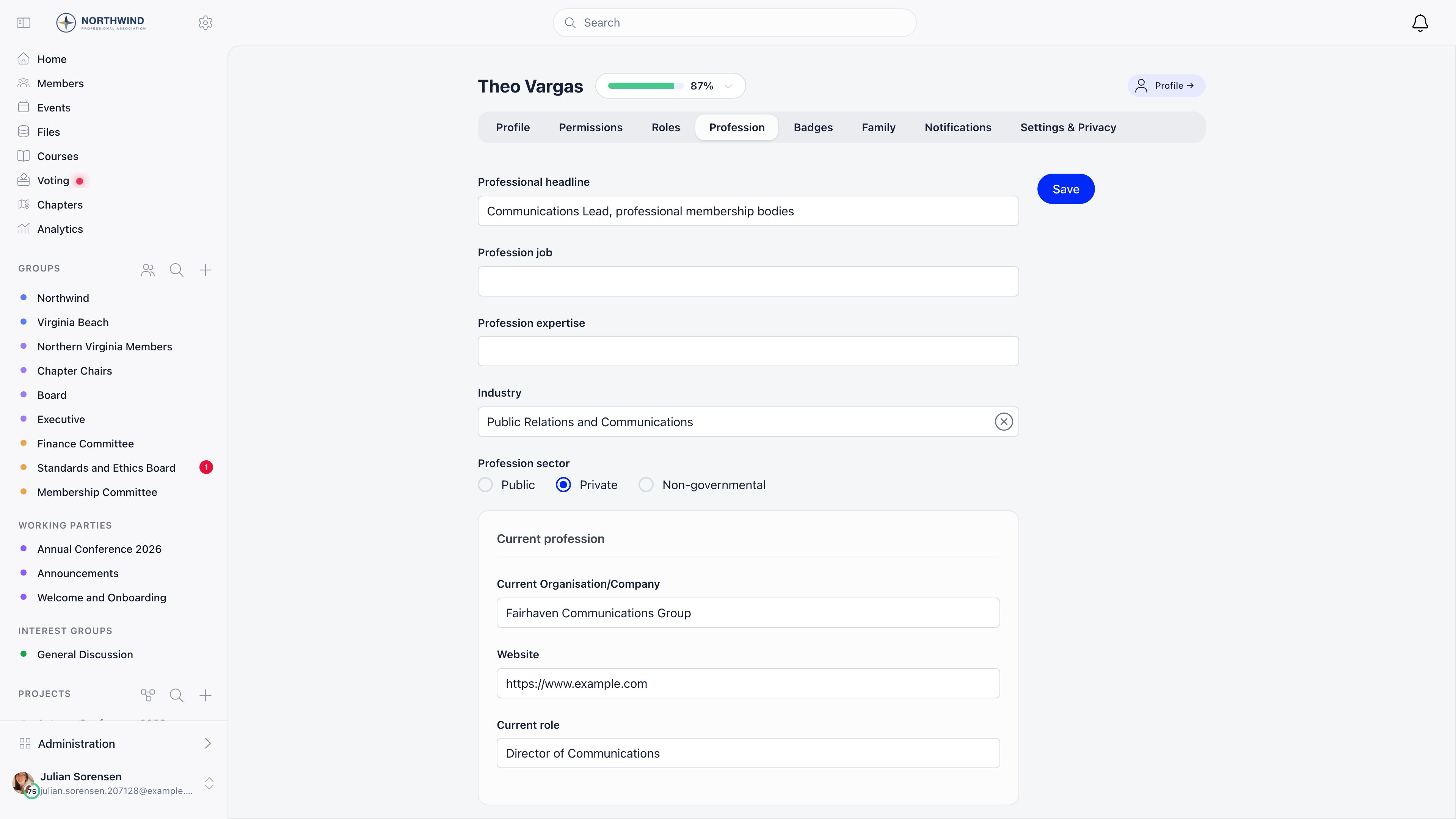
The billing fields on the same tab (company identifier, legal name, address, commerce registry number) are for invoicing, not for the directory. See Companies.
Browsing the directory
Unfiltered, the directory lists every active member with a profession headline, newest profession update first. Your own card comes first, carrying Add profession and Add industry prompts while yours is empty. Cards show photo, name, user type, headline, industry, a supporter badge if the member subscribed to your support product, and a LinkedIn icon when their LinkedIn URL is set. Three filters, which combine:Managing the industry catalogue
Settings → Modules → Professions → Profession Industries, visible only while Enable Industry Tracking is on, lists roughly 148 industries Orgo ships globally plus any you add.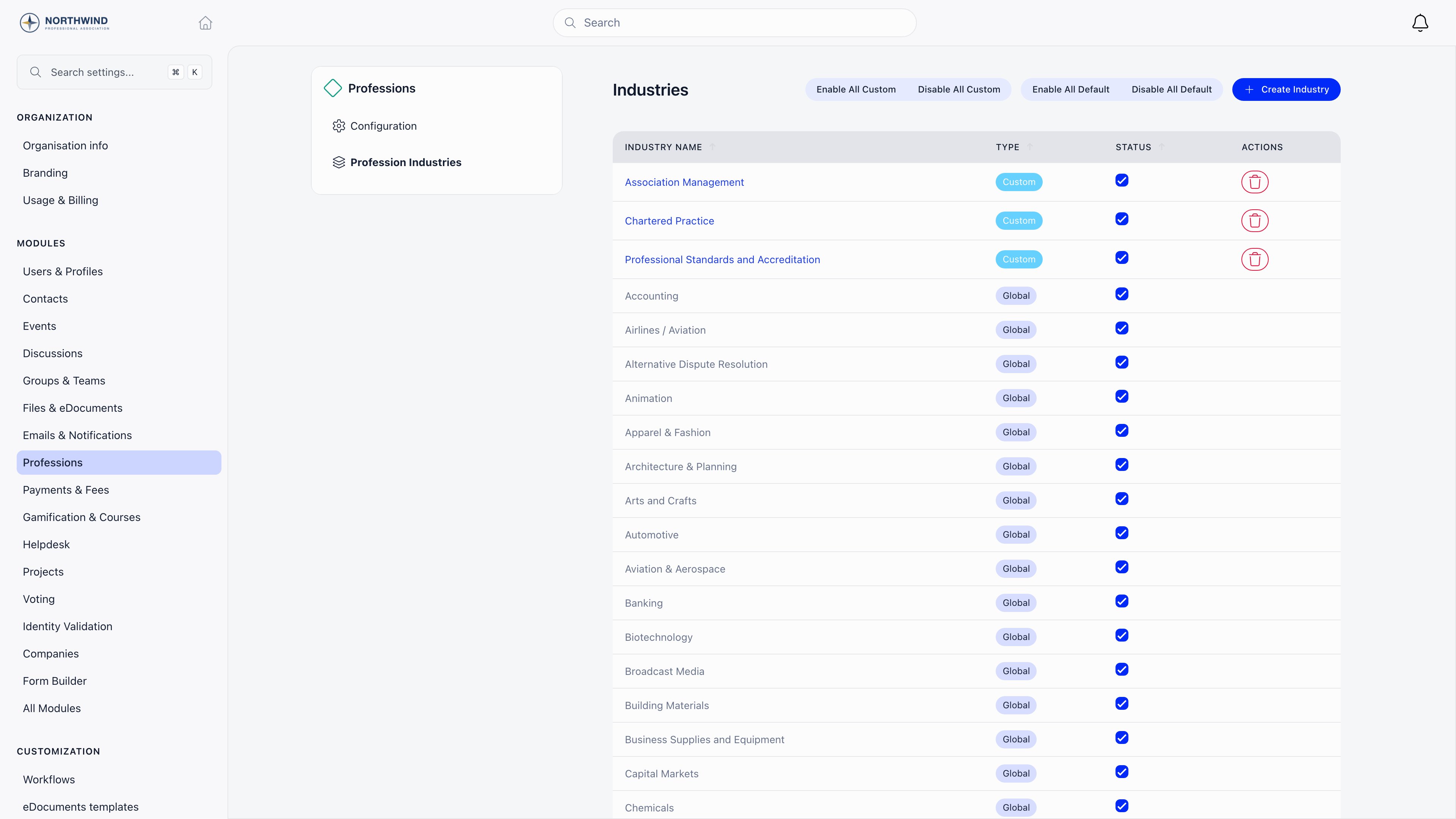
Every write on this screen, creating, renaming, deleting and the bulk enable and disable buttons, is refused unless your account carries the tenant administrator role. An admin who holds
ADMIN_TENANT as a permission rather than as the role can open the screen and read the list, and gets Access Denied on the buttons.Connections
Connections have their own switch, Settings → Modules → Users & Profiles → Profile Settings → Has Connections, on by default and working whether or not the Professions module is on.1
One member sends the request
Connect on the other member’s profile, or on a Discover members card.
The button is only there when the other account is active, you are not
already connected, neither of you has a request pending with the other, and
you are not inside a cooldown.
2
The recipient is told
They get an in-app notification and an email. Only they can respond: the
sender’s button becomes Request pending and does nothing until they do.
3
They accept or decline
From the profile, or from Requests received on the Connections tab
of their own profile, which carries a dot while anything is waiting.
Accepting notifies and emails the sender; declining tells them nothing.
4
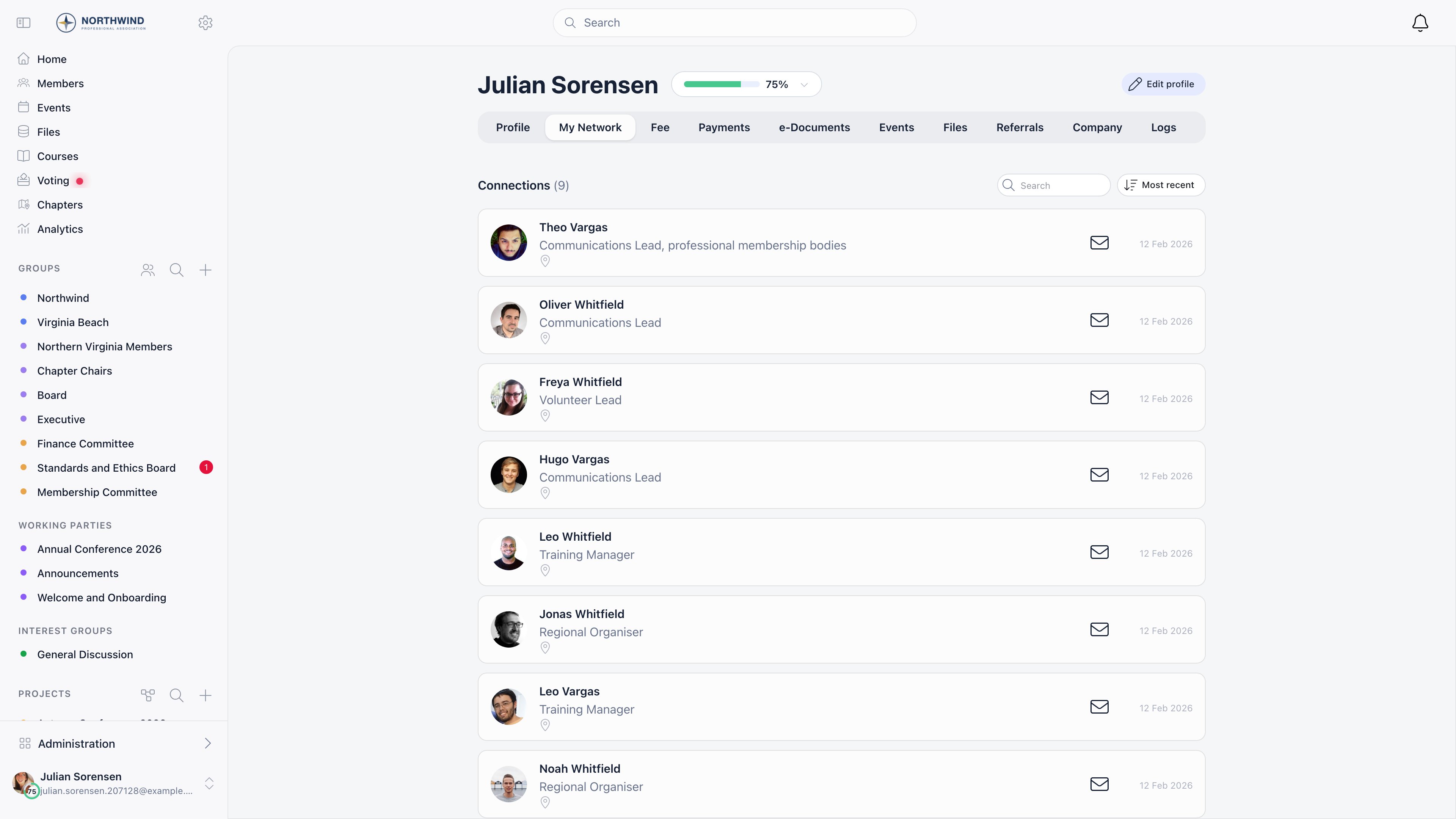
The connection appears for both
Under accepted connections on each side, searchable and sortable by most
recent, least recent or name, and counted on the tab.
- 20 connection requests per hour per member. The 21st is refused until the hour is up.
- A 21 day cooldown, which starts when a pending request is cancelled, not when one is declined. A member who sends a request and then withdraws it cannot ask that person again for three weeks. A member whose request was declined can ask again immediately, and the declining party is never told either way.
Discover members
User Recommendations, on the same Profile Settings screen, gives members a Discover members carousel of suggested people, also placeable on the dashboard as a widget. Suggestions score out of 150 points across five signals:
Excluded: members already connected, already asked, in a decline cooldown, under 18, or with a private profile. At most 50 suggestions are produced, cached for 48 hours and refreshed sooner when a connection is sent or accepted.
Who can see whom
Individual privacy. Each member has a Profession & social media toggle in their privacy settings. Set to admin-only, it blanks their headline and industry for everyone except tenant admins, HR staff, and staff in their own local center. The organisation-wide default is Settings → Modules → Users & Profiles → Privacy Defaults. Signed-out visitors never see profession data. See Privacy Settings. Directory visibility. Who Can See Members in General Groups, under Privacy & Visibility in the same module, applies here too. Raised above ordinary members, plain members can still browse and filter by industry, but keyword and interest filters are refused and recommendations fall back to their own local center.Common questions
A member filled in their profession but does not appear. Why?
A member filled in their profession but does not appear. Why?
The unfiltered directory lists only members who have a Profession
headline and status Active. Industry, job title and expertise on their own
do not put anyone in the list, which is the usual cause: the member filled
in the pickers and skipped the free-text line.A useful way to confirm it: filter by their industry. The industry filter
drops the headline requirement, so someone who appears under their industry
but not in the unfiltered list is missing a headline and nothing else.
The Profession tab is missing from a profile
The Profession tab is missing from a profile
The tab renders only when there is something to put on it. It needs
Enable Professions Module on, plus at least one available field, which
can come either from the module switches (industry, job, expertise) or from
the profile form (headline, sector, the current organisation fields).Switching the module on while every field is off leaves the tab empty and
hidden. Check the profile form as well as
the module screen.
Searching by profession returns an access error
Searching by profession returns an access error
That is Who Can See Members in General Groups, under Privacy &
Visibility, set above ordinary members. The rule is about which member
lists a plain member is allowed to pull, not about the professional network
as such, and it hits the keyword and interest filters because those ask for
a list of members with no group or industry attached.Two things still work for those members: browsing unfiltered and filtering
by industry. So the practical workaround is to pick an industry first and
then type in the search box, since the request then carries the industry and
is allowed. Guests are refused in every case.
A member sees 'Error sending connection request' and no explanation
A member sees 'Error sending connection request' and no explanation
The interface shows one generic toast for every refusal, so read it as “the
server said no” and work through the four possible reasons: the sender has
sent 20 requests in the last hour, the sender is in a cooldown with that
person, the recipient’s account is not Active, or the recipient has already
sent them a request that is waiting to be accepted.The last one is the most common and the least obvious: the member should
look at Requests received on their own My Network tab, where the person
they were trying to reach is probably already waiting.
A member cannot re-send a request after it was declined
A member cannot re-send a request after it was declined
A decline does not block anything. If the recipient used Decline, the
sender can ask again straight away.What does block for 21 days is cancelling your own pending request. If the
member withdrew the request rather than being declined, the cooldown is
running and the Connect button stays hidden until it expires. So the
question to ask is not “were they declined” but “did they cancel”.
Discover members keeps suggesting the same people
Discover members keeps suggesting the same people
Suggestions are cached for 48 hours per member, and only rebuilt earlier
when that member sends or accepts a connection. Nothing else refreshes them,
so a member who fills in their profile and reloads sees the same list.Also check what the score is actually made of: location, age proximity, how
recently the person joined, mutual connections and recent logins. Profession
plays no part, so telling members to complete their professional profile in
order to get better suggestions is not true. Members who are already
connected, already asked, in a cooldown, under 18 or on a private profile
are excluded entirely, which is why a small or young organisation can run
out of suggestions long before the 50-suggestion ceiling.
I disabled an industry and members who chose it now show a blank industry
I disabled an industry and members who chose it now show a blank industry
Expected. Unticking an industry removes it from the pickers and from the
directory’s industry list, but the value stays on the member records that
already had it. Cards resolve the name from the enabled list, so those
members show an empty industry line rather than the old name.Tick it back on to make the name reappear, or edit those members onto an
industry you kept. Deleting is only possible for industries you created
yourself, which is the safer reason to disable rather than delete.
We want to track skills as well
We want to track skills as well
Skills are separate: Enable Skills Field, on the same Profile
Settings screen, adds a Skills custom field seeded with a predefined
catalogue. It is not part of the Professions module and does not appear in
the directory filters, so use expertise if you want people to be findable by
it here.
Related
- Profile Fields for adding the headline, sector and company fields
- Custom Fields for designating the interest field
- Privacy Settings for what members can hide
- Members for the main member directory and its filters
- Companies for company records and billing details