

Creating a task
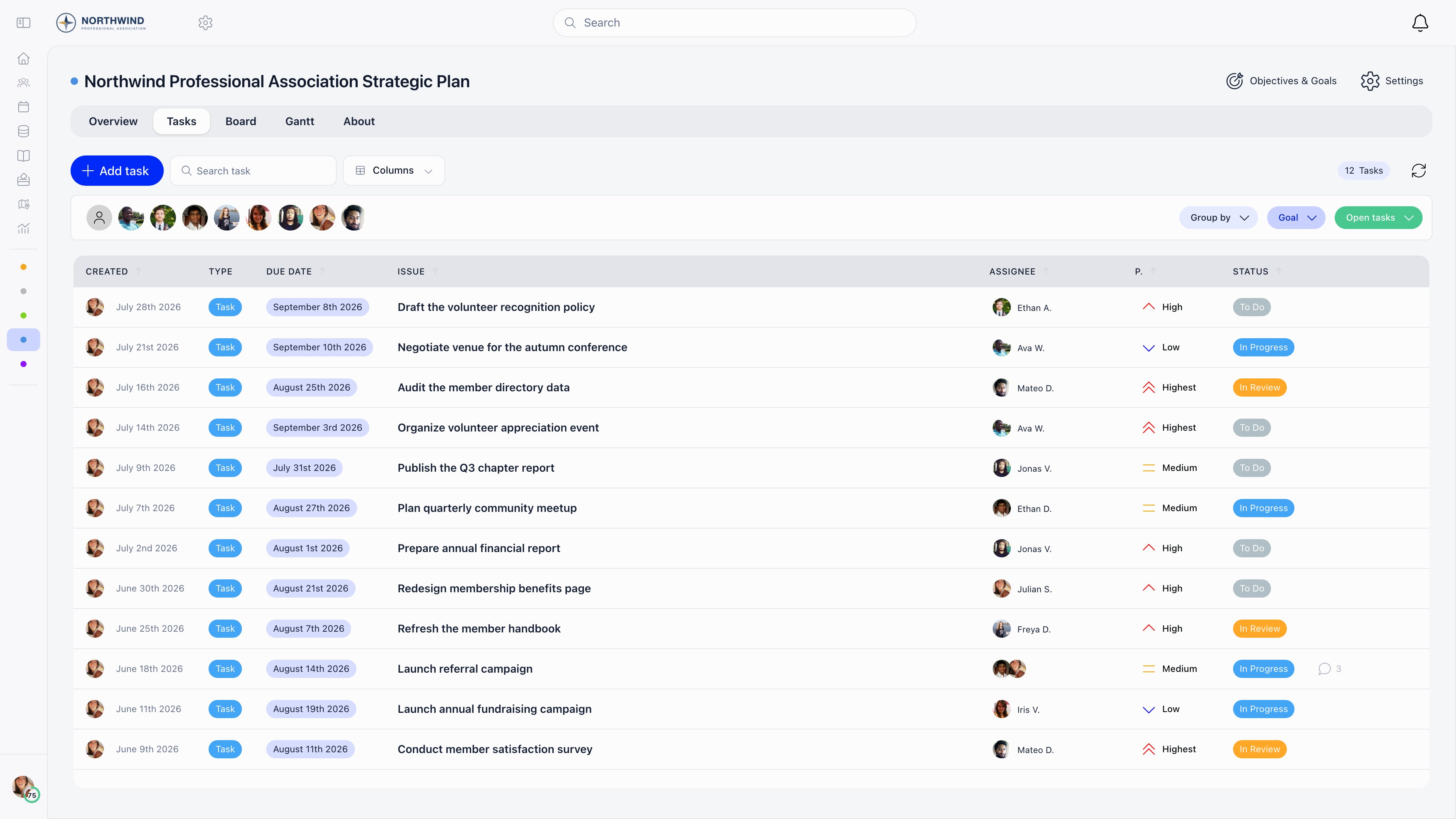
Open a project and use Add task on the Tasks, Board or Gantt tab. Anyone who can open the project can create tasks. Dragging files onto a project also opens the form with those files attached.
The task list, board and Gantt only show the fields the project has switched on under Task options, so a project without priorities or due dates gets a simpler form.
Statuses and types
Both are defined per project under Settings → Statuses & types, so two projects can run entirely different workflows. A status has a name, a colour and a Mark as closed switch. Closed is what makes a task count as complete: it removes the task from open filters, from the daily digest and from reminder emails, and it satisfies any dependency on that task. A new project starts with To do, In Progress and Done, with Done marked as closed. A type has a name and a colour only. It is a label for grouping and filtering.Assignees and completion
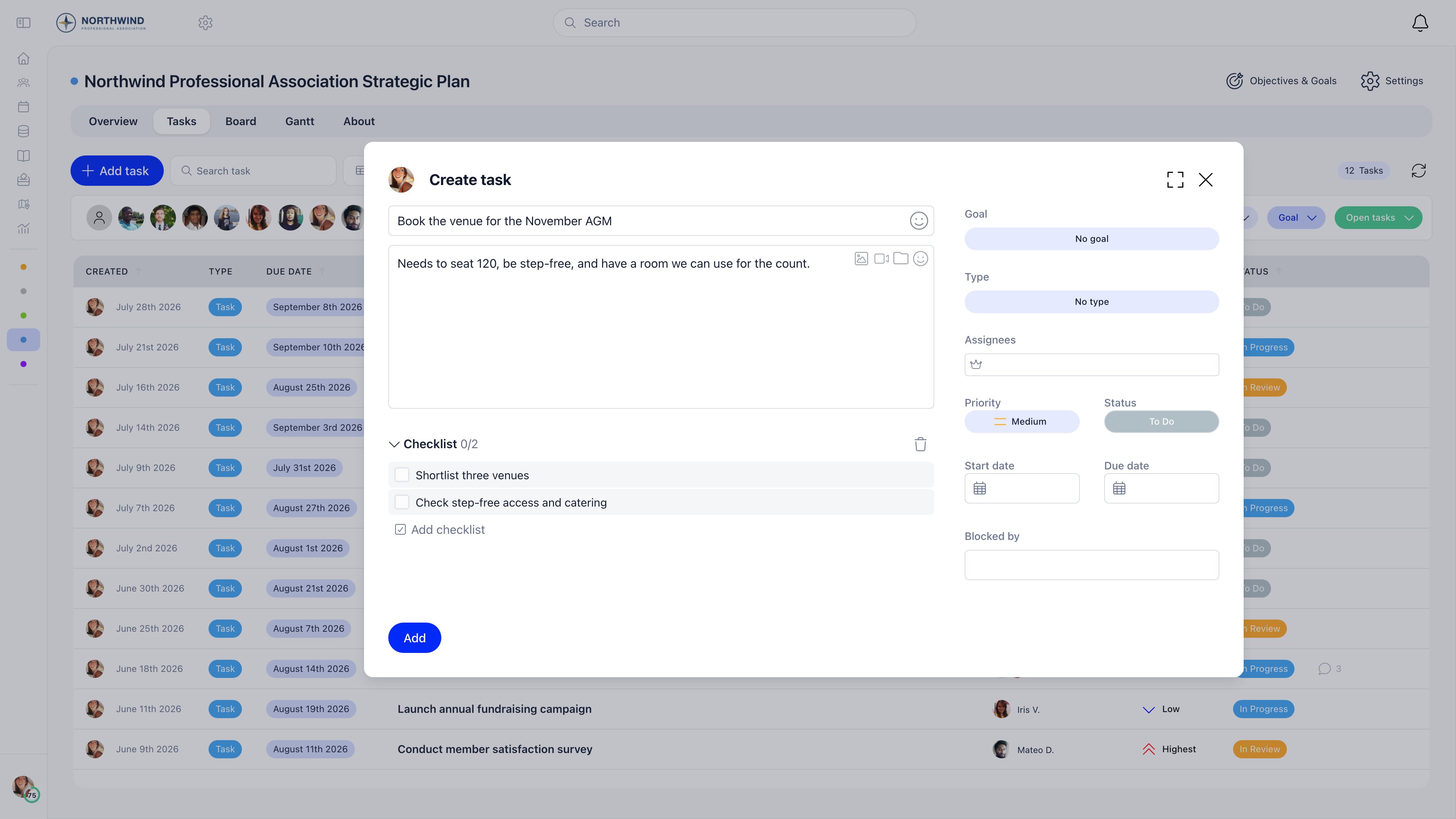
A task can have several assignees, each with their own tick box, and the task shows a counter such as 2/3. Only that assignee can tick their own box;ADMIN_TENANT can tick anyone’s. Completing every assignee’s part does not close the task automatically: someone still has to move it to a closed status.
Editing a task is open to ADMIN_TENANT, the project owner, any assignee, and whoever created the task. Deleting a task is limited to ADMIN_TENANT, the project owner and the task creator.
Dependencies
Blocked by lists tasks that must be finished first. Orgo enforces three rules when you add one:- the blocking task must be in the same project,
- a task cannot block itself, and the chain cannot loop back on itself,
- a dependency chain deeper than 100 levels is rejected.
Comments and history
Comments sit at the bottom of the task. They take rich text, images and files, support threaded replies and emoji reactions. Posting a comment notifies the task assignee and the task creator in the app, and emails everyone assigned plus the creator, skipping whoever wrote the comment. On an archived project the comment is saved but nothing is sent. Every status change, assignee change, priority change and due date change is written to the task history with who made it and when.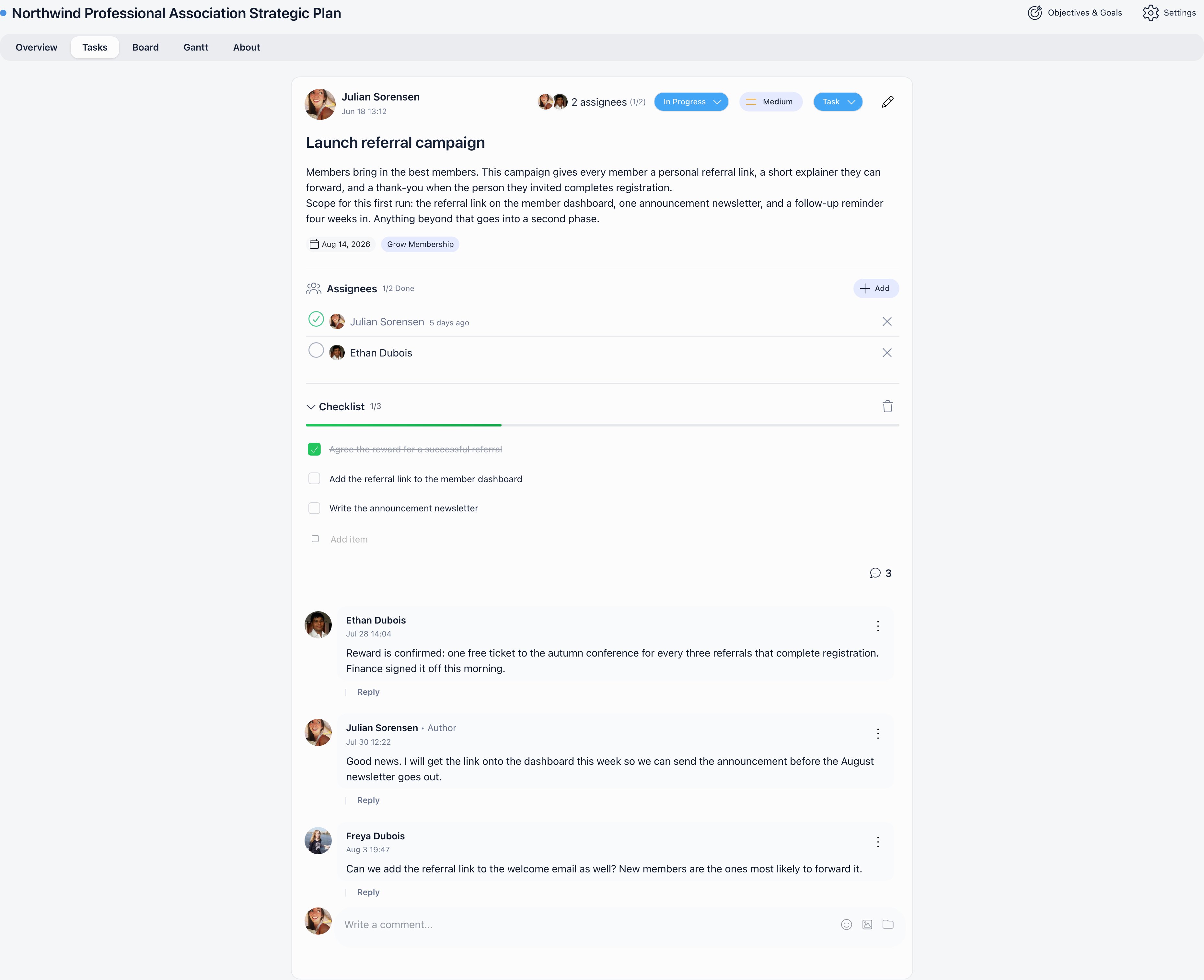
Finding tasks
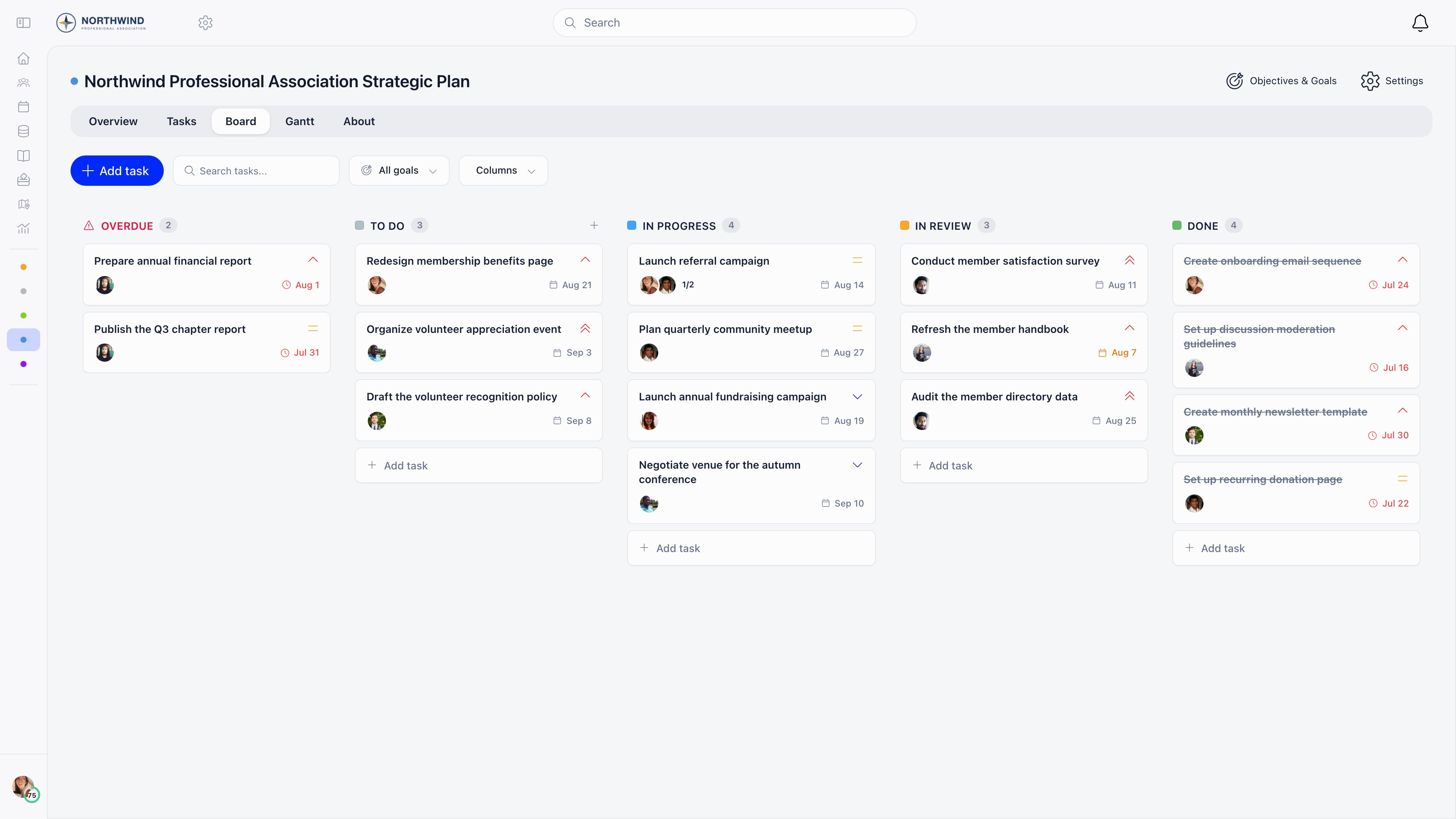
The Tasks tab is the full list. It shows 20 tasks a page, or the whole set when grouping is on.
The Overview tab’s counters are shortcuts into the same list: clicking overdue, unassigned, due in 3 days or no dates applies that filter.
The Board tab is a kanban view with one column per status plus optional Overdue and No status columns; dragging a card changes its status. The Gantt tab plots tasks and goals over a day, week or month scale, and dragging a bar or its edges changes the dates.
My tasks
The dashboard carries a My Tasks card listing your open tasks from active projects, soonest due date first and then by priority, with a link through to Projects. Archived projects and tasks in a closed status are left out.Emails about tasks
The digest groups your work into overdue, due today, due this week and high priority, and adds up to five tasks with no due date. If none of the first four groups has anything in it, no digest goes out that day.
Archiving a project silences the first three emails for its tasks. The digest is the exception: it still lists tasks from archived projects.
The daily digest is the one task email a member can switch off, using the Task toggle in their profile notification settings. The organisation default for new members is Email Notifications: Tasks under Settings → Modules → Emails & Notifications → Notification Preferences, and it ships set to Instant. The assigned, status changed and comment emails have no member-level switch and are not in the Email Templates catalogue, so they cannot be edited or turned off from Settings.
Related
- Projects - projects, access, goals and the project views
- Issues - the separate issue tracker inside groups
- Notifications - the notification switches and defaults
- Emails - how system emails are built, sent and logged
- Permissions - what
ADMIN_TENANTandHR_TENANTunlock