

Which route to use
Adding a person to a member company is a separate job with its own section
further down. It attaches someone to a
company that already holds the membership, and it is not a general way of adding
members.
1. Register member, from the member directory
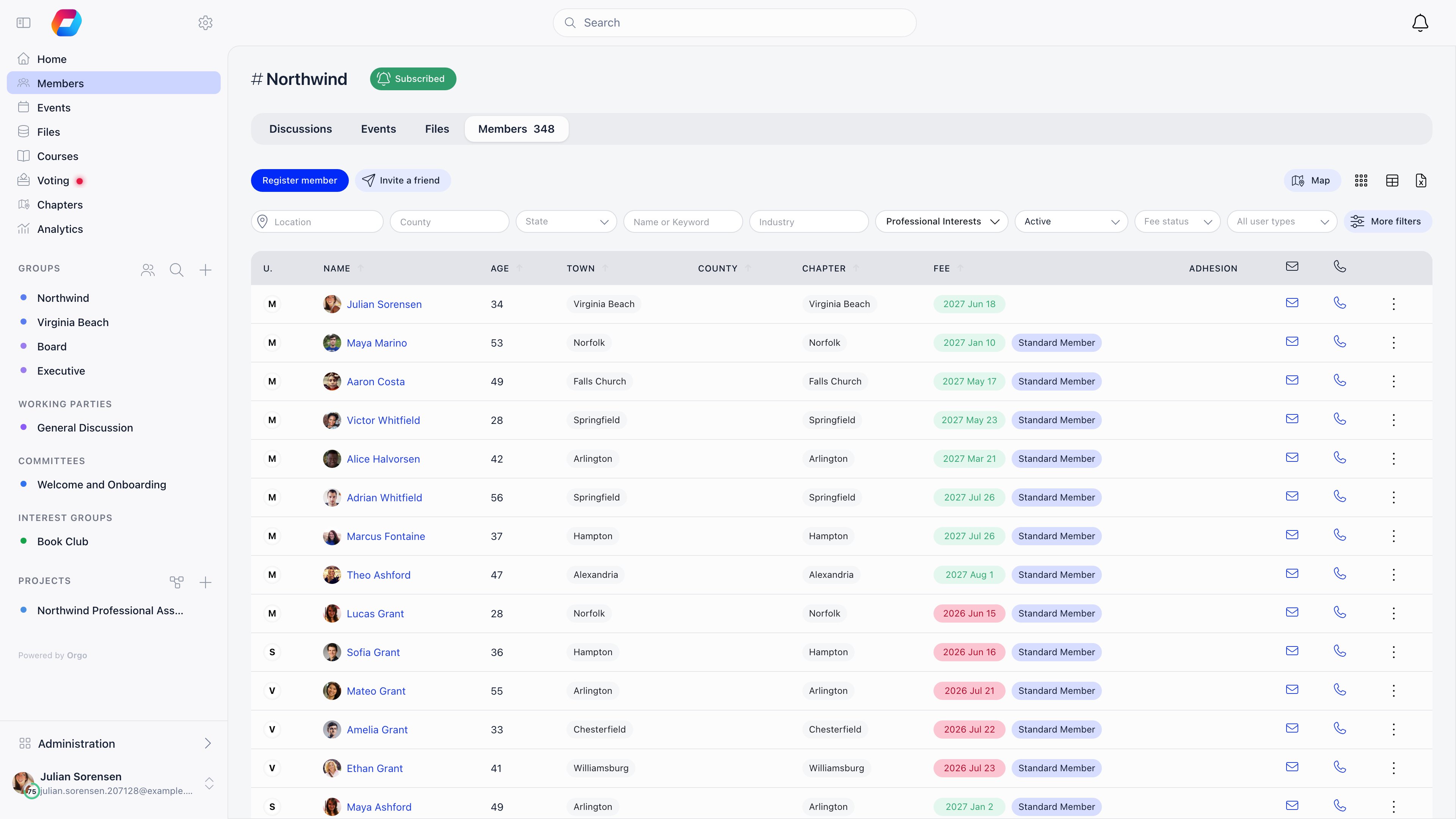
HR_TENANT on the organisation-wide list. HR_LOCAL only on their
own chapter’s list, so a chapter secretary has to pick their chapter in the
Chapter filter before the button appears. An administrator without
HR_TENANT and without a chapter on their own account is refused on save with
“You cannot create user without a local center”.
What you fill in. First and last name, email, chapter, user type, phone,
birthday, gender, town of residence and town born, address and postal code, plus
two collapsible blocks: Permissions (HR_LOCAL and above, and you can only
grant what you hold yourself) and Roles. If the Companies module is on and
you may assign a company, a company and company role appear too.
What the person receives. The email address is labelled optional and it is
what decides whether this is an account or only a record. With one, Orgo sends
the Account created by admin message naming you and linking to the login
page, and they sign in with an email one-time code and set their own password on
the way through. Without one, nothing is sent and nobody can sign in as them.
What state the account lands in. The status comes from Settings →
Users & Profiles → Configuration → Default Status for Admin-Created
Users: Active by default, or Inactive, Unapproved, Waiting List, Suspended or
Excluded. That setting always wins, whatever any screen appeared to ask for.
Fields you marked Required on the registration form
are not asked for here, because nothing created this way passes through that form.
If a field must be present on every profile, mark it required on the
profile form instead, which is re-checked on
every visit.
2. Invite
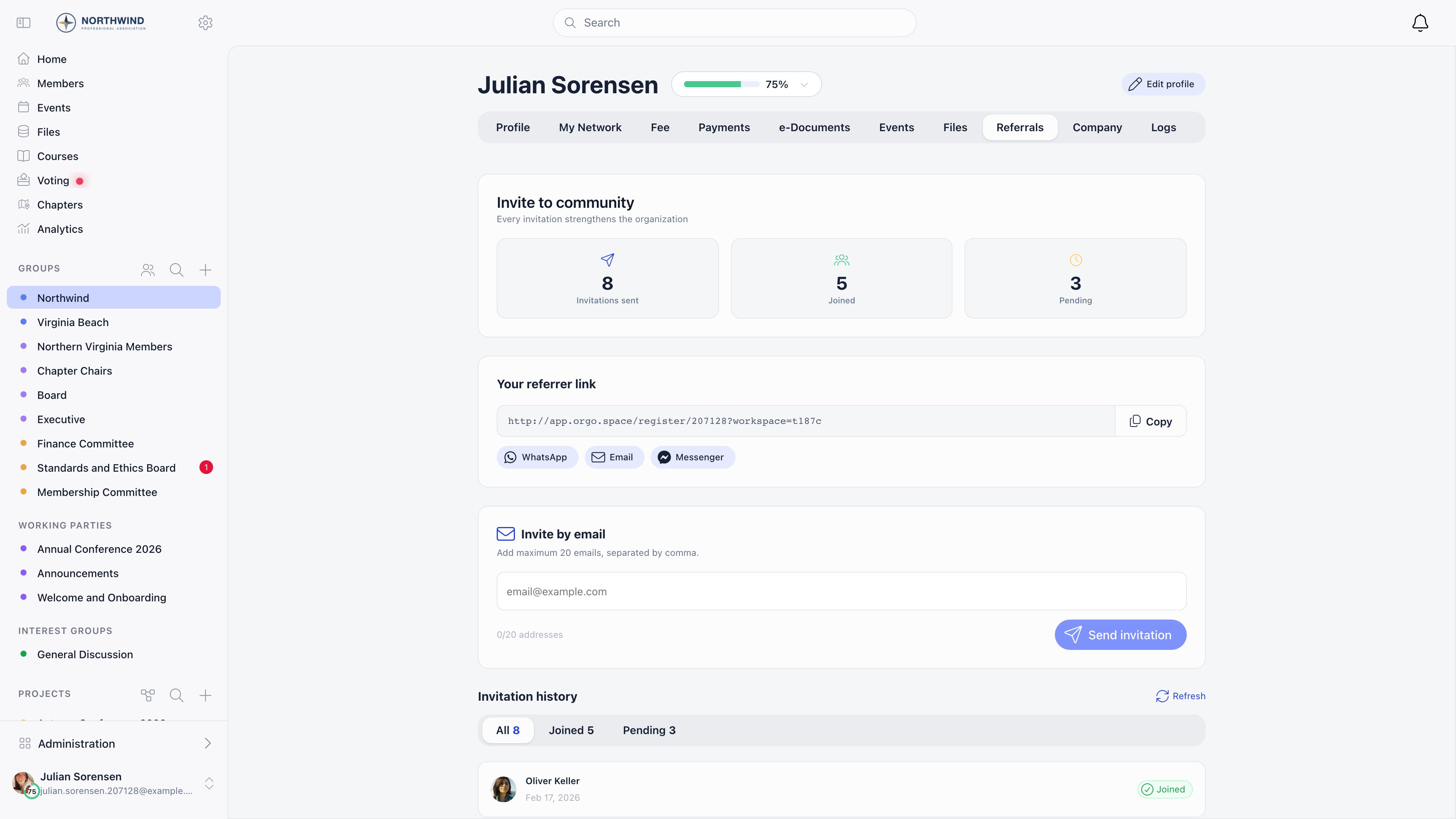
- Invite by email. Orgo emails each address a registration link tied to that invitation. The box accepts 20 addresses, sends the first 10 of them, and refuses after 50 invitations from one member in an hour, so work in batches of ten.
- Your personal link,
https://<your app host>/register/<member id>. Orgo sends nothing; you share it yourself, and whoever registers through it is recorded as referred by you.
3. Self-registration
The public form at/register, plus one form per user type
at /join/<slug>, both embeddable in your own site as an iframe. It is live
while Enable Registration Form is on, and you decide what it asks in
Settings → Users & Profiles → Registration Form.
What the person receives. No password is asked for. Orgo generates one, emails
a six digit code valid for five minutes, and requires them to set their own
password at first login.
What state the account lands in. Unconfirmed email until they enter the code.
On verification the status resolves in this order: eligible for the
waitlist becomes Waiting list; a
referral program requiring referrals becomes
Awaiting referral; Manual Approval on becomes Unapproved; otherwise
Active, and the welcome message goes out if Send Welcome Message is on.
Full detail: Registration Form.
4. Import
Settings → Customization → Import, the Users step. RequiresADMIN_TENANT. Upload a CSV of up to 50 MB, watch the per-row progress, read the
per-row errors, and undo the whole thing once with Rollback. Only
user_legacy_id is required; every unrecognised column becomes a profile custom
field. The create step skips people who already exist, so use Modify Users to
change them instead.
What the person receives. Nothing. Import sends no email at all, so tell
people yourself that their account exists.
What state the account lands in. Active, unless your file carries a status
column. The password the import writes is a placeholder nobody knows, so an
imported member signs in with the email one-time code from the login page, or
with a password reset. Two kinds of row cannot sign in at all: rows whose email
already belongs to somebody else, and rows with no email, both of which get a
generated placeholder address that cannot receive mail.
Full detail, including the other seventeen import types and the ordering between
them: Data Import.
Joining can be gated
Three modules change what happens to a person arriving through the invite or self-registration routes. None of them is a way of adding somebody, and none of them appears in the table above for that reason.
Register member and Import set the status directly and never enter the waitlist
queue or the Manual Approval review. Mandatory Adhesion is the exception: it
opens an application on every new account however it was created.
Adding a person to a member company
This is a different job. It attaches an individual to a company that already holds the membership, so it only applies to organisations that sell corporate or team memberships and only once the company record exists. If the person is not joining through a member company, use Register member above. On the company page, the Team Members panel offers two buttons:- Invite emails a company invitation naming the company and the role offered. It expires after 30 days, and accepting creates the person’s account if they do not have one and emails them a one-time login code.
- Add Member (
ADMIN_TENANT) attaches somebody who is already in your database, whether a member or a contact.
At a glance
Troubleshooting
I created the member but they never received anything
I created the member but they never received anything
Check the email address first. It is optional on the create form, and without
one nothing is sent and there is nothing for the person to sign in with. Then
check that User Created by Admin is still switched on under Settings →
Emails & Notifications → Emails, and look the address up in the
email log. The member’s own profile has a Logs tab with an Email Logs
sub-tab that shows exactly what was sent to them.
They have a welcome email but cannot sign in
They have a welcome email but cannot sign in
Their status is not Active. Everyone you create by hand or by import gets the
status you configured, not the one the screen implied, so check Default
Status for Admin-Created Users: Inactive, Unapproved, Waiting List,
Suspended and Excluded all block sign-in. Setting that default to Waiting List
is the least obvious trap, because it blocks the account without creating any
waitlist entry for staff to approve. The full elimination sequence is in
Troubleshooting member access.
Which routes can I use if I turned the registration form off?
Which routes can I use if I turned the registration form off?
Register member, Import, and invitations. A valid invitation link opens the
form even while Enable Registration Form is off, which is the supported way
to run an invitation-only organisation. Only public self-registration is
refused, and it is refused on submit rather than on load, so
/join/<slug>
pages keep rendering. See
Registration Form.Fields I marked required came through empty
Fields I marked required came through empty
Only self-registration and invitation links go through the registration form,
so only those collect its required fields. Register member, Import and a parent
registering a child all bypass it. Put anything genuinely mandatory on the
profile form instead.
I want to add several people at once but not from a spreadsheet
I want to add several people at once but not from a spreadsheet
Invite by email is the only bulk route that does not involve a CSV, and it
sends ten addresses per batch. For anything larger, build the CSV and use
Import: it validates the headers before
writing anything and it can be rolled back once.
Related
- Users & Profiles - the member directory these routes feed
- Member Invitations - the invite route in full
- Registration Form - what self-registration asks
- Data Import - the CSV route in full
- Companies - adding a person to a member company
- Family Members - a parent registering a child
- User Statuses - what each starting status blocks
- Permissions -
HR_TENANT,HR_LOCALand the rest