

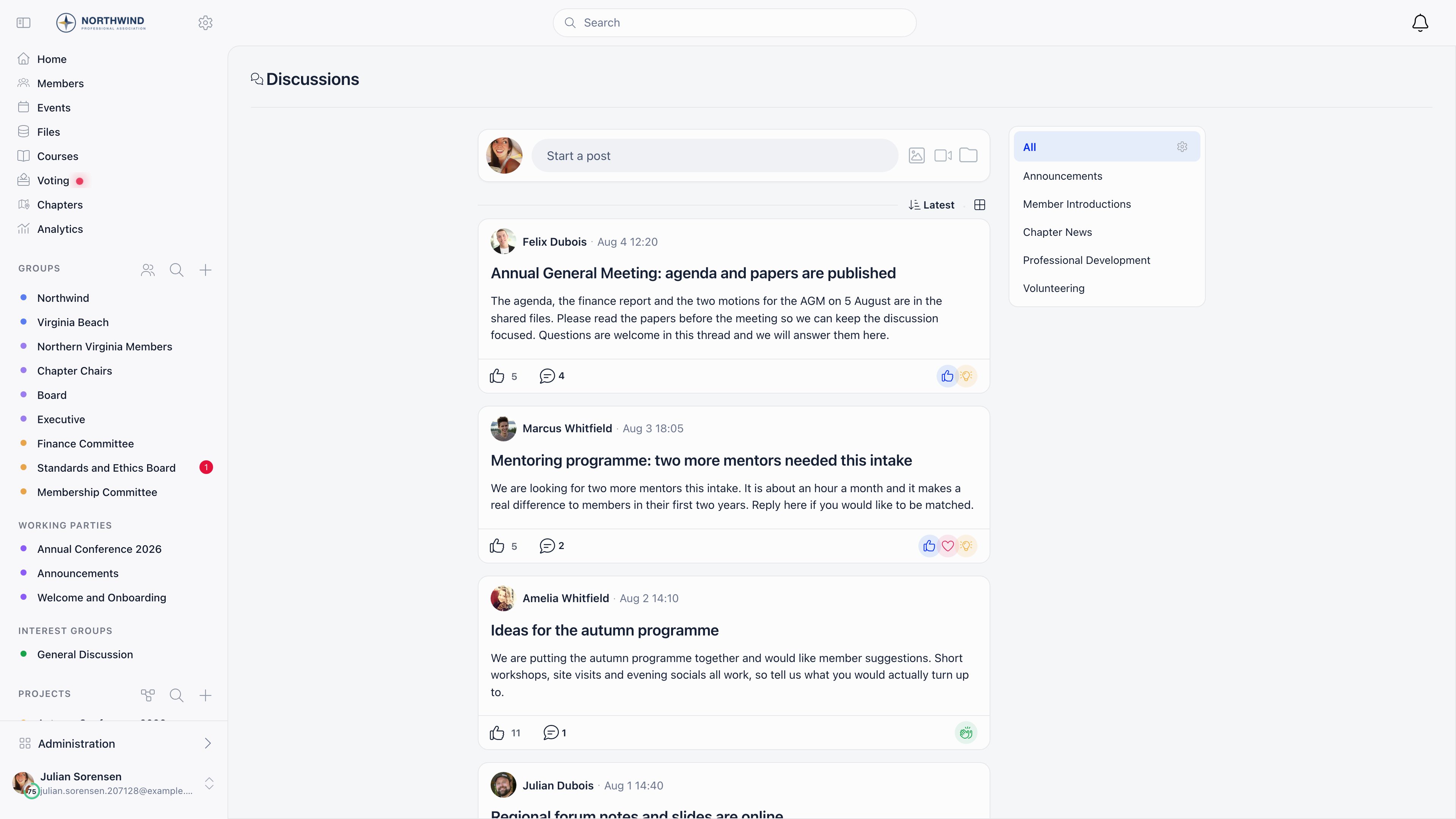
Where a discussion lives
Every discussion is either organization-wide or attached to exactly one unit. Groups, role groups, local centers and organizational units are all units, so a discussion attaches to any of them the same way.
Visibility follows group membership: you see a discussion if it has no group, or if its group is one of yours (your local center, groups you hold a role in, groups that include all members, and open-access local centers when that setting is on). Administrators are not exempt, so a tenant admin does not see posts in groups they have not joined.
Events do not have discussions. Event conversations live in the event feed inside the event app.
Writing a post
Select Start a post at the top of the feed, or the + button on mobile.
Images, videos and files can be attached with the image, video and folder icons, or by dragging them onto the composer. One selection must stay under 1 GB in total.
Reading and taking part
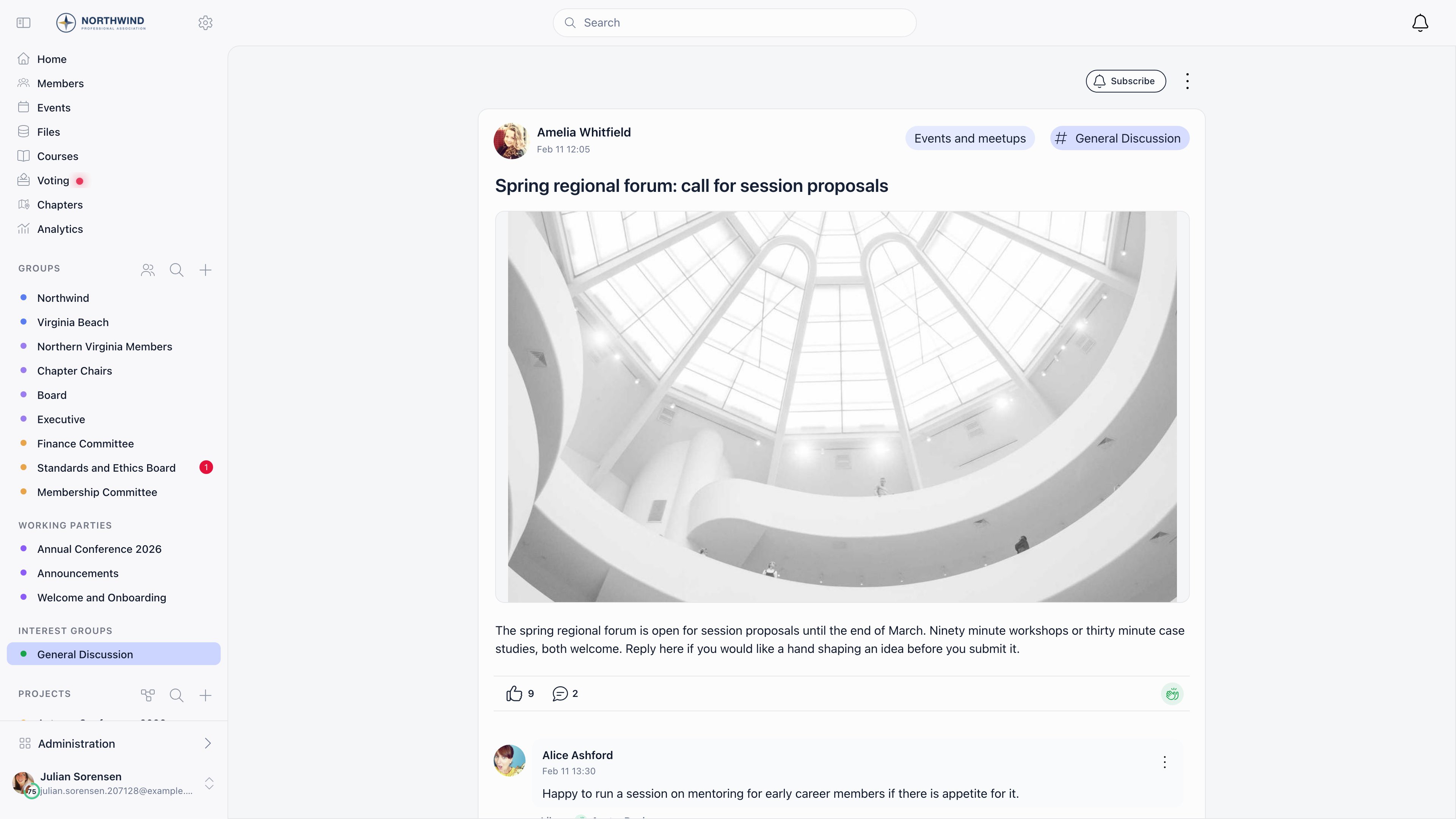
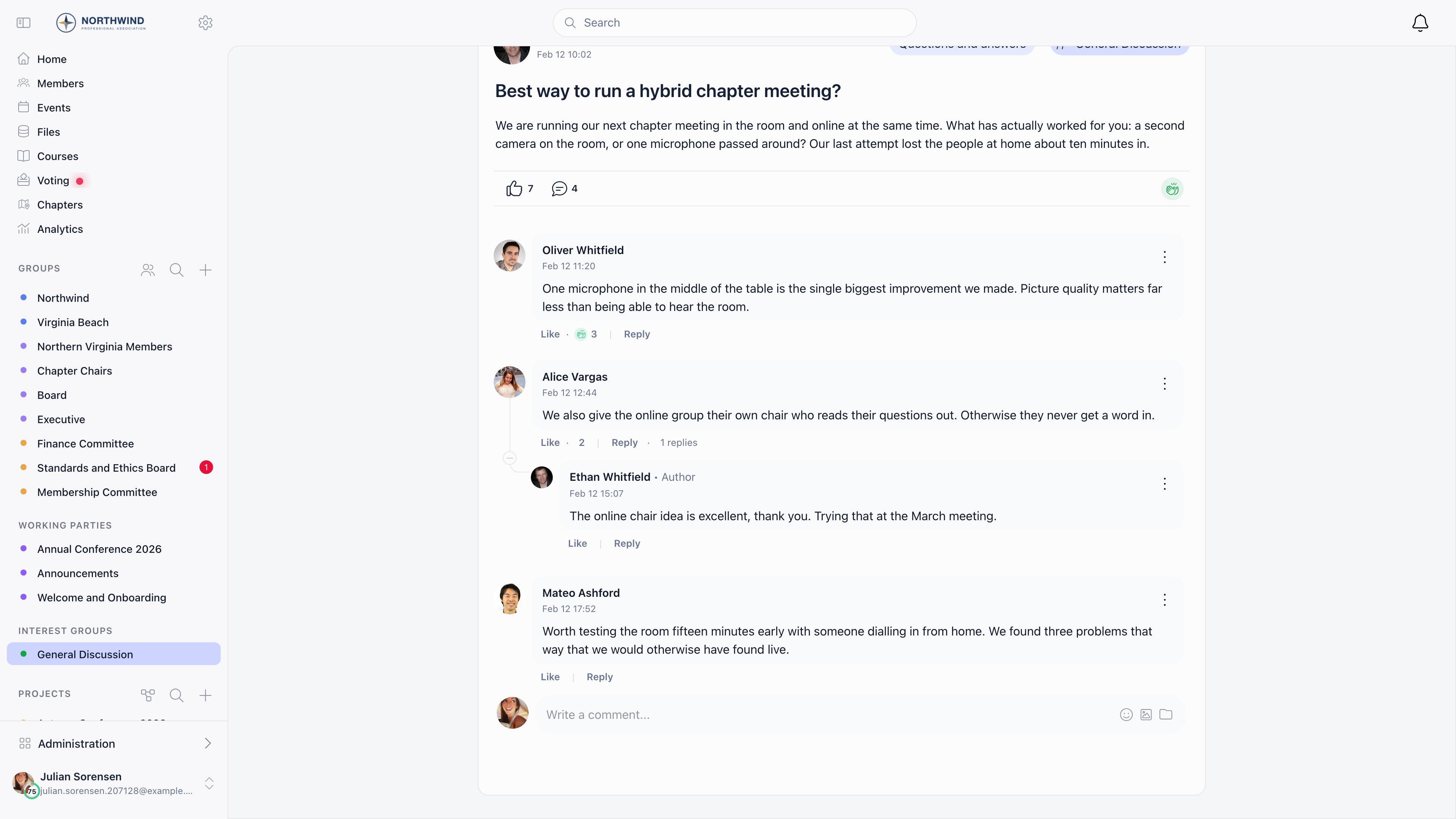
Who can post where
Deleting a comment that already has visible replies keeps the thread: the comment’s text and attachments are cleared, and the replies stay.
Finding things
The sort control offers newest, oldest, most commented and least commented, and the icon next to it switches between the card view and a compact list. Categories appear as a panel beside the feed on desktop and as tabs on mobile. Selecting a#tag under a post filters the feed to that tag. Feeds load more posts as you scroll.
Notifications
Followers are notified when a new comment is added, the author of a comment is notified of replies to it, and mentioned members are notified of the mention. Whether each one also arrives by email depends on the member’s own settings and on the organization default Email Notifications: Discussions. See Notifications.Settings
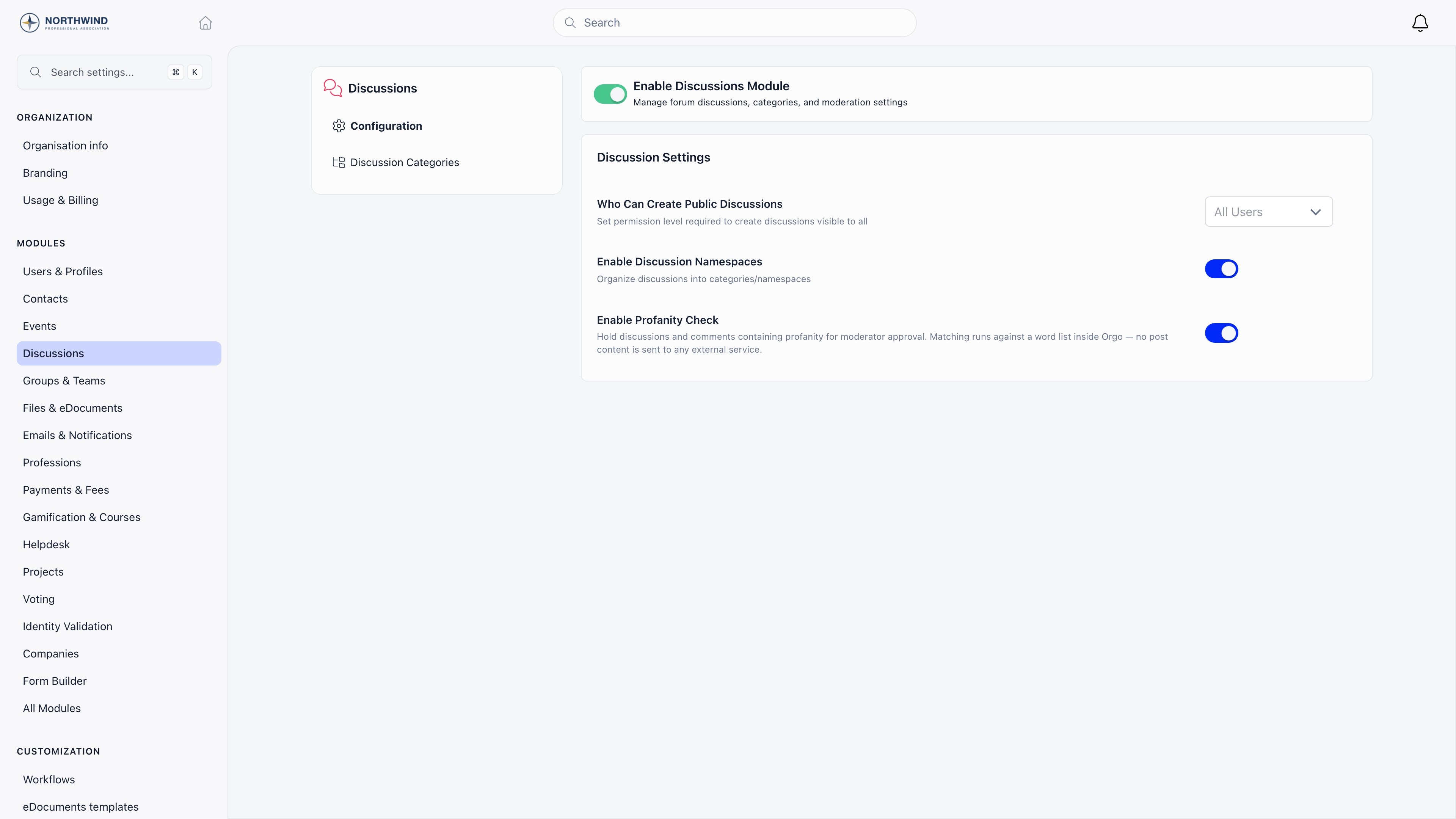
ADMIN_TENANT.
Common questions
The organization feed is too noisy
The organization feed is too noisy
Set Who Can Create Public Discussions to an admin level. The feed becomes an announcement channel, while members keep posting in their groups and local centers. Comments stay open either way, unless the author disables them on a specific post.
A member says they cannot see a post others are talking about
A member says they cannot see a post others are talking about
Discussions attached to a group are visible only to that group’s members, and administrators get no exemption. Check which group the post is in, then check whether the member belongs to it. If the group checks out, have them look at Blocking Members: a member they blocked is hidden from them everywhere in the forum, and only they can see that list.
Can members delete their own posts?
Can members delete their own posts?
Yes, at any time. If the post is a comment with replies underneath, the text and attachments are removed and the thread structure stays so the replies still read.
Related
- Discussion Categories organize posts by topic
- Moderation hold, review and hide posts
- Blocking Members how a member hides one other member’s content for themselves
- Groups where group discussions live
- Notifications what reaches a member and how
- Permissions the permission levels used above