

- User type: what kind of member someone is (Scout, Student, Honorary Member). One per member.
- Role: a position they hold (President, Treasurer, Troop Leader). A member can hold several, each with its own term.
- Permission: what they can do in the software. See Permissions.
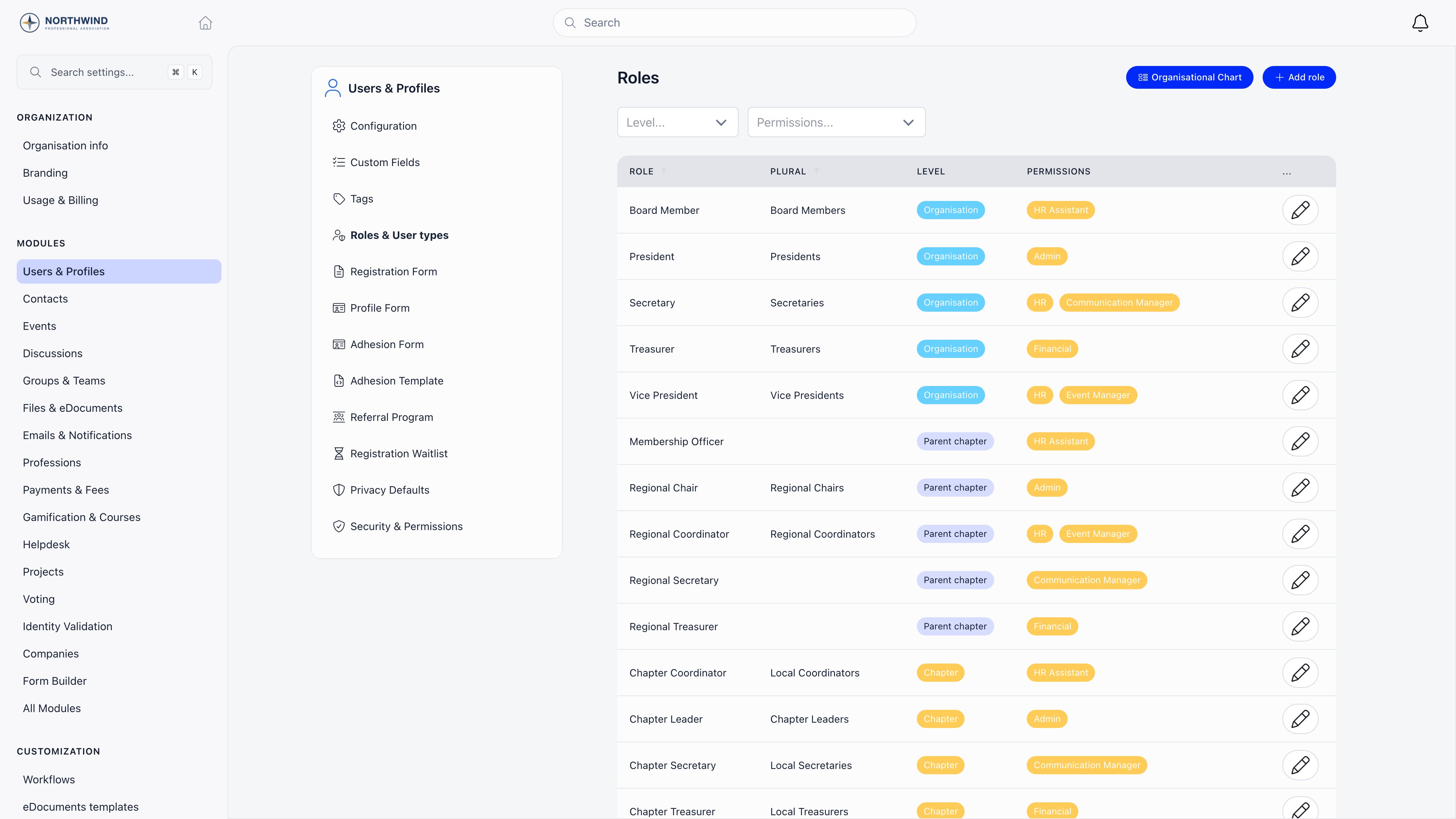
Where it lives
Settings → Users & Profiles → Roles & User types, which requiresADMIN_TENANT and appears when Enable Roles is on. Every role is listed with its plural name, a Level tag and any attached permissions. Filter by Level or Permissions, open the organisational chart, or press Add role.
Creating a role or user type
1
Name it
title and Plural title. The plural, prefilled from the title as you type, is used wherever Orgo lists several holders.
2
Pick the level
One choice only: None, User type, Chapter, Parent chapter, Organisation, or one of your unit types. Chapter and Parent chapter need local centers enabled, unit types need units enabled, User type needs Enable User Types on.
3
Attach permissions
Available for every level except User type. Holders gain the ticked permissions and lose them when the role ends.
4
Save
The role is assignable immediately.
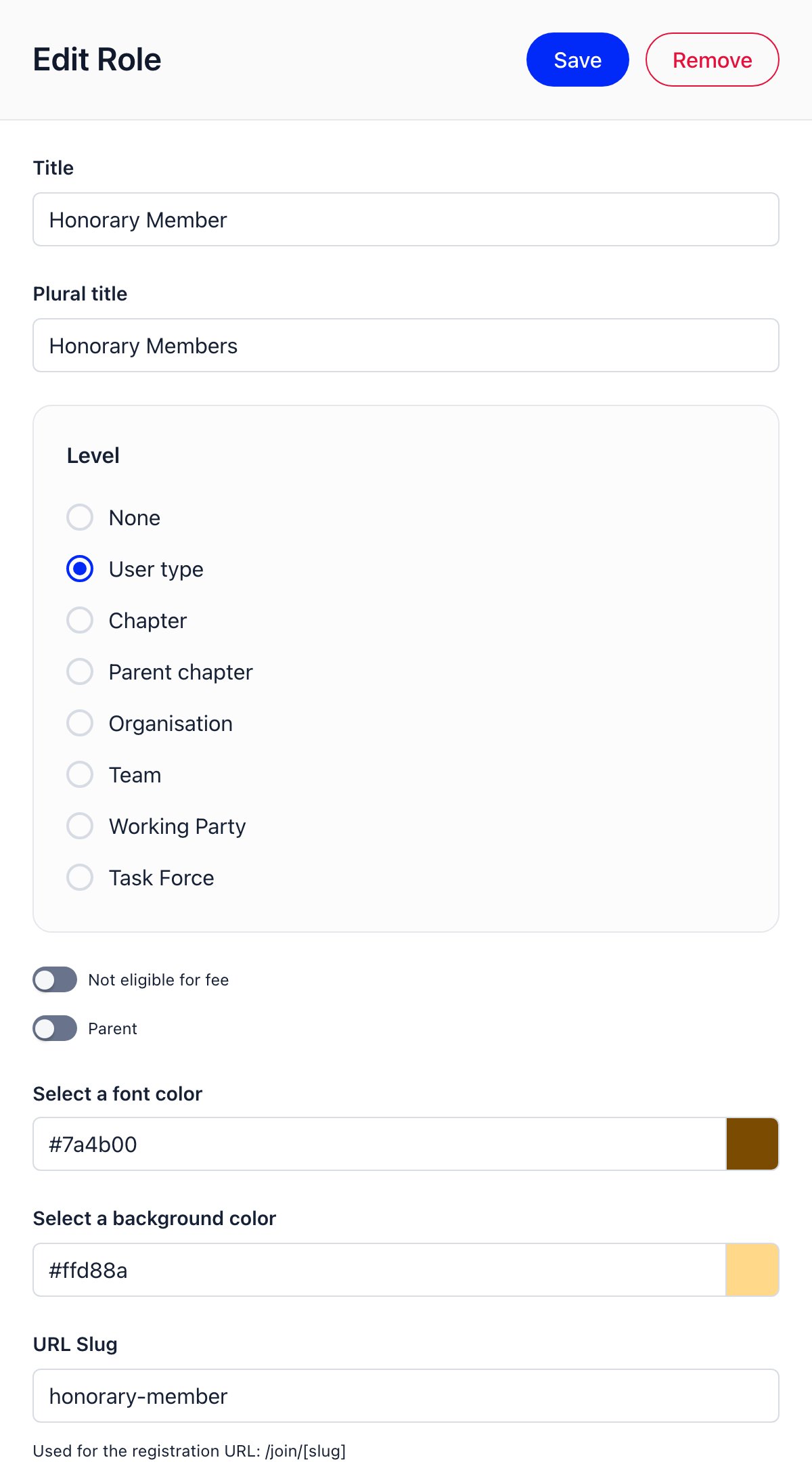
Extra settings on a user type
Assigning a user type
A member has exactly one user type; if someone fits two categories, pick the primary and use a role or tag for the other.- On the member’s profile: edit the member → roles tab → the userType selector.
- When an admin creates a member: a user type selector on the create form.
- Automatically on registration: Default User Type After Registration stamps a type on every self-registration.
- From the registration link: signing up through
/join/<slug>applies that type and the matching role. - The applicant chooses: add the User Types field to the general registration form.
- On adhesion approval: approving an adhesion sets the type configured for successful applications, and emails the member if their type changed.
- Bulk import: set the type during a member import.
HR_TENANT, or HR_LOCAL over the member’s chapter. Local admins can view but not change them unless Allow Local Admins to Modify User Permissions is on.
What a user type actually changes
- Fees: a type flagged Not eligible for fee, or the type chosen as fee-exempt, drops the member out of fee assignment entirely.
- Registration: each type can have its own registration form, public URL and preselected membership price.
- Menu: categories and items can be shown only to selected types. See Menu Organizer.
- Dashboard: widgets can carry a different image per user type. See Dashboard Organizer.
- Directory: the member list can be filtered by type, subject to Who Can Filter Users by Type.
- Guest accounts: the type chosen as Guest User Type marks its members as guests; approving a resignation switches the member to it.
- Units: a unit type can require its members to hold a specific user type.
Roles and terms
Assign a role from the member’s roles tab, where each assignment has a dateBegin and an optional dateEnd. Ending a role ends the permissions it carried, and the assignment stays visible as history. That is why permissions belong on roles rather than people: a handover is one assignment ended and another started. Where each level applies: Organisation is the whole organization, Chapter one local center, Parent chapter a parent local center and every local center beneath it at any depth, a unit type a specific unit or team of that type, and None a label with no scope and no permissions. A chapter role attaches to the member’s own chapter when assigned. A parent-chapter role attaches to the member’s own chapter when that chapter is flagged It’s a parent chapter, and otherwise to the chapter directly above it, never higher. A member whose chapter is neither a parent nor has one cannot hold a parent-chapter role at all. Role Groups can also fill groups from role, age, gender, chapter, region or fee tier with no manual assignment.Settings reference
Under Settings → Users & Profiles → Configuration.Common questions
How many user types should we have?
How many user types should we have?
Add a type when it changes something concrete: a different fee, registration form, menu or report. If it only changes what you call someone, use a tag.
Is 'Leader' a user type or a role?
Is 'Leader' a user type or a role?
A category of member is a user type; a post someone is elected or appointed to is a role with the right level and permissions. Need both, create both: they are separate rows on the same screen.
The /join link for a type does not work
The /join link for a type does not work
The type has no URL Slug, or its registration form is not saved and active. Set the slug on the type, then configure the form under Registration Form.
Related
- Permissions: what each permission level unlocks
- Registration Form: per-type forms and public sign-up links
- Role Groups: groups that fill themselves from roles and member data
- Organizational Chart: the structure your roles produce
- Adhesion: assigning a type when an application is approved