

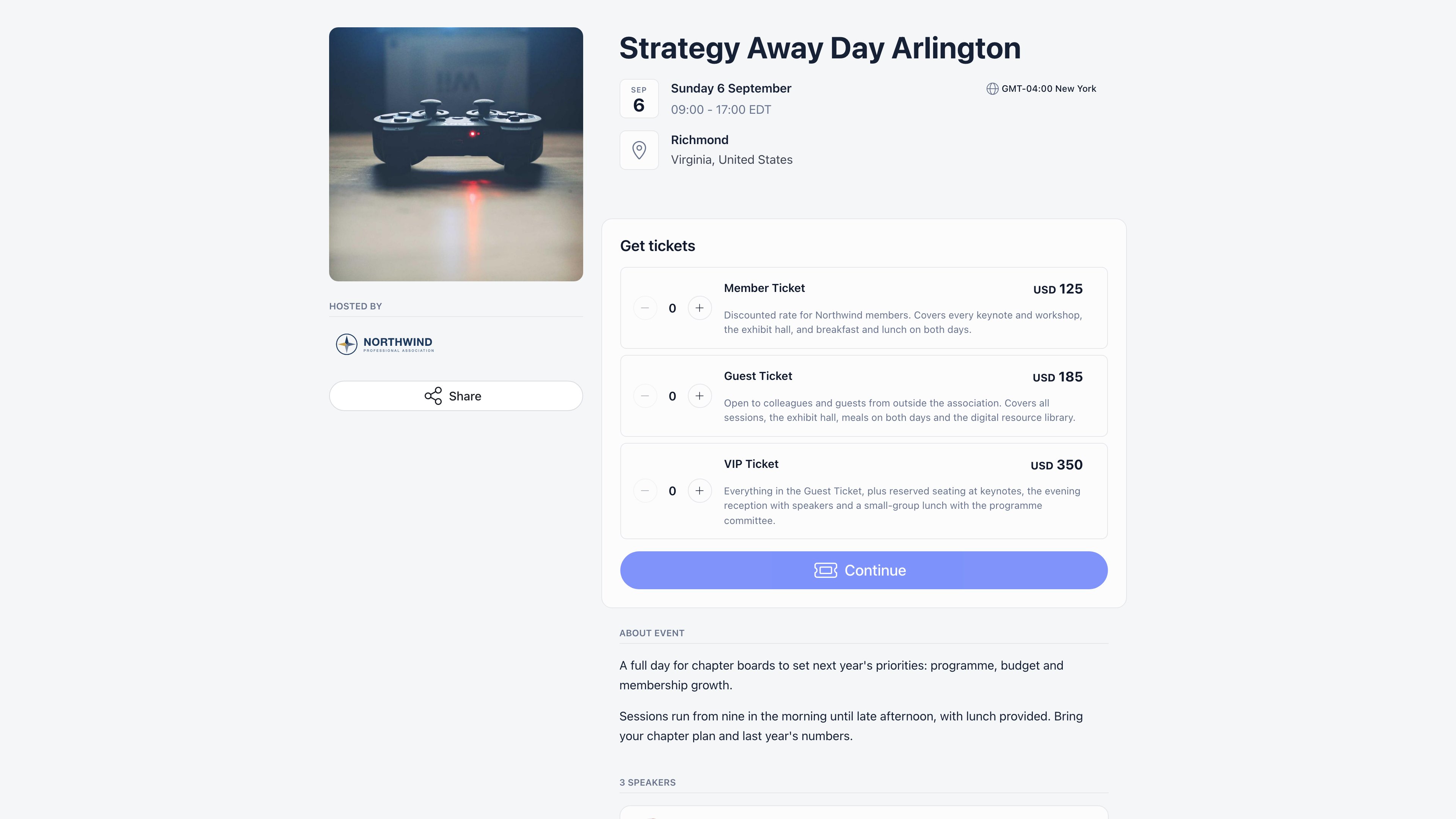
Which events have one
One rule, and both halves of it must be true:- the event is published, and
- its audience is set to Public.
EVENT_TENANT, someone with only
EVENT_LOCAL who ticks “Public” has the flag silently dropped on save. Events hosted by a private
(non-joinable) group can never be public. Ticketing needs EVENT_TENANT. FINANCIAL_TENANT shows the
Paid option and the Tickets and Payments screens, but saving a Paid event still needs
EVENT_TENANT.
The address
app.orgo.space the link also needs ?workspace=<your slug> so the page knows
which organisation it belongs to. On a custom domain the organisation is
resolved from the domain and no parameter is needed.
Open the event and use Landing page in the event sidebar to see the page as a visitor does, with
the right parameters already attached. The entry appears once the event is public or ticketed.
What a visitor sees
Someone who already registered sees their own status instead of the ticket picker: their ticket or
registration, a button to show the QR code, and, when the event runs votes, a Votes tab. That
also works for a non-member ticket holder, whose emailed link carries a personal
hash parameter
that identifies them without an account. The {eventAgendaUrl} placeholder in emails and newsletters
produces exactly that personalised link.
Registration is covered in Ticketing and
Registration forms. The page also shows state: “Registrations
are closed” when the organiser closed them, “This event is full” when capacity is reached, and no
registration card at all once the event has ended (after its end time, or 24 hours after the start
when no end time was set).
What is never exposed
The public payload is a deliberately narrow slice of the event. These are left out entirely, so they cannot leak through the page or through the underlying request:- the online meeting link (visitors see only that the event is online),
- the attendee list, and the organiser and hosting group,
- the event’s draft or published state, and any internal report fields,
- ticket types that name specific membership levels, which are fetched separately after sign-in and only for a member whose level is on the allowlist.
Appearance
Colours and the hero image rounding are set per event under Registration form → Appearance (Selected color, Button color, Hero image border radius, Display title). That editor only exists on events that require a registration form, which every ticketed event does. See Registration forms for the full table. There is no per-event logo control and no theme picker: the page uses your organisation logo and follows the visitor’s light or dark preference unless the link carries?light or ?iframe.
Common questions
The page is blank for people I send it to
The page is blank for people I send it to
The link is missing
?workspace=<slug> and the visitor has never opened your organisation in
that browser. Copy the link from Landing page in the event sidebar rather than from your
address bar.Can I use my own domain for event pages?
Can I use my own domain for event pages?
Yes, if your organisation has a custom domain. The page is then served from it and the workspace
parameter is unnecessary. Otherwise it lives on
app.orgo.space.Members cannot see their discounted price
Members cannot see their discounted price
Member-only tickets are only returned to a signed-in member whose current membership level
matches the ticket. Ask them to sign in on the same page, then reload.
I want the page to stay up after the event
I want the page to stay up after the event
It does. Past events keep their address and keep showing the description, agenda and speakers.
Only the registration card disappears.
Related
- Sharing events - short links, embeds and the public event directory
- Ticketing - ticket types, pricing and checkout
- Registration forms - the questions asked at registration
- Create an event - visibility, capacity and cover image
- Attendance - what happens after someone registers