

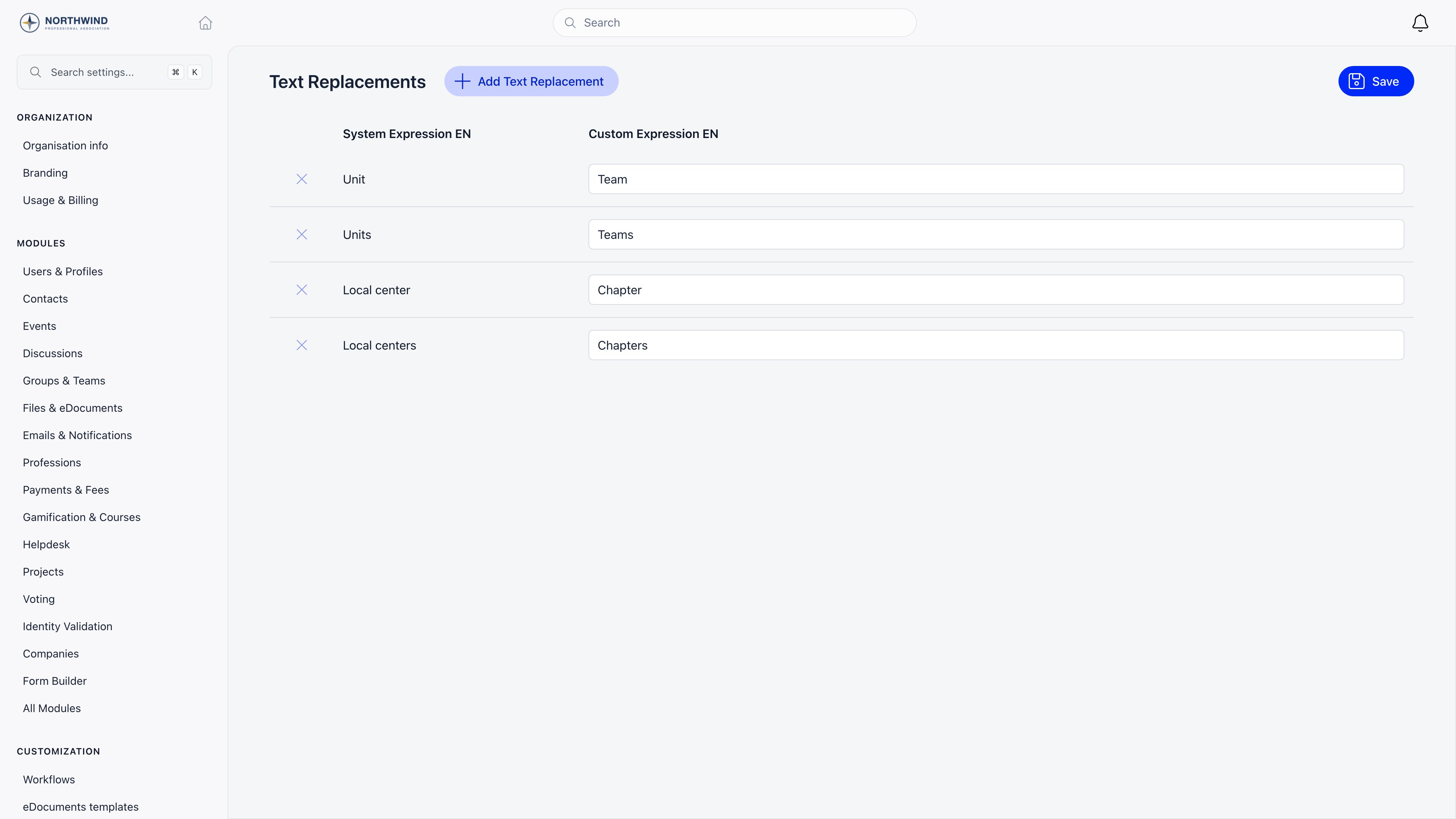
Requires ADMIN_TENANT. This page is called Texts in the app; the underlying setting is the tenant’s label overrides.
Adding a replacement
1
Click Add Text Replacement
A search panel opens over the page.
2
Search for the phrase you want to change
Type part of the phrase. The search matches both the translated phrase you see in the app and the underlying English source phrase, so searching in either language works. Results are shown with the English source in brackets when it differs.
3
Tick every phrase you want to override
The list is multi-select. Tick as many as you need in one pass; the button shows the count. Phrases already in your table are skipped with a warning instead of being duplicated.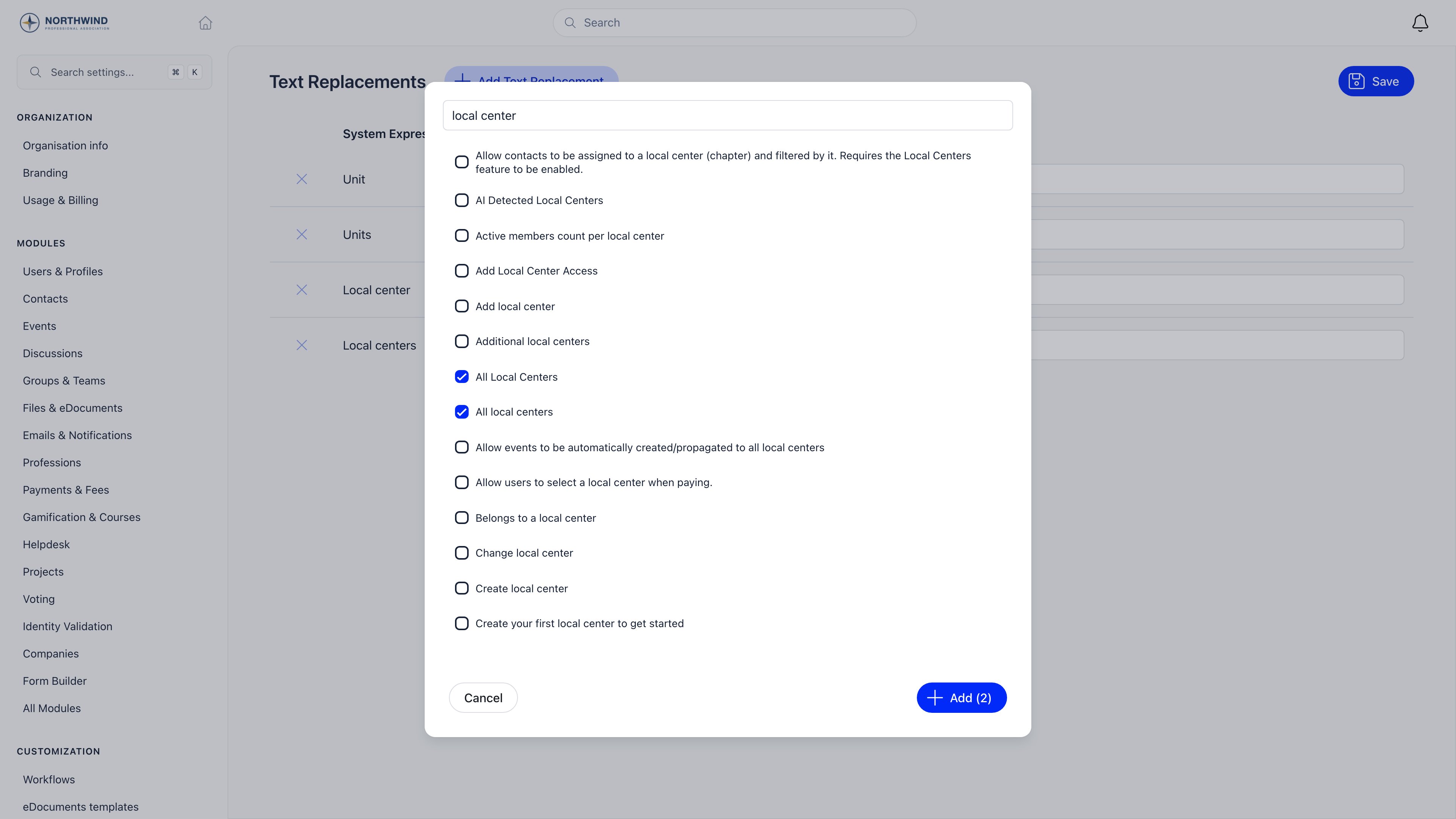
4
Fill in the Custom Expression column
Back on the table, each new row shows System Expression (Orgo’s wording, read-only, in your current interface language) and one Custom Expression column per enabled language. Type your replacement in each.
5
Save
Click Save. The new wording takes effect straight away for you, without a page reload. Other members pick it up the next time their session loads translations.
What a replacement covers
A replacement swaps one phrase everywhere that exact phrase is used in the interface. It changes display text only: no data, permission or route changes behind it.Working with several languages
The table shows one Custom Expression column per language you enabled under Languages. If multi-language support is off, there is a single column for the organization’s default language. The search panel builds its list from the English source catalogue merged with your organization’s default language, so a phrase stays findable even when it is only present in one of the two.Common replacements
Singular and plural are separate phrases. So are capitalised and lowercase variants. Search broadly and tick all the forms in one pass.
Removing a replacement
Click the x at the left of the row, then Save. The row disappears and Orgo’s own wording returns. Clearing a single language’s field and saving reverts just that language.Troubleshooting
I replaced a word but it still shows the old one in places
I replaced a word but it still shows the old one in places
Those places use a different phrase. Orgo’s catalogue holds separate entries for singular, plural and differently capitalised forms, and longer sentences are stored whole rather than assembled from words. Search for the exact text you see on screen and add that as its own row.
My replacement is not in the emails members receive
My replacement is not in the emails members receive
Correct, and not fixable from this page. Emails are rendered server-side from templates that do not read text replacements. Adjust the wording in the email templates instead.
I cannot find the phrase in the search
I cannot find the phrase in the search
Search a distinctive fragment rather than the whole sentence, and try the English wording as well as your own language. Phrases that come from your own data (a group name, an event type, a custom field label) are not in this catalogue: edit them where they were created.
Members still see the old wording after I saved
Members still see the old wording after I saved
Your own session updates immediately. Other members reload translations on their next page load or session start. A hard refresh clears it for anyone stuck.
Two features now have the same name
Two features now have the same name
Nothing prevents that, and it is a real risk. If you rename both Groups and Local Centers to “Teams”, nothing in the interface distinguishes them any more. Keep replacements distinct.
Related
- Languages - enable languages before filling in their columns
- Menu Organizer - rename a single sidebar entry without touching the phrase everywhere
- Customization - everything under Settings → Customization
- Branding - logos and login page
- Modules - turn off a feature instead of renaming it