

Who can open it
Participants appears in the event sidebar for the event owner,EVENT_LOCAL or ADMIN_LOCAL on
the event’s group, EVENT_TENANT or ADMIN_TENANT organisation-wide, and to the owner or an admin
of the hosting group. When Restrict Event Editing by User Type is on, a local user whose type
does not match the event’s loses this even if they hold EVENT_LOCAL.
Attendees never reach it. They get the Participants block on the event page, and only when they
are registered themselves and the event has Visibility of attendee list on (event → Modify →
Features). With it off, the attendee list is organisers only.
Two statuses, not one
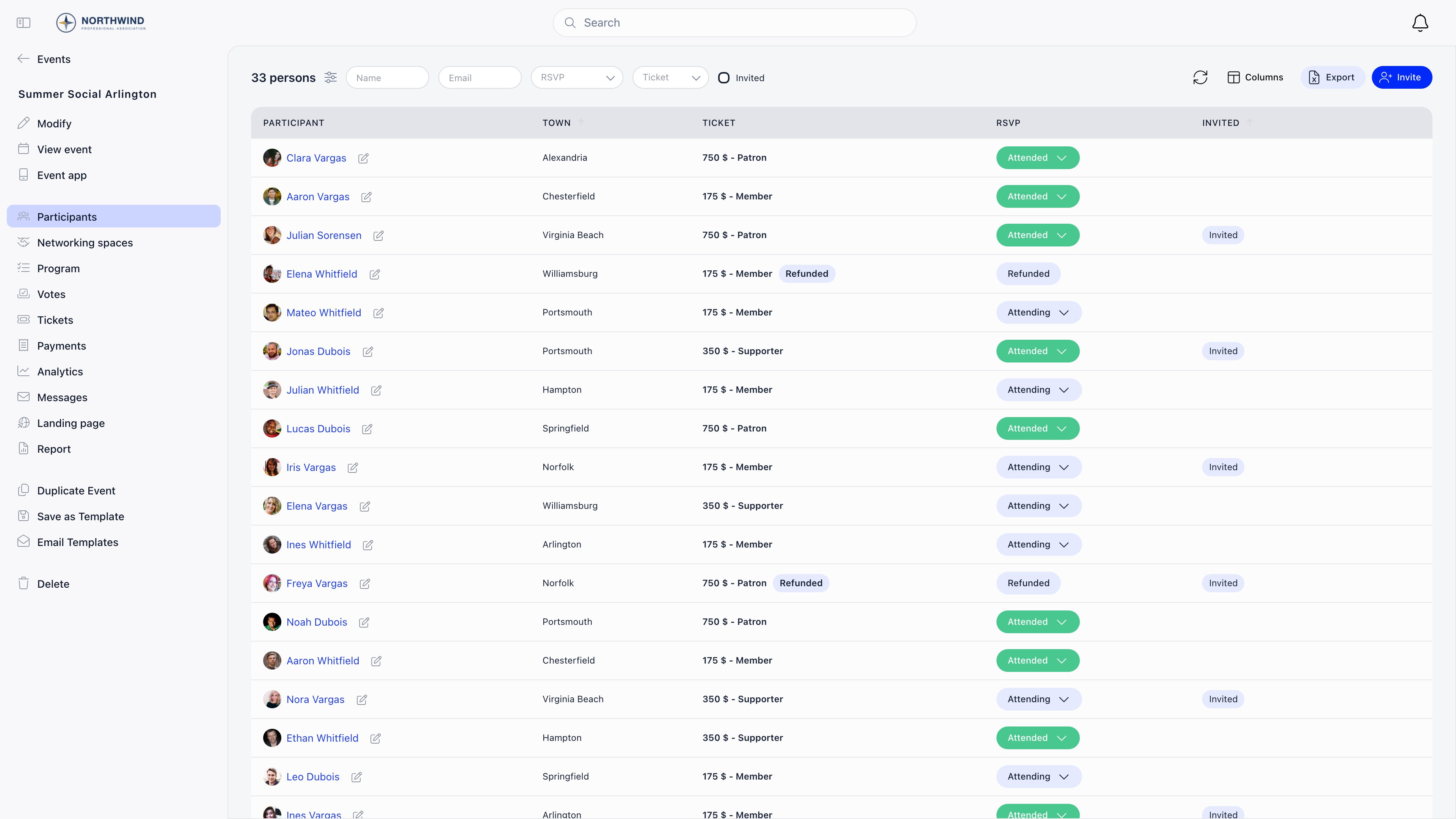
Each participant carries two independent statuses. Confusing them is the most common source of “the numbers are wrong”. Registration status is where the person sits in the sign-up workflow. The column only appears on events that require registration.
RSVP status is the person’s own answer, and after the event it is where attendance is recorded.
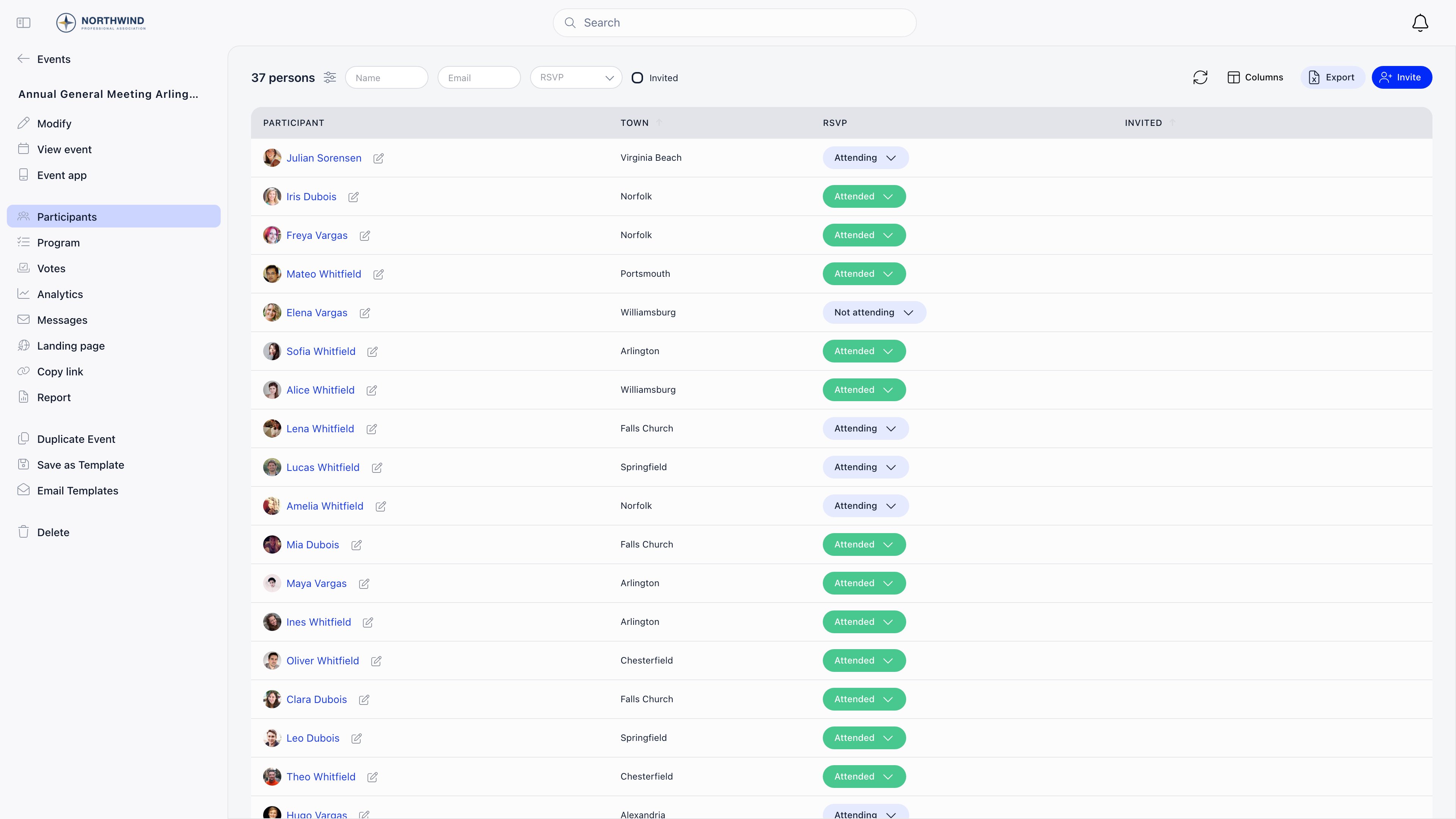
Checking somebody in sets RSVP to Attended. There is no separate “checked in” flag, so an
attendance figure is a count of participants whose RSVP is Attended.
Adding people
Use Invite at the top right. The Member tab searches the directory; the External tab takes a name and email, matching the address against members first, then contacts, and creating a new contact only if neither exists. Guest tickets takes a number from 0 to 20: each guest is a separate registration and ticket issued to the same person, with its own QR code, so they can bring people whose names you do not need.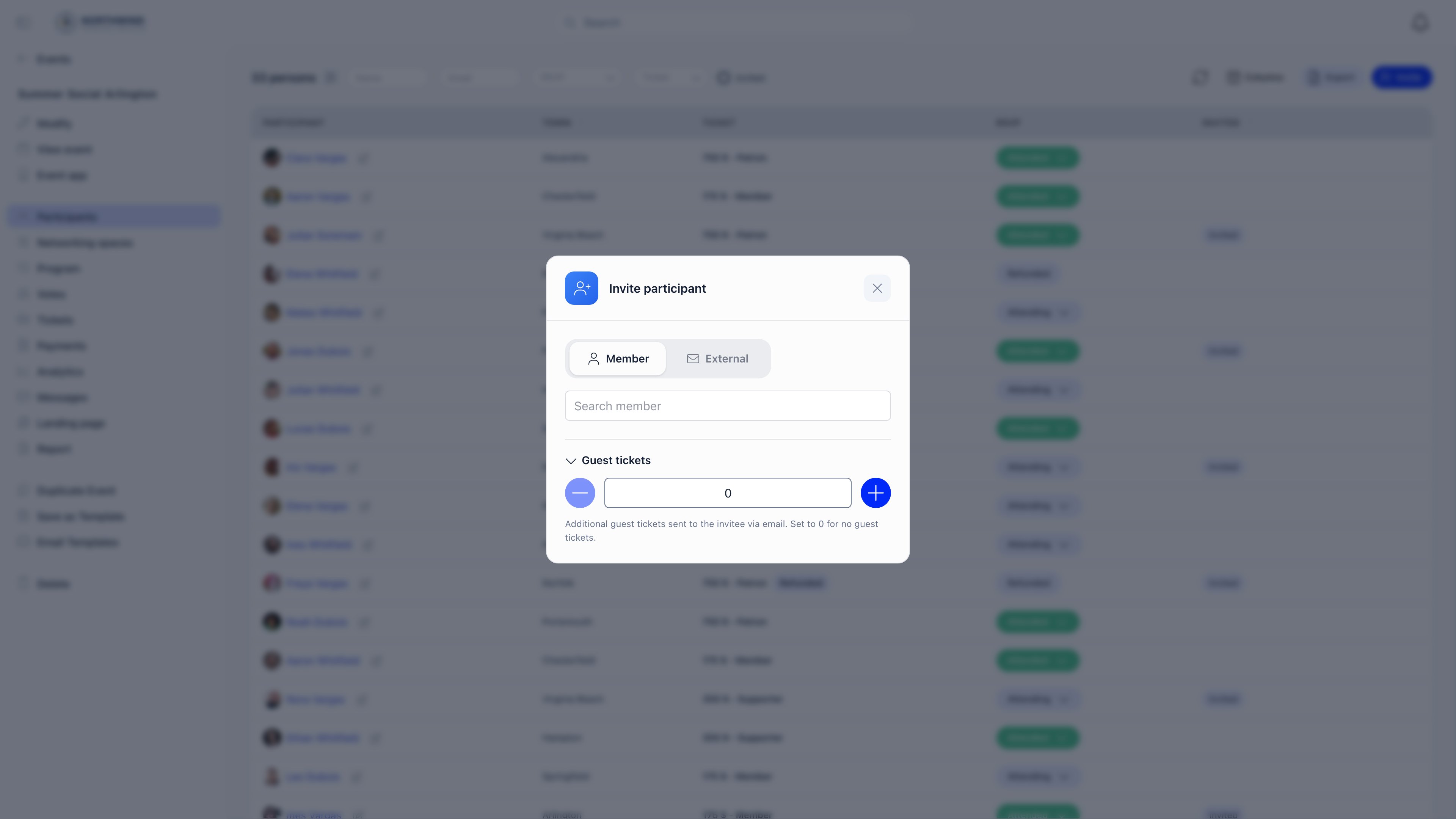
Everyone in the group at once
With Bulk Invites enabled (Settings → Modules → Events → Additional Features → Bulk Invites), a published event shows Send Invites to All Members, and publishing offers the same. It adds every active member of the event’s group as Invited with RSVP Maybe, or of the whole organisation when the event has no group. People already listed are skipped, and it runs once per event.Capacity
On an event with Max capacity set and no ticketing, registration is refused with “This event is full” once Registered participants reach the limit. The X / N Participants (M seats left) line on the event page is not this number. It counts every participant row that has not been cancelled, including people who are only Invited, on the Waiting list, or awaiting payment, and including guest tickets. So the event page can say “This event is full” while sign-ups are still going through, most visibly after a bulk invite. The public event page and the refusal itself both count only Registered. Nobody is queued automatically: move people to Waiting list yourself. To let one in, set their registration to Registered, and note that this sends nothing. If they need a ticket by email, set them to Invited first and then use the confirm action on their row, which is the only status the confirm action accepts.Recording who came
- Scan the QR code at the door. See QR check-in.
- Set RSVP to Attended in the list, one participant at a time: there is no multi-select or bulk check-in action.
- Walk-ins must exist on the list first: add them with Invite, then set them to Attended.
HR_TENANT. An EVENT_TENANT or
EVENT_LOCAL admin who does not own the event can still change statuses from the dropdowns but gets
none of those four actions.
Filtering, columns and export
The control bar filters by name, email, RSVP, registration status, ticket type and an Invited checkbox; events with an agenda add a session selector. The list paginates at 100 rows, and the count above it includes guest tickets and add-on attendees while the rows show only the people they were issued to. Columns offers Membership and Membership Fee (only with the fees module on), Organisation, Role, Email, Phone, LinkedIn, Date, and one column per custom field on the event’s registration form, with Show all and Hide all at the bottom of the menu. Export downloadsattendees_<event>_<date>.csv and needs EVENT_TENANT, EVENT_LOCAL on the
event, or event ownership; a session selected in the agenda filter narrows it to that session. Its
columns are Name, Email, every standard profile field on the event’s
registration form, Ticket Type, Ticket Price, Registration
Status, RSVP Status, Date Registered, and one per event custom field (dropdown and checkbox answers
written as their labels), plus Discount Code when at least one attendee used a voucher and Partner
Name and Partner Email when add-ons created extra attendees.
Attendance reminders
Switch on Settings → Modules → Events → Additional Features → Enable Attendance Reminder and each event gains Send attendance reminder 24 hours after event ends, on by default. It goes to the event owner, not to attendees, links back to the event so they can fill in the RSVP column, and is sent once per event. The wording lives in Settings → Modules → Events → Attendance Reminder, a full email editor with preview and test send. Placeholders:{{firstName}}, {{eventName}}, {{eventDate}},
{{eventLocation}}, {{attendanceLink}}, {{organizationName}}.
Troubleshooting
I cannot remove an attendee
I cannot remove an attendee
Registrations holding a ticket cannot be deleted, because that would orphan the payment. Set them
to Canceled and refund through payments if money changed
hands.
Adding a member fails with 'Member is already attending this event'
Adding a member fails with 'Member is already attending this event'
They are already on the list, possibly as Canceled or Invited. Change the existing row instead of
adding a second one.
A member cannot register themselves on a form event
A member cannot register themselves on a form event
Events with a registration form only accept sign-ups through the form. Organisers can still add
people with Invite.
Related
- QR Check-in: scanning at the door and who is allowed to
- Registration Forms: what you collect and what exports
- Ticketing: paid registration, add-ons and refunds
- Speakers and Trainers: the other people lists on an event
- Event Reports: turning attendance into a report