

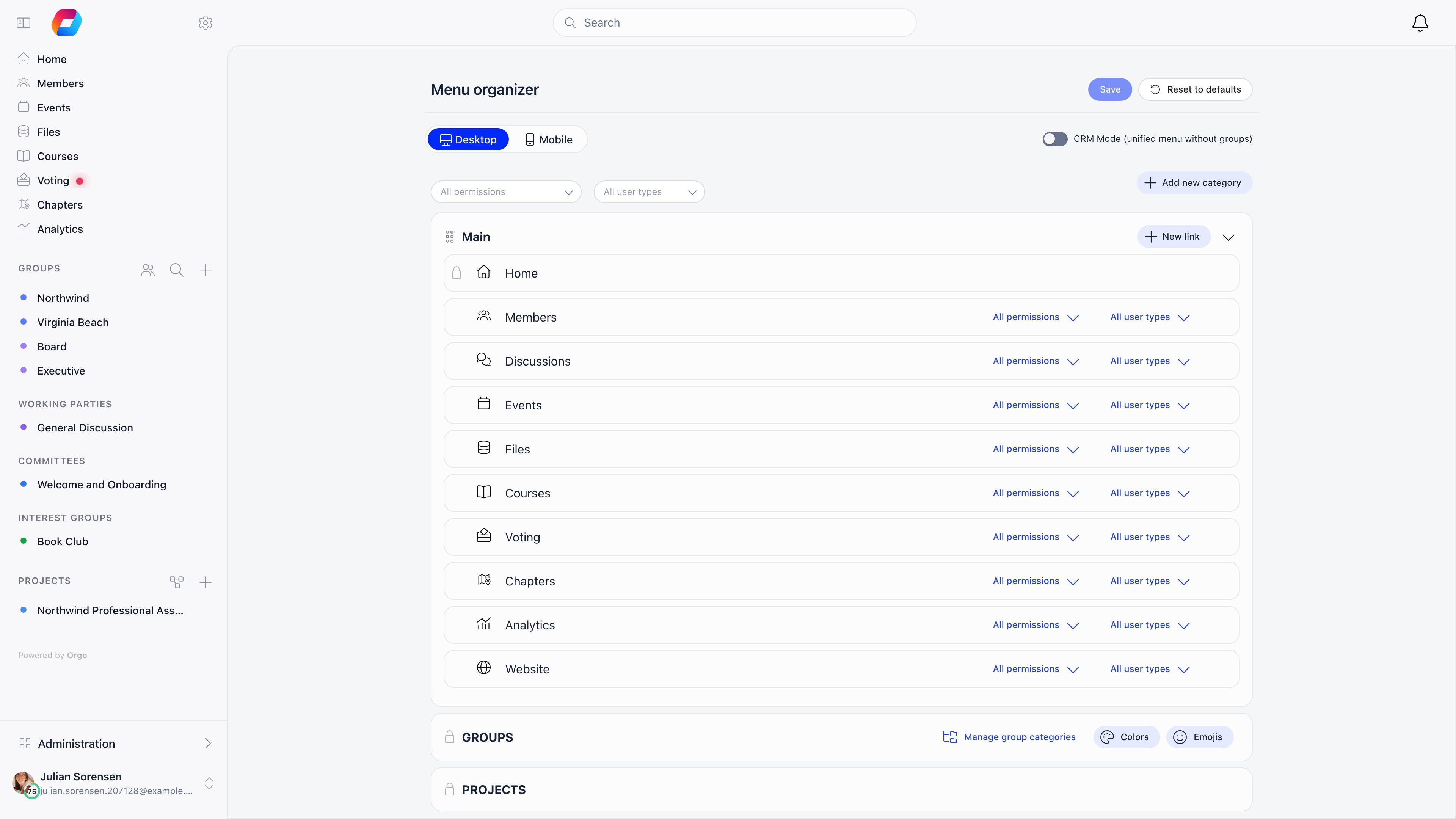
Requires ADMIN_TENANT. Changes are held locally until you press save; nothing is applied as you drag.
How the sidebar is built
The sidebar has two sections, and members switch between them:- Community: the Main category, Groups and Projects.
- Administration: Communication, Finance and Management.
Editing the menu
1
Reorder
Drag a category by its grip handle to move it, or drag an item between categories. Categories with a padlock instead of a handle cannot be moved.
2
Rename
Click a category name to edit it inline. For an item, click the pencil next to it (or double-click the name) and type a replacement. Enter confirms, Escape discards.
3
Change an icon
Click the icon next to an item. The picker has an Icons tab with a searchable icon list and an Emoji tab.
4
Restrict who sees it
Every category and every item has a permission dropdown. Tick one or more permissions; the entry then shows for anyone holding any of them. Leave it empty for All permissions, meaning every member.
5
Restrict by user type
Where your organization uses user types, a second dropdown limits the entry to selected types. The default is allUserTypes.
6
Hide an item
The x on an item hides it without deleting it. Hidden items stay in the list, greyed out, with a + to restore them.
7
Save
Click save. The new sidebar applies for everyone.
An item’s permission cannot be looser than its category’s. The dropdown greys out any permission weaker than the one already set on the category above it.
Permissions you can assign
The dropdown groups permissions by tier. Which ones appear depends on your enabled modules and structure.ROLE_ADMIN_TENANT is offered as a separate top entry: it restricts an entry to organization administrators only.
The two dropdowns at the top left of the page are filters, not settings. Pick a permission or a user type there to preview which entries that audience would see.
Default menu contents
This is what a new organization starts with. Items whose module is off never render, whatever the Menu Organizer says. Community → Main
Community → Groups and Community → Projects are generated from your actual groups and projects. The editor shows their headers only, never their contents, so neither can be reordered internally. In the default menu both are also marked as not modifiable, which is why they carry a padlock instead of a grip handle. Projects requires the project management module. The Groups header carries three extra buttons: Manage group categories, Colors (the bullet colour per group kind) and Emojis (an emoji per group, replacing its bullet).
Administration → Communication: Email campaigns, Campaign templates, Lists & Segments, Newsletter subscription, Email Log, Moderation queue.
Administration → Finance: Products, Payments, Subscribers, Local products, Fee payments, Local members fees, Fee settings, Local online payments settings, Invoices.
Administration → Management: Adhesions, Contacts, Badges, Resignation requests, Merge Records, Waitlist, Transfer requests, Queries, e-Documents, Forms, Local center settings, Companies, Settings.
Home cannot be renamed, moved, hidden or permission-scoped. It is the fixed entry point.
Adding your own links
Add new category creates an empty category you can name, order, permission-scope and fill. New link on a category adds a custom entry. Two kinds:
Previewing and resetting
The Desktop and Mobile buttons at the top switch the preview. The mobile view is read-only: it shows the Community and Administration tabs as members see them, with the reminder that changes are made in Desktop mode. Reset to defaults reloads Orgo’s standard menu. It asks for confirmation, then stages the reset like any other edit: nothing is applied until you press save, so you can navigate away to abandon it.Troubleshooting
An item vanished for everyone
An item vanished for everyone
Check, in order: the module it belongs to is still enabled under Settings → Modules (a disabled module hides its entries regardless of this page), the item is not hidden (greyed with a +), and its category’s permission is not narrower than you intended.
I cannot drag or rename Groups or Projects
I cannot drag or rename Groups or Projects
Both are generated categories, built from your live groups and projects. The editor never lists their contents, and the default menu marks them as not modifiable, so they show a padlock. Groups gets its own colour, emoji and category tools from the buttons on its header.
Communication, Finance and Management are missing from the editor
Communication, Finance and Management are missing from the editor
Expected in normal mode: those Administration categories are managed by Orgo. Turn on CRM Mode if you need them in the editable list.
A permission is greyed out on an item
A permission is greyed out on an item
The category above it is already restricted to a stronger permission. An item cannot be visible to a wider audience than its category. Loosen the category first.
My renamed item shows the old name in another language
My renamed item shows the old name in another language
A rename here is a single piece of text used in every language. If you need per-language wording, use Texts instead, which has a column per language.
Nothing I changed took effect
Nothing I changed took effect
The organizer is a staging area. Every action, including Reset to defaults, only applies after save.
Related
- Texts - per-language wording changes across the whole interface
- Modules - what is available to put in the menu at all
- Permissions - what each permission actually unlocks
- Dashboard Organizer - the dashboard equivalent
- Customization - everything under Settings → Customization