

Marking an invoice as paid
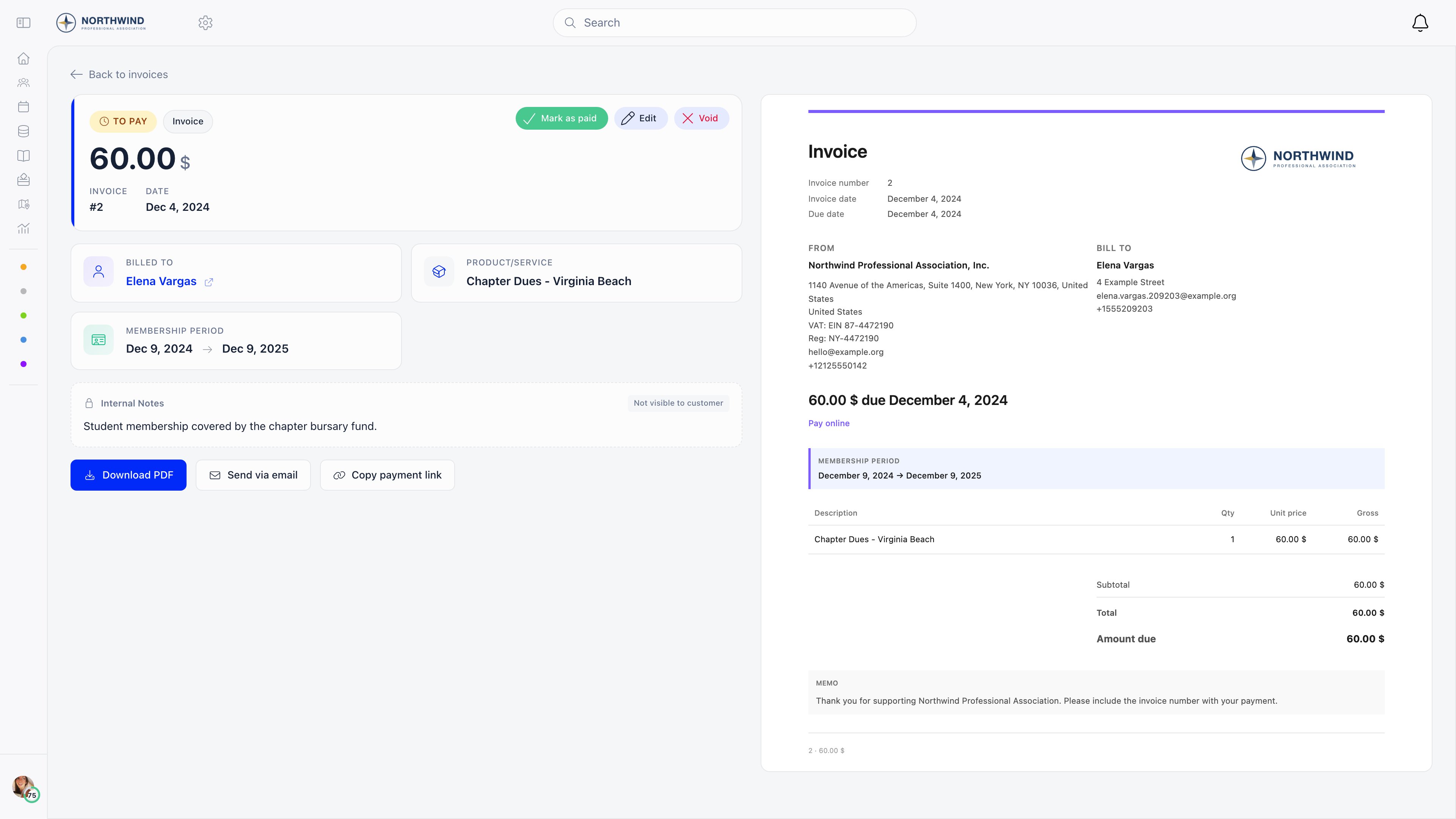
Invoices, open the invoice, then Mark as paid. The button is only there while the invoice is unpaid. Four things happen.- The invoice becomes paid and Orgo records which administrator marked it, so the action stays attributable.
- A PAID badge is added to the stored document, the amount due line changes to read as paid, and the “Pay online” link is removed from it.
- A payment record is created for the gross total (net plus VAT) and linked to the invoice. That record is what updates membership status and shows in payment history.
- The paid invoice is emailed to the customer.
Membership invoices
If the invoice has the Membership switch on, marking it paid also books the membership period on the invoice and moves the member’s fee validity date forward. For a company, it updates the company membership end date, applies the member slots that come with the chosen level, and pushes the new validity date out to everyone the company covers. This is why the membership level and the start and end dates matter on the invoice form: they are the period being bought.Event registration invoices
Marking an event registration invoice as paid confirms the registrations attached to it. The attendees move from awaiting payment to confirmed, the linked payment is marked successful, and ticket confirmation emails go out. Always record an event payment against the event’s own invoice rather than raising a separate one, otherwise the attendance is never confirmed and check-in and attendee reports stay wrong.Recording a membership fee period
An invoice is not required to record a membership fee. On the member’s profile, open the Fee tab and use Mark as paid. Orgo asks which period you are recording, shows the period end it works out from your fee configuration, and records the payment against that period using the price that was valid at the period start, not today’s price.The action needs Allow Mark as Paid switched on in Settings →
Modules → Payments & Fees → Membership fees. With it off, nobody can
record a fee manually and members must pay online.
FINANCIAL_LOCAL for that member’s local centre. Both behave the same way: what
an administrator marks as paid counts straight away, because a mark-as-paid batch
is written as already approved and carries the method check.
The pending state you see on Fee payments in the sidebar comes from somewhere
else. It is the batch written by Pay on the
Member fees table, stamped as a bank
transfer (iban) and left pending, for organisation and chapter fees alike.
Approve there is shown only to ADMIN_TENANT; a chapter administrator with
ADMIN_LOCAL sees Cancel, which deletes the batch instead. Members never
submit a fee payment for approval: a member paying their own fee by bank transfer
raises an unpaid invoice, which is settled with Mark as paid on the invoice.
Recording any other payment
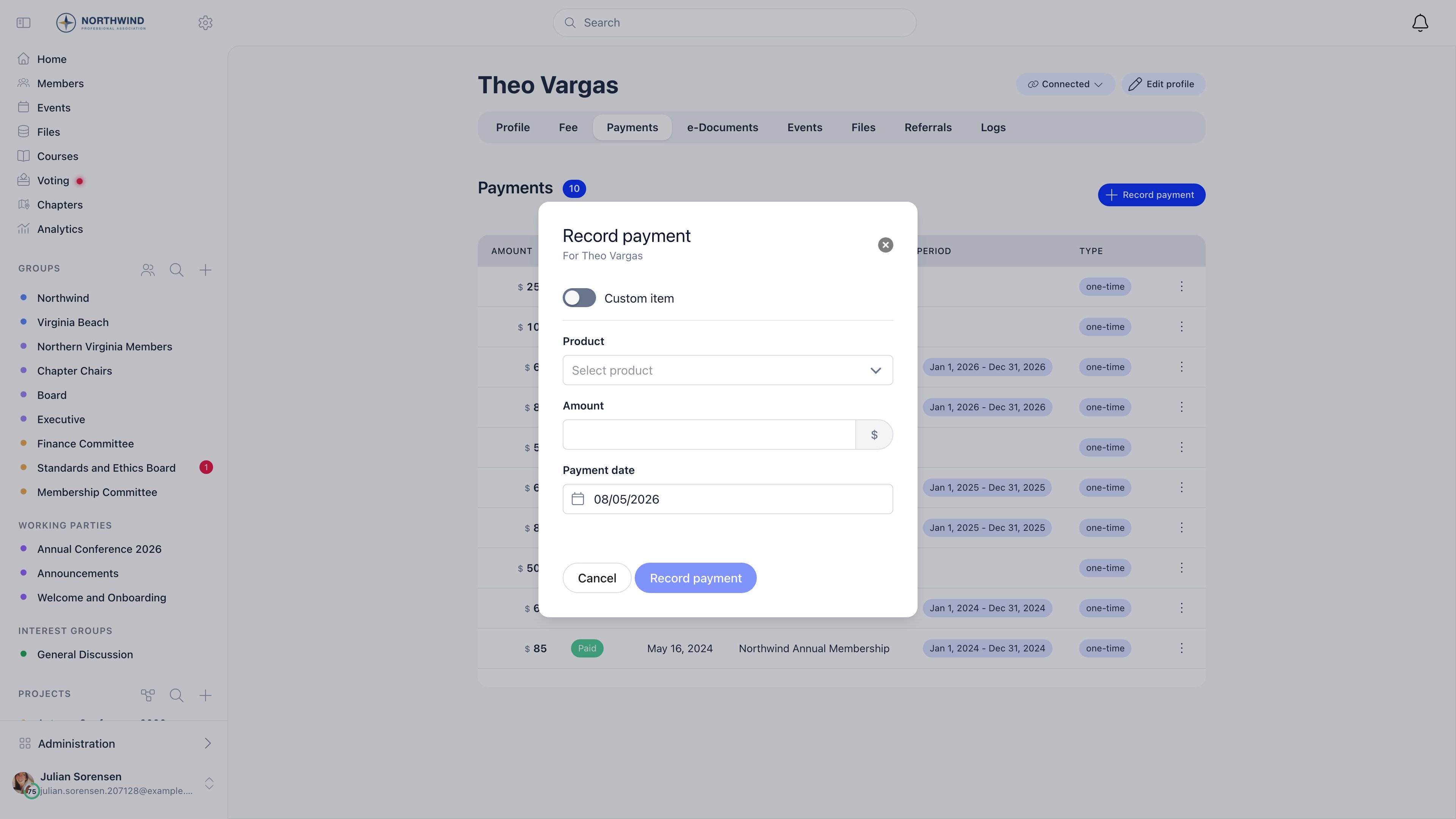
For everything that is not membership, use the member’s Payments tab and the Record payment button. It needsFINANCIAL_TENANT.
1
Choose what was bought
Either pick an existing product, or switch on Custom item and type an
Item name. A custom item creates a hidden one-off product so the payment
has something to hang from without cluttering your product list.
2
Choose the price
Products with active prices require you to pick one, and the Amount is
then locked to it. Only products configured to accept a custom amount let you
type a figure.
3
Set the payment date
Defaults to today. Set it to the day the money actually arrived so reporting
lines up with your bank statement.
Getting it wrong
If you mark the wrong invoice as paid, do not delete it. See cancelling and correcting invoices: the trail of what happened is worth more than a tidy list.Related
- Invoices creating invoices, numbering and templates
- Cancelling and correcting invoices voiding and refunding
- Membership fees how fee periods and prices are configured
- Local group fees fees collected by a local centre
- Stripe integration taking payment online instead