This template is for organisations whose money comes from supporters giving voluntarily, whether or not those supporters are members: nonprofits, foundations, faith communities, alumni networks, advocacy groups. It assumes you already have an Orgo workspace and want to know which parts of it fundraising actually uses. It routes rather than explains. Each step links to the page that covers it in depth, so read this once to get the order right, then work from the feature pages.

Before you start

Gather these before you open Orgo. Every one of them is asked for during setup, and stopping halfway to find a bank statement or write a thank-you message is how half-built campaigns end up published.
  • A Stripe account you can sign into, or the legal entity and bank details to create one during setup
  • Your organisation’s country, which Stripe fixes at account creation and cannot change afterwards
  • Campaign copy written: a title, a short story, and the thank-you message donors read after paying
  • A hero image, or the URL of a hero video
  • A decision on suggested amounts: the figures you want offered, or a plan to press Generate and start from what Orgo proposes
  • A decision on frequency: one-off gifts, monthly giving, or both
  • Someone with ADMIN_TENANT to change the settings, and someone with FINANCIAL_TENANT to build the campaign

What to turn on

Everything in this table lives under Settings. Module settings pages all require ADMIN_TENANT, which is what the permission column says when the setting itself is what you are changing.
Nothing here needs the Invoices module. Donation payments cannot be turned into Orgo invoices: see Limits.

Setup order

Do these in order. The main reason is Stripe: several controls stay greyed out until an account is connected, and a campaign saved without them needs revisiting. Each step says where in the interface it happens and how you can tell it worked, so you can follow along with Orgo open beside you.
1

Set the organisation country

Open Settings → Organisation info, set Country, and save.Stripe needs the country at account creation and it cannot be changed afterwards, so the connect buttons stay disabled until Settings → Organisation info has one.Done when: the connect buttons on the Payment Gateway page below are clickable rather than greyed out.See Organisation info.
2

Connect Stripe

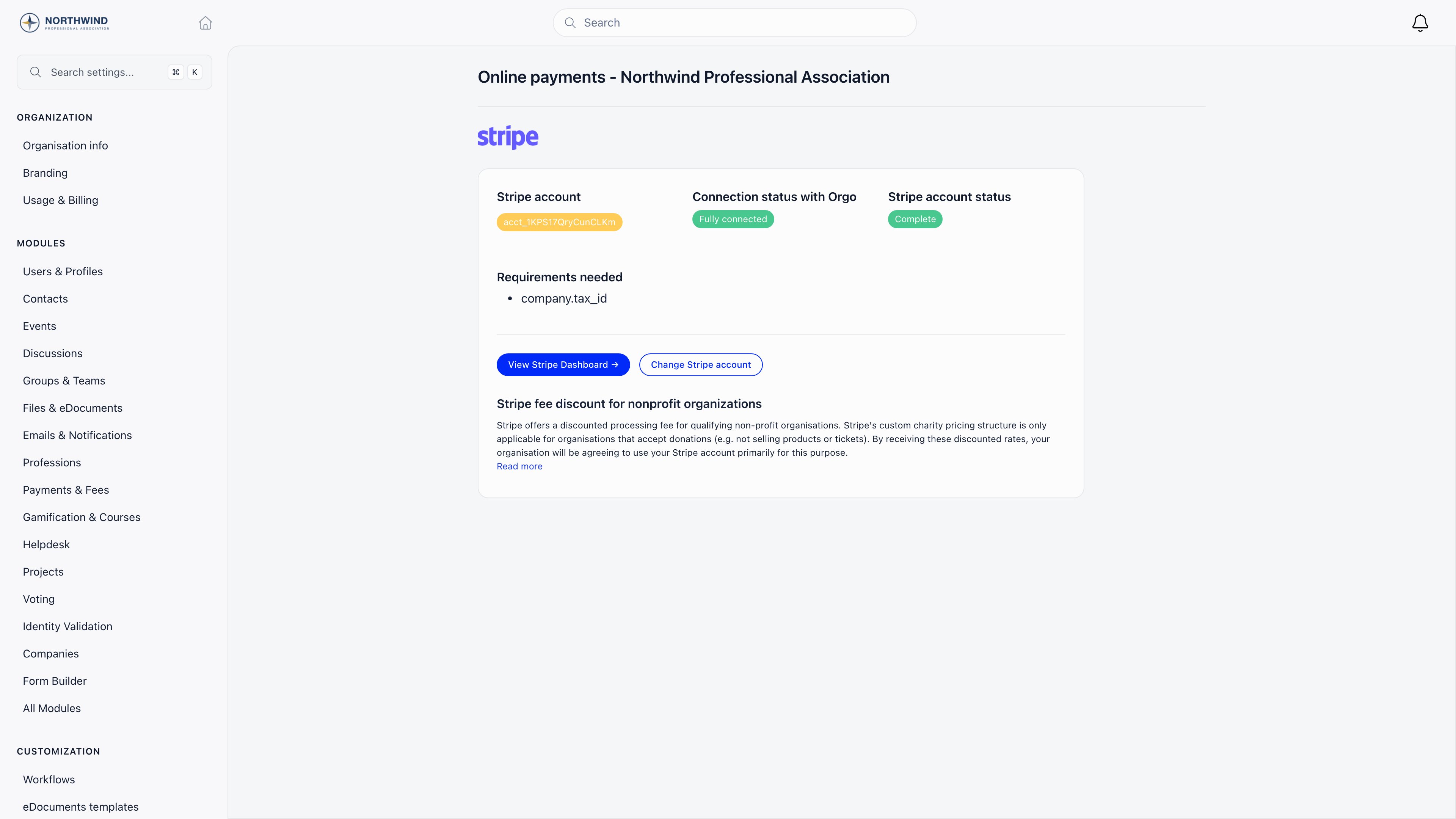
Go to Settings → Modules → Payments & Fees → Payment Gateway and either Connect existing Stripe account or Generate Stripe Account. Stripe runs its own onboarding and returns you to this page.Payment Gateway settings showing a connected Stripe account id, a Fully connected badge, a Complete account status, one outstanding requirement, and buttons for View Stripe Dashboard and Change Stripe accountDone when: the page reads Fully connected and Complete. Build nothing before it does, because One-off and Recurring are both unavailable on the campaign form while no account is linked. An entry under Requirements needed with a future deadline is normal and does not stop you charging.See Stripe integration.
3

Decide the checkout rules once, for all campaigns
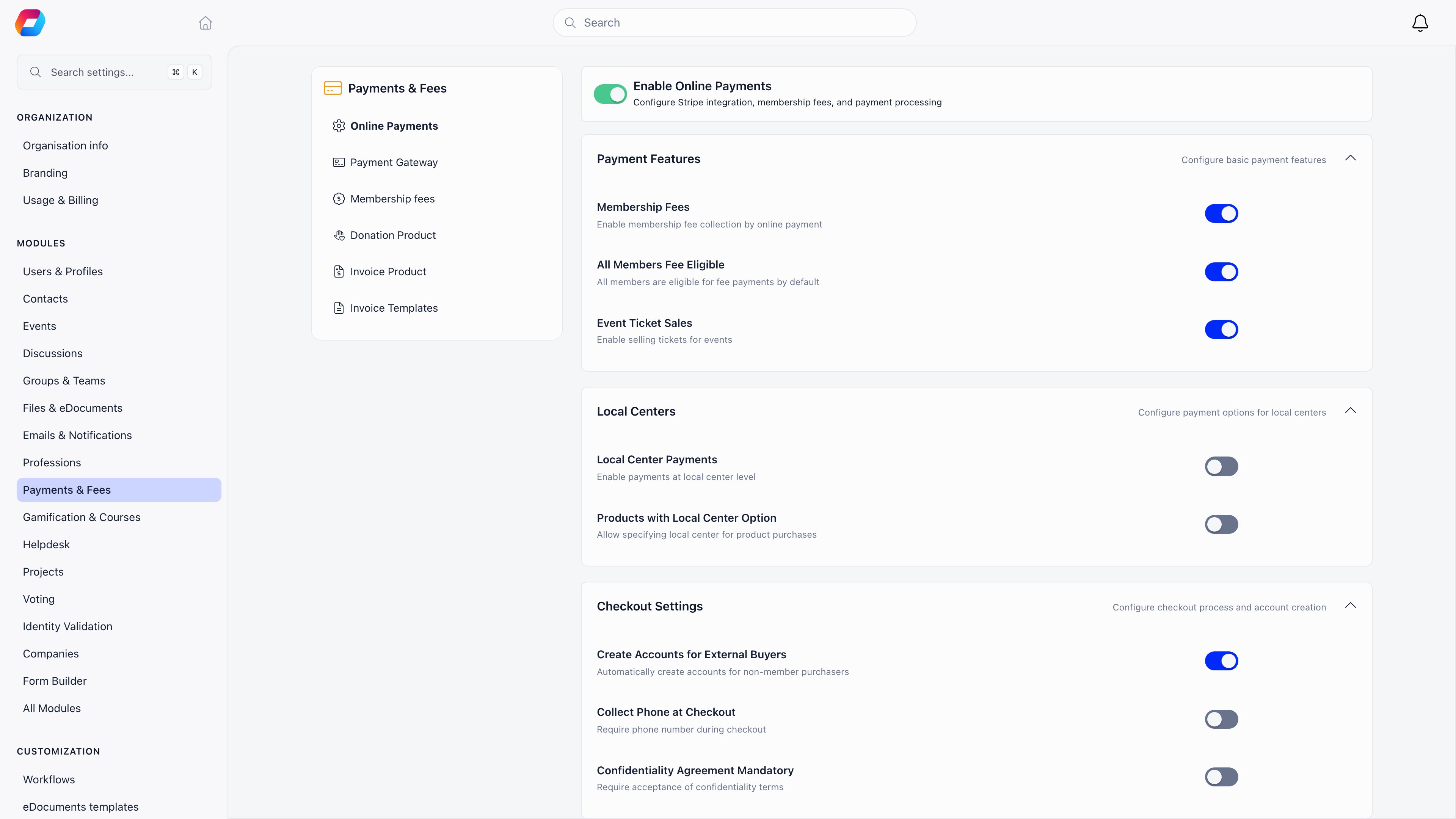
Settings → Modules → Payments & Fees → Online Payments holds the switches that shape every donation form you will ever build.Online Payments module settings with the Enable Online Payments switch, Payment Features, a Local Centers group holding Local Center Payments and Products with Local Center Option, and Checkout Settings holding Create Accounts for External Buyers, Collect Phone at Checkout and Confidentiality Agreement MandatoryCreate Accounts for External Buyers, Collect Phone at Checkout, Confidentiality Agreement Mandatory and Products with Local Center Option are organisation-wide, not per campaign. Setting them now saves rebuilding forms later.Done when: each switch reads the way you want it for every campaign, not just the first one.See Modules.
4

Create the campaign

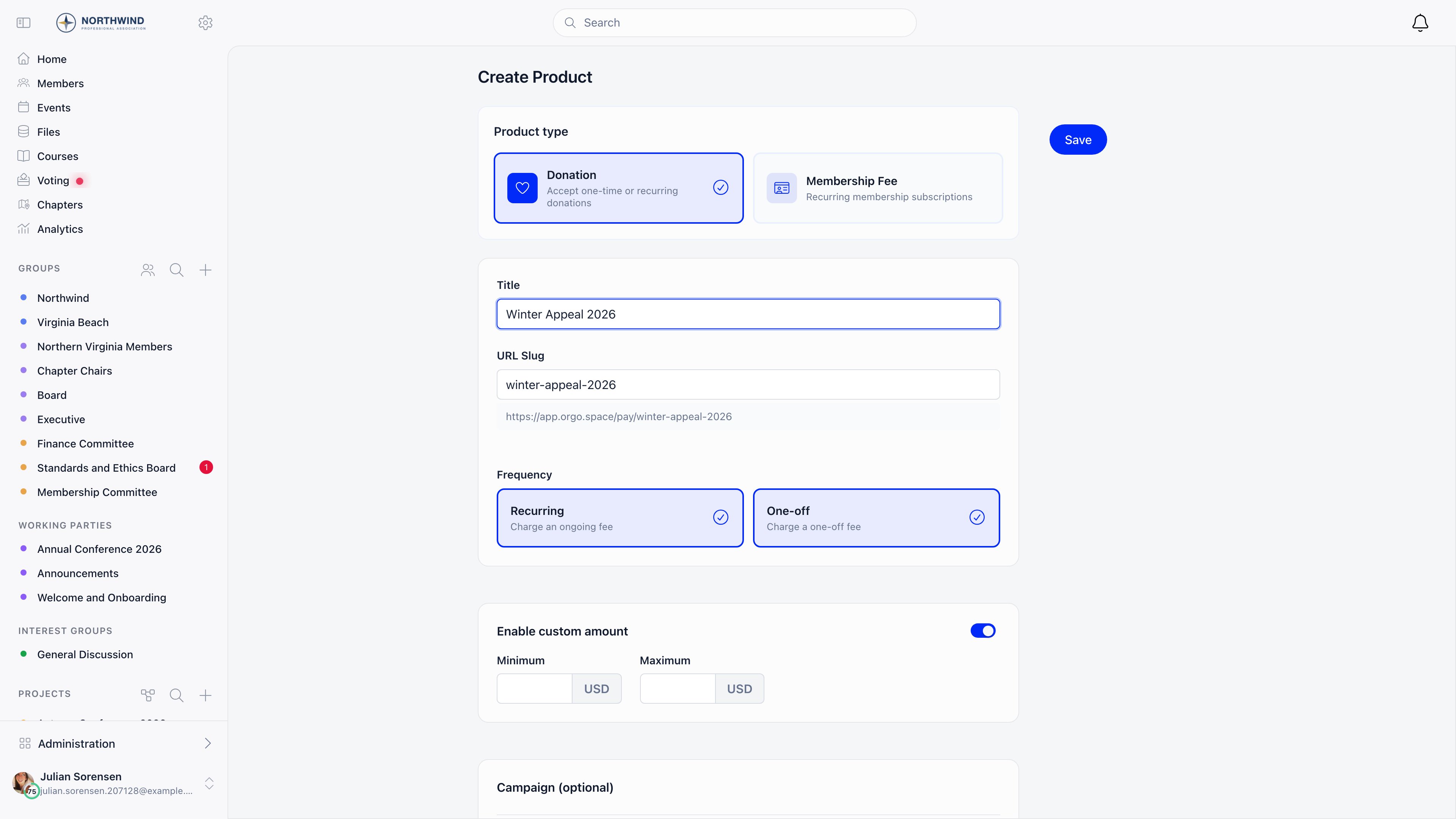
Finance → Products → Create Product, pick Donation, name it, check the URL slug, and turn on One-off, Recurring, or both.Create Product form with the Donation card selected next to Membership Fee, a campaign title, the URL slug generated from it with the public address preview beneath, the Recurring and One-off frequency cards both ticked, custom amount minimum and maximum fields, and the start of the Campaign blockThe frequency choice is the one that is awkward to undo: a saved campaign must keep at least one of the two.Done when: the campaign opens on its own detail page with Prices & Options, Landing page, Widgets and Stats tabs and an Active badge.See Donations.
5

Add suggested amounts

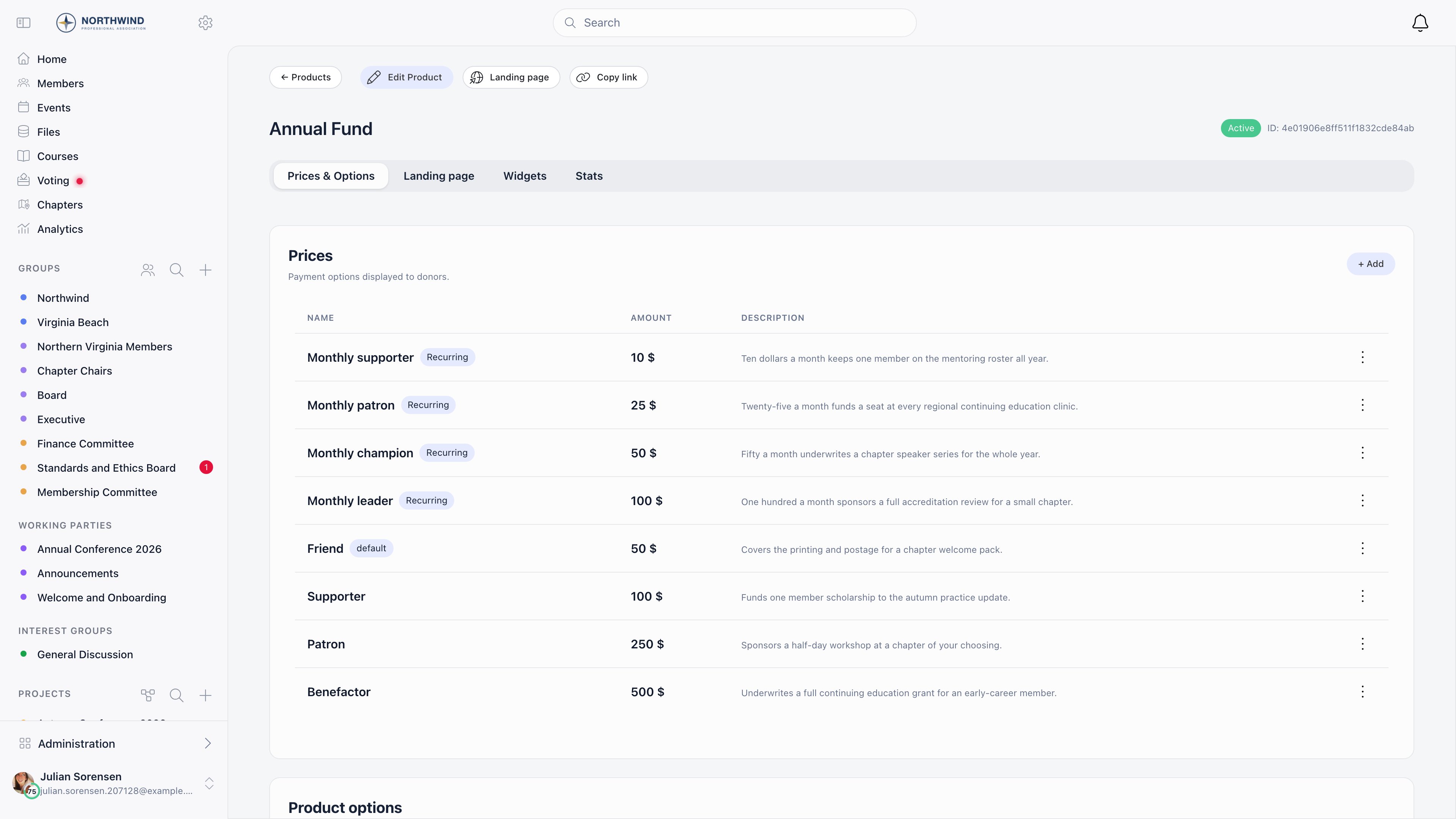
On Prices & Options, add a price row per suggested amount and mark one default. These are the buttons a donor sees before they type anything.Prices and Options tab of a donation campaign listing suggested amounts by name, value and description, one tagged default and four tagged Recurring, with an Add button above the tableOn a campaign with no prices yet, Generate proposes three A/B variations of three amounts each from your country, currency and campaign title, registers them in Stripe and switches A/B testing on. It disappears once any price exists, so use it before you add the first row by hand.Done when: every amount you want offered has a row, and exactly one carries the default tag.See Donations.
6

Add designations, if gifts are restricted

Product options on the same tab are what the donor picks under Designate to: one option per fund, project or purpose you take restricted gifts for.Each one has its own link that pre-selects it, which is what you put behind a button on your own site or in an appeal email.Done when: the option list holds one row per restricted purpose, and its link opens the donation page with Designate to already filled in.See Products.
7

Set the goal

Under Campaign, choose Total goal (cumulative one-off gifts) or Monthly goal (recurring revenue), a Goal value, and optionally a Target date, which replaces the completion percentage on the public progress bar.The goal type selector only appears when both Recurring and One-off are enabled, since with one frequency there is nothing to choose between. Goals are unavailable on multi-currency campaigns.Done when: the public page prints an amount raised, a goal and a progress bar.See Donations.
8

Build the public page

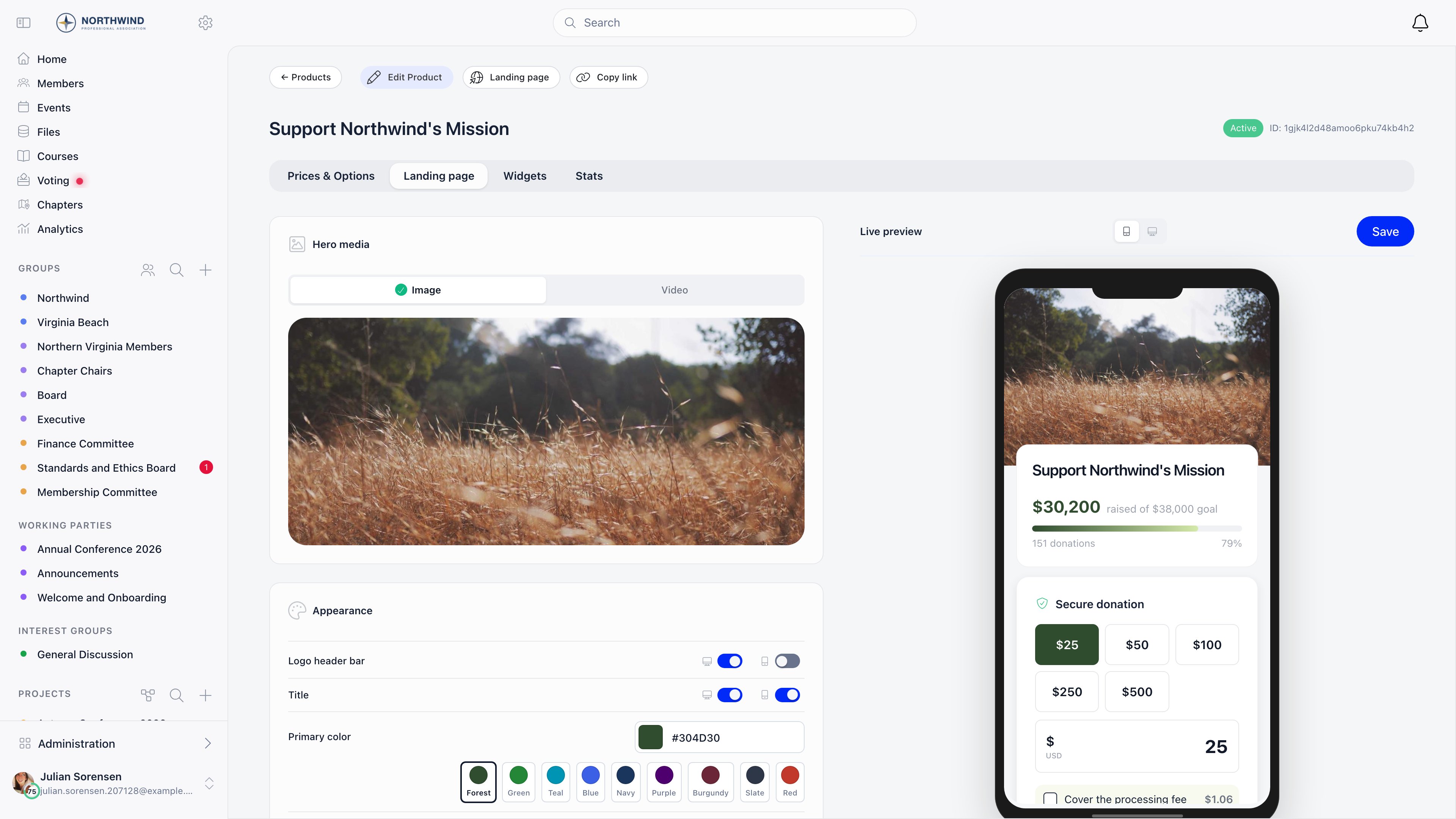
The Landing page tab edits hero media, colours, the campaign story, the thank-you message and the social share image against a live preview.Landing page tab of a donation campaign, with a Hero media card holding Image and Video tabs over the uploaded hero photo, an Appearance card with logo header bar and title switches for desktop and mobile plus named primary colour presets, and a live preview on the right showing the campaign page on a phone with its progress bar and suggested amountsWork down the left column and watch the preview: it renders the real public page, so it shows what a donor will see on the phone most of them are holding.Done when: the preview shows your hero, your story and your amounts, and you have pressed Save in the preview header.See Donation pages and widgets.
9

Point the shortcuts at the right campaign

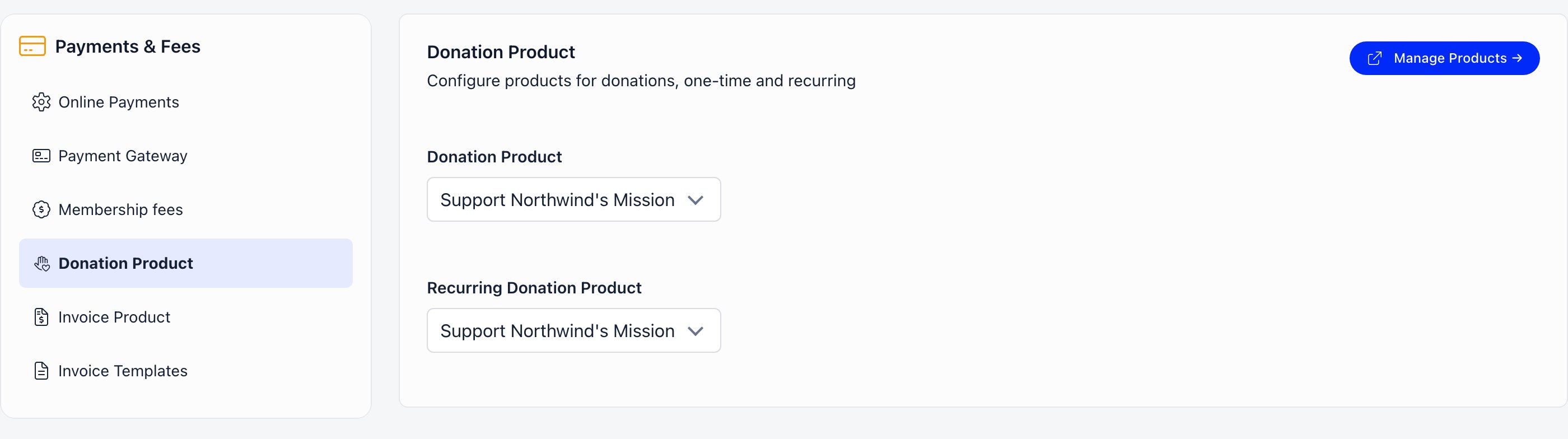
Settings → Modules → Payments & Fees → Donation Product sets which campaign answers /donate, and which one grants the Supporter flag on member profiles.Donation Product settings with both the Donation Product and the Recurring Donation Product selector naming the campaign Support Northwind's Mission, beside a Manage Products linkThe first donation campaign you create claims the first of those automatically, which is rarely the one you want six months later. The two selectors can name the same campaign, as they do above, when that one campaign has both One-off and Recurring switched on.Done when: Donation Product names the campaign you are currently promoting, and Recurring Donation Product names the monthly programme if you run one.See Donations.
10

Rewrite the thank-you email

Open Settings → Modules → Emails & Notifications → Email Templates and edit Donation thank you.This is the only message a one-off donor receives, so it carries the whole relationship: what the gift does, and what happens next.Your version has no language of its own. It goes to every donor as written, whatever language they read the platform in, so pick the language most of your donors share. Leave the template untouched if you would rather each donor got the built-in wording in your organisation’s default language.Done when: the template reads in your own voice, and you have decided which language your donors get.See Email templates and System emails.
11

Turn on the email campaign module last

Settings → Modules → Emails & Notifications → Email Campaigner, then Enable Email Campaign Module.You need the campaign live before you can link to it from an appeal.Done when: a newsletter draft can link to the campaign page you just published.See Newsletter.

What you get

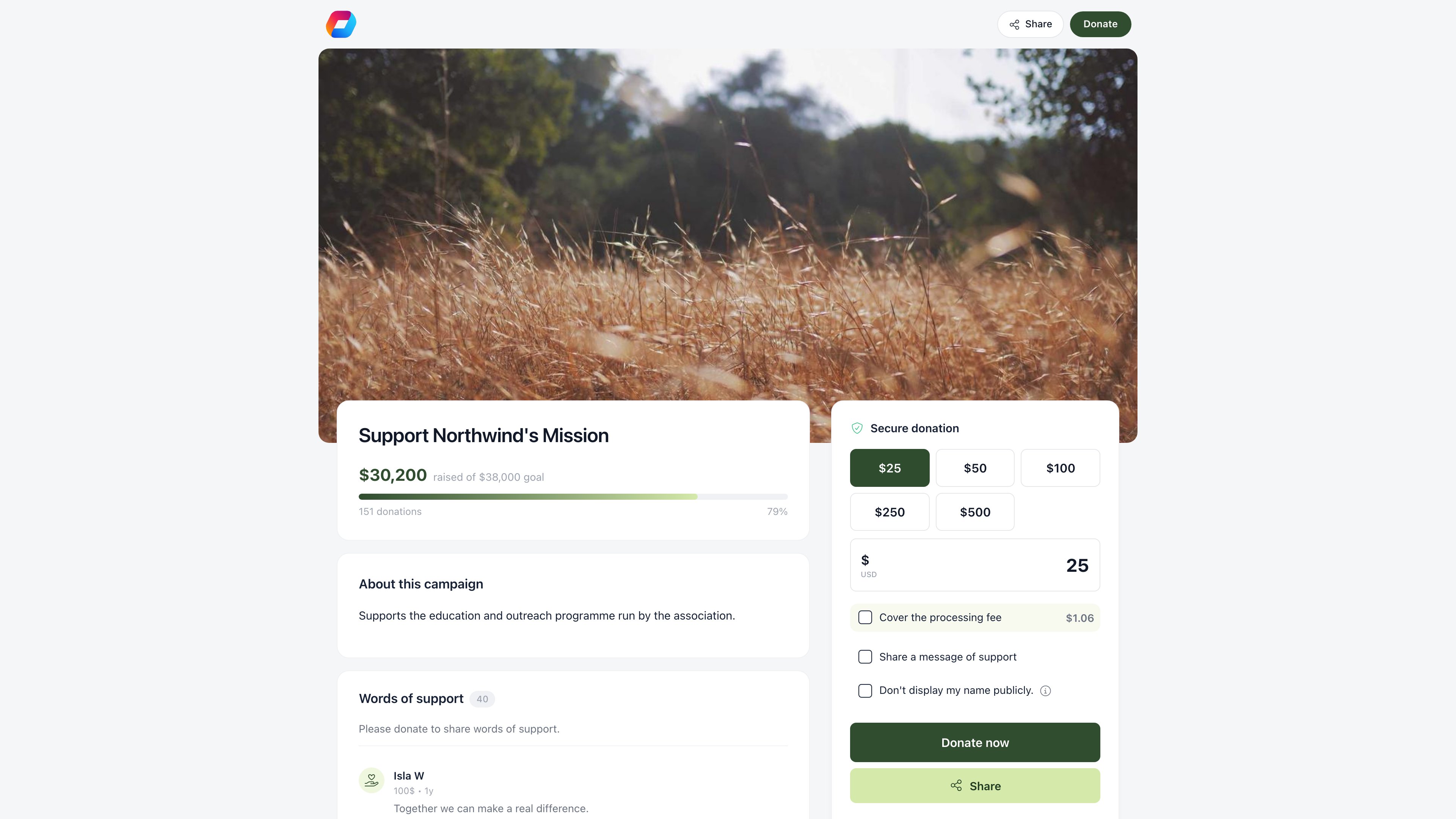
Everything below lands on one public page or one click from it. This is a campaign mid-flight: story and progress on the left, the donation form pinned on the right, recent gifts underneath it. Public donation page showing the amount raised against the goal with a progress bar and donation count, an About this campaign story, a Words of support list of donor messages, and a sticky donation form with suggested amount buttons, a custom amount, Cover the processing fee, a confidentiality checkbox, Donate now and a recent donations panel
Where you read the results

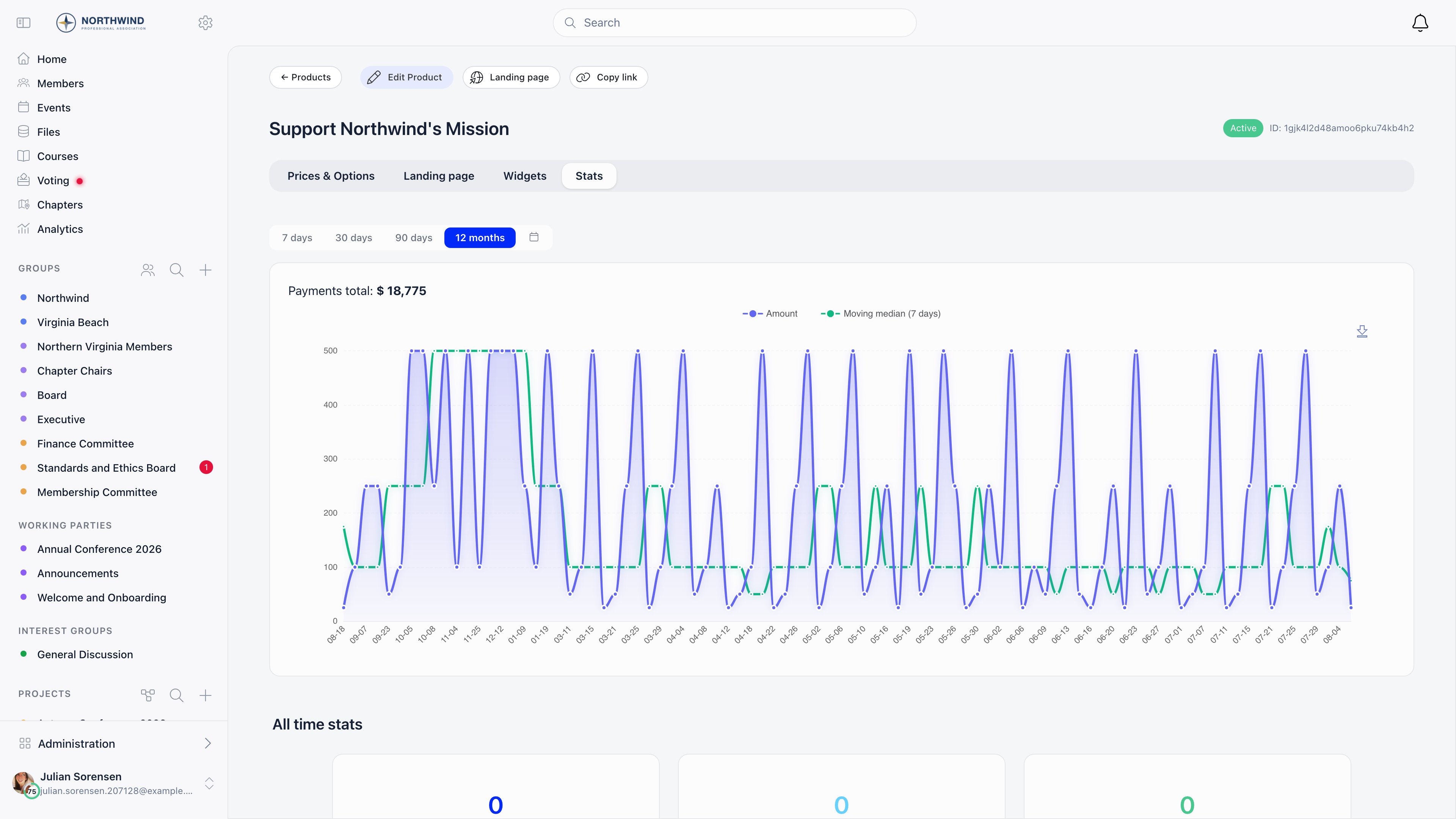
Two tabs on the campaign answer different questions. Payments is the ledger: one row per gift. Stats is the campaign view: money over time above the page analytics. Stats tab of a donation campaign with the range buttons above the chart and 12 months selected, showing a payments total and an amount line with a seven-day moving median The range buttons above the chart matter more than they look: an appeal that ran last autumn is invisible on the default 90-day window.
Recipes

Three worked configurations. These are examples, not defaults. Nothing below is preconfigured, and none of it is the only way to set the feature up.

Example: a year-end appeal

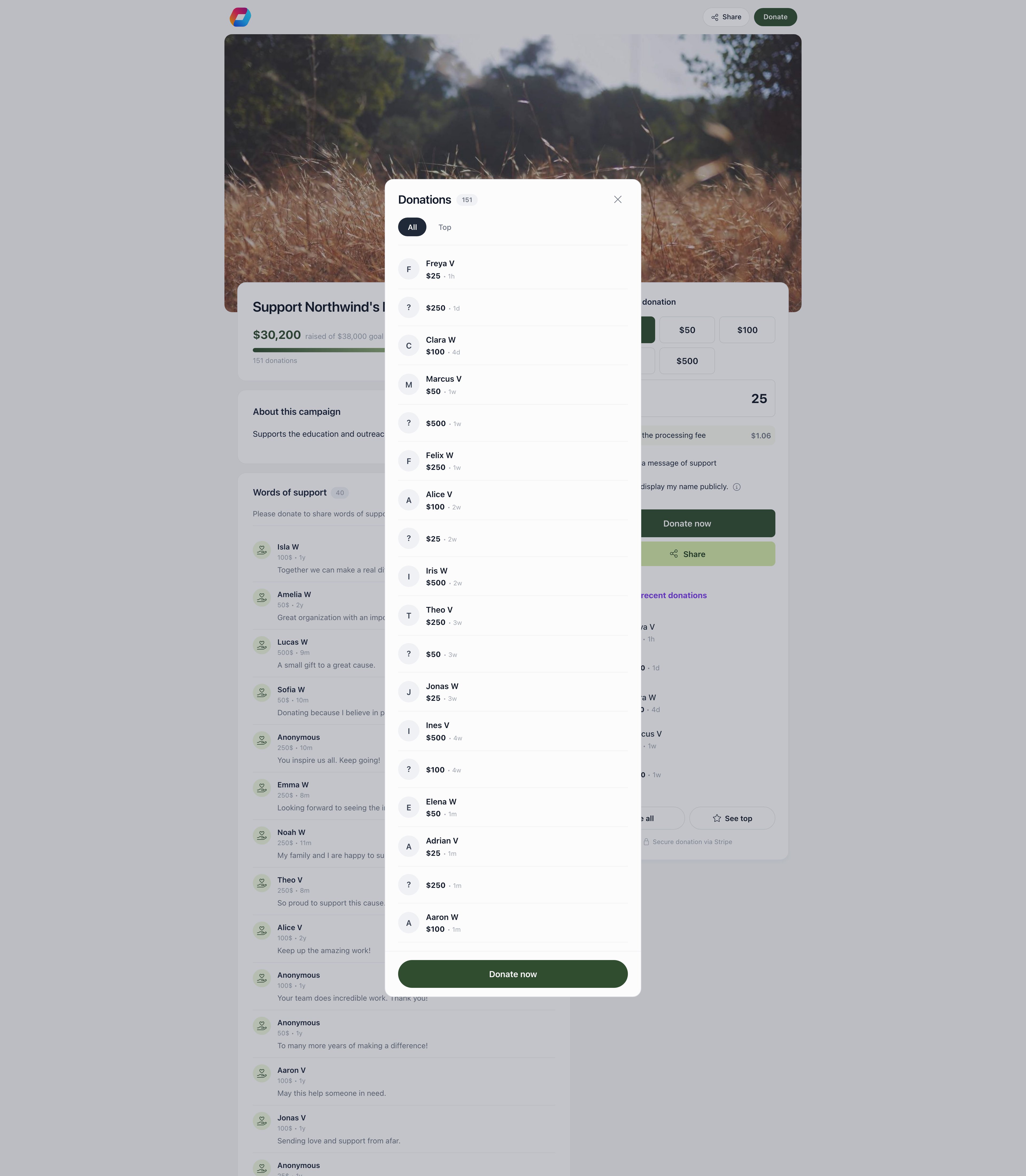
A six-week campaign with a published target, tested ask amounts, and two emails. A week in, the recognition settings are what make the page look busy. The sidebar lists recent gifts, and See all opens the full donor wall with an All and a Top tab. Donations dialog opened from the donor wall of a public donation page, with All and Top tabs over a list of gifts showing donor first name and surname initial, anonymous entries, amounts and how long ago each was given, above the campaign page and its Words of support list Two things to know before you rely on this. The A/B test is on the suggested amounts, not on the email: newsletter campaigns have no A/B testing. And a variation that is winning cannot be promoted to “the default” while A/B testing is on, because Make default is hidden in that mode. Turn A/B testing off and mark the winning amount default once the appeal closes.
Example: a monthly giving programme

Switching off Subscription Notifications on Settings → Modules → Emails & Notifications → Emails Config silences those two emails, and with them the only cancel link a donor who is not a member ever receives. Leave the category on for a recurring programme. See System emails.

Example: an appeal tied to an event

Orgo has no donation step inside event checkout, so an event-linked appeal is a normal campaign with the event used as the audience and the designation.
1

Add a product option named after the event

On Prices & Options, add an option such as “Spring Conference bursary fund”. Copy its link: it opens the donation page with that designation pre-selected, so it is what you put on the event page and in the run of show.
2

Send to the attendees

Create a newsletter with the Event attendees audience, or start from the event with Send email for participants, which files the campaign under the event’s own messages and unlocks the event placeholders. See Newsletter.
3

Tag the links you share

Append UTM parameters to the link you publish. The campaign’s Stats tab breaks both views and gifts down by UTM source, medium and campaign, which is the only way to tell the stage announcement apart from the follow-up email.
4

Report on the designation

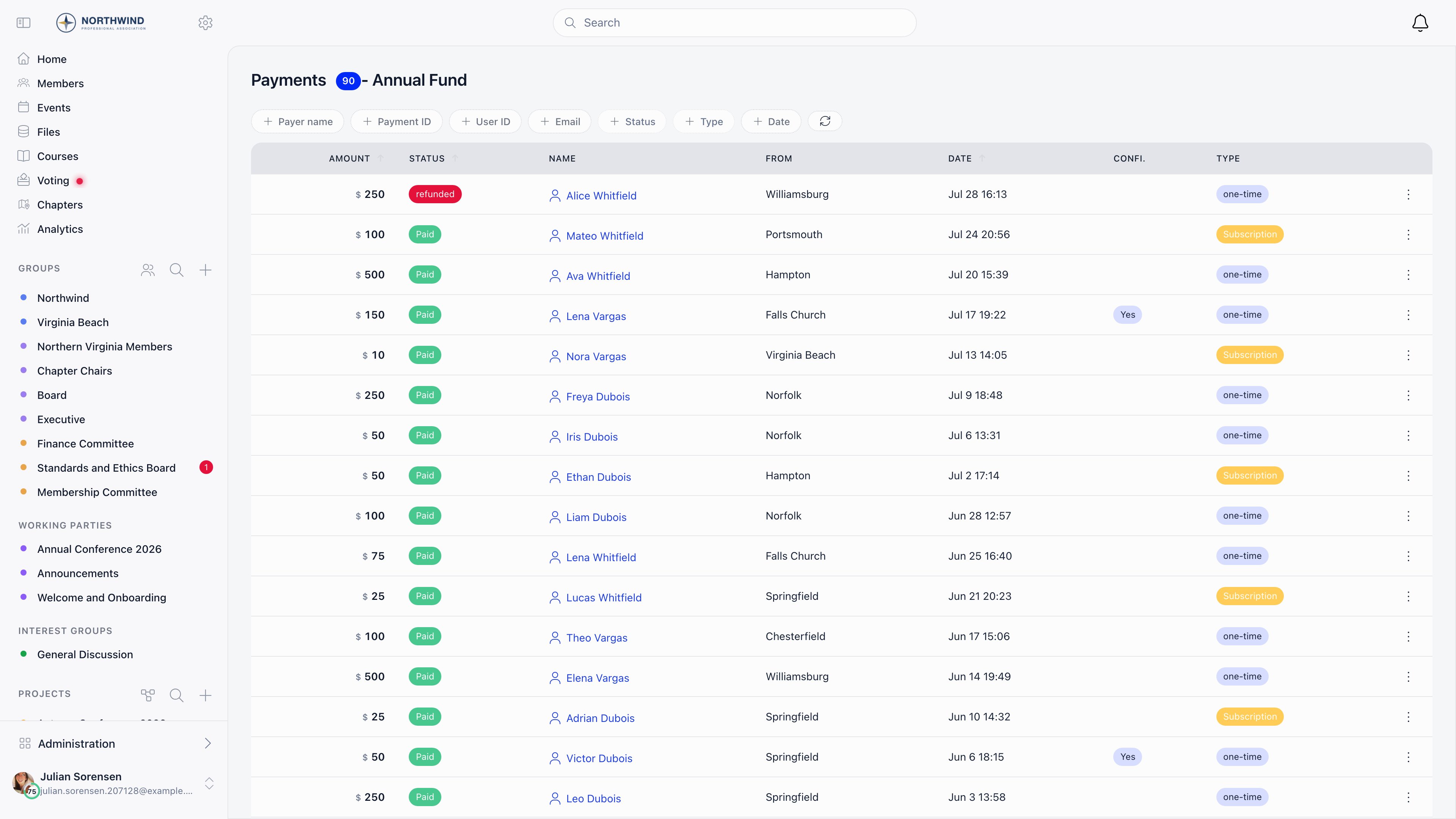
Filter the campaign’s Payments tab by option to get the total raised for that event, separate from the rest of the campaign.Payments tab of a donation campaign with a gift count next to the campaign name, filter pills for payer name, payment ID, user ID, email, status, type and date, and rows showing the amount, a paid or refunded status, the payer, their chapter, the date, a confidentiality marker and whether the gift was one-time or a subscriptionThe same list is where you check a gift somebody says they made, and where Refund lives.

Setup checklist

Work down this before you publish the first link. It mirrors Setup order, so anything unticked tells you which step to go back to.
  • Country is set on Settings → Organisation info
  • The Payment Gateway page reads Fully connected and Complete
  • The organisation-wide checkout switches are set the way you want them for every campaign
  • The campaign exists, with One-off, Recurring or both switched on
  • Every suggested amount has a price row, and exactly one is marked default
  • There is a Product option for each restricted purpose, if you take restricted gifts
  • A goal type and Goal value are set, plus a Target date if the appeal has a deadline
  • Hero, story and thank-you message are saved on the Landing page tab
  • Donation Product points at the campaign you are promoting, and Recurring Donation Product at the monthly programme if you run one
  • The Donation thank you template is rewritten in your own voice, in the one language every donor will receive
  • Enable Email Campaign Module is on, so a newsletter draft can link to the campaign
  • You have given a test gift yourself and received the thank-you email
  • The link you are about to publish opens the right campaign, with the right designation pre-selected

Limits worth knowing before you start

Stated plainly, because each one has caught somebody out.
The one that surprises fundraisers most: Orgo has no donation receipt or tax document anywhere in the product. Read the first limit below before you promise donors anything on paper.
Donations do not produce invoices or tax receipts. Generate Invoice on a payment row only appears for membership fee and event registration payments; a donation payment is refused. There is no annual giving statement, no Gift Aid support and no donation tax form anywhere in the product. The donor gets the Donation thank you email, and Stripe’s own receipt if you enable Stripe Email Receipts. If your donors need a document for tax purposes, produce it outside Orgo. The PDF Receipts/Proofs setting is not a general donation receipt. It adds a downloadable proof on paid rows, but the document is generated from the payer’s validated identity record, so it only produces anything for donors who went through identity validation. Do not enable it expecting receipts for ordinary card gifts. A chapter designation is a label, not a bank instruction. With Has local center option on, a donor picking a chapter under Designate to stamps the payment with that chapter, which is what the payments filter and the refund permission read. A gift with no designation is treated as organisation-level, and the refund, cancel, accept and proof actions on it require FINANCIAL_TENANT rather than any one chapter’s FINANCIAL_LOCAL. The money still settles into the Stripe account the campaign resolves to. Only fee payments follow chapter Stripe routing: see Stripe integration. There is no CSV export on the campaign payments or subscribers lists. Both are filterable and paginated on screen only. For a donor extract, build a payments report in Reports: Payments is one of the builder’s starting points, you can add columns from the product, the price, the payer and the company, and the download holds every matching row rather than one page. The alternative is to ask the question in Ask Orgo and use Export CSV, which returns the first 500 rows; save the query and run it from Database Queries for the whole set. Both routes require ADMIN_TENANT, so a fundraiser holding only FINANCIAL_TENANT cannot do this themselves. Refunds are all or nothing. Refund returns exactly that payment row’s amount. There is no partial refund in Orgo, so a donor who wants half their gift back has to be refunded in full and give again. Donor messages publish immediately. A message attached to a successful or on-hold payment is stored as approved and appears in Words of support straight away. Moderation is after the fact: there is no pending queue to approve. Leave Messages of support from donors off if you cannot watch the page. There is no abandoned-gift reminder for one-off donations. The only checkout reminder in the product chases recurring subscriptions that stalled after identity validation, and it fires once, at least 48 hours later. Somebody who opens your donation page and leaves is never emailed. Goals are unavailable on multi-currency campaigns, because there is no single number to total toward. Pick one currency for any campaign you want a progress bar on. Widget ids are public by design. Anyone with the id can render your donation form on their own site. Delete a widget you no longer want live rather than removing the snippet from your page. A campaign that has taken any money cannot be deleted. Archive it. The page keeps loading and the form is replaced with a notice that payments are disabled. Orgo is not a peer-to-peer or team fundraising tool. There are no supporter-created pages, no individual fundraiser targets and no team leaderboards for giving.

Troubleshooting

No Stripe account is connected: the organisation’s for an organisation campaign, the chapter’s own for a chapter campaign. Connect one under Settings → Modules → Payments & Fees → Payment Gateway. If the connect buttons themselves are disabled, the organisation has no Country set under Settings → Organisation info. See Stripe integration.
Stripe has stopped letting the account charge. Open the settings page and read Requirements needed, or the same list in the Stripe Dashboard, and clear it. The page shows Partially connected rather than Fully connected while this is true. An open requirement with a future deadline does not block anything yet, so a working account with a warning is normal.
Check three things in order. Is it on the campaign’s Payments tab with a status other than success? A payment on hold shows as on-hold and has not been captured. Was it designated to a chapter you do not hold FINANCIAL_LOCAL on? The payments list is scoped by permission, and the payment-ID and email filters are only offered to FINANCIAL_TENANT. And is it on the right campaign at all? The /donate shortcut resolves to whichever campaign is set as Donation Product, which is not necessarily the one you were promoting.
The Donation thank you email is sent when Stripe confirms the payment, and it sits under the Payment Confirmations category on Settings → Modules → Emails & Notifications → Emails Config. A category switched off sends nothing and writes no log row. If the switch is on, check the email log for the recipient address: a gift given with a mistyped email has nowhere to go. Offline gifts you recorded by hand never trigger it, because there is no Stripe confirmation to react to.
Orgo has no donation receipt document. Your options are Stripe Email Receipts, which lets Stripe send its own receipt from your account (it needs customer emails enabled on the Stripe account, and Stripe never sends receipts in test mode), or raising a document outside Orgo. Generate Invoice is not available on donation payments. See Invoices for what invoicing does cover.
Refund on the payment row, which needs FINANCIAL_LOCAL on the chapter the gift was designated to, or FINANCIAL_TENANT when the gift carries no chapter. ADMIN_TENANT qualifies either way, and a chapter treasurer cannot refund an undesignated gift. It only works on a payment already in success; a payment still on hold is cancelled instead, and the full row amount goes back. Refunds you issue in the Stripe Dashboard are picked up and marked in Orgo too, so you do not have to do it twice.
Send them the cancel link from their Subscription created or Subscription payment received email: it opens a page that cancels without a login, and it is the only self-service route a donor who is not a member has. A donor who is a member can instead open the Payments tab of their own profile, which lists their active recurring gifts with an Unsubscribe action. Failing both, cancel it for them from the campaign’s Subscribers tab.
Display top 50 recent donations has to be on for the panel to exist at all. Donors who ticked confidentiality show as “anonymous” throughout, and a gift given with Enable payment confidentiality on never sets the Supporter flag either, so a recurring donor can be entirely invisible by their own choice. The wall shows a first name and a surname initial, never a full name.
The flag needs all of: the setting pointed at the right campaign, an active subscription (not cancelled, not pending), and a subscription the donor did not mark confidential. Cancelling clears it. Check the campaign’s Subscribers tab for the donor’s actual status before assuming the flag is broken.
Each currency carries its own Stripe minimum charge, for example 0.50 USD and EUR, 0.30 GBP, 2.00 RON. That floor applies underneath whatever Minimum you set on the campaign, so a lower amount is refused at the payment step rather than by your own validation.
Two reasons. The goal type selector only appears when both Recurring and One-off are enabled, since with one frequency there is nothing to choose between. And goals are not offered at all on a campaign with more than one currency.
Organisation campaigns need FINANCIAL_TENANT. FINANCIAL_LOCAL reaches only campaigns belonging to a chapter the holder is attached to, which is why a chapter finance admin sees Finance → Local products but not the organisation’s campaigns. Someone without the permission is sent to the login screen rather than shown a permission message, which reads like an expired session and is not one. See Permissions.