

Identity
One name field, split on demand
There is no first-name and last-name pair on a contact. There is one Name field, and Orgo derives a first and last name from it by splitting on spaces whenever something needs them separately, taking the first word as the first name and the last word as the last name.This is why imported names sometimes split oddly. “Maria del Carmen Ruiz” gives a
first name of “Maria” and a last name of “Ruiz”; “Ruiz, Maria” gives a first name
of “Ruiz,”. Nothing is lost, because the full string is what is stored and
displayed, but anywhere a first name is used on its own (a personalised email
greeting, for example) will show the split, not your intention. Fix it by editing
the Name field into the order you want.
Social profiles
The record page shows these as icon links. With none of them filled in, the card
reads “No social profiles added”.
Address
There is no personal street address field on the contact form. The address you
can record is the Company address in Billing Details below, which is what
invoices use.
When a contact has no country of its own, the record and the list display the
country of its town instead. The Country column in the list can therefore
show a value that was never set on the record itself. Sorting and filtering by
country read the stored field, so a contact showing a country by way of its town
will not appear under that country in a filtered list.
Organisation and role
Two blocks, filled in by hand. Professional Info
Billing Details
Provenance
Every contact carries a Source, set once when the record is created and never changed afterwards. It is shown as a coloured tag on the record and as a sortable column in the list.
Contacts created by an import also keep a link back to that import, which is what
lets an import be rolled back. What each source fills in is covered in
Where contacts come from.
Status and dates
Duplicate email addresses are possible
Email is not unique on a contact. There is no database constraint on it, not even within one organisation, so the same address can appear on two or more contact records at once. This is normal data cleaning, not an error state. Duplicates arise because only one path checks for them. The Add Contact form refuses an email that already belongs to a contact or a member, and offers to update the existing record instead. Every other path writes without that check:- Spreadsheet imports
- Newsletter signups and embedded contact forms
- Event registrations, donations and other checkouts
- Records created by Stripe or by contract signing
Statuses
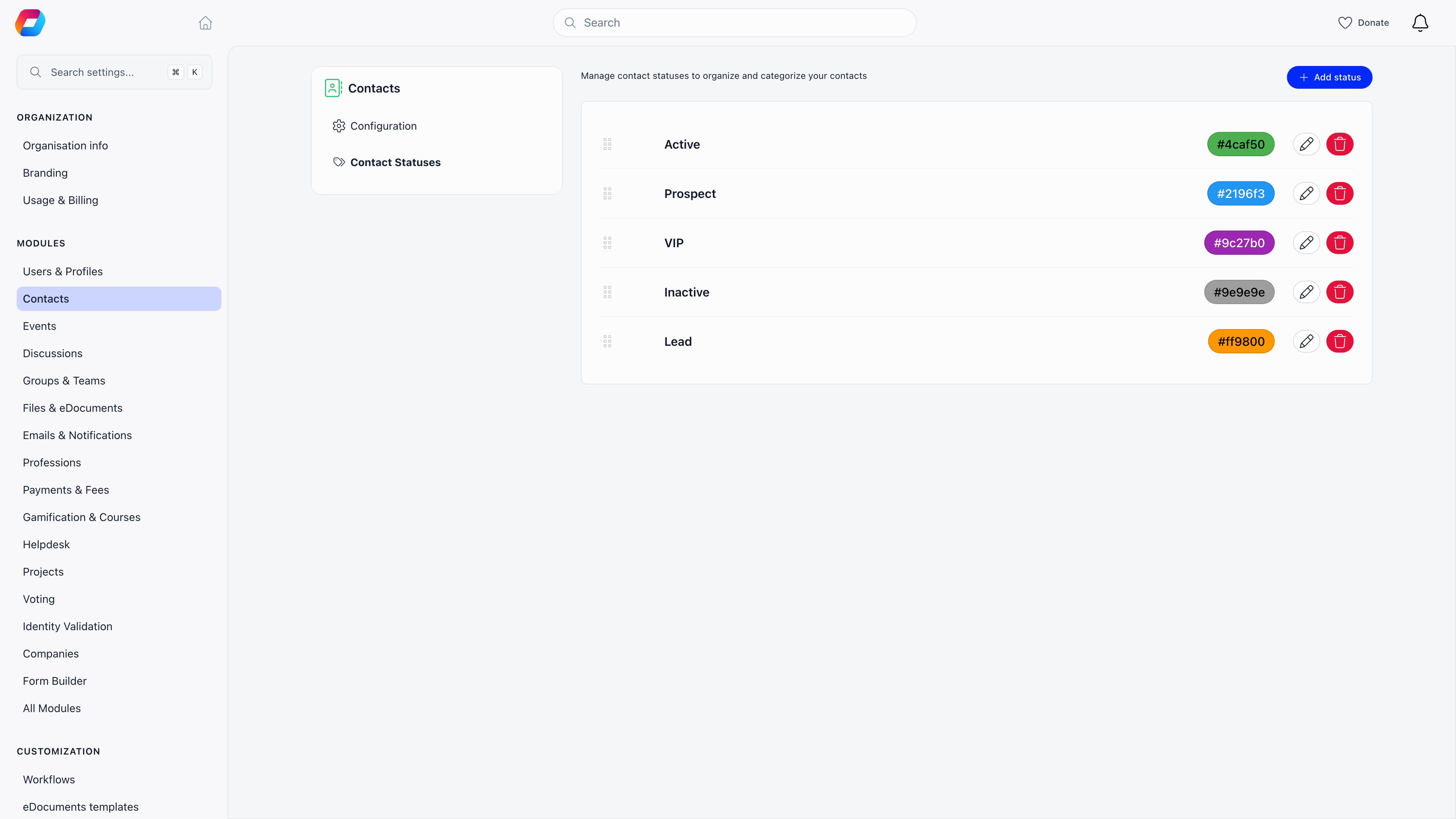
A contact status is a label you define, not a fixed list Orgo ships. Think of it as a pipeline stage: New lead, Contacted, Qualified, Lapsed, whatever your team actually says out loud. Each status has three properties:Defining the list
Settings → Modules → Contacts → Contact Statuses. Add rows, edit a name or colour in place, drag to reorder, and delete the ones you stop using. The list stays editable, so you can rename or reorder at any time. Deleting a status does not delete the contacts that held it; those records simply go back to having no status. Everywhere a status can be chosen, an organisation with none yet gets a “No statuses. Manage Statuses” link straight to this page.Setting a status on a contact
Two places, and both save immediately:- On the record page, click a chip in the status pipeline. A short toast confirms.
- In the contacts list, click the status tag on a row and pick from the dropdown. This is the fastest way to work through a batch of contacts.
Statuses are gated by Enable Contact Statuses under Settings → Modules
→ Contacts. It is on by default. With it off, the status field, the status
column and the status filter all disappear, and nothing is deleted. Contact
statuses are a separate list from member statuses, which are fixed and decide
whether someone can sign in. See User Statuses.
Tags
Tags are the multi-choice counterpart to the single-choice status. One contact can carry as many as you like.- The tag catalogue is organisation-wide, and it is shared with members. The same tag can sit on a contact and on a member, so you can filter both populations by it.
- Casing does not create duplicates. Orgo normalises each tag name and keeps one entry per organisation, so “Volunteer”, “volunteer” and ” Volunteer ” are the same tag, not three.
- Assignment is per contact. Open the Tags card, type to search, and pick. The X on a chip removes it.
The two are separate. Someone with
HR_TENANT can tag contacts all day using
tags that already exist, but typing a name that is not in the catalogue yet and
pressing Enter will be refused. Ask an organisation administrator to add the tag
once, then everyone can use it.Custom fields
Custom fields are how you record anything Orgo has no column for. They are defined once under Settings → Users & Profiles → Custom Fields and reused across members and contacts. Only profile fields attach to a contact. A custom field belongs to one of several groups depending on where it was created; the profile group is the one that reaches a person’s record. Fields built for a specific form stay on that form and never appear on a contact. There is one exception by design: the local center field type is form-only, because a contact already has a Chapter field of its own. Which profile fields appear on the contact form is decided by your profile form configuration, and the read-only Additional information card on the record only shows fields that actually have a value, so a contact with no answers has no card. Field types available: Input text, Input numeric, Textarea, Dropdown, Checkboxes, Radio choice, Switcher (True/False), Date and File Upload. Visibility levels: every field is Public, User or Admin, which controls who can read and write the value. Encryption: a small number of free-text fields per organisation can be encrypted at rest. The cap is five, and only Input text, Input numeric, Textarea and Date fields qualify. Choice, switch and file fields cannot be encrypted. All three of those are explained in full, with the exact rules on who can read what, on Custom Fields.Notes and activity
Two cards that work together. Notes is what your team writes about the contact: what was said on the call, what to do next. Each note records its author and the time, is capped at 512 characters, and can carry an optional Called or Emailed action. The author of a note can edit or delete it, and so canADMIN_TENANT; nobody else
can change someone else’s note.
Activity is the feed underneath, merged newest first. It combines the notes
with things Orgo records on its own.
Donations and form submissions the contact made appear in the same feed, so the
card reads as one running story rather than an audit dump.
Profile field edits are recorded but are not shown in the feed, which is
deliberate: a record edited in ten fields would otherwise bury the notes. The
entries exist for auditing, so ask an organisation administrator if you need to
see them.
HR_LOCAL or FINANCIAL_LOCAL over that contact, or
ADMIN_TENANT.
The record page
Open a contact from the list and you get a modal; the maximise control and the/contacts/show/ URL give you the same content as a full page.
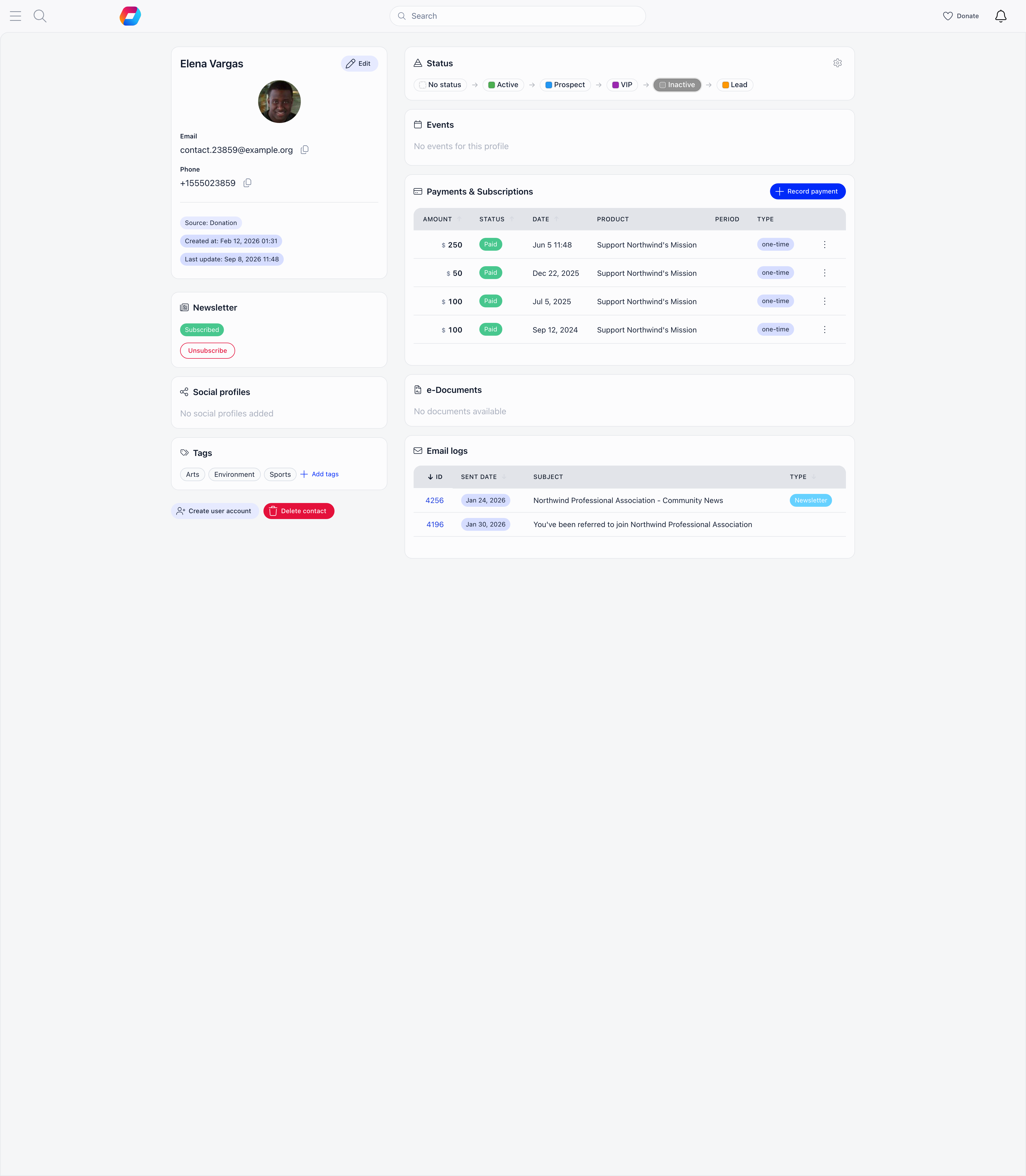
There are no tabs. The record is one scrolling page of cards in two columns,
which stack into a single column on a phone. Several cards hide themselves when
they have nothing to show, so not every contact displays every card below.
Left column, top to bottom:
- Contact info with the Edit button that turns the whole card into the form
- Status (on a phone only, so it stays near the top)
- Newsletter, with a single Subscribe or Unsubscribe button
- Social profiles
- Tags
- Notes
- Activity
- Additional information, the custom field answers
- Create user account and Delete contact buttons
- Status, as a left-to-right pipeline of chips
- Events the contact registered for
- Payments & Subscriptions, with the subscription table above the payment list
- Company Membership, when the contact is on a company account
- e-Documents, when that module is on
- Email logs, every message Orgo sent to this address
The contacts list
Contacts in the main menu. The list is where most day-to-day work happens.Columns
Name, Country, Town, Chapter, Email, Phone, Newsletter, Source, Status, Tags, Date created, Stripe.- Name, Country, Town, Newsletter, Source and Date created are sortable. The rest are not.
- Email and Phone are icon-only to keep the row narrow. Hover to read the value, click to copy it.
- Status is editable in place: click the tag and pick.
- Tags are clickable, and clicking one filters the list by it.
- Chapter appears only with Enable Per-Chapter Contacts on, Status only with Enable Contact Statuses on, and Stripe only on rows that have a Stripe customer.
Search
One box, and it matches name and email. It runs when you press Enter or click the search button next to it, not as you type, so a long list does not re-query on every keystroke. The X clears it and returns you to the first page. On a phone the box is behind the search icon in the header.Filters
Four dropdowns, and they combine with each other and with the search.
Counts on the Status and Newsletter dropdowns are fetched the first time you open
them, so they are current rather than cached from page load.
Paging and bulk actions
The list shows 20 rows per page and paginates on the server, so filters and sorting apply across your whole database, not just the page you are looking at. Select turns on the checkboxes. Once rows are ticked, one action is offered: delete selected. There is no bulk tag, no bulk status change and no bulk newsletter action, so those stay one contact at a time.Related
- Contacts - what a contact is, and how it differs from a member
- Where contacts come from - every path that creates a record, and what each one fills in
- Payments and contacts - what a contact can pay for, and the membership fee boundary
- Newsletter and contacts - the subscription field, audiences and unsubscribes
- Events and contacts - registration, badges and the Event App
- Becoming a member - turning a contact into an account that can sign in
- Contact permissions - who sees, edits, exports and deletes contacts
- Custom Fields - field types, visibility and encryption in full
- Profile Activity & Notes - the notes and activity feature end to end
- Merging duplicates - the fix for duplicate contacts
- Permissions - what each permission level unlocks