

Opening a profile
In the directory, the row menu items View Profile, Modify Profile and Modify Roles (shown to
ADMIN_LOCAL and above) open the same profile: Modify Profile lands in Edit on the Info pane, Modify Roles on the Roles pane. See Users & Profiles.
The header
The top of every profile carries the member’s photo, name and a row of chips, with the actions on the right.
On a phone the top bar replaces these buttons: a pencil (Edit) and a menu holding Send an email, Copy link and, on your own profile, Settings. While editing, the bar shows Save.
The tabs
Under the header, a tab band switches between the areas of the profile. Which tabs appear depends on modules, on your permissions and on whether the profile is your own.
Items under More:
The old e-Documents and Company tabs are gone. Documents and files share the Documents (or Files) tab, and the member’s company is a card on the Profile tab. A link ending in
?tab=edocuments still opens the Documents tab.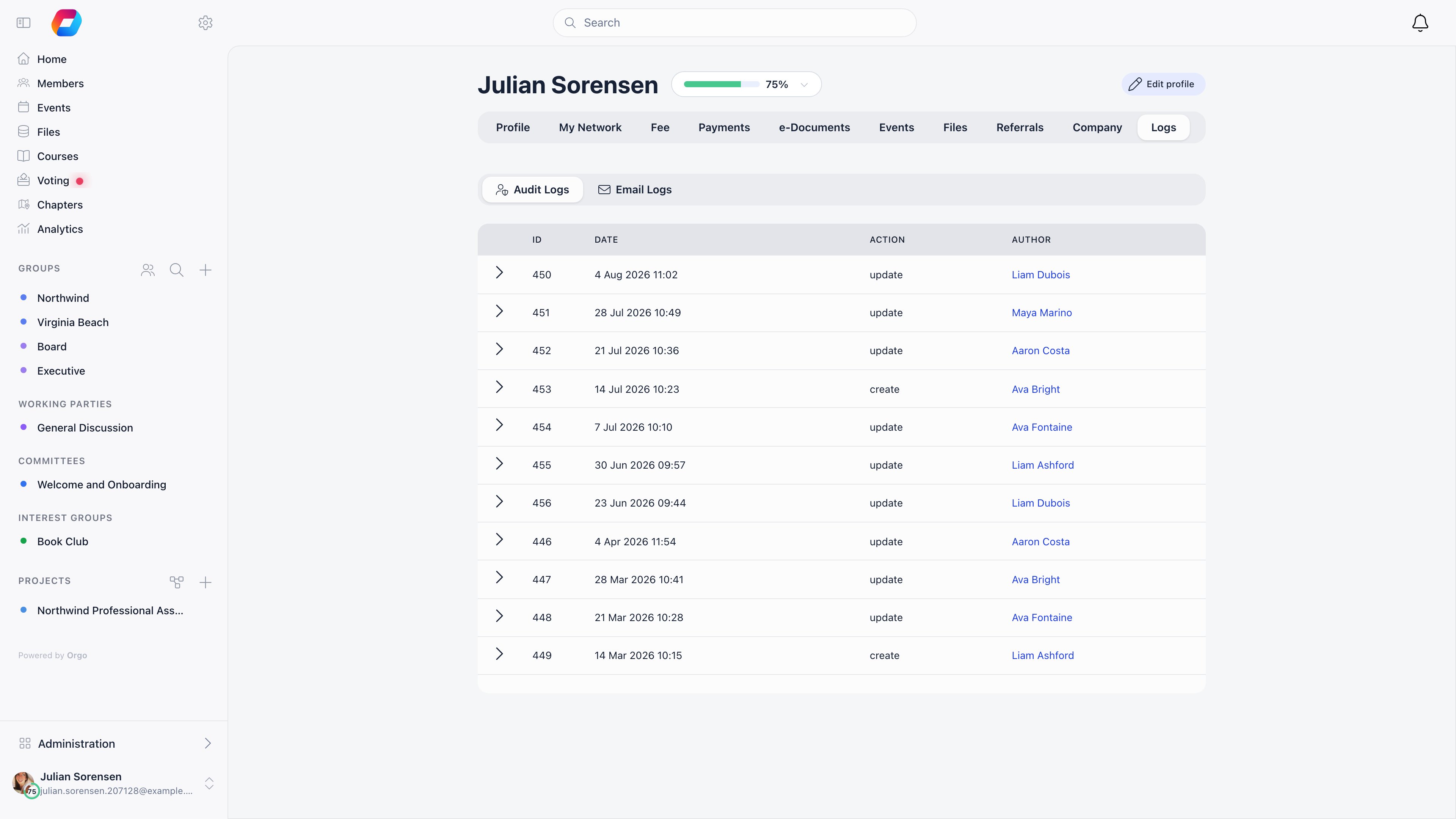
The cards on the Profile tab
Each card that can be changed has a pencil. The pencil opens the Edit view on the pane that holds that card’s data, so you never hunt for the right form.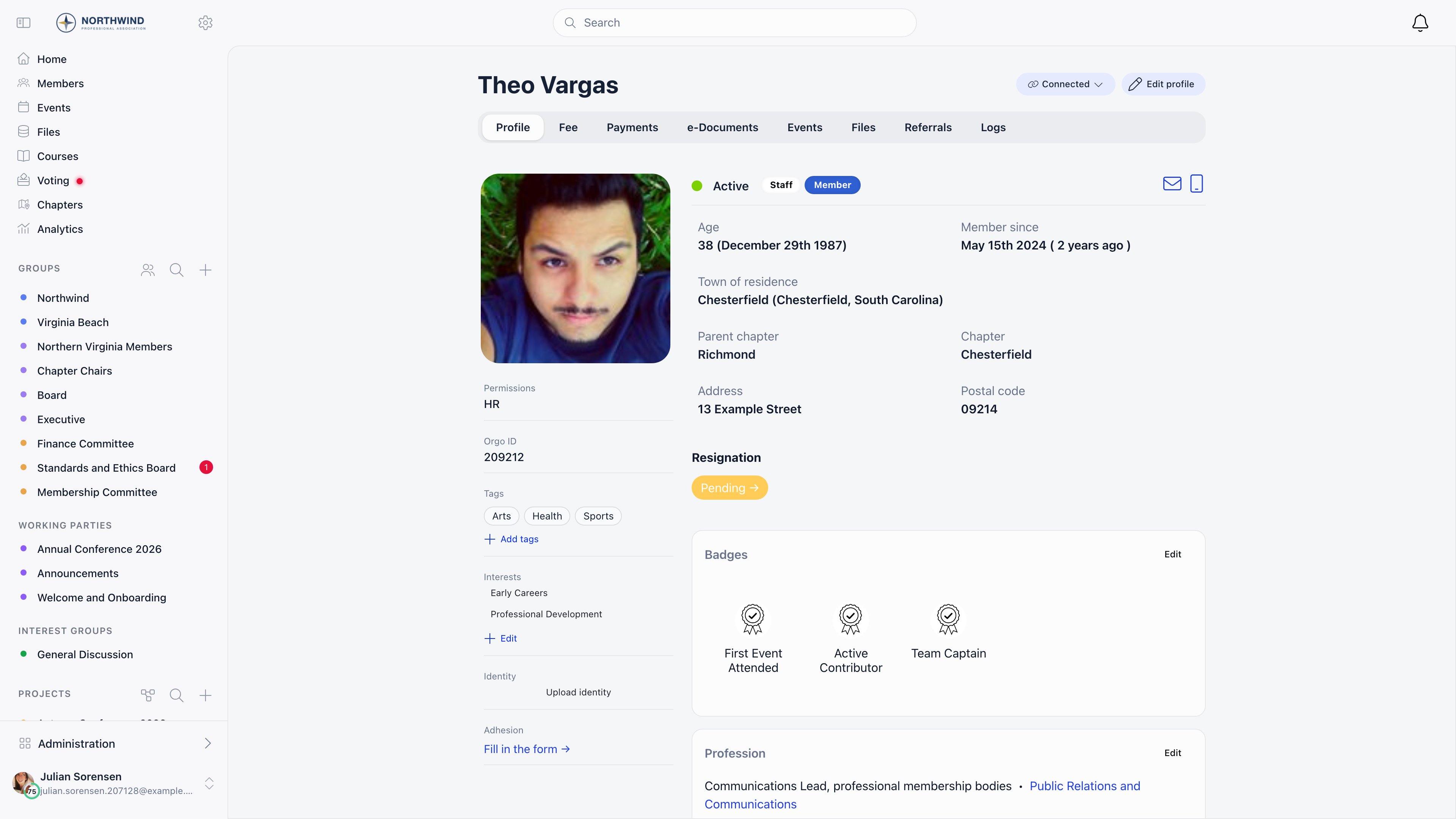
Platform access
Platform access is one line in the Membership card that answers “is this person an administrator?”. It names the strongest permission the member holds and the level it applies at, for exampleHR · Chapter or Admin · Organization. Hover it, or tap it on a phone, for the full breakdown: a row for the organisation and, when your organisation has chapters, one for the parent chapter and one for the chapter, each listing the permissions held there or Member only.
The line shows for the member and for anyone with HR_LOCAL over their chapter. It is hidden when the member holds no permission at all, except to an Orgo administrator, who sees Member only. The pencil in the hover panel (Manage) opens Edit → Permissions for those who may change permissions.
Editing a profile
Edit profile, or any card’s pencil, opens the Edit view. A vertical menu (a scrolling strip on a phone) lists the panes you are allowed to open.
Edit is available to the member, to
HR_LOCAL over the member’s chapter, and to a parent managing a child’s profile. A person who opens an edit link without that right lands on the Profile instead.
Saving works per pane. Info, Membership status, Permissions and Profession have a Save button under the menu (Save changes at the foot of the form on a phone); it is enabled once something changed, and Cancel appears to put the pane back to what was last saved. Roles, Badges and Family save row by row, with their own buttons. Back in the browser leaves Edit and Settings, not the profile.
Membership status
This pane gathers the facts that describe where a member stands. Each group appears only for those who may change it.
A trainer may create events of the training type and has their led trainings listed on the profile. The Membership card shows how long ago the Trainer since date was. See Speakers & Trainers.
Saving this pane makes two writes, one for the profile fields and one for the user type, then confirms with Updated successfully.
Permissions
The Permissions pane opens with a summary of what the member ends up with (organisation, parent chapter and chapter rows, or Member only), then the checkboxes that grant permissions directly, grouped by level. A permission that comes from a role is shown ticked and locked, with the role’s name on a tag: end the role to remove it. On your own profile every box is disabled and a notice says another administrator has to change your level. The Orgo administrator switch appears only for someone who already holds it. The rules on who may grant what are in Assigning permissions.Roles and the role timeline
A member’s roles are drawn as one timeline, the same component in two places. On the Profile tab the Roles card shows it read-only; in Edit → Roles it carries the actions.
Memberships of ordinary groups are not listed here, only roles.
What you can do in Edit → Roles
The buttons act only where you are allowed to: a role held in a unit, or a user-type role, can be changed with
HR_LOCAL over the chapter involved; an organisation-level role needs HR_TENANT. Add role is hidden while Allow Local Admins to Modify User Permissions is off, unless you hold HR_TENANT.
Ending a member’s status (for instance to Inactive) also end-dates every open role. See User statuses.
Settings
Settings is the member’s own account, not their public record. Open it with the Settings button in the header or the phone menu, or Account settings in your profile menu. It has three tabs.
The cards of Account and security:
Close account
The actions on this card depend on who is looking and on the member’s status.Someone else’s Settings view has no button on their profile: it is reached by adding
?tab=settings to the profile address, for example /user/123?tab=settings (an old /users/edit/123?tab=settings link lands there too). This is where an administrator sends a password reset email, suspends or reactivates an account, or records a resignation on a member’s behalf.Where the old edit page went
The address/users/edit/{id} still works, so bookmarks and old emails keep working. It redirects by its ?tab= value:
A redirect to Edit opens the Profile instead when you may not edit that member, and an Edit pane you may not open falls back to Info.
/delete-account opens your own Settings view on Account and security. A link ending in ?tab=edocuments opens the Documents tab.
Common questions
Where did the Edit member page go?
Where did the Edit member page go?
It was folded into the profile: press Edit profile on the member, or the pencil on any card. Every tab it had is now a pane of the Edit view or the Settings view, and old
/users/edit/{id} links redirect. The table is in Where the old edit page went.How do I change a member's status?
How do I change a member's status?
Open the member, then Edit profile → Membership status → Status → Save. You need
HR_LOCAL over the member’s chapter, and if your organisation turned off Allow Local Admins to Modify User Permissions, only HR_TENANT and ADMIN_TENANT can. To approve a New request, the green tick next to the status chip is faster. Statuses are explained in User statuses.How do I end a role?
How do I end a role?
Open the member, then Edit profile → Roles, and press End role on the row under Now. The dialog opens with Date ended set to today; change the date if the role really ended earlier, then Save. The role moves to History and the permissions it carried stop. Nothing is deleted.
How do I correct the dates of a role, or undo ending one?
How do I correct the dates of a role, or undo ending one?
In Edit → Roles, click the row (or the edit icon on a history row). Change Date begin or Date ended and Save. To make an ended role current again, clear Date ended with the x in the field.
A role was recorded by mistake. Can I delete it?
A role was recorded by mistake. Can I delete it?
Yes, from the trash icon on its row in the History list of Edit → Roles. It deletes the record entirely. A current role has to be ended first so that it appears under History. If the person did hold the role for some time, correct the dates instead, so the history stays truthful.
Why can I not end or edit some roles?
Why can I not end or edit some roles?
A role held in a unit, or a user-type role, can be changed with
HR_LOCAL over the chapter involved. A role at organisation level (not a user type) needs HR_TENANT. Where you lack the right, the buttons are hidden and the row does not open.How do I mark a member as a trainer, and what is Trainer since?
How do I mark a member as a trainer, and what is Trainer since?
Edit → Membership status → tick This member is a trainer, then optionally pick a Trainer since date and Save. The group only appears once a Training Event Type is set in the Events settings. The Membership card then shows a Trainer row with how long ago that date was; hover for the exact date. With no date, the row shows Yes.
How do I see what permissions a member has?
How do I see what permissions a member has?
Look at Platform access in the Membership card and hover it for the breakdown by level. For the full picture, including which come from roles, open Edit → Permissions. To list everyone who holds a permission, use the Permissions filter in the member directory (
ADMIN_TENANT). See Assigning permissions.Why does Platform access say Member only, or not appear?
Why does Platform access say Member only, or not appear?
Member only means no administrative permission at that level: the member has ordinary access. The row is hidden altogether when the member has no permissions and you are not an Orgo administrator, and for anyone without
HR_LOCAL over the member who is not the member.Why do I see fewer panes in Edit than a colleague does?
Why do I see fewer panes in Edit than a colleague does?
Each pane has its own rule (see the table above). Roles needs
HR_TENANT or chapter HR_LOCAL; Permissions and the status, user type and trainer controls also need local admins to be allowed to change permissions; Badges needs Gamification and HR_ASSISTANT_LOCAL; Profession needs the Professions module. Ordinary members editing their own profile see Info, Profession (if on) and Family.A tab is missing from the profile
A tab is missing from the profile
Work through the table in The tabs: Fee, Payments, Documents, Events, Referrals and Activity each depend on a module and on your relationship to the member. Staff-only tabs such as Forms, Email Logs and Audit Logs live under More, not in the band.
How do I change my own password, email, timezone or language?
How do I change my own password, email, timezone or language?
Open your profile, press Settings, then Account and security. Password and email changes send a 6-digit code to your email first. Changing the email signs you out, and you sign in again with the new address. The interface language is stored in your browser, so you set it again on another device.
How do I reset another member's password, suspend them or change their email?
How do I reset another member's password, suspend them or change their email?
Open that member’s Settings view by adding
?tab=settings to their profile address (/user/{id}?tab=settings). Under Account and security: Password has Send password reset email (HR_LOCAL), Email lets ADMIN_LOCAL or HR_TENANT type a new address directly, and Close account has Suspend account and Reactivate account (ADMIN_LOCAL).Where is the member's company?
Where is the member's company?
On the Profile tab, in the Company card, no longer a tab. See Companies.
Related
- Users & Profiles - the directory, filters and exports
- Profile fields - which fields the Info pane contains
- User statuses - what each status allows
- User types & roles - the roles you assign in Edit → Roles
- Assigning permissions - who may grant what
- Privacy settings - the Privacy tab of Settings
- Custom fields, Family members, Companies, Referral, Profile activity
- Deletion of account and Resignation - the actions on the Close account card