

Invoices are a module. Switch Invoices on in Settings → All Modules.
While it is off, Invoices does not appear in the sidebar, opening the list
sends you back to the dashboard, and the Invoice Templates settings tab is
hidden. Every administrator action described here needs
ADMIN_TENANT.Before you can create an invoice
Set Manual Invoice Product in Settings → Modules → Payments & Fees → Invoice Product. Without it, invoice creation fails with a message telling you to review that screen. The same screen holds the rest of the invoicing behaviour: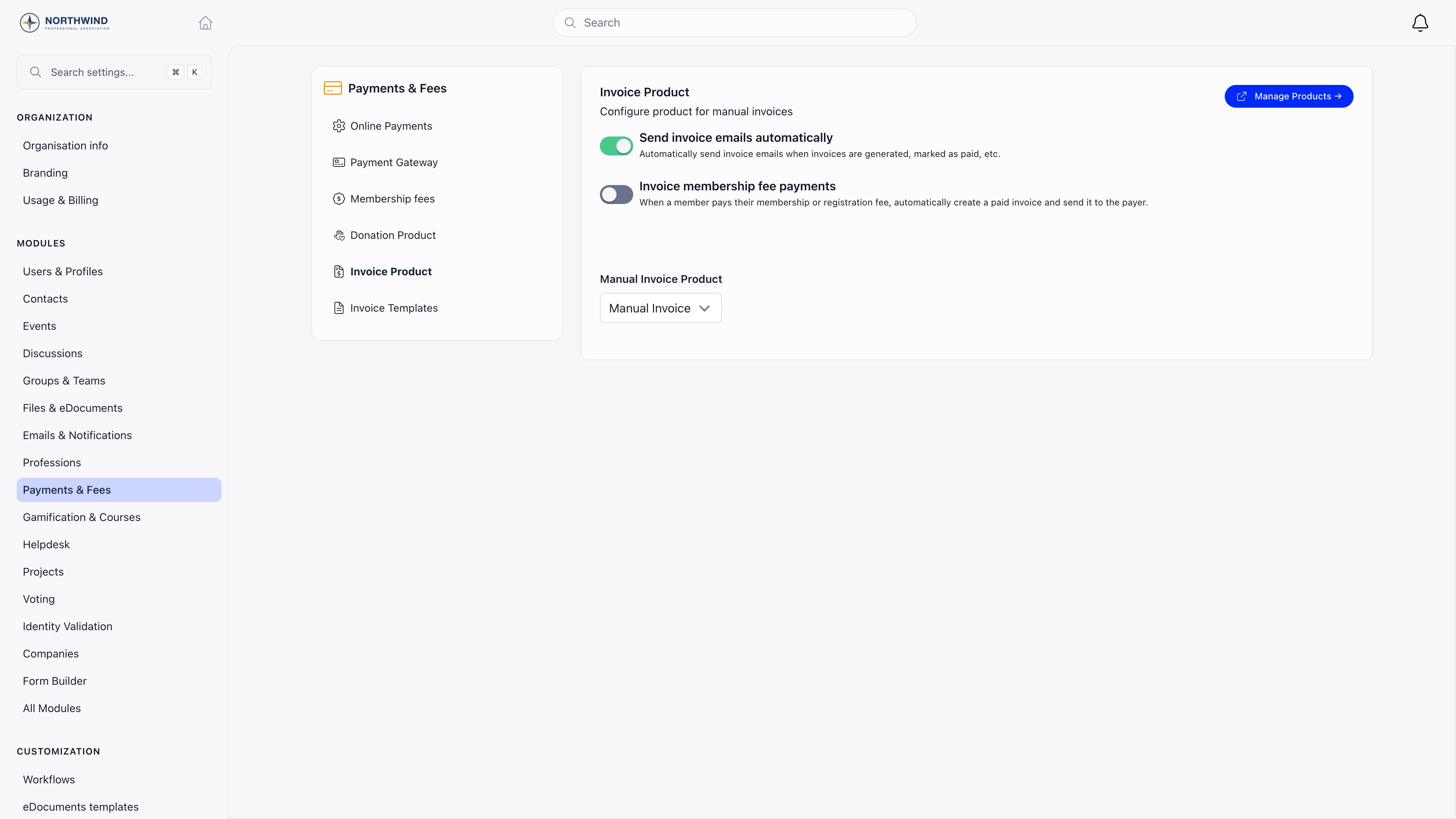
Creating an invoice
Invoices → create invoice. The form is on the left, a live preview of the document on the right.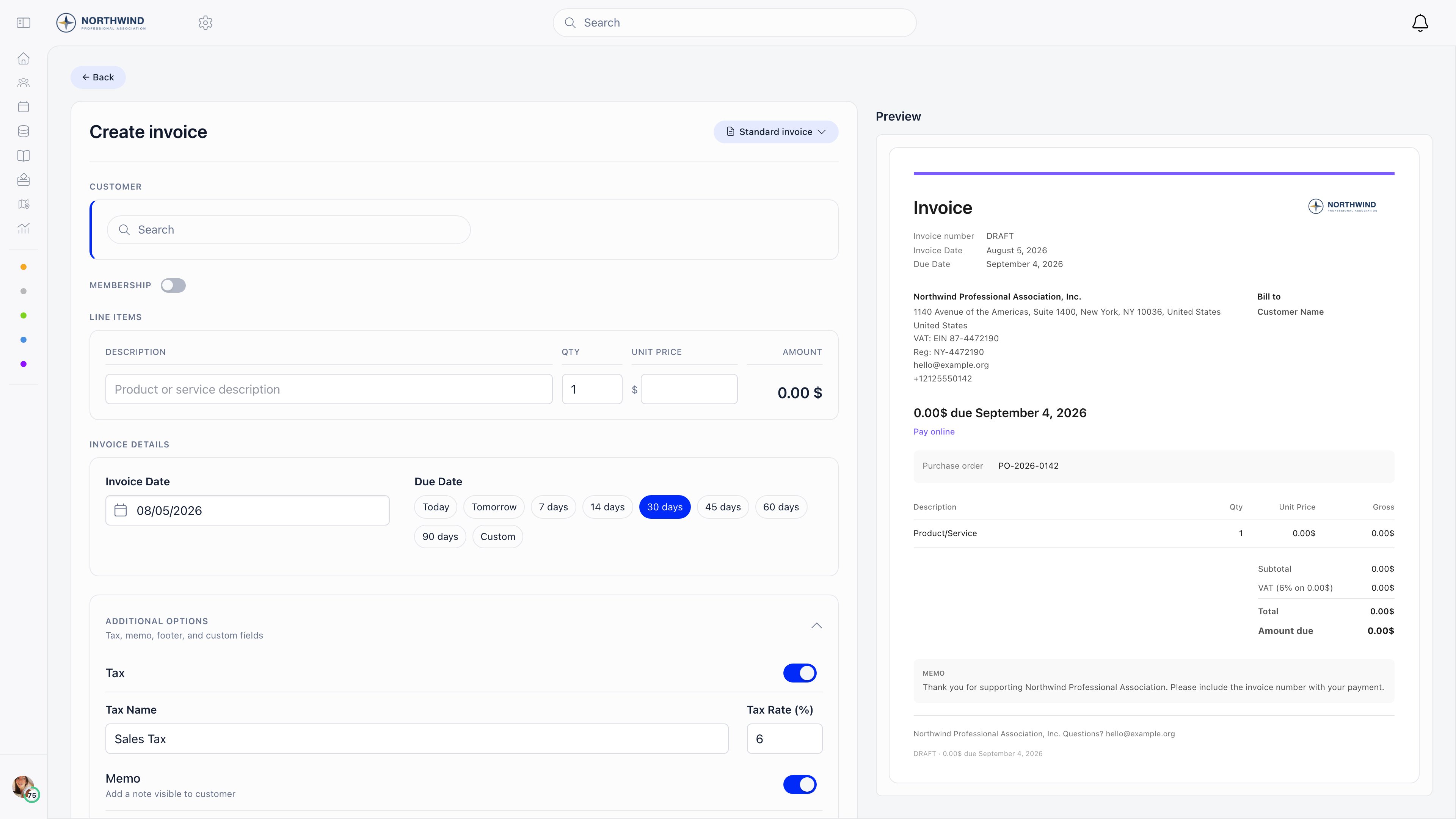
1
Pick the customer
Search for a member, a contact or a company. Exactly one of the three: an
invoice cannot be split across two payers. Selecting one loads its billing
block (Billing Name, Address, VAT Number, Registration
Number, Email, Phone), which you can edit for this invoice only.
Leave Also update customer record with these details ticked to write your
edits back to the member, contact or company as well.
2
Decide whether it is a membership invoice
The Membership switch turns the invoice into a membership invoice: pick a
membership level (or Custom), a start date and an end date. This is what
makes marking it paid extend the member’s or company’s membership. Contacts
cannot be given membership invoices.
3
Enter the line
A manual invoice carries one line: description, quantity and unit price.
Multi-line invoices exist, but only on invoices Orgo generates itself for
membership payments, where the joining fee is a second line.
4
Set the dates
Invoice Date, then a Due Date chip: Today, Tomorrow, 7, 14, 30, 45,
60 or 90 days, or Custom. 30 days is the default.
5
Add anything else
Additional Options holds the tax name and rate, a Memo (visible to
the customer), a Footer, and Custom Fields (label and value pairs
printed on the document). Internal Notes at the bottom are never shown to
the customer.
Numbering and series
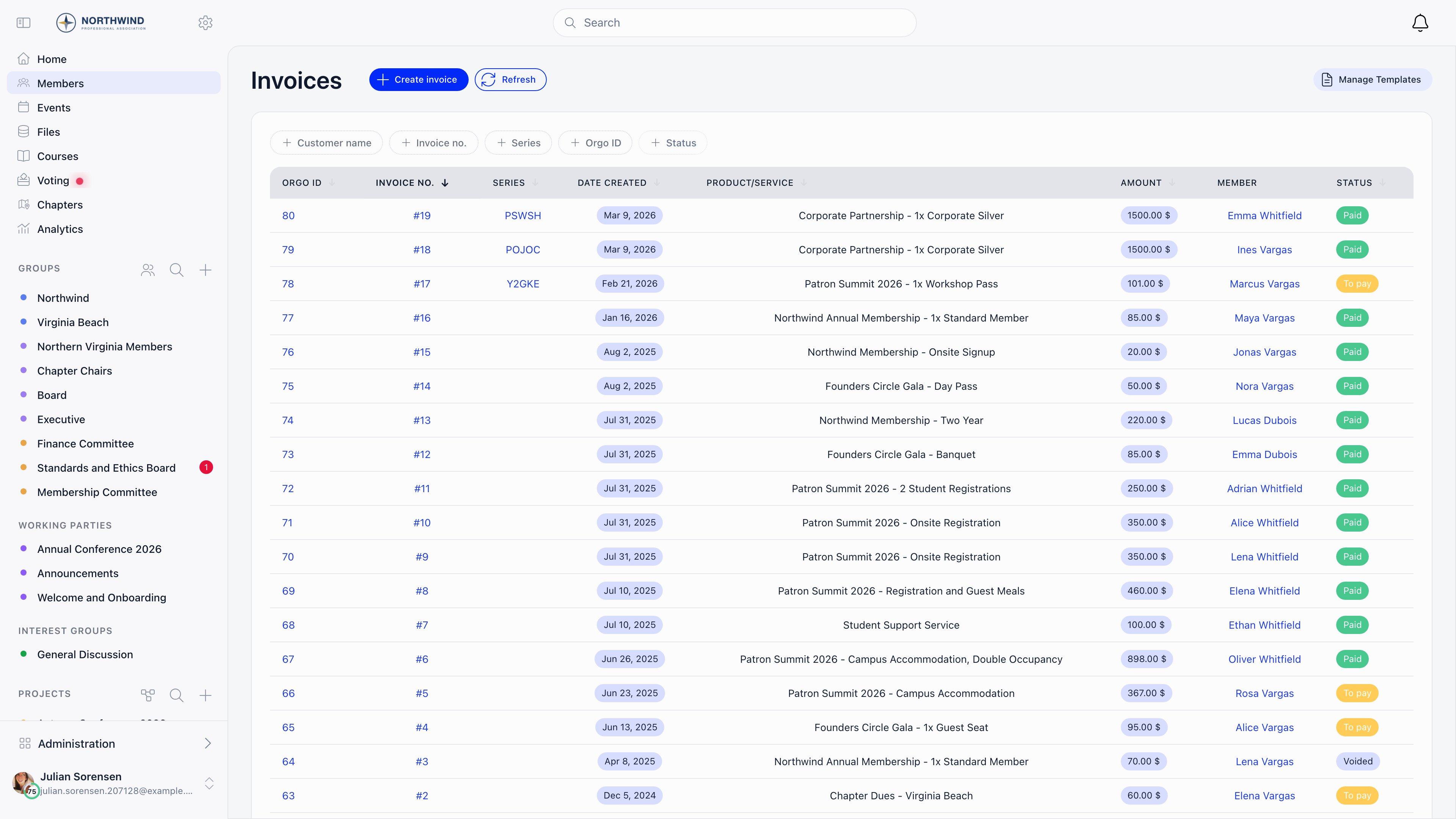
Every invoice gets two identifiers.- Invoice number: the highest number already used in your organisation, plus one. It starts at 1, is unique to your organisation, and does not reset at the start of a year.
- Series: five random characters drawn from
ABCDEFGHJKMNOPQRSTUVWXYZand123456789, retried until it is unique. The characters I, L and 0 are left out so the code cannot be misread.
Templates
Templates pre-fill the parts of an invoice that are the same every time. Settings → Modules → Payments & Fees → Invoice Templates, or Manage Templates from the invoices list.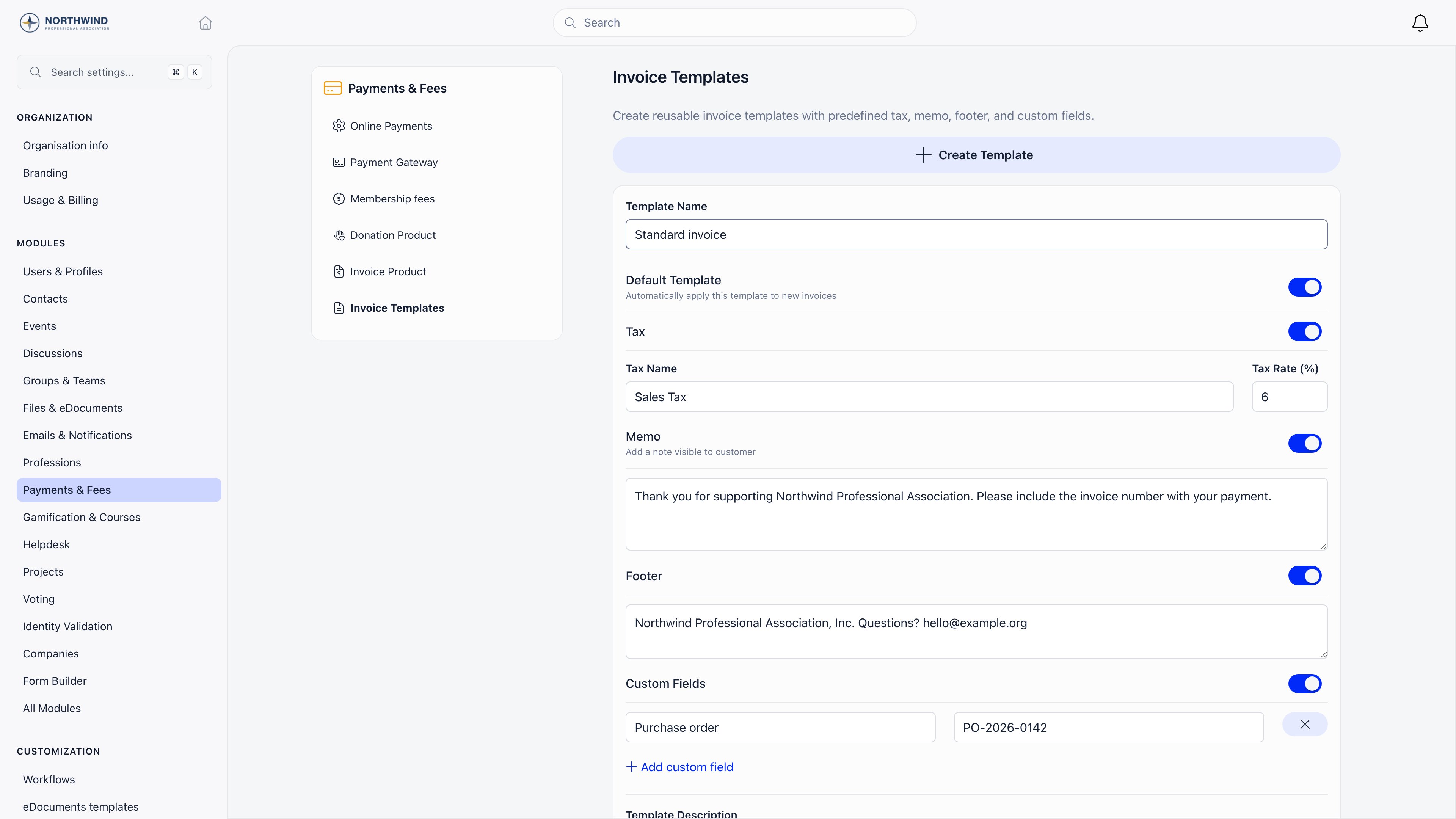
Getting the invoice to the customer
Open an invoice and you get three actions under the document.- Download PDF saves it as
Invoice - {your short name} - {number}.pdf. - Send via email sends it now, even when automatic emails are switched off. The email carries the PDF as an attachment and lands in your email log.
- Copy payment link copies a public link that opens Stripe Checkout for this invoice. The link works only while the invoice is unpaid.
Automatic invoice emails need the Send invoice emails automatically switch.
Send via email ignores it, so you can keep automatic sending off and still
send individual invoices by hand.
What language the invoice is in
The document and the email that carries it are written in your organisation’s default language, the one set at Settings → Customization → Languages. Not the customer’s own language: everyone billed by the same organisation gets the same wording. All 14 interface languages are covered, and a default outside them falls back to English. A Czech organisation gets Faktura, Czech column headings and totals, IČ and DIČ where an English document says Reg and VAT, dates written the Czech way and comma decimals. The email follows the same language: subject line, the paid or due-on line, the labels and the Pay this invoice button. What you typed is never translated. Line descriptions, the memo, the footer and your custom fields print exactly as entered, which is worth remembering if you write them in a different language from your organisation default. The one line Orgo writes itself, the joining fee on a membership invoice, follows the organisation language like the rest of the document.Where invoices come from
Not every invoice is typed by hand.
You can also raise an invoice after the fact for a membership fee that was
already paid: Payments, open the row menu on a successful fee payment that
has no invoice yet, then Generate Invoice. It opens the new invoice for
editing and does not email the payer, so you can check it first and send it
yourself.
The payment that Mark as paid creates for an invoice uses your Manual Invoice Product, so in the payments lists its Payment type is Admin, not Fee or Event ticket. Filter on Admin to find invoice-settled money.
Related
- Recording a payment marking an invoice paid and logging offline payments
- Cancelling and correcting invoices voiding and refunding
- VAT and invoice templates tax on the document
- Membership fees what members are billed for
- Stripe integration online payment setup