

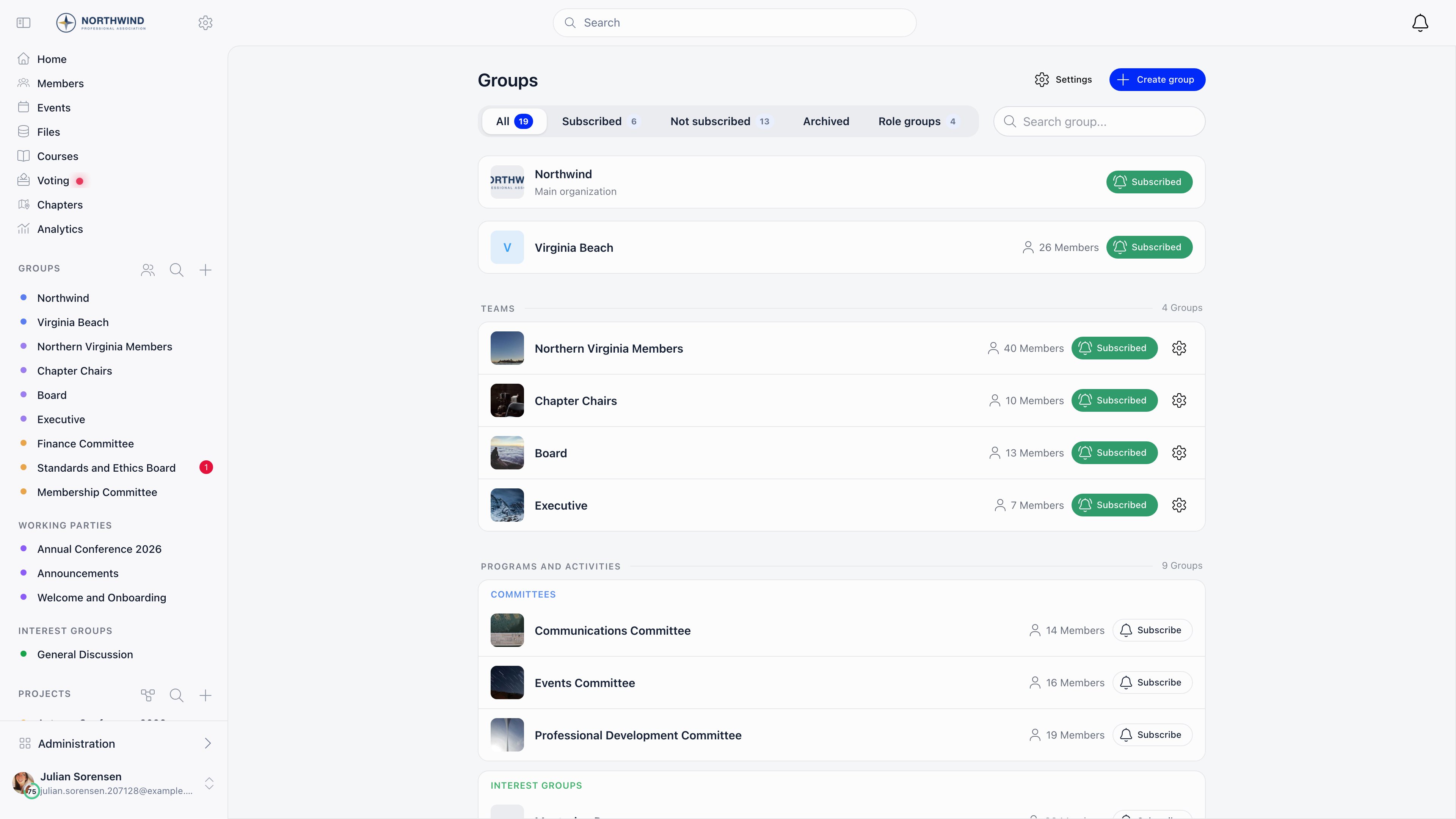
The four access modes
Only organization admins (
ADMIN_TENANT) can create Auto-enroll all members, Open to join and Role group groups. A member without that permission who creates a group gets a Private group.What a group gives you
Each group carries three optional features, chosen with the Features selector when you create or edit it:
At least one feature must stay switched on. Every group also has a Members tab and, once you write a description, an About tab; auto-enroll groups have no Members tab, because the membership is simply everyone. A group can also carry a logo, a Menu emoji shown next to its name in the sidebar, and a rich text description.
Who can post
A single Who can post? control covers discussions, files and events together; there is no separate switch per feature.Enabling the module
Settings → Groups & Teams → Configuration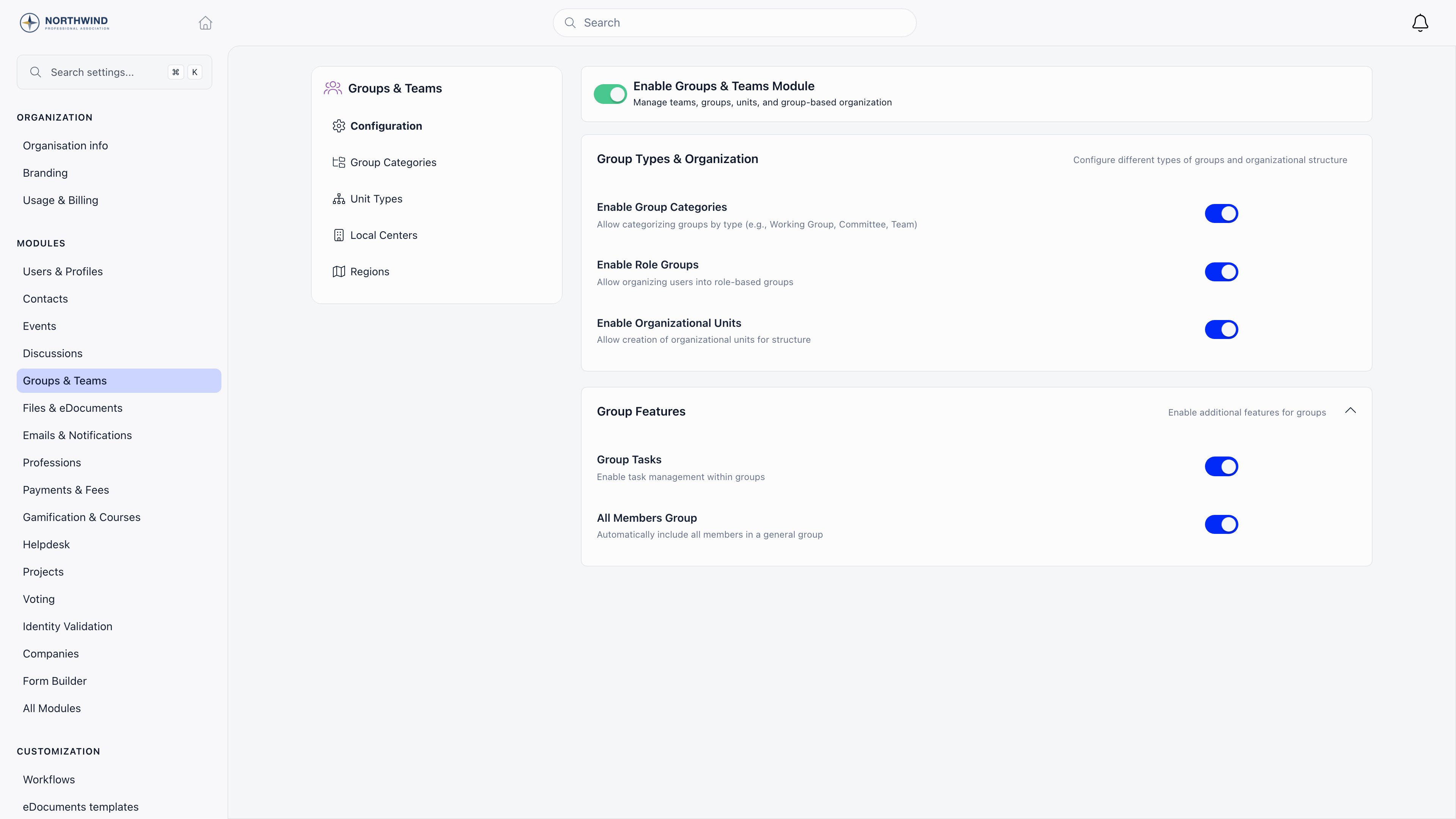
Who can create a group
Two checks apply, in this order.1
The organization-wide minimum
Settings → Users & Profiles → Permissions setup → Groups Module → Who can create. The default is
USER, so any signed-in member can create a group. Raise it to ADMIN_LOCAL, HR_TENANT or ADMIN_TENANT to restrict creation.2
The category minimum
A group filed under a category must also satisfy that category’s Who can create group in this category permission.
ADMIN_TENANT. Members who fail the check do not see the Create group button on the Groups page or in the sidebar; guest accounts never see it unless they also hold ADMIN_TENANT.
Group categories
Categories group related spaces together on the Groups page and in the sidebar, and let you delegate creation rights per category. Enable Enable Group Categories, then go to Settings → Groups & Teams → Group Categories. Managing categories requiresHR_TENANT, and members only see the categories they are allowed to create in.
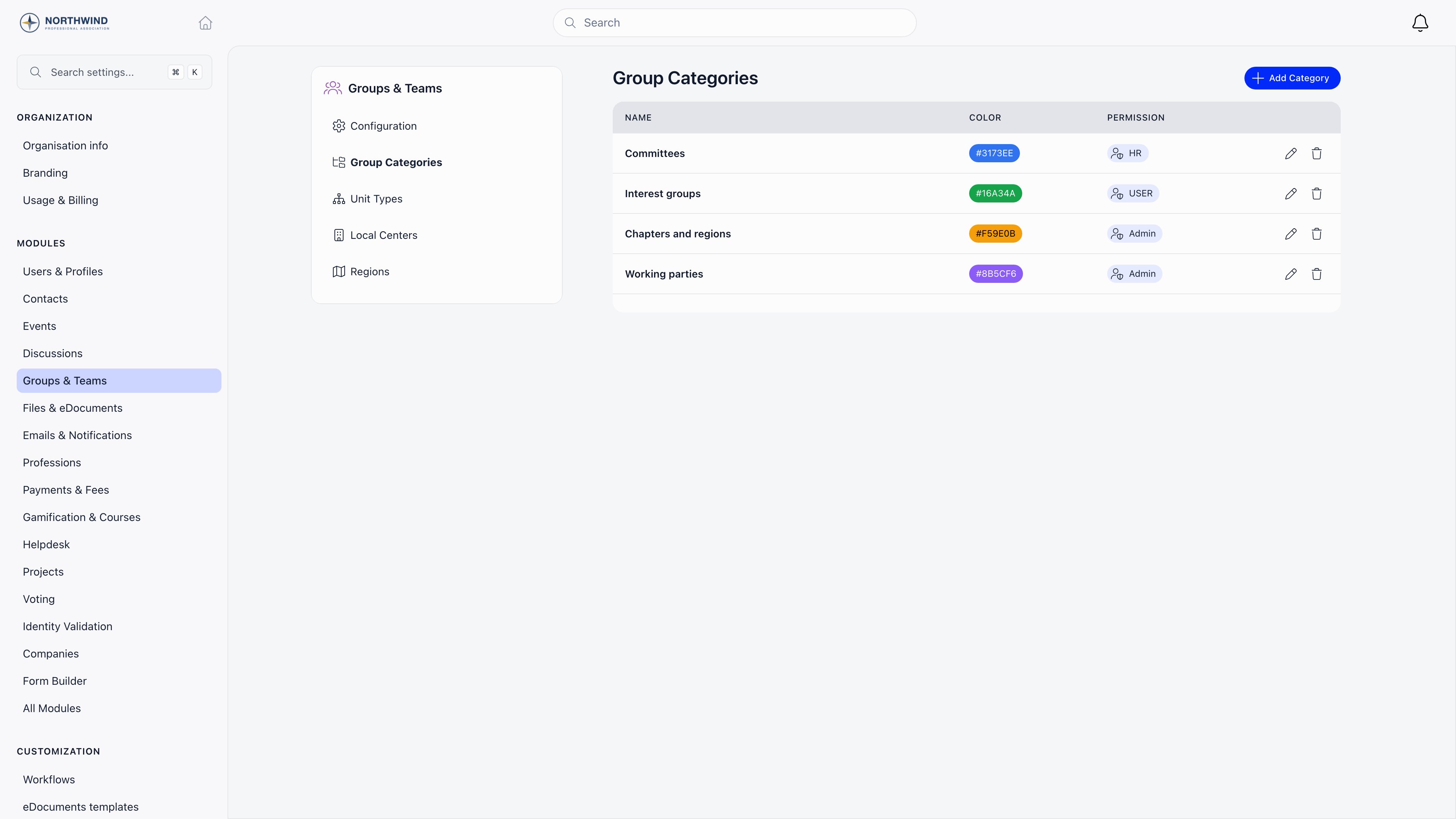
The category picker only appears on the group form for Auto-enroll all members and Open to join groups. Private groups cannot be categorized.
The Groups page
Groups in the sidebar, or/groups/browse. Tabs filter the list:
Below the tabs, the page lists your organization space and your chapter first, then Teams (role groups), Programs and activities (groups with a category), Community groups, Private groups and Archived groups. A search box filters by name.
Every row except the organization space carries a member count. For a group or a team it is the active members in it; for your chapter it is the active members filed against that chapter itself, and nobody from the chapters underneath it. The chapters list counts the same members but adds the branch, so a parent chapter’s number there is the larger one.
The Create group button opens a menu with Create group and, for organization admins with role groups enabled, Create role group. Organization admins also get a Settings shortcut to the module configuration.
Archiving and deleting
Archiving is reversible and loses nothing, so prefer it over deleting. A group with a newsletter attached cannot be deleted until the newsletter is removed.
Common scenarios
Can a member be in more than one group?
Can a member be in more than one group?
Yes, with no limit. Members are in every auto-enroll group, their chapter, every chapter above their chapter in the chapter tree, every role group they match, and any open or private groups they joined or were added to.
Our chapters are nested. Which chapter spaces does a member get?
Our chapters are nested. Which chapter spaces does a member get?
Their own chapter and every chapter above it, all the way to the top of the tree. Membership travels up; it never travels down, so somebody filed against the national body is not placed in the branches beneath it.Isolate Local Center Access narrows this one layer at a time: a chapter above them is shown only when their own
HR_PARENT_LOCAL reach covers that particular chapter, and role groups scoped to a chapter they cannot see are hidden with it.Why can I not see a group a colleague mentioned?
Why can I not see a group a colleague mentioned?
Private groups are invisible to non-members. Opening one you are not in returns an access error unless you are the owner, a member, or hold
ADMIN_TENANT.Related
- Main Group - the organization-wide space
- Role Groups - criteria-based automatic membership
- Private Groups - committees, project teams and open communities
- Local Centers - geographic branches
- Discussions - the discussion feed inside a group