
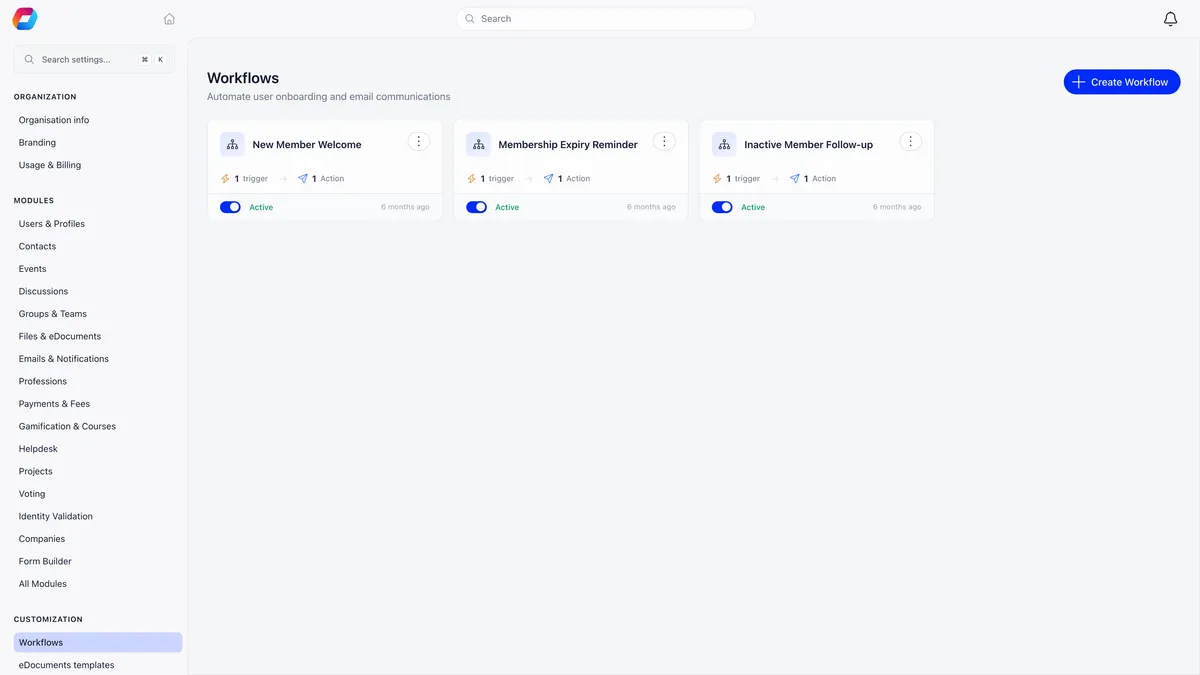
Automations in Orgo are called workflows. A workflow watches for one thing happening in your organisation and reacts to it. You drag a trigger onto a canvas, connect an action underneath it, save, and switch it on.
Workflows live in the Customization area of Settings and need organisation admin (ADMIN_TENANT), which every workflow endpoint checks on the server. Sidebar labels are set per workspace and can be renamed or hidden, so look for the destination rather than a fixed position in a menu.
What you can automate
Every workflow is the same sentence: when this happens, then do one of three things.
| Action | What it does |
|---|---|
| Send Email | Sends an email you write in the builder, to the person the trigger was about |
| Add Tag | Puts a tag on that person’s profile. Pick an existing tag or type a new name and create it as you go |
| Remove Tag | Takes a tag off that person’s profile |
Three actions is less limiting than it sounds, because tagging is how a workflow hands work to the rest of the platform. Tag the people a workflow is about, build an automated list on that tag, and you have an audience that maintains itself. That route is covered in how to build a mailing list.
When you need Orgo to change something in another system, that is a job for webhooks rather than a workflow. Orgo posts the event to a URL you control and your own system acts on it.
Building one
- Name it in the top bar. An unnamed workflow saves as “Untitled Workflow”.
- Drag a trigger from the left sidebar onto the canvas. It becomes a When node.
- Drag an action underneath it, or use Add action on the prompt below the node. Actions become Then nodes wired to the trigger above them.
- Click each node to configure it, then press Done.
- Save. This stores the workflow and the canvas layout, and unlocks Test once there is at least one trigger and one action.
- Flip the Active switch. Activation is refused on the server unless the workflow has at least one trigger and one action, so a canvas holding only a trigger stays inactive.
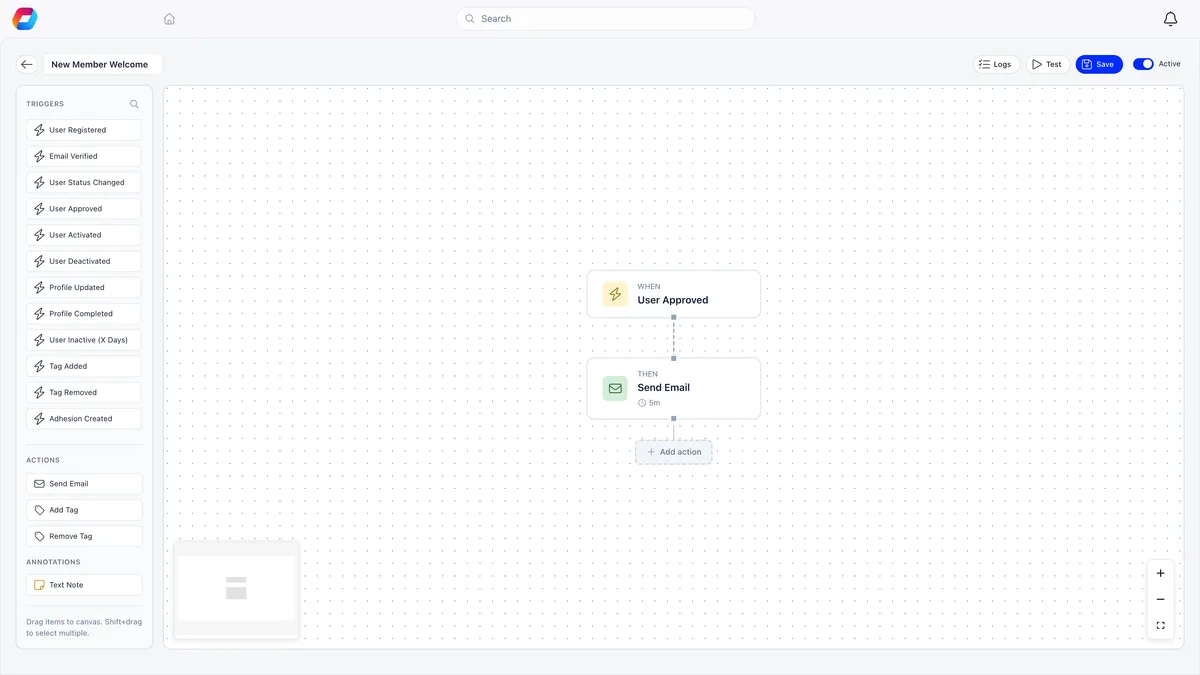
A Text Note can sit on the canvas as an annotation for whoever edits the workflow next. It is never executed.
The triggers
| Category | Triggers |
|---|---|
| User events | User Registered, Email Verified, User Status Changed, User Approved, User Activated, User Deactivated, Profile Updated, Profile Completed, User Inactive (X Days), Tag Added, Tag Removed |
| Adhesion events | Adhesion Created, Adhesion Submitted, Adhesion Status Changed, Adhesion Approved, Adhesion Rejected |
| Course events | Course Enrolled, Course Completed, All Onboarding Courses Completed |
| Contract events | Contract Assigned, Contract Signed, Contract Completed, Contract Expiring Soon, Contract Expired |
| Membership events | Membership Payment Success, Membership Payment Failed, Membership Expiring Soon, Membership Expired, Membership Renewed |
| Identity events | Identity Submitted, Identity Validated, Identity Rejected |
| Donation events | Donation Payment Success |
| Event attendance | Event Attendance |
Three of them narrow further on a specific record: Donation Payment Success by donation product, Event Attendance by event, and Tag Added or Tag Removed by tag. An empty selection means any. User Inactive (X Days) takes a number between 1 and 365 and is evaluated by a daily job at 06:00 UTC. It measures the last time the member’s record changed rather than the last time they signed in, so a member whose profile an admin edited last week counts as active, and it only considers members whose account is active.
Any trigger can also be restricted by user type, and the checkboxes appear only if your organisation uses user types at all.
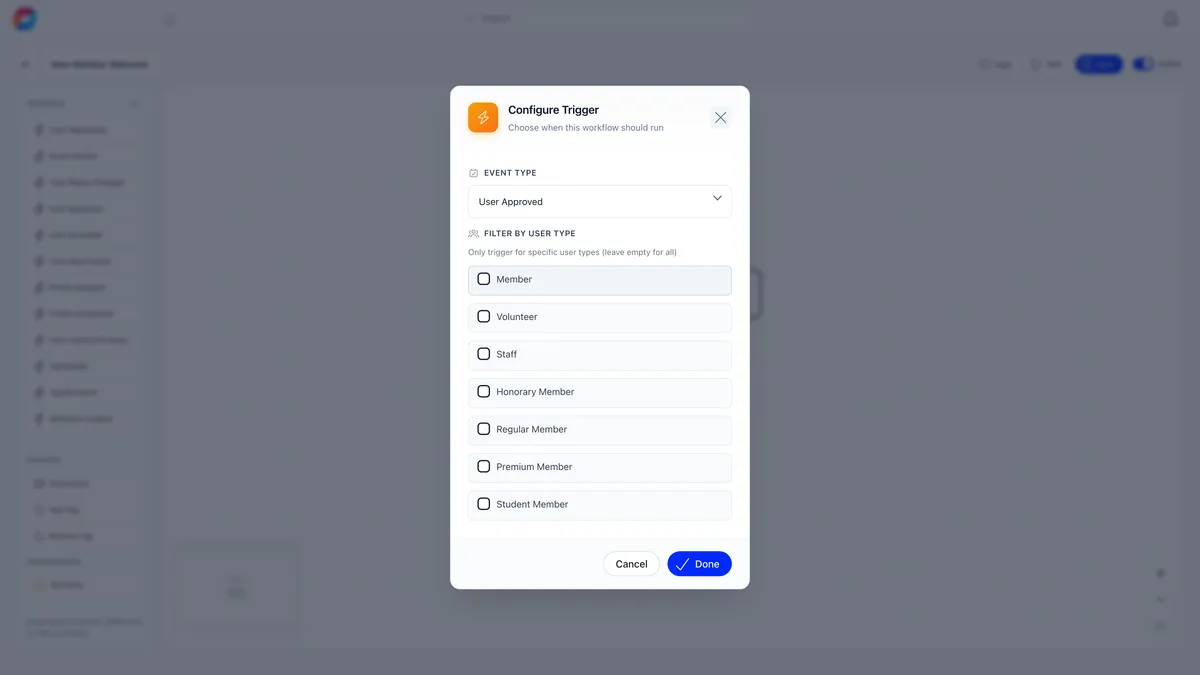
Leave those boxes empty and every type matches. Tick even one and the filter turns strict in two ways: a member whose user type field is blank matches nothing you ticked, and a non-member contact, such as an external event attendee, never matches a user type filter at all.
Writing the action
Send Email wants a subject line and a body. The builder refuses to save without both, in the same way a tag action refuses to save without a tag.
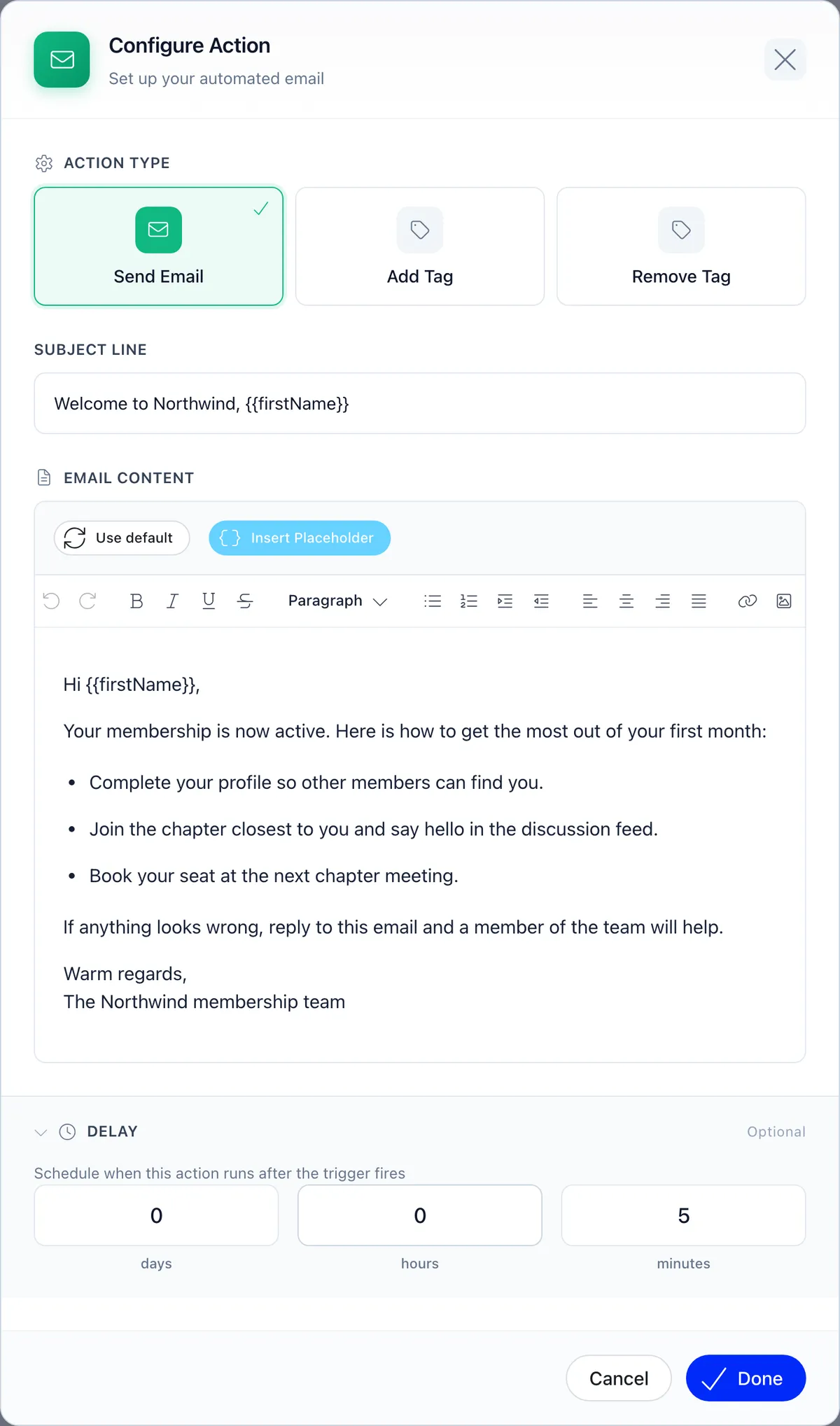
The menu offers {{firstName}}, {{lastName}}, {{fullName}}, {{userEmail}}, {{userCompanyName}}, {{platformLink}}, {{profileLink}} and {{unsubscribeUrl}}, and Insert Placeholder writes into the body editor only, so anything you want in the subject line has to be typed there by hand.
Check the result on a real account before you switch the workflow on. A workflow email is produced by a different path from an email template, and it is filled in from the data the trigger carried rather than from the recipient’s profile, so a placeholder that resolves in a template will not necessarily resolve here. Trigger the workflow once on a test member and read what lands in the inbox. If a placeholder arrives as visible text, rewrite the sentence so it reads correctly without it. The dry run cannot tell you this, because it sends nothing.
Every action carries an optional Delay in days, hours and minutes. With one set, Orgo records the action as scheduled and a job picks it up every five minutes once it is due. A delayed action that fails is not retried on its own.
Workflow emails ignore the category switches on the Emails Config screen, so turning off the built-in renewal reminders does not turn off a workflow email. That is what makes it practical to silence the built-in ladder and write your own.
Three worth building
Welcome a new member
Trigger on User Approved rather than User Registered when your organisation approves applications, so the welcome arrives after somebody says yes. Add Send Email, give it a five-minute delay so it does not land in the same second as the account confirmation, and write the message you would want to receive.
Chase someone before their membership lapses
Trigger on Membership Expiring Soon and add Send Email. The thing to understand is that this trigger is fired by the same nightly job that sends the built-in renewal reminders, so it fires at that job’s points rather than on a date you choose.
Tag people who did something, then build an audience from it
This is the one that turns automations from decorative into useful. Trigger on Event Attendance filtered to one event, add Add Tag, and pick or create a tag such as “Attended the 2026 conference”. Every attendee is tagged from then on, without anyone exporting anything.
Tags themselves are managed in the Users and Profiles settings area, and a tag your workflow creates on the fly appears here alongside the rest.
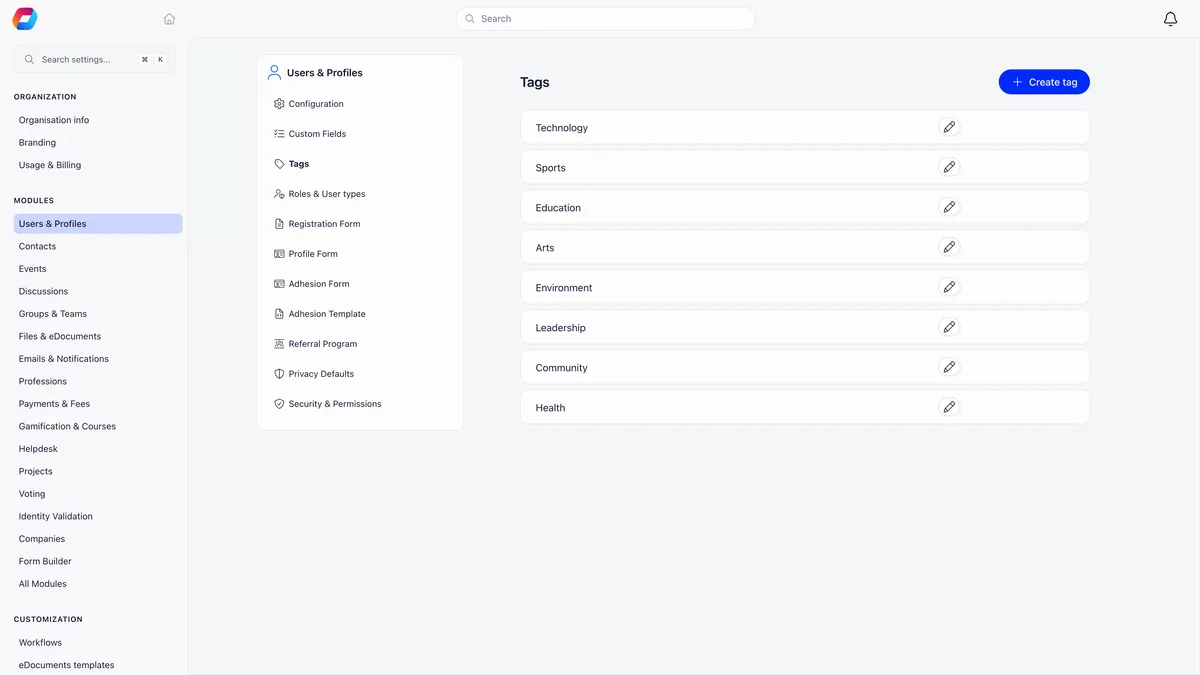
Now build an automated list whose only criterion is Tags has tag with that tag selected. Because automated lists resolve themselves when a campaign is sent, everyone the workflow has tagged since you drafted the campaign is included. That is the loop: the workflow builds the audience, the list keeps it current. Both halves sit in Orgo’s newsletter and automation tools.
One boundary to plan around. A tag applied by a workflow does not fire the Tag Added or Tag Removed triggers, deliberately, because two workflows that add and remove the same tag would otherwise chase each other around the queue forever. So you cannot chain one workflow into another through a tag. Tags on contacts rather than members never fire those triggers either, and neither do tags applied by a bulk import.
Did it run?
Open View Logs from the three-dot menu on the card, or Logs from the builder’s top bar. Each row is one run.
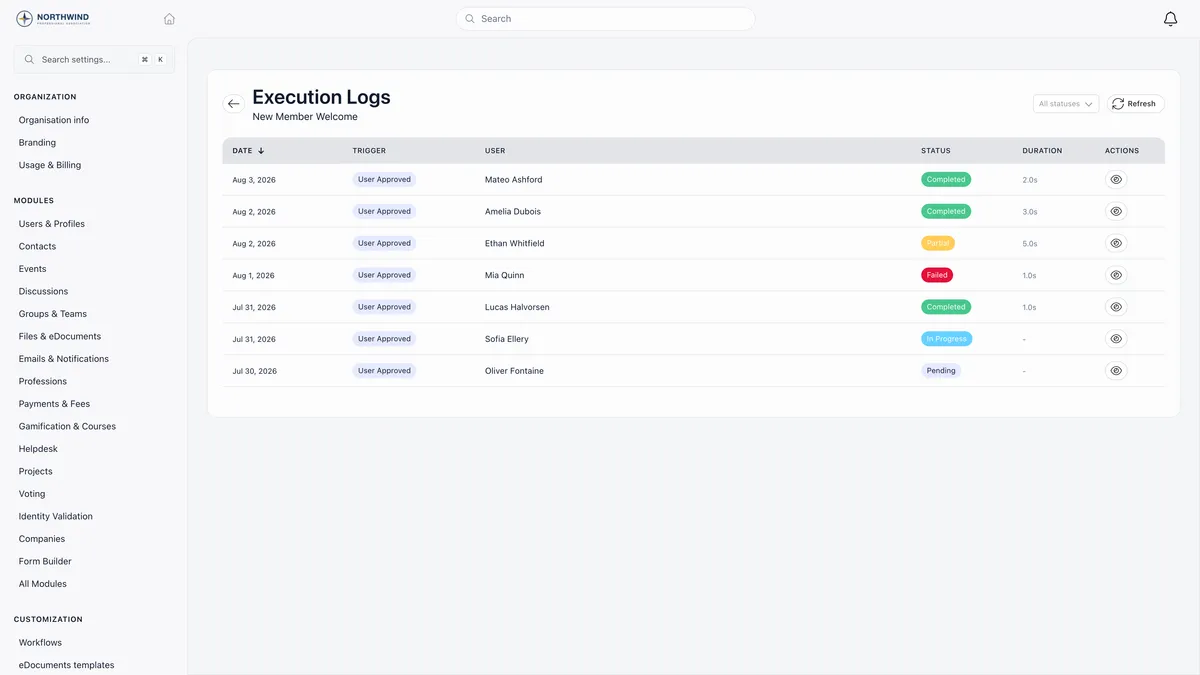
| Status | Meaning |
|---|---|
| Pending | Queued, not started yet |
| In Progress | Running now |
| Completed | Every action either ran or was scheduled |
| Partial | At least one action failed |
| Failed | The run itself errored out |
The eye icon opens the detail: start and finish times, the person, any error message, a timestamped step-by-step log and the raw trigger payload. Workflows run in the background, so a run appears a moment after the event rather than instantly.
A row existing at all is the useful signal. A run is only created when a trigger matched the event and passed its filters, so the presence of a row tells you the matching worked and the problem is further down.
Cross-checking an email
When the action was Send Email, the email log is your second opinion. Every workflow email is recorded there with the exact body that went out, per recipient.
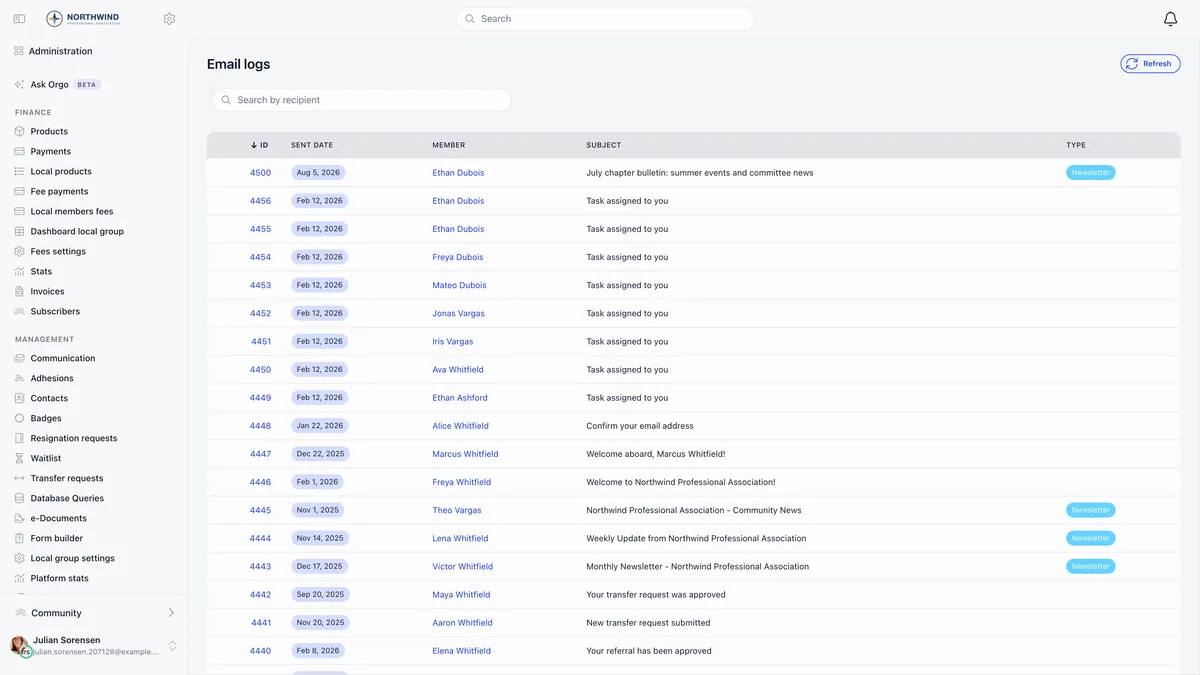
Search by recipient, find the person, and open the row to read the message as they received it. Workflow emails carry an internal type that is not one of the labelled kinds, so the Type column is blank on them. Identify them by their subject line instead.
That gives you a three-way answer. A run plus an email row means Orgo sent it and the rest is a delivery question. A run with no email row means the send failed, and the run detail says why. No run at all means the workflow never fired.
Why an automation did not fire
Two more causes are about editing rather than building.
Saving replaces, it does not merge. Save rewrites the workflow’s triggers and actions from whatever is on the canvas.
A clone does not carry the wiring over. Cloning copies the drawing but not the links between nodes, and only actions wired to the trigger that fired will run. Check a copy’s connections and save once before switching it on.
Related
- Changing what an automatic email says
- Building a mailing list your workflow can feed
- Workflows, the full reference
- Email logs
- Webhooks, for anything outside the three actions
Frequently asked questions
My workflow is switched on but nothing is happening. How do I find out why?
Open the execution logs for that workflow. If there are no rows at all, no run was ever created, which means either the event never actually occurred in your organisation or a filter on the trigger excluded everybody. The most common filter mistake is Filter by User Type, because a member whose user type field is blank does not match any type you tick, and a non-member contact never matches a user type filter at all. If there are rows but they read Partial or Failed, the workflow did run and an action broke, and the error is stored on the run itself behind the eye icon.
Can a workflow do something other than send an email or add a tag?
There are exactly three actions: send an email, add a tag and remove a tag. Most requests that sound like a fourth action are really a tag plus something else. Tag the people the workflow is about, build an automated list on that tag, and the list becomes a newsletter audience that maintains itself. If you need Orgo to change data in another system, that is what webhooks are for: Orgo posts the event to a URL you control and your own system acts on it.
I built a workflow to email members before their membership expires and it never sent. What went wrong?
The Membership Expiring Soon trigger is fired by the same nightly job that sends the built-in renewal reminders, so it fires at that job's points and not on a date you choose. It can fire between 30 and 24 days before expiry and between 7 and 1 days before. Between 23 and 8 days before expiry, nothing fires at all. That job also skips members on a one-off fee period shorter than two months, so neither expiry trigger ever fires for them.