
Wording lives in Email Templates, under Settings. Open the card for the email you want, rewrite the subject and the body, press Save, and every copy sent from that moment on uses your version.
That answers the wording question. It does not answer the two questions people usually mean instead, which are how to stop an email going out and how to change who receives it. Those are different screens, and mixing them up is the single most common source of email support tickets in Orgo.
Three jobs, three different screens
Decide which of these you are actually trying to do before you open anything.
| What you want | Where you do it | What you need |
|---|---|---|
| Change the wording of one email | Email Templates | Organisation admin |
| Stop a whole group of emails | Emails Config | Organisation admin |
| Stop one email, keep the rest of its group | The Enabled switch inside that template’s editor | Organisation admin |
| Change who receives notification email | The member’s own profile, Notifications tab | Chapter admin or above |
| Set the starting point for members who join later | Notification Preferences | Organisation admin |
| Find out what was actually sent | Email logs | Organisation admin |
The first five sit in Settings, grouped under the emails and notifications module. Email logs sits in the Administration area instead. Your sidebar labels are per workspace and can be renamed, moved or hidden through Menu Organizer, so look for the destination rather than a fixed position in a menu.
The four off switches
Four separate switches can stop an email, they live on four different screens, and each one covers a different amount of ground. Only one of them applies to any given message, which is why an admin who flips the wrong one sees no change at all.
Switch 1 and switch 2 govern the automatic emails Orgo sends on its own. Switch 3 governs notification email, which is the traffic generated by discussions, events, mentions, votes and tasks. Switch 4 governs campaigns you compose and send yourself, which are the newsletter side of Orgo rather than automatic email at all. If the email in front of you is a renewal reminder, no amount of work on switch 3 or switch 4 will change anything.
Changing the wording
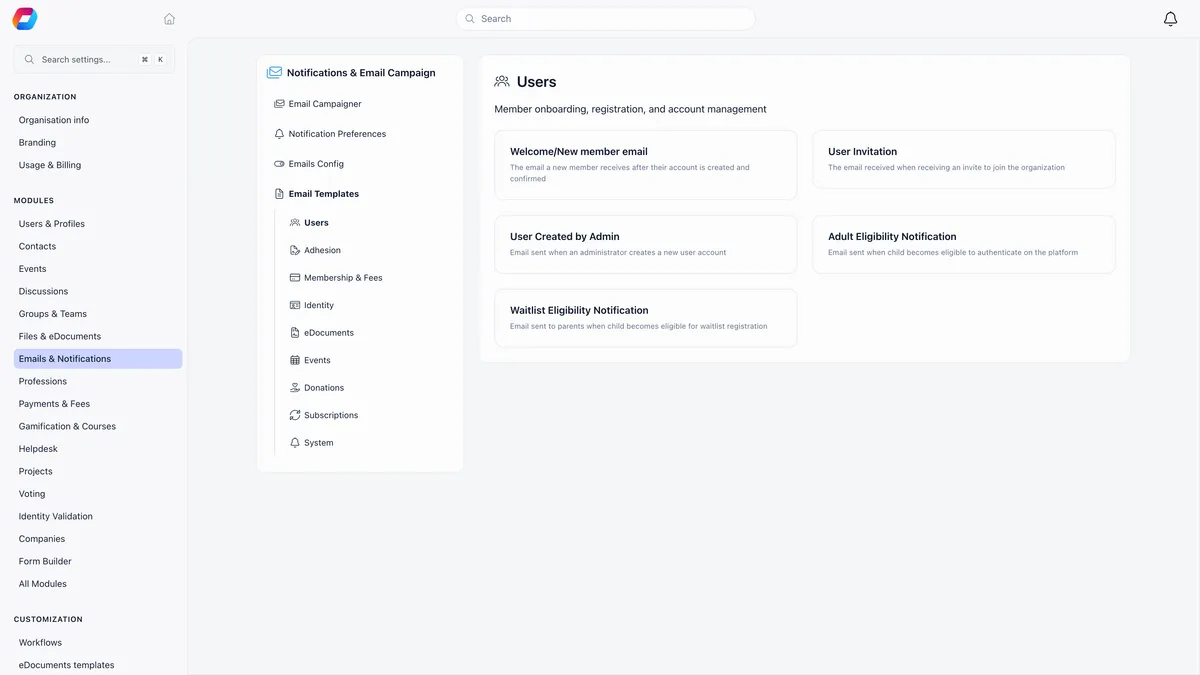
- Open Email Templates and pick a category in the left panel. Only the categories that apply to your organisation appear, and Users and System are always there.
- Open the card for the email you want. The editor loads with the current subject and body, which is the built-in version if you have never customised it.
- Rewrite the Subject line and the body. The body is a rich text editor with formatting, links and images, and images you paste are stored when you save.
- Use Insert Placeholder for anything that varies per recipient.
- Press Save. Your version is used from that moment on.
The editor header carries everything else you need: Use default, Send Test Email, an Enabled switch, Preview and Save.
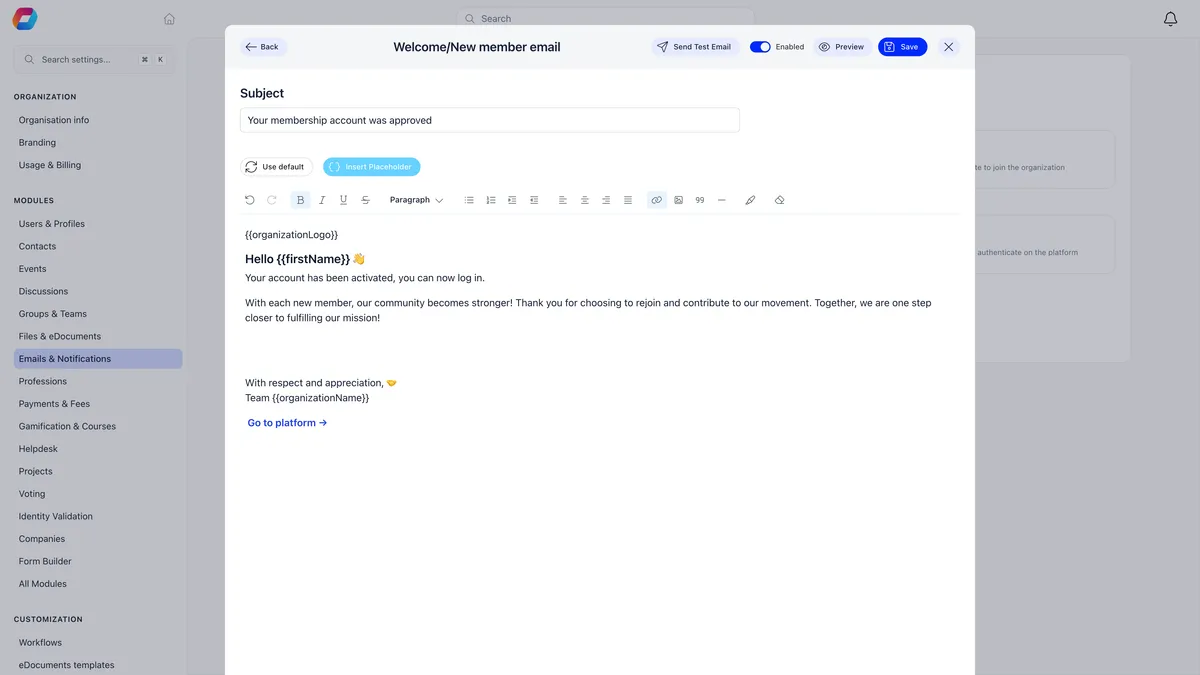
Use default throws your version away and reloads the built-in one. It asks for confirmation and cannot be undone: the saved custom template is deleted rather than archived, so keep a copy of your wording somewhere if you might want it back.
Placeholders, and how to break one
A placeholder is written {{firstName}} and is replaced with real data at send time. It is ordinary text as far as the editor is concerned, so anything that disturbs those characters stops it being a placeholder, and the member reads the braces.
Two rules keep you out of trouble.
Insert from the menu rather than typing. The menu lists only what this particular email knows about, and it wraps what it inserts so that later formatting cannot cut it in half. A token you type is on its own.
Use the double-brace form. {{firstName}} works everywhere. Other forms exist and are accepted in some places and not others, so a template that looks right in the preview can still ship raw text to a member. There is no upside to using them.
A placeholder the email does not recognise is never blanked out. It is delivered exactly as written, braces included, which is why a stray token is visible to every recipient rather than quietly ignored.
Preview, test send, and what each one really fills in
These three do not fill in the same things, and knowing the difference saves an afternoon.
A test send goes to the address on your own account, with [TEST] in front of the subject, from your organisation’s real sending address. It sends what is on screen, so unsaved edits are what get tested. It stores nothing and writes no log row.
The practical consequence is worth saying twice: a test email showing {{link}} or {{eventName}} is expected, because those values only exist during a real send. Read the test for tone, spelling and layout. Read Email logs for substitution.
Stopping an email
Emails Config carries one switch per category, grouped as User Lifecycle, Membership and Fees, Adhesion and so on. Each switch covers a group: turning off Membership Renewal Reminders silences all fourteen reminders at once. Changes save as you flip them.
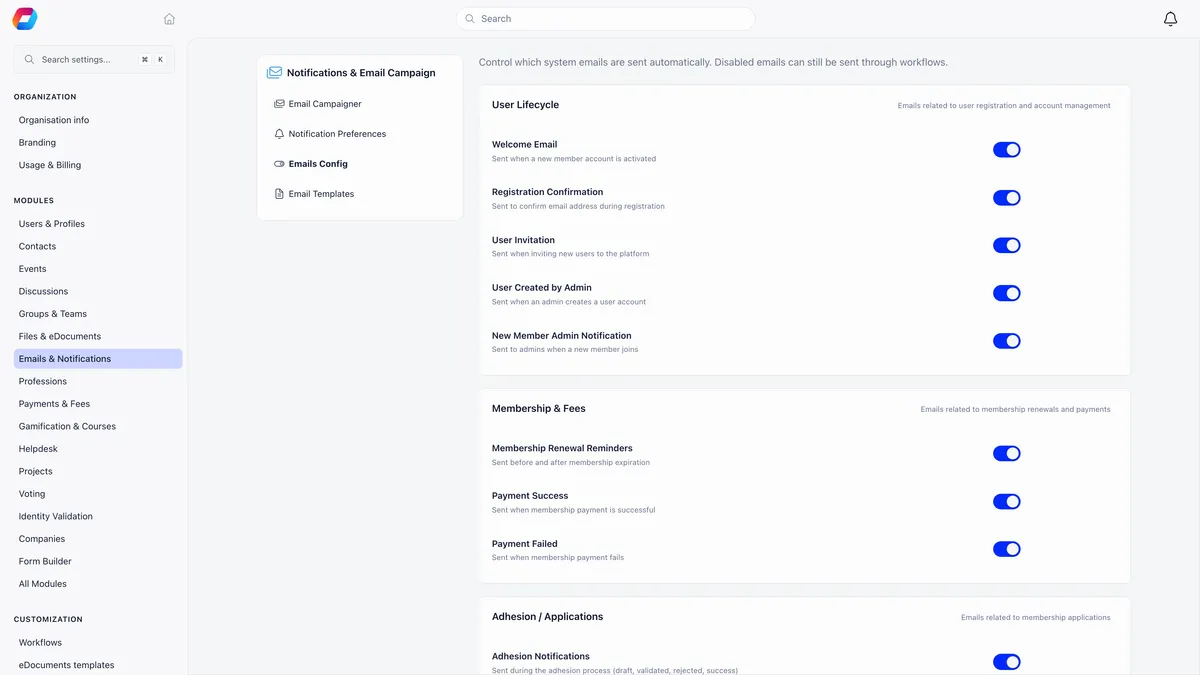
To silence one email without silencing its group, open that template and use the Enabled switch in the editor header instead. The per-email switch wins over the category switch in both directions, so you can keep the reminder category on and silence only the thirty-days-after message.
A switched-off email is not sent, and no row appears in Email logs. Nothing queues up for later and nothing arrives when you switch it back on. That is worth remembering when you are trying to prove what happened: an absent log row means either the email was off or the thing that triggers it never happened.
Login codes, multi-factor codes, verification codes, password mail and email-change confirmations have no switch at all, by design. A member locked out of their account is not a preference.
Changing who gets it
For notification email, the control is on the member’s own profile, on the Notifications tab. Members set their own, and an admin with chapter-level rights sees the same tab on a member’s profile and can change it for them.
The organisation-wide screen is Notification Preferences, and it is the one that catches people.
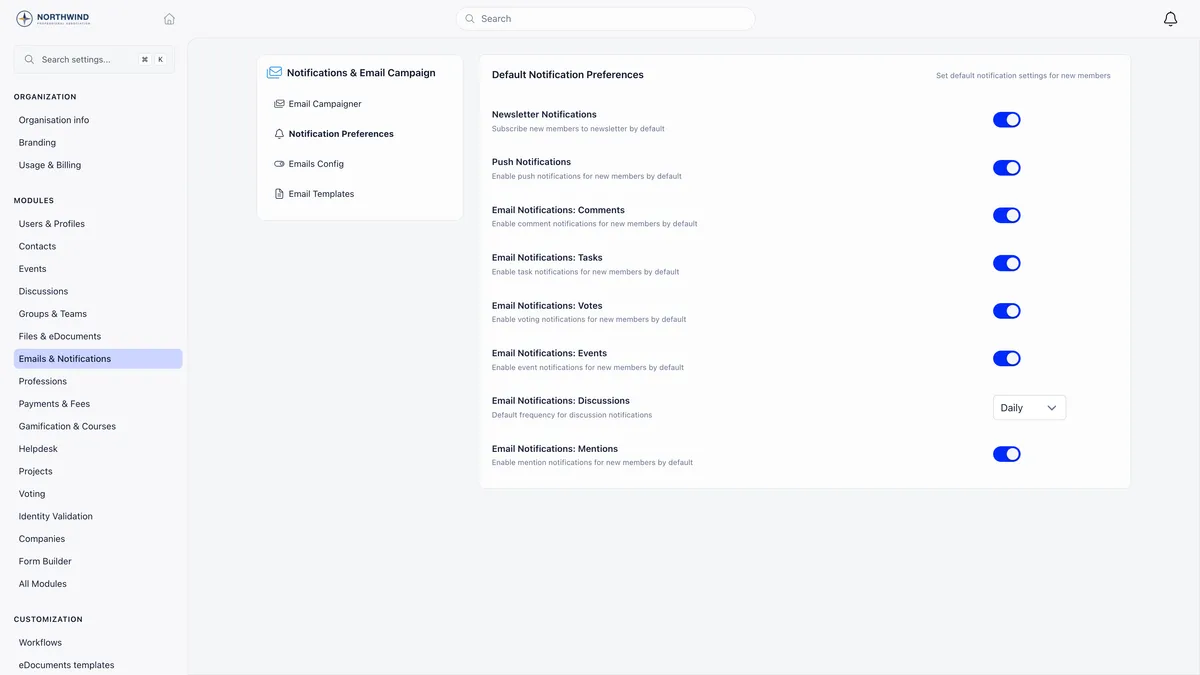
Read the subtitle on that screen carefully. It sets defaults for new members, and it means exactly that.
So when a member says they get too much email, work on their profile. Set their discussion frequency to Daily or Weekly first, because discussions are usually the bulk of it and the only category that batches. Then turn off the individual categories they object to. Changing the organisation default at that point does nothing for them at all.
Four cards that look editable and are not
Four templates have a card in the interface, open in the editor, preview correctly and accept a test send, while the email a member actually receives is produced somewhere else entirely. Editing them changes nothing.
- Newsletter Registration
- Fee Payment Approval
- Adult Eligibility Notification
- Waitlist Eligibility Notification
Treat the built-in wording of those four as fixed. Everything else in the grid behaves as you would expect.
Sign-in and security emails cannot be customised at all, and Orgo refuses to save a template for them. They carry live one-time codes, and letting stored wording into them would turn one compromised admin account into a way into every member’s account.
One language per custom template
The built-in templates exist in English, Romanian and German, and Orgo picks the one matching your organisation’s default language. Your own version has no language of its own: it goes to every member, whatever language they use.
That is a real trade-off for a multilingual organisation. Keep the built-in templates and get three languages, or customise the wording and get one. There is no third option on this screen.
Proving what was actually sent
Email logs stores the rendered body of most emails, per recipient. It settles arguments that the template screen cannot.
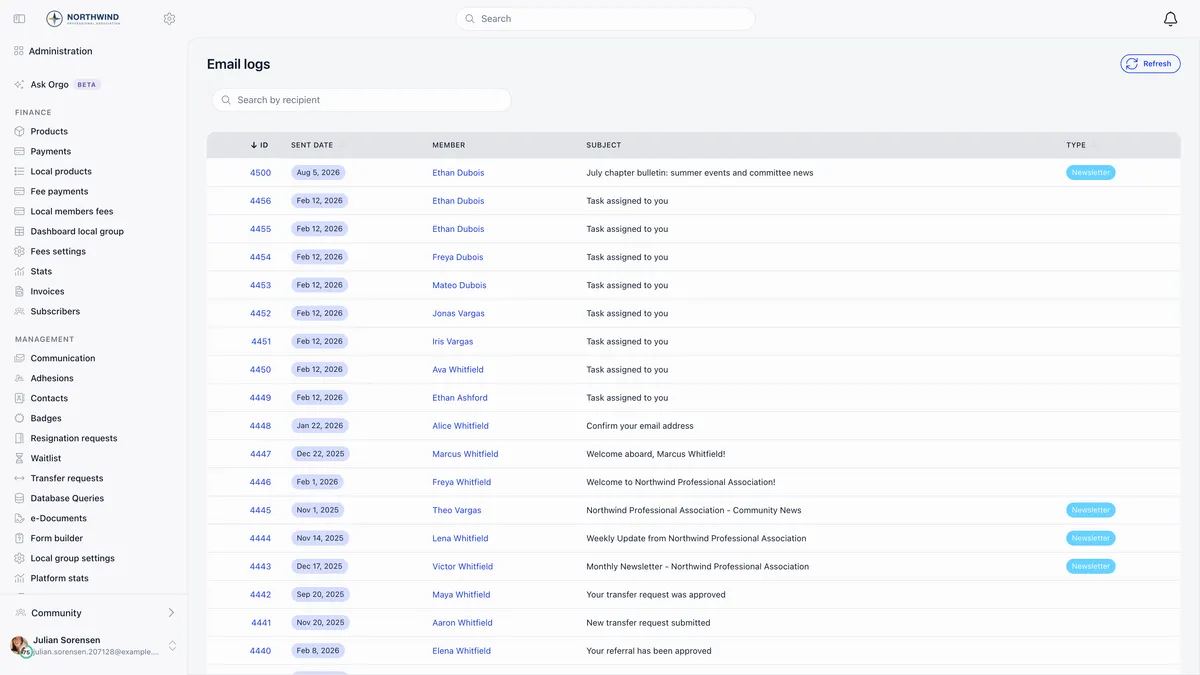
Search for the member, open the row and read Email Preview: the message exactly as it was rendered for that person, with their name, dates and links already substituted.
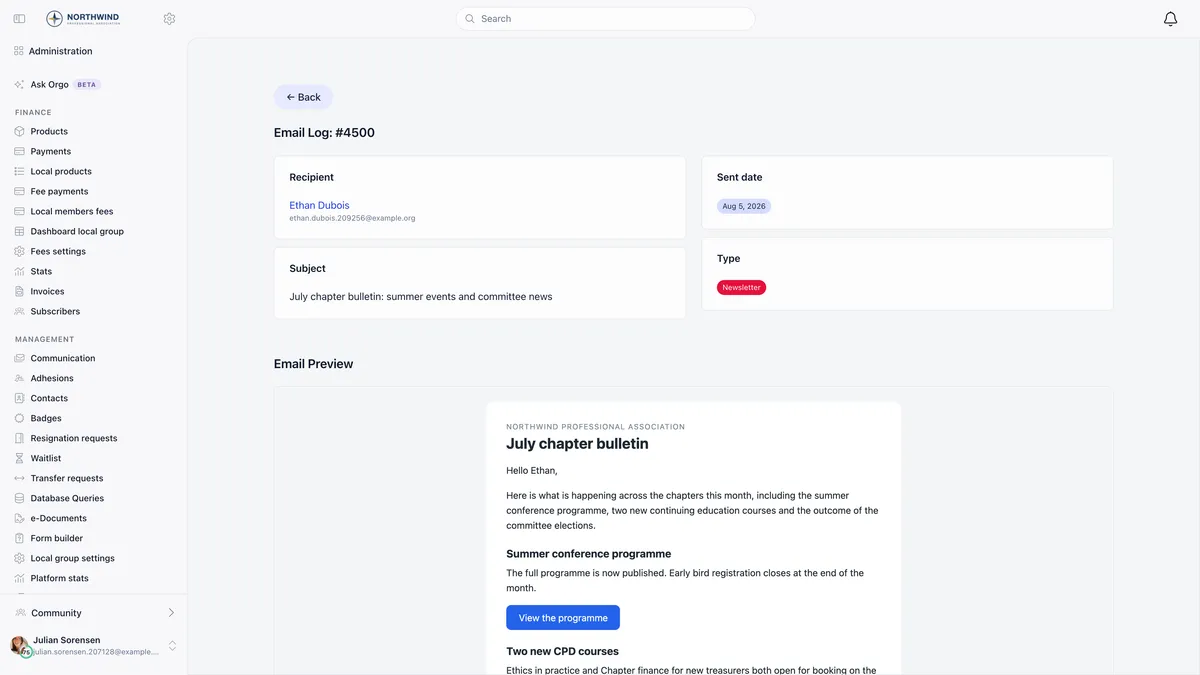
This is how you answer “my edit did not apply”. If the log shows your wording, the edit applied and the member is looking at an older message. If it shows the old wording, either you did not save, or the card is one of the four above.
Troubleshooting
The wording changed for some members and not others
It did not. One template is stored per organisation, and the version in force at the moment of sending is the one every recipient gets. Earlier emails keep the wording they were sent with, so an old message in a member’s inbox is not evidence of anything.
A placeholder printed as raw braces in a real email
That value is not available to that template. Open the template, delete the token and pick a replacement from the Insert Placeholder menu, which lists only what this email can actually supply.
The test email never arrived
Test sends go to the address on your own account and use the same sending path as everything else, so a missing test is usually a delivery problem rather than a template problem. Check spam and quarantine first.
Emails arrive from an address that is not ours
Your organisation’s contact address has to be verified for sending before Orgo will send from it, and verification needs DNS records on your domain. Until then the From address is a no-reply address, while Reply-To is still your contact address, so replies reach you either way. Ask support to verify the address you want to send from.
Related
- Setting up automations, for email you write yourself
- System emails, the full catalogue and what triggers each
- Email templates reference
- Email logs
- Notifications and per-member preferences
- Sender identity and deliverability
Frequently asked questions
I edited the welcome email but members are still getting the old wording. Why?
Check three things in order. First, whether you pressed Save rather than only Preview. Second, whether the card you edited is one of the four that exist in the interface but are produced elsewhere: Newsletter Registration, Fee Payment Approval, Adult Eligibility Notification and Waitlist Eligibility Notification cannot be changed by editing them. Third, open Email logs and read the body that actually went out, which settles it immediately because the log stores the rendered message rather than the template.
My test email arrived with {{link}} still in it. Is the template broken?
No, and this catches almost everybody. A test send fills in a small generic set of values such as your name and your organisation's details. Anything specific to that one email, like a confirmation link, an event name or an expiry date, is not available outside a real send, so it arrives in the test as visible text. Judge the wording from the test and the substitution from Email logs after one real send.
I turned notification emails off in Settings but members still get them. What did I miss?
Default Notification Preferences is a starting point applied to each member once, at the moment their account is created. It never reaches anyone who already exists, however long ago they joined. To change a member who is receiving too much, open their profile and use the Notifications tab there. The organisation default only decides what the next person to join starts with.