
Go to Lists and Segments and press Create. You name the list, choose whether it maintains itself or holds a fixed set of people, set who it can draw from, and add criteria. A saved list then becomes an audience you can pick when you send a newsletter.
The thing to understand before you build one is the number in the last two columns. Subscribed is almost always lower than Total, and Subscribed is the one that predicts what a send will do. The gap is not a bug and it is not people unsubscribing. It is mostly contacts who never opted into anything.
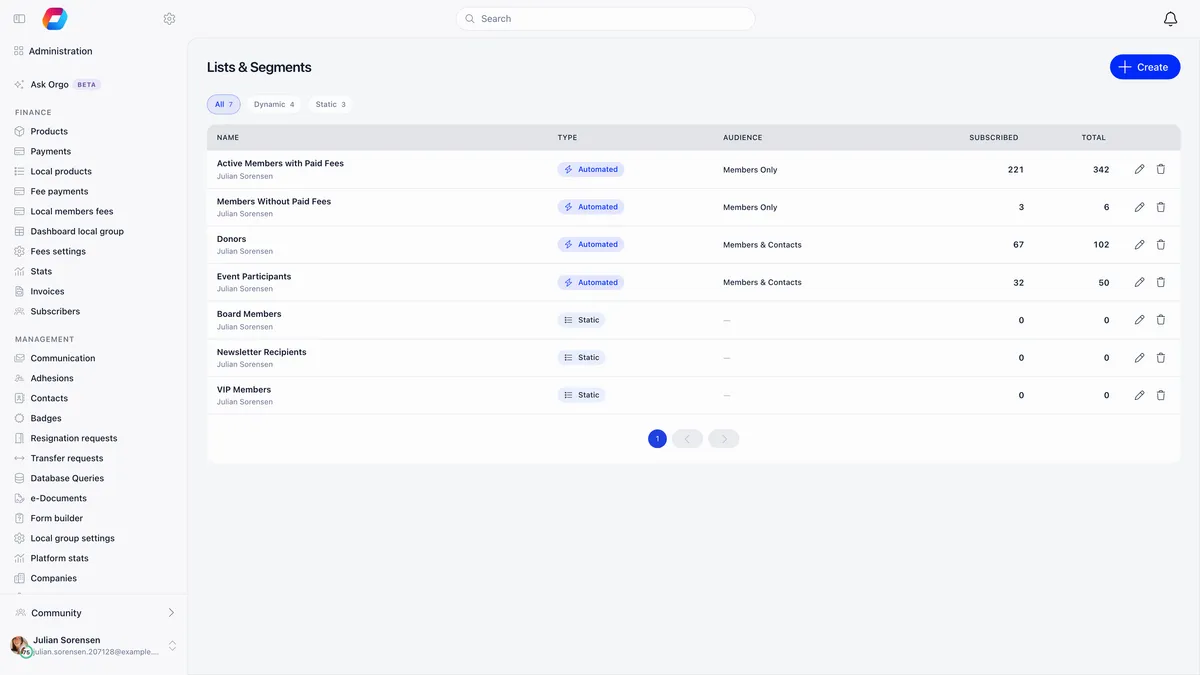
Why subscribed is lower than total
A list can hold members and contacts, and these are two different kinds of record with two different subscription fields. Neither one knows about the other.
A member has an account. Their subscription lives as the Newsletter (email) toggle on their notification settings, and a new member inherits it from a single organisation default that ships switched on. So members generally arrive subscribed, and the ones who are not have either turned it off themselves, clicked an unsubscribe link, or been switched off automatically after their address bounced.
A contact has no account. Contacts are the people who bought a ticket, made a donation, filled in a form or were loaded from a spreadsheet. Their subscription is a separate field on the contact record with three states, and this is where the gap comes from.
| Contact newsletter state | What it means | Receives campaigns |
|---|---|---|
| Subscribed | Opted in | Yes |
| Not subscribed | Never made a choice at all | No |
| Unsubscribed | Opted out deliberately | No |
The middle row is the one that surprises people. A contact created as a side effect of something else, an import without a newsletter column or a registration for an event, lands in Not subscribed. Not opted out. Never asked. They sit in every list total and receive nothing.
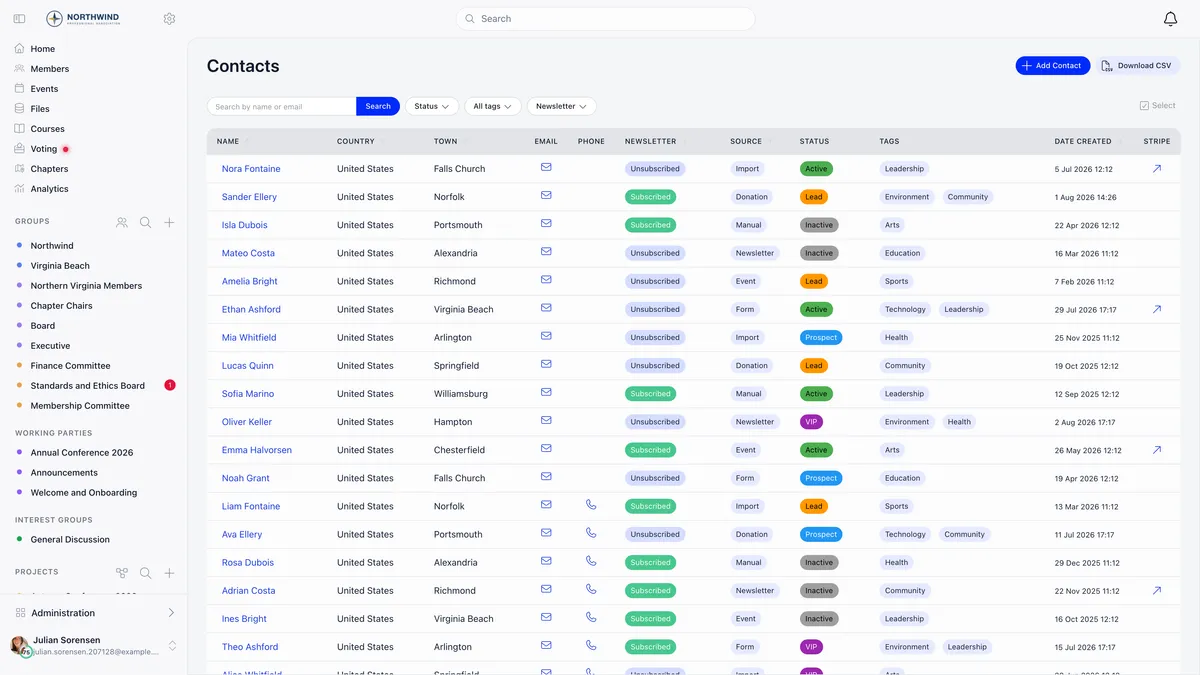
You can see both states on the contacts directory itself. The Newsletter column carries the state per person, and the Source column tells you how the record arrived, which is almost always the explanation for the state it is in.
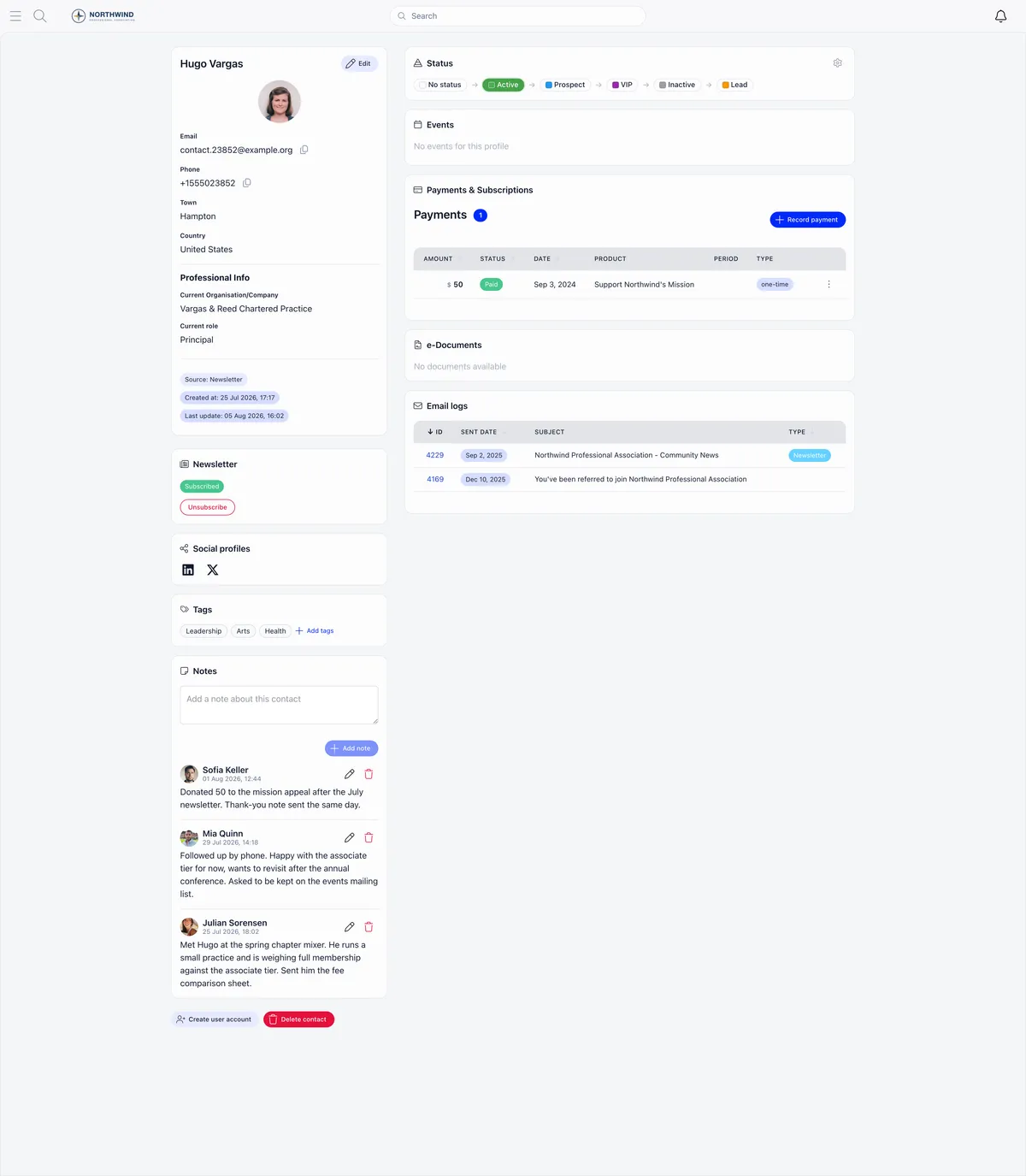
A single contact’s record shows the same thing as a Newsletter card. Note that it offers Unsubscribe and nothing else: a contact’s own opt-in is theirs to give, so there is no button that subscribes them on their behalf.
A word of warning about the Unsubscribed tile
On an automated list, the Unsubscribed tile counts only people who never made a choice, not people who deliberately opted out. A member who turned the newsletter off is counted in Total and in neither of the other two tiles.
The practical consequence: do not expect Subscribed and Unsubscribed to add up to Total on an automated list. They frequently do not, and the shortfall is real opt-outs that the tile is not showing you. Subscribed is the only number that matches what a campaign will actually reach.
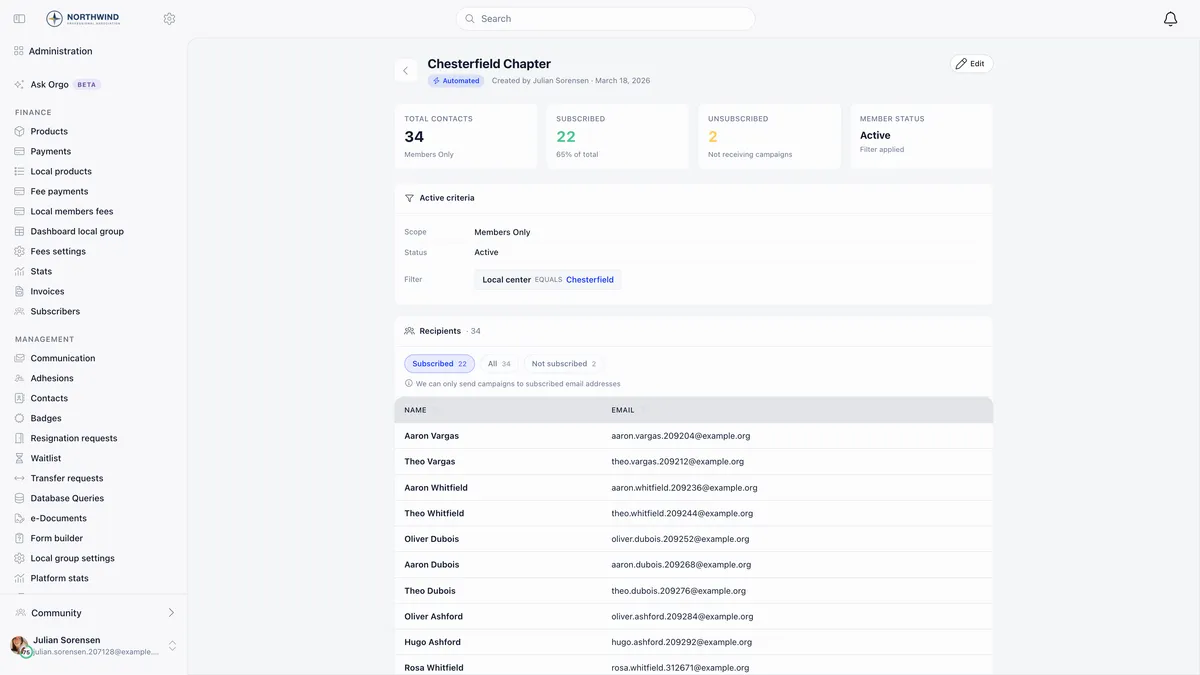
The list above holds 34 people, of whom 22 are subscribed and 2 show as unsubscribed. The other ten are not missing from the data. They are opt-outs the tile does not report. Twenty-two is the number that will receive the campaign.
Automated or manual
You choose once, at creation, and the choice is locked on the edit screen afterwards.
| Automated | Manual | |
|---|---|---|
| Also called | Dynamic | Static |
| Who is in it | Everyone matching the criteria | Exactly the people you added |
| When it changes | By itself, as people qualify or stop qualifying | Only when you change it |
| Resolved | Again at the moment a campaign is sent | As it stands |
| Right for | Anything recurring: members who have not paid | Anything deliberate: the twelve people going to the retreat |
Automated is the right default. Because the audience is worked out again when the campaign is actually sent rather than when you drafted it, somebody who joins on Tuesday is in Wednesday’s send with no action from you.
Building one
- Open Lists and Segments and press Create. It sits under Communication in the Administration menu, and needs
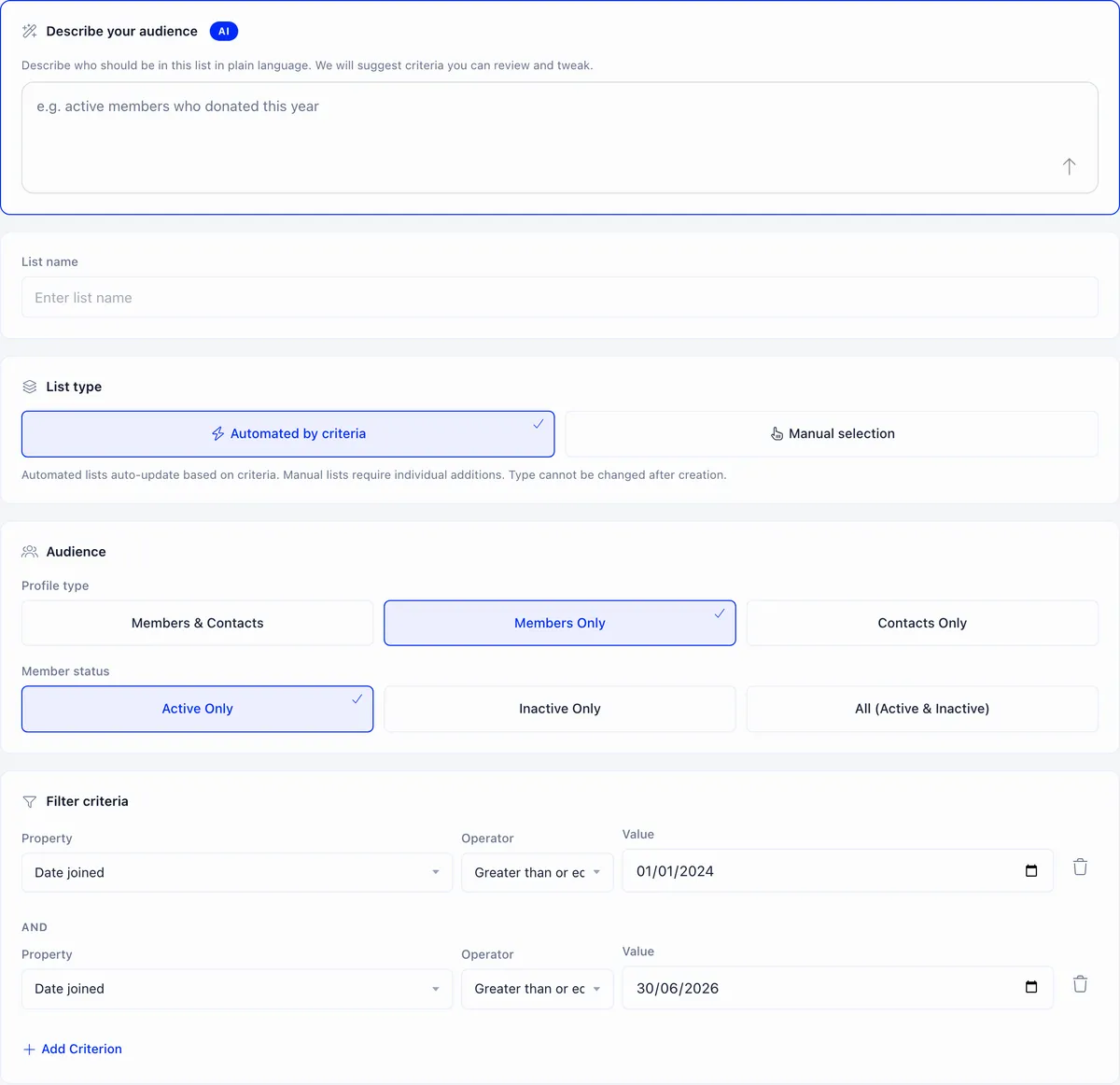
HR_TENANTorCOMMUNICATION_TENANT. Sidebar labels are per workspace and edited through Menu Organizer, so the entry may be renamed or hidden in yours. - Optionally use Describe your audience to write what you want in plain language, for example “active members in Norfolk who joined this year and have not paid”. It proposes a name, a scope and a set of criteria with an estimate of how many people match. It is a starting point, not the saved definition. Review what it produced.
- Name the list and pick Automated by criteria or Manual selection. This cannot be changed later.
- Set the Profile type: Members and Contacts, Members Only or Contacts Only. This is also locked afterwards.
- Set the Member status: Active Only, Inactive Only, or All. Active Only is the default, so a list silently excludes lapsed members until you widen it. This is the one audience setting you can still change after creation.
- Add criteria, then save.
Criteria only combine with AND
Every criterion you add narrows the list further. There is no OR, no grouping and no nesting. The builder prints a literal AND between each pair, and it is a label rather than a control: there is nothing to switch it to.
There is no free-text criterion. You cannot build a list by name or by email address. If you need a specific set of named people, that is what a manual list is for.
What you can filter on depends on the profile type, because members and contacts do not carry the same data.
| Criterion | Members Only | Contacts, or mixed |
|---|---|---|
| Status | Yes | Only where contact statuses are switched on |
| Tags | Yes | Yes |
| Date joined | Yes | Offered, but see the warning below |
| Age | Yes | Yes |
| Has Payment | Yes | Yes |
| Has Recurring Payment | Yes | Yes |
| Event Attendance | Yes | Yes |
| Chapter | Yes | Yes, where chapters are enabled |
| Valid fee date | Yes | No |
| Date joined as full member | Yes | No |
| Only full members | Yes | No |
| Membership Fee Status | Yes | No |
| Donation dropout | No | Contacts Only |
Most criteria offer equals and nothing else. The date criteria, Age and Only full members offer the full range of comparisons, so “under 18” and “joined after March” are expressible. Tags has its own three operators: has tag, has all tags, and does not have tag. The operator dropdown is hidden entirely when only one comparison applies.
A warning about Date joined on mixed lists. It is offered on the contact-bearing scopes but it does not filter contacts. On a Contacts Only list a Date joined criterion does nothing at all, and on a Members and Contacts list it narrows the members while letting every contact through. If your list came back much larger than you expected, and it mixes both populations, check for this one first.
Working with a saved list
The detail page opens with the tiles, an Active criteria card spelling out the saved definition in plain terms, and the Recipients table. Chips switch between Subscribed, All and Not subscribed so you can see exactly who would be skipped.
Lists over 100 people do not load their members automatically. Press Show recipients, and the table pages 50 at a time.
A manual list is a slightly different screen. It has no criteria card and no filter chips, and it gains three ways to put people in it:
- Add searches members and contacts by name and adds the ones you tick.
- Add CSV takes a file. Re-uploading the same file is safe: rows already in the list are reported as skipped rather than failing.
- An import can populate a manual list as part of a larger job. Picking an automated list is refused outright, because an automated list decides its own membership.
Adding somebody who is already there is harmless either way. The existing entry is kept.
One trap worth knowing before you promise somebody they can manage lists. Creating and editing a list needs HR_TENANT or COMMUNICATION_TENANT, but adding or removing an individual person on a manual list needs ADMIN_TENANT, which is a higher bar. The Add, Add CSV and remove controls are shown to anyone who can open the list, so a communication manager sees the buttons, presses them, and gets a save error with no explanation. If somebody maintains manual lists, they need ADMIN_TENANT.
Automated lists have no add or remove buttons at all. To change who is in one, change its criteria.
Using the list
In the newsletter composer, choose From a list and pick it. The count shown beside the option is the subscribed count, not the total, which is why it is often lower than the number you had in your head.
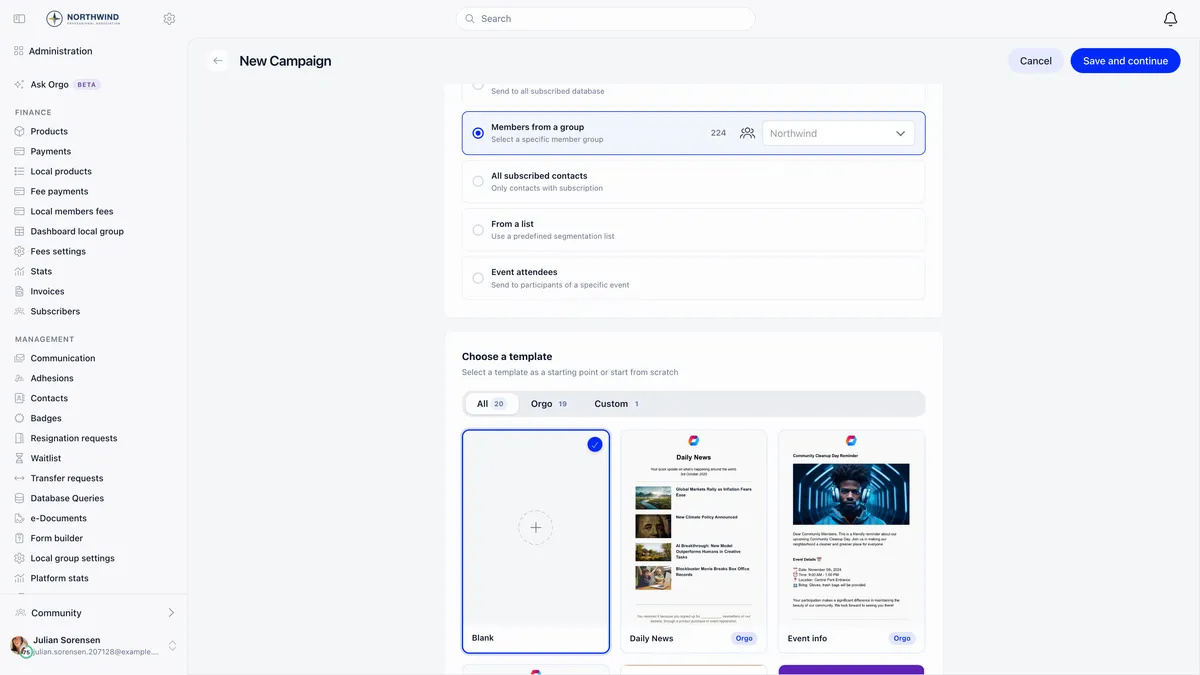
A list is one of five audience options and the other four cannot be saved or reused, so reach for a list when the audience is a question about the people themselves rather than a group, an event or a previous campaign.
Two things happen at send time that are worth knowing. For an automated list the audience is worked out again, so people who became eligible after you drafted the campaign are included. And if the campaign belongs to a chapter, that chapter’s boundary is applied on top of the list, so a list can never be used to reach past a boundary the sender does not have.
There is one deliberate exception to the subscription rule. A list built on Attended specific event ignores the subscribed and unsubscribed split entirely, because event mail is treated as informational rather than marketing. That exception is narrow: it applies to that one criterion value, not to the other event attendance options, and never to a manual list.
Where your unsubscribed contacts came from
If the gap between Total and Subscribed bothers you, the fix is upstream of the list. Give people a way to opt in.
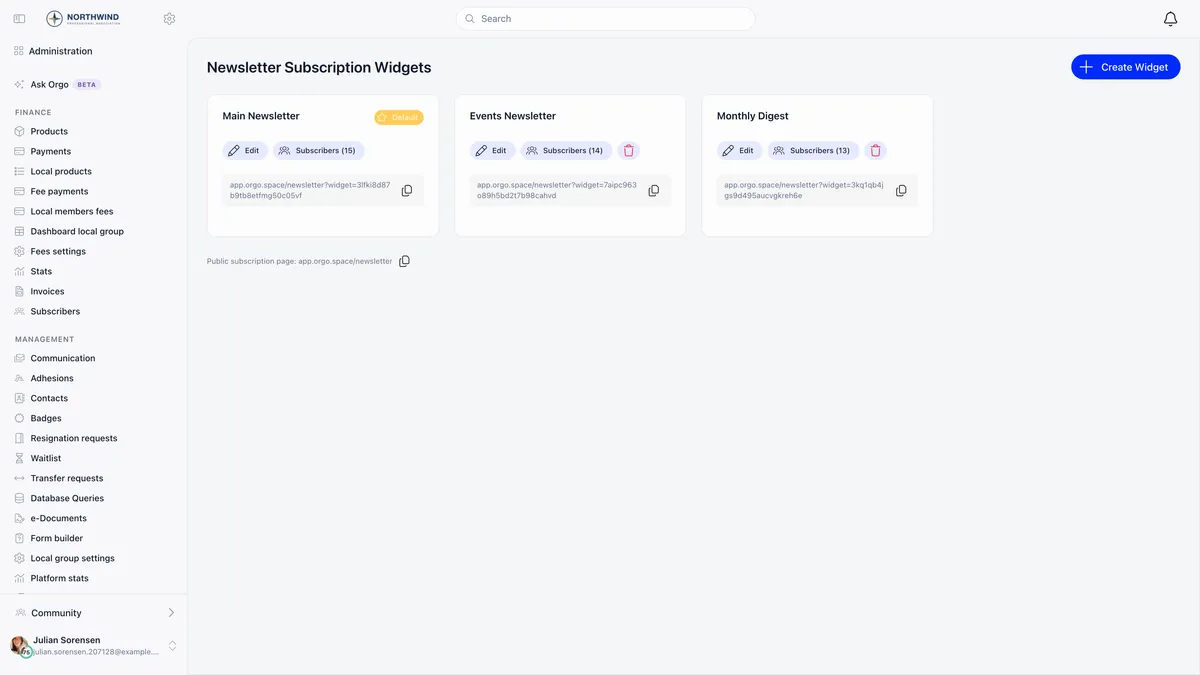
Newsletter subscription widgets produce a link or an embed you can put on your website. They are part of the newsletter module, alongside the campaign composer itself. Somebody who signs up there is emailed a confirmation link, and only when they click it does a contact record get created, already subscribed. That is a genuine double opt-in, and it means an unconfirmed signup never appears in your database at all: there is no half-finished contact waiting for you to notice.
The other reliable source is a checkout or registration form that asks the question. An event checkout carries an “I want to subscribe to the newsletter” checkbox, and a contact created that way arrives with a real answer on the record rather than a blank.
For contacts already in your database with no answer recorded, the honest options are to ask them through a channel they did agree to, or to leave them alone. There is no button that opts a contact in on their behalf, and that is deliberate.
Subscription and lists are independent
These two are frequently confused and they never touch each other.
- Removing somebody from a list does not unsubscribe them.
- Unsubscribing does not remove them from any list.
- System emails ignore lists entirely. A renewal reminder goes to the member whose fee is expiring whether or not they are in any list and whether or not they unsubscribed from campaigns. Unsubscribing stops marketing, not messages about somebody’s own membership.
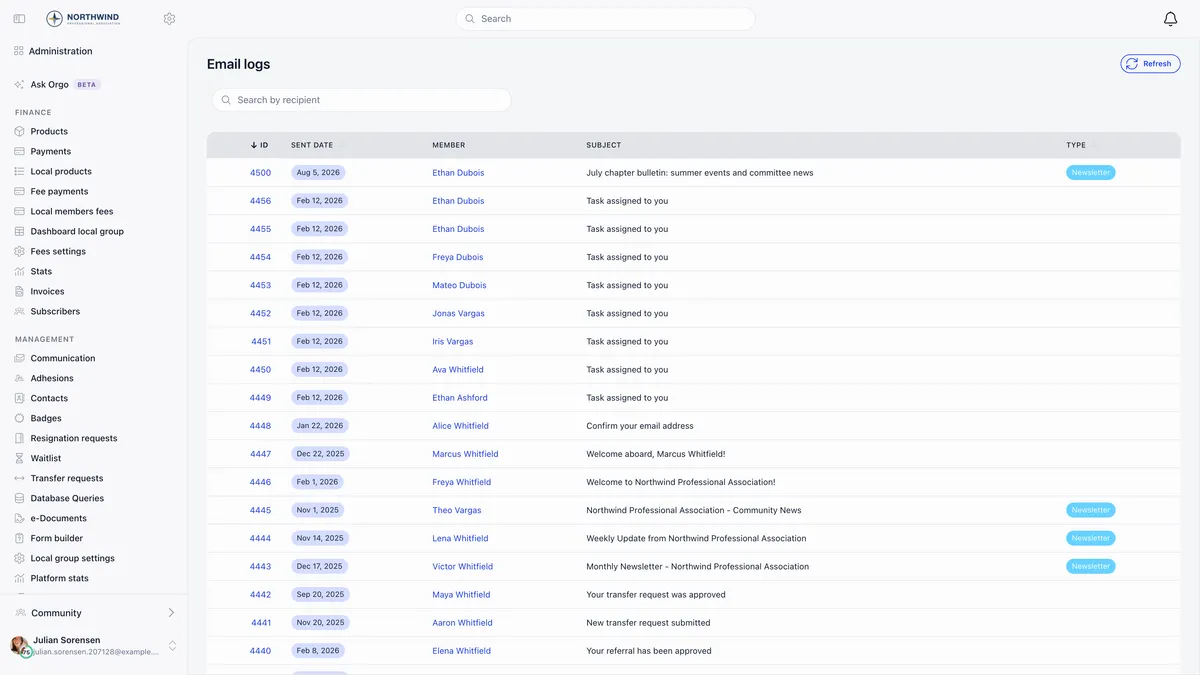
That last one is the answer to “they unsubscribed and they are still getting email from us”. Check the Email Log for what the person actually received. If it is an invoice, a renewal notice or an event confirmation, the system is behaving correctly.
Troubleshooting
Somebody new should be in my automated list but is not
Check the member status setting first. Automated lists default to Active Only, so lapsed members drop out of them silently. That is the one setting you can still change after creation.
The list is much bigger than I expected
If it mixes members and contacts, check whether you used Date joined, which does not filter contacts. Otherwise, remember that criteria combine with AND, so a list that is too big usually has too few criteria rather than the wrong ones.
I need this list to change from manual to automated
You cannot from the edit screen: both the type and the profile type are locked once the list exists. Create a new automated list with the criteria you want and retire the old one.
The campaign reached fewer people than the list holds
That is the subscribed and total gap, working as intended. Open the list, compare the two numbers, and use the chips on the recipients table to see exactly who was skipped and why.
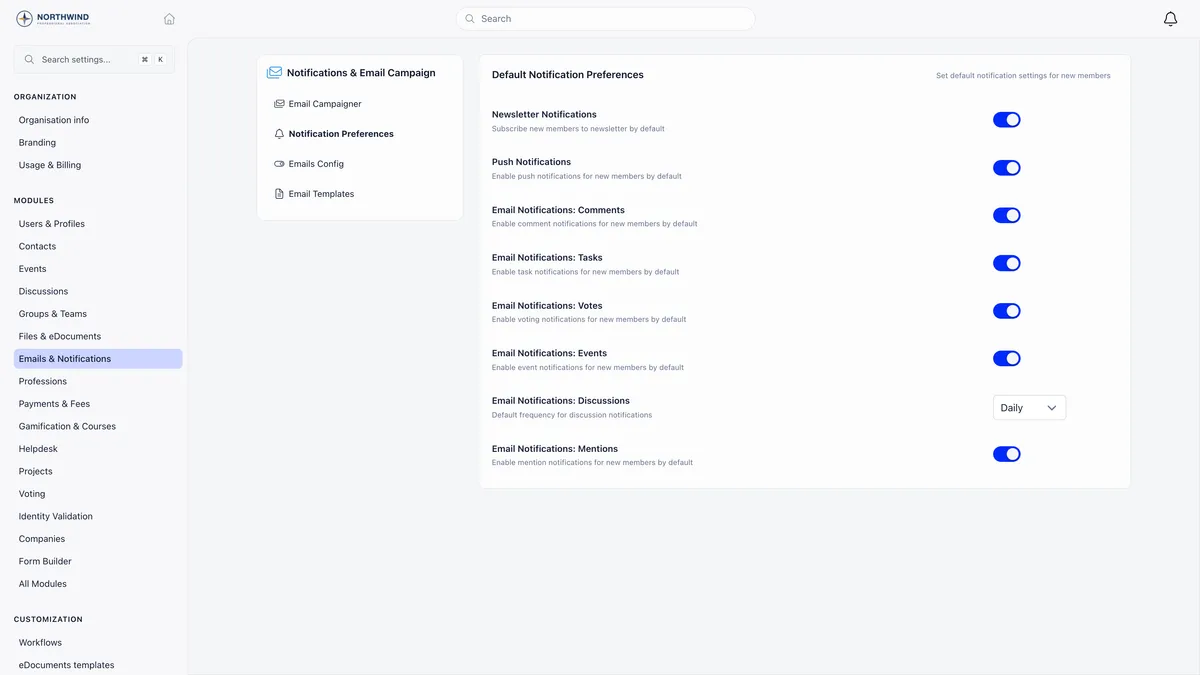
Remember that the organisation default only ever applies to accounts created after you set it. Changing it does nothing for anyone already in your database.
Related
- Sending a newsletter to a list
- Lists and Segments, the full criteria reference
- Email lists and what happens at send time
- Contacts, the non-member records
- System emails, the ones lists do not control
Frequently asked questions
Why is the subscribed count on my list lower than the total?
Because a list holds two populations with separate subscription state. Members carry a Newsletter toggle on their notification settings, and new members are switched on by default. Contacts carry their own newsletter field, and a contact created by an import or by registering for an event starts in the Not subscribed state, having never opted in to anything. Both sit in the list total. Only the subscribed ones receive a campaign, which is why Subscribed is the only number that predicts what a send will do.
Can I change a list from manual to automated?
Not from the edit screen. The list type and the profile type are both locked once the list is created, and the form says so. Create a new automated list with the criteria you want and retire the old one. The one audience setting you can still change afterwards is the member status, so a list that quietly excludes lapsed members can be widened to include them.
Can I build a list of people by name or email address?
No. There is no free-text criterion in the list builder, so you cannot filter on a name or an address. Criteria cover status, tags, dates, age, payments, recurring payments, event attendance, chapter and fee status, and they only ever combine with AND. If you need a fixed set of named people, create a manual list and add them, by search or by uploading a CSV.