
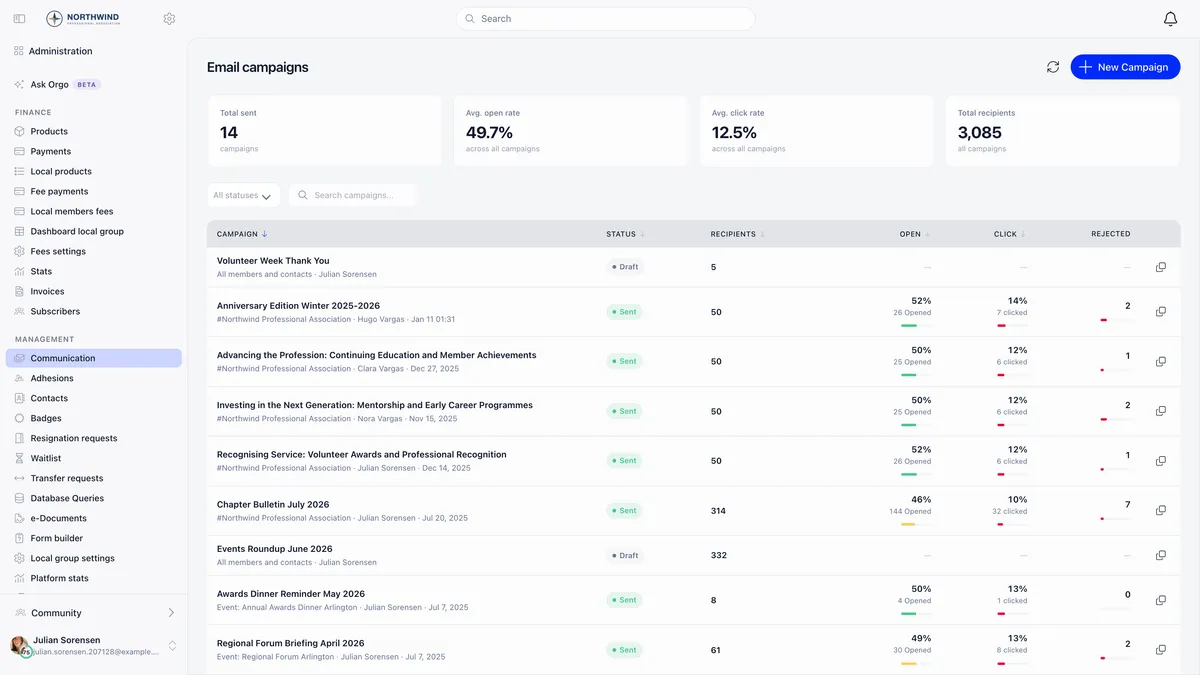
Go to Email campaigns and press New Campaign. You fill in the campaign details, pick one audience, design the email, then send it or schedule it.
The mechanics are quick. What takes the time is getting three things right: which audience actually resolves to whom, why the scheduler refuses a time that looks perfectly reasonable, and what the numbers on the report genuinely count.
Before you start
Email campaigns need the module switched on for your organisation, under Settings, Modules, Emails and Notifications. Then:
| Permission | What it allows |
|---|---|
COMMUNICATION_TENANT | Create, send and report on any campaign in the organisation |
COMMUNICATION_LOCAL | The same for the chapters you manage, with a narrower audience picker |
EVENT_TENANT | Campaigns attached to an event |
ADMIN_TENANT | Sees every campaign |
The module adds a Communication section to the sidebar holding Email campaigns, Campaign templates, Lists and Segments, Newsletter subscription and the Email Log. Together those screens are Orgo’s newsletter tools. Sidebar labels are per workspace and are edited through Menu Organizer, so entries may be renamed, moved or hidden in yours. Look for the destination rather than a fixed position.
Step one: the campaign details
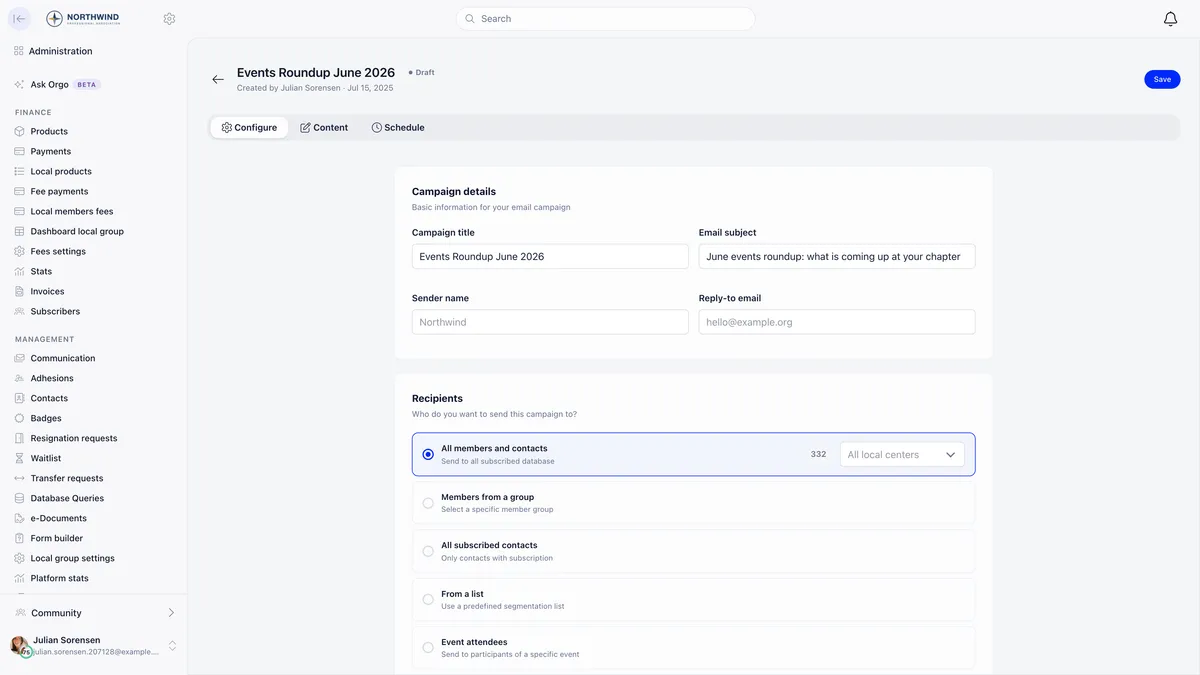
Campaign title is internal and only you see it. Email subject is what recipients see. Sender name defaults to your organisation’s short name and Reply-to email to its contact address, and you can override either for this campaign alone.
Step two: the audience
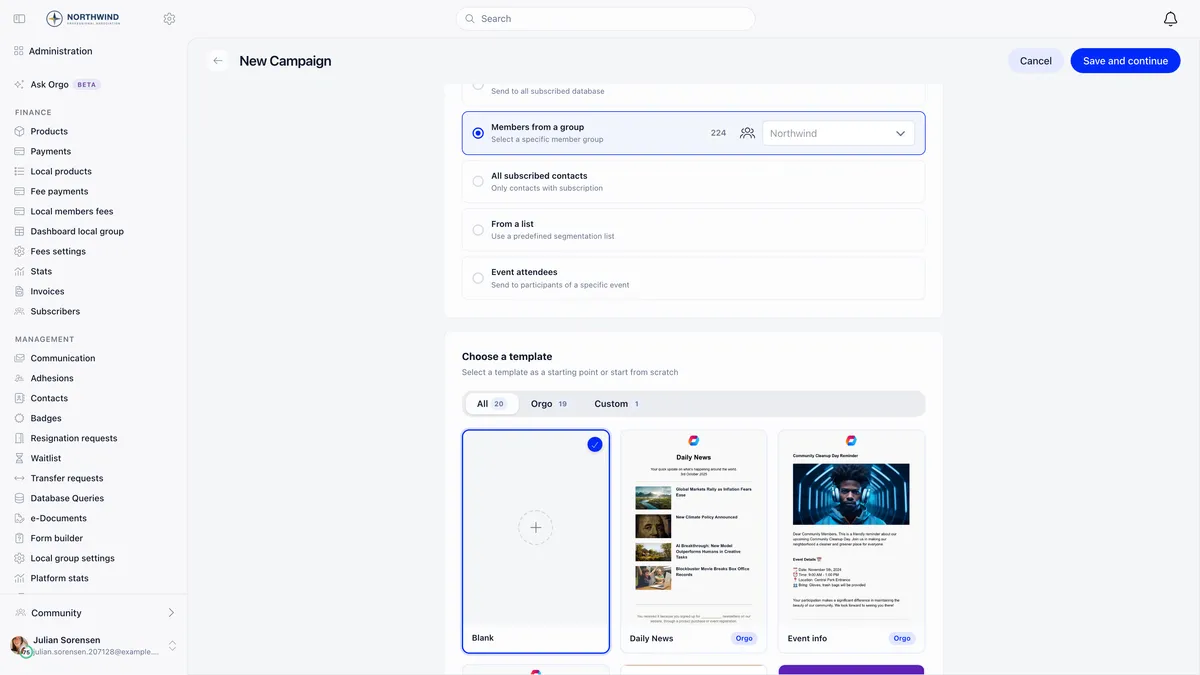
You pick exactly one. The count beside each option is a live preview, recalculated at the moment you press Send.
| Option | Who it resolves to |
|---|---|
| All members and contacts | Every subscribed member plus every subscribed contact. Gains a chapter dropdown where chapters are enabled |
| Members from a group | The members of one group, role group or chapter. Leaving the group empty sends to all members |
| All subscribed contacts | Contacts only, no members |
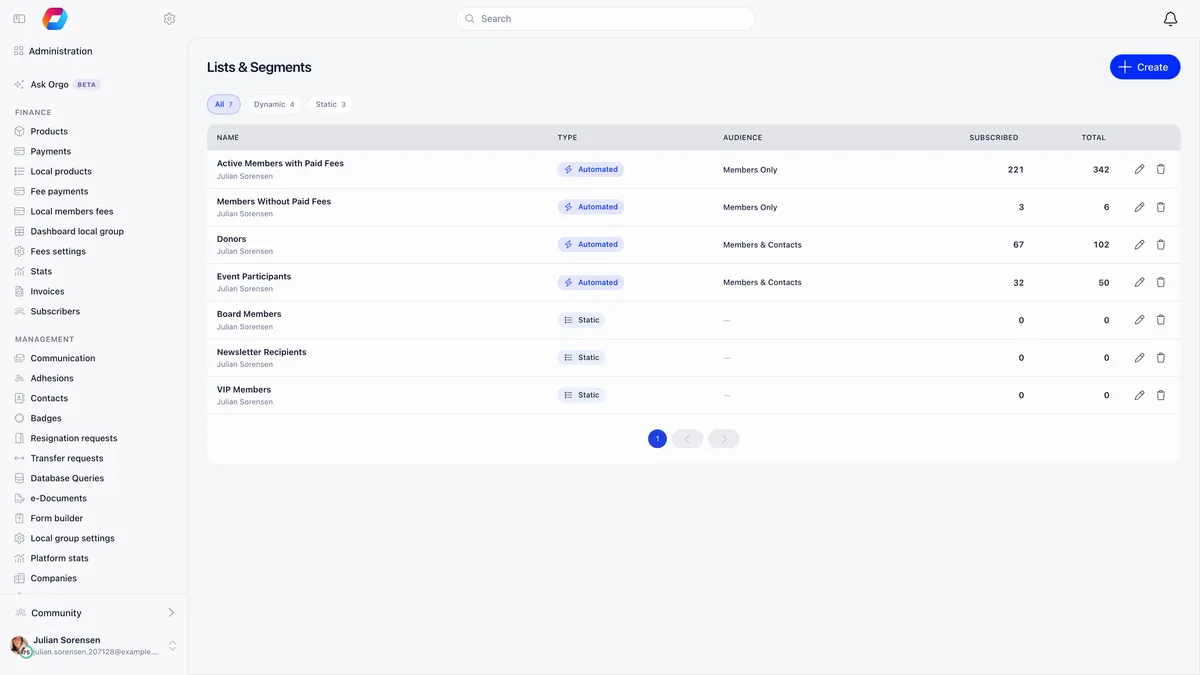
| From a list | A saved list or segment, automated or manual |
| Event attendees | The people attached to one event, members and external registrants alike |
Who is actually in an audience
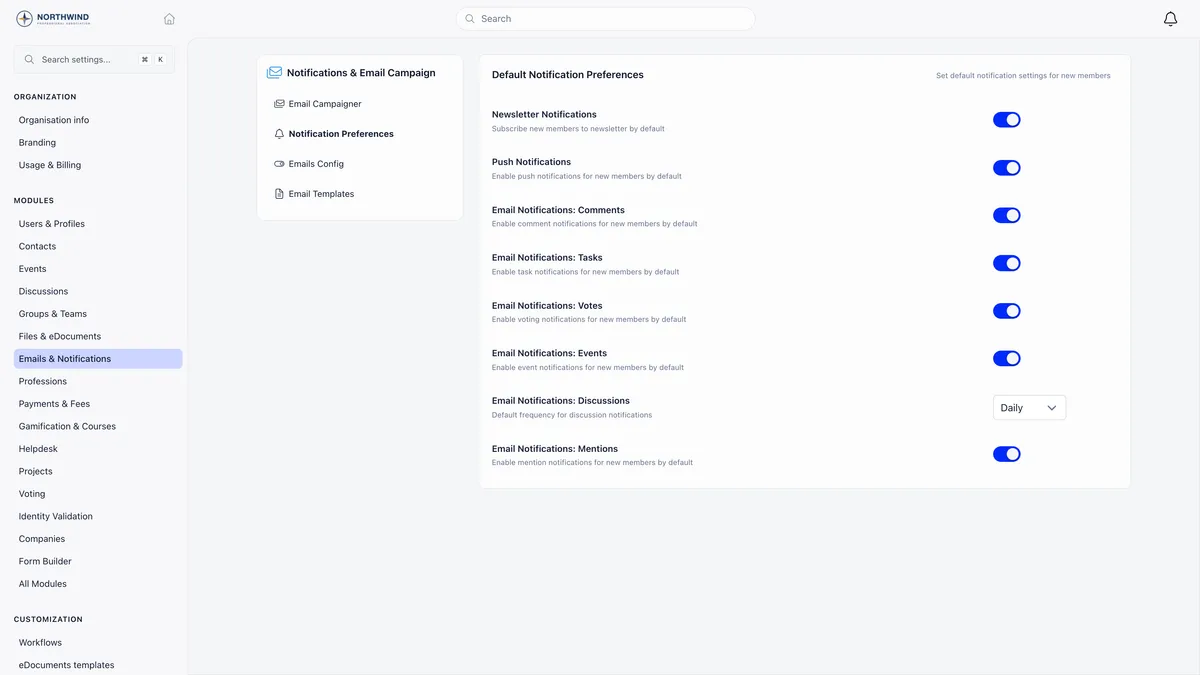
For the two database-wide options and for a group, a member is included when three things are all true: the account is active, it has an email address, and Newsletter (email) is on in their notification settings. A contact is included when it has an email address and is marked Subscribed.
Two audiences bend that rule, and both bend it in the direction of sending to more people than you expect.
- Event attendees checks the subscription flag alone. Account status and a missing address are not filtered out of the send the way they are for a group, so the preview count and the send can disagree.
- A saved list applies the list’s own rules. A list built on event attendance deliberately ignores the subscribed and unsubscribed split entirely, on the reasoning that event mail is informational rather than marketing.
New members inherit their newsletter setting from a single organisation default, applied once when the account is created. Changing that default later does nothing to anyone who already exists.
If you only manage a chapter
A holder of COMMUNICATION_LOCAL who has no organisation-wide communication or event rights sees one option: Members from a group. The other four are hidden. The cap is not only cosmetic. Where a campaign belongs to a chapter, the audience is intersected with that chapter’s boundary on the server at send time, whatever targeting the campaign carries. A list cannot be used to reach past a boundary the sender does not have.
Step three: design it
Start from Blank or from a saved template, then build the email with the drag-and-drop blocks: columns, buttons, headings, paragraphs, images, video, social links, menus, raw HTML and tables. Content auto-saves as you work, and the preview toggles between desktop and mobile.
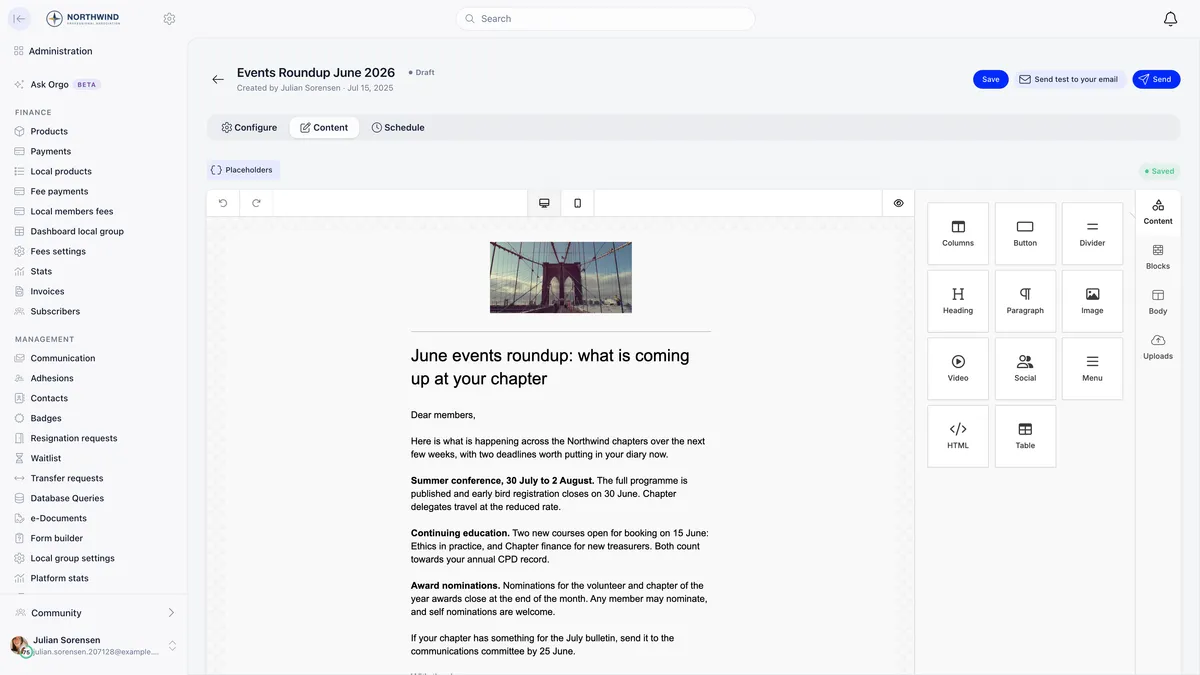
Send test to your email renders the campaign against your own data, which is the only reliable way to check placeholders before you commit.
Every campaign email carries one-click unsubscribe headers, so a recipient can opt out from their mail client without opening the message. If your design contains no unsubscribe placeholder, Orgo appends a footer with an unsubscribe link before sending, and a preferences link as well for members. That footer is injected just before the closing body tag, so a design that has no closing body tag gets no visible footer. The one-click header is still there, but give people a link they can see.
Step four: send or schedule
Press Send and it goes. The recipients are resolved in batches and dispatched at a deliberate pace, so a large campaign arrives over minutes rather than all at once. A campaign already marked Sent cannot be sent again, and a repeated attempt at the same recipient is skipped.
Why the scheduler refuses your time
Two rules apply together, and a third, quieter one causes the confusing cases.
The time must be at least 2 minutes in the future. Anything closer is refused with “Scheduled time must be at least 2 minutes in the future”, and the confirm button stays disabled.
The time must land on a 15-minute boundary, meaning :00, :15, :30 or :45. Anything else is refused with “Scheduled time must be on a 15-minute interval”. This is not fussiness: the process that picks up scheduled campaigns runs every 15 minutes, so a time between the boundaries has nothing to fire it. The time picker steps in 15 minutes for exactly this reason.
Today is the earliest date you can pick, so a campaign written this morning can go out this afternoon. The fields open on tomorrow at 09:00 as a default, so change the date if you want it to leave today.
The quiet third cause is a clock mismatch. The timezone dropdown decides what your clock time means, so 09:00 in Europe/Bucharest leaves at 09:00 in Bucharest wherever you happen to be sitting. But the 2-minute check inside the form is measured against your own device clock, not against the timezone you selected. Scheduling same-day into a timezone several hours from your own can therefore make the two disagree, so you see a warning on a time that is genuinely fine, or the form accepts a time the server then refuses. Schedule in your own timezone, or push the send a few hours out, and it does not arise.
Rescheduling follows the same rules. Removing a schedule puts the campaign back to Draft. A scheduled send that fails is retried, and marked Failed after three attempts.
Reading the report honestly
The Report tab gives you Sent, Opened, Clicks, Bounce and Unsubscribed, the campaign details, and Top links with a click count per URL. Export CSV gives one row per recipient per recorded action.
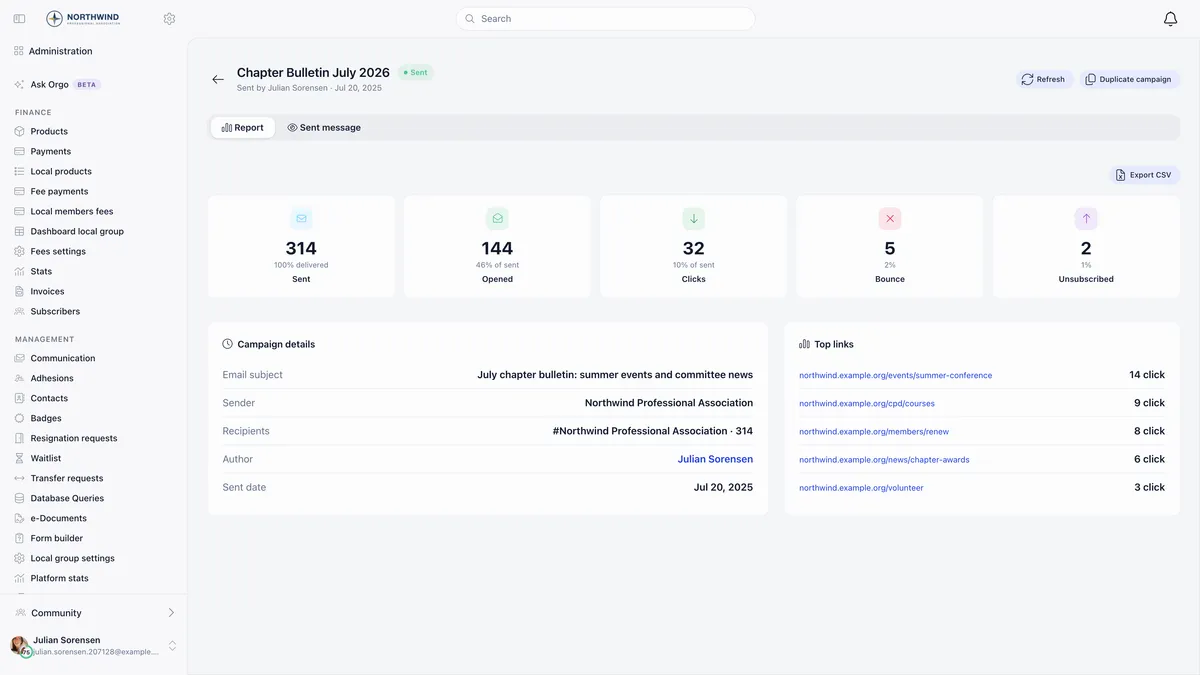
These numbers come from the mail provider’s delivery events, not from what Orgo queued. That difference matters more than it sounds.
| Number | What it actually counts |
|---|---|
| Sent | Distinct recipients for whom a delivery or a bounce was reported. It is what left the platform, not what you asked for |
| Opened | Distinct recipients, not events. One person opening five times counts once |
| Clicks | Distinct recipients, same rule |
| Bounce | Addresses the provider refused |
| Unsubscribed | Opt-outs recorded against this campaign |
Three honest caveats.
Opens are undercounted, always. Open tracking across the whole email industry depends on the recipient’s mail client loading a remote image, and a great many clients do not, or load it on the recipient’s behalf whether they read the message or not. Treat the open rate as a trend line between your own campaigns, never as a headcount.
The figures are cached and eventually frozen. They refresh when they are older than five minutes or when a newer delivery event arrives, and they are finalised 30 days after the last event. Refresh re-reads them on a sent campaign. A report you open a year later will not move.
The figures are clamped. Sent can never exceed the recipient count, and opens and clicks can never exceed sent, so a tile can differ slightly from a raw event count. The four tiles above the campaign list follow the same discipline: the average open and click rates are weighted by recipients and clamped per campaign, so one campaign with odd data cannot push the organisation average above 100%.
What happens to a bounced address
This is the part most organisations get wrong in the opposite direction from what they expect.
A bounce or a spam complaint does not leave the address in your database to be cleaned up later. Orgo acts on it automatically, and hard. The address is switched to unsubscribed on every contact record carrying it, and for every member account carrying it the whole notification profile is switched off: newsletter, push, discussions, events, comments, tasks, votes and mentions.
There is no distinction between a soft bounce and a hard one. A mailbox that was full for one afternoon is treated exactly like an address that no longer exists, and that person stops hearing from you entirely until somebody turns their preferences back on.
So the housekeeping is the reverse of what you might plan. Rather than pruning bad addresses, watch the Bounce figure after each send, open the bounced recipients from the campaign list, and check whether anyone in there is a live member who deserves a phone call and a switch flipped back on. Their profile’s Notifications tab is where you do it.
When somebody says they never received it
Work down this order.
- Was the account active, did it have an email address, and was the newsletter toggle on at the moment you sent?
- Did they fall inside the audience you actually chose? A chapter dropdown left on one centre is easy to miss.
- Read the Email Log. It records what was genuinely sent to each person, campaign and system email alike, and it survives long after notifications have been cleaned up.
- Export the report CSV, which gives one row per recipient per recorded action, including bounced, complained, rejected and failed.
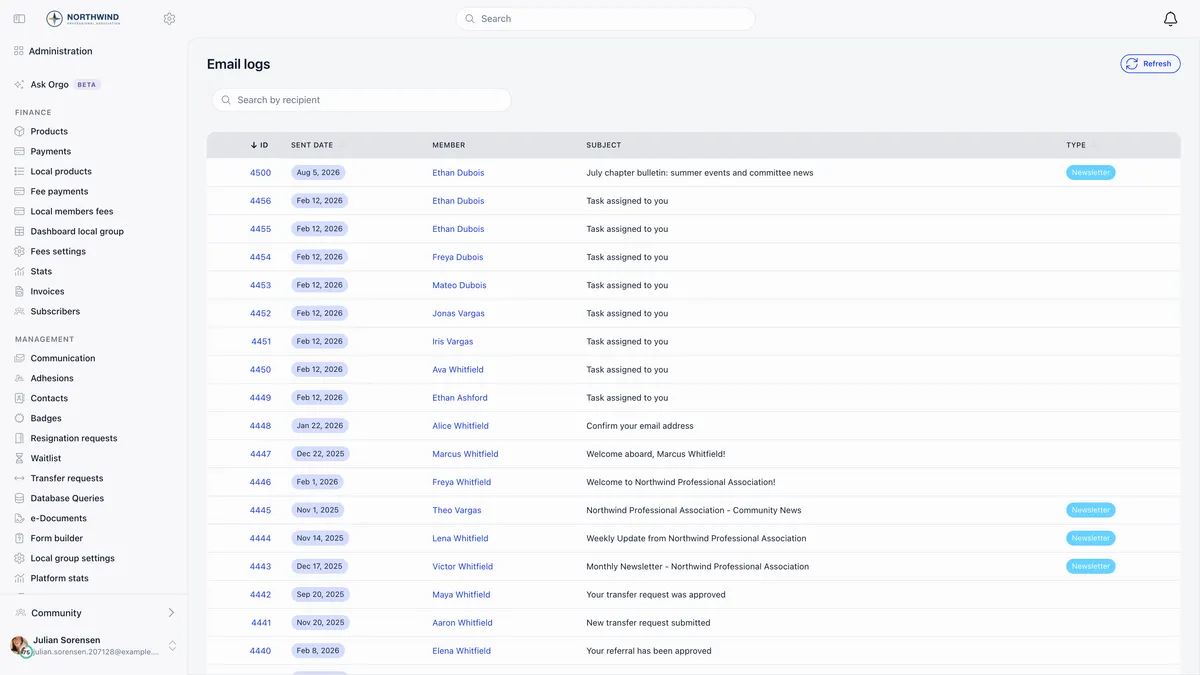
Remember that unsubscribing only stops campaigns. Renewal reminders, invoices and event confirmations are system emails and reach the person regardless, which is why the log shows both kinds side by side.
Two ways to reuse a campaign
Follow up with non-openers creates a draft locked to people who received the original but never opened it, minus anyone who bounced, complained or unsubscribed on that send. The set is recalculated when you send, so late openers drop out, and if nobody is left Orgo refuses the copy. Note that this audience is built from the original send’s records, so somebody who unsubscribed through a different campaign since then can still be included.
Duplicate campaign creates a copy keeping the content, the subject and the audience.
If your audience is a question about the people themselves rather than a group or an event, build it once as a saved list and reuse it.
Related
- Building a mailing list, and why subscribed is lower than total
- Newsletter, the full reference
- The newsletter builder, placeholders and templates
- Email logs, proving what somebody received
- Notifications and member preferences
Frequently asked questions
Why is Orgo refusing the time I picked for my newsletter?
Two rules apply at once. The time has to be at least 2 minutes in the future, and it has to land on a 15-minute boundary of :00, :15, :30 or :45, because the scheduler runs every 15 minutes. There is a third, quieter cause: the 2-minute check inside the form is measured against your computer's clock, while the time you typed is read in the timezone you selected. If those two are hours apart, the form and the server can disagree. Schedule in your own timezone, or push the send a few hours out.
Why did fewer people receive my campaign than the recipient count showed?
The count next to an audience is a live preview, and the real audience is worked out again at the moment you press Send. People who joined, left, unsubscribed or bounced in between are reflected. The Sent figure on the report is different again: it counts distinct recipients for whom the mail provider reported a delivery or a bounce, so it tells you what actually left the platform rather than what was queued.
What happens to an address that bounces?
Orgo turns that person's email off automatically. A bounce or a spam complaint switches off the newsletter subscription for every member and contact record sharing that address, and for members it switches off every other notification too. There is no distinction between a full mailbox and a dead address, so someone who bounced once because they were over quota is silenced permanently until an administrator turns their preferences back on.