
Connect Stripe, set the event’s Access to Paid, then open Tickets in the event sidebar and add one or more ticket types. Buyers pay by card without leaving the page, get a ticket by email, and are scanned in at the door.
Before any of that, one decision is worth getting right, because getting it wrong costs live sales.
Member and non-member prices are two tickets, not a discount code
If members should pay 40 and everyone else 70, you create two ticket types on the same event and scope them to different audiences. You do not create one ticket and hand members a code.
The field that does the work is Availability on each ticket type, and it has two values.
| Availability | Who can select the ticket |
|---|---|
| Members & external | Anyone, signed in or not |
| Members only | Anyone signed in. A logged-out visitor still sees the ticket name, price and remaining seats, greyed out, with Login and Register buttons |
Members only checks that the browser is signed in, and nothing else. Not that the person is one of your members, not that their account is active, not that their fee is paid. Use it to put the right price in front of the right person, not to keep a member rate away from the public.
You can narrow it with Restrict to specific membership levels, which asks for one or more of your membership fee levels. Leave it empty and anyone signed in qualifies. Fill it in and Orgo compares the buyer’s recorded membership level against your list. Two things about that comparison: it reads the level stored on the record rather than whether the membership is still paid up, so a lapsed member on a listed level still matches; and a member who does not qualify never sees the ticket at all rather than being refused, which is why the report you get is “the members ticket is not on the page”.
One rule to know before you build tiers: only one membership-restricted ticket is allowed per attendee per event, counted across the whole event rather than per ticket type. Student, Full and Senior rates built this way are therefore mutually exclusive by construction, which is usually what you want. Both checks are skipped when the person doing the booking holds the organisation-wide event permission, or the chapter-level one on the event’s group, so an organiser can still book on somebody’s behalf.
Vouchers still have their place, covered further down. They are for a genuine discount campaign, not for telling members apart from guests.
Turning ticketing on
Ticketing is a property of the individual event, not a module you switch on once.
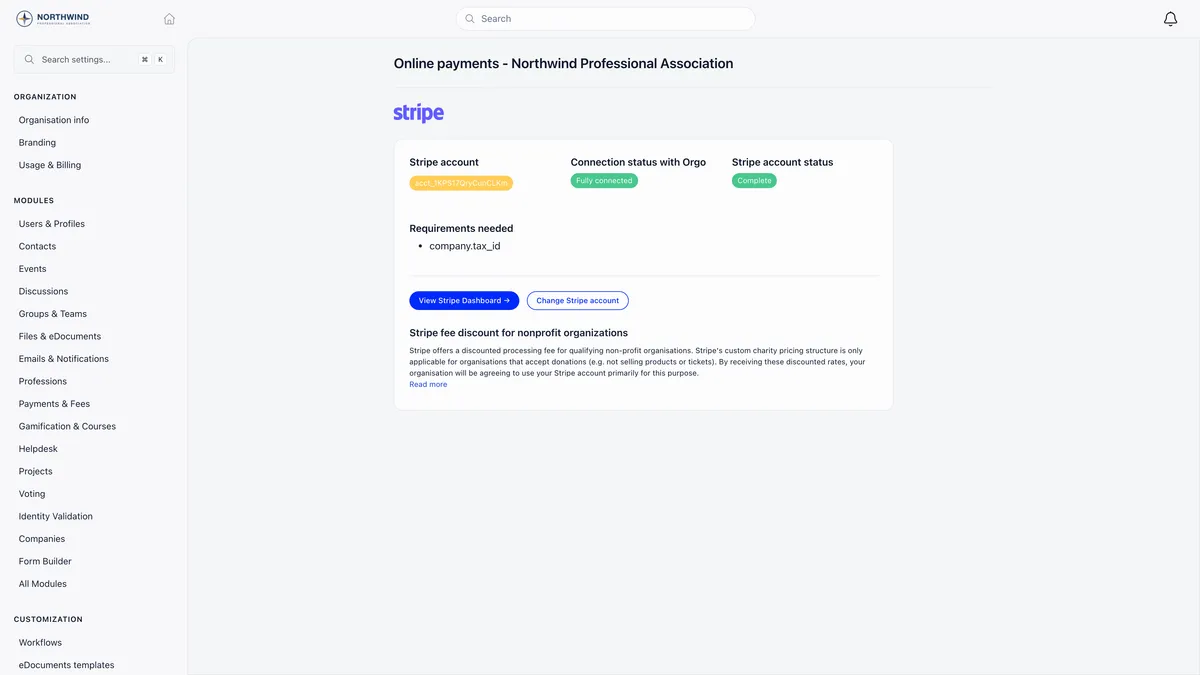
- Connect Stripe. Online payments must be active with your Stripe account connected, or the Paid option never appears.
- Set Access to Paid on the event form.
- Add ticket types under the Tickets entry that appears in the event sidebar.
- Publish. Tickets go on sale as soon as they are inside their availability window.
Orgo charges no per-ticket fee. You pay Stripe’s rate on the payment and nothing else. Ticketing is one part of Orgo’s event management software, which also covers registration, the public page and check-in.
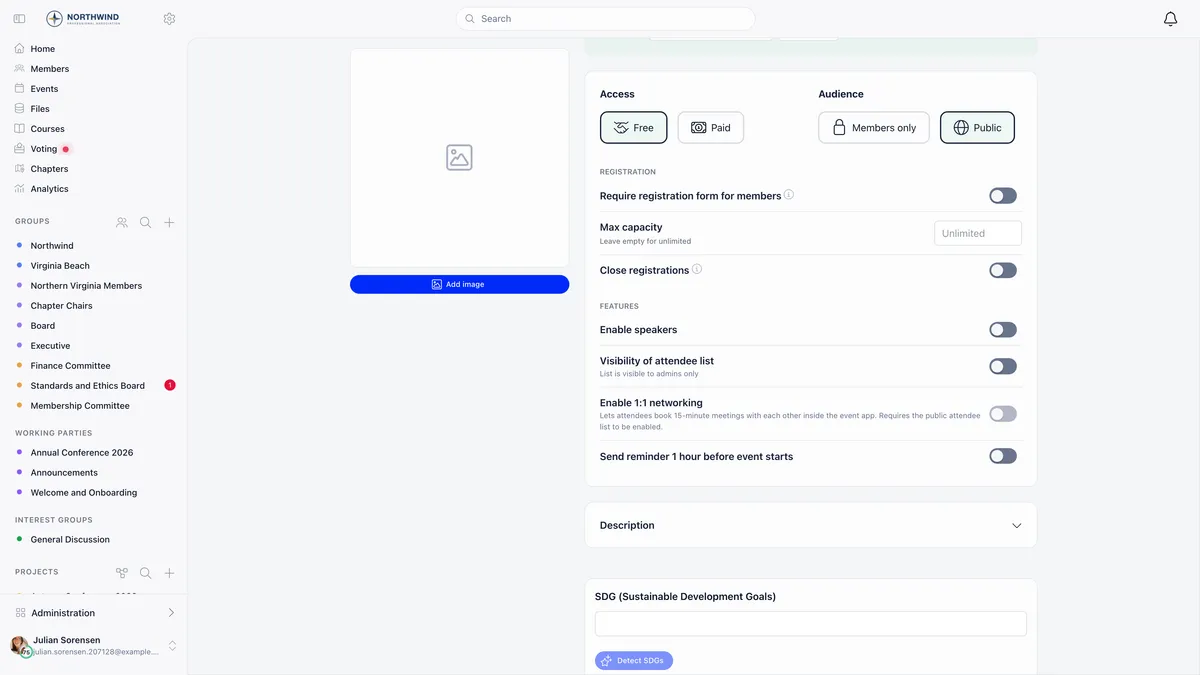
Two things change the moment an event becomes Paid.
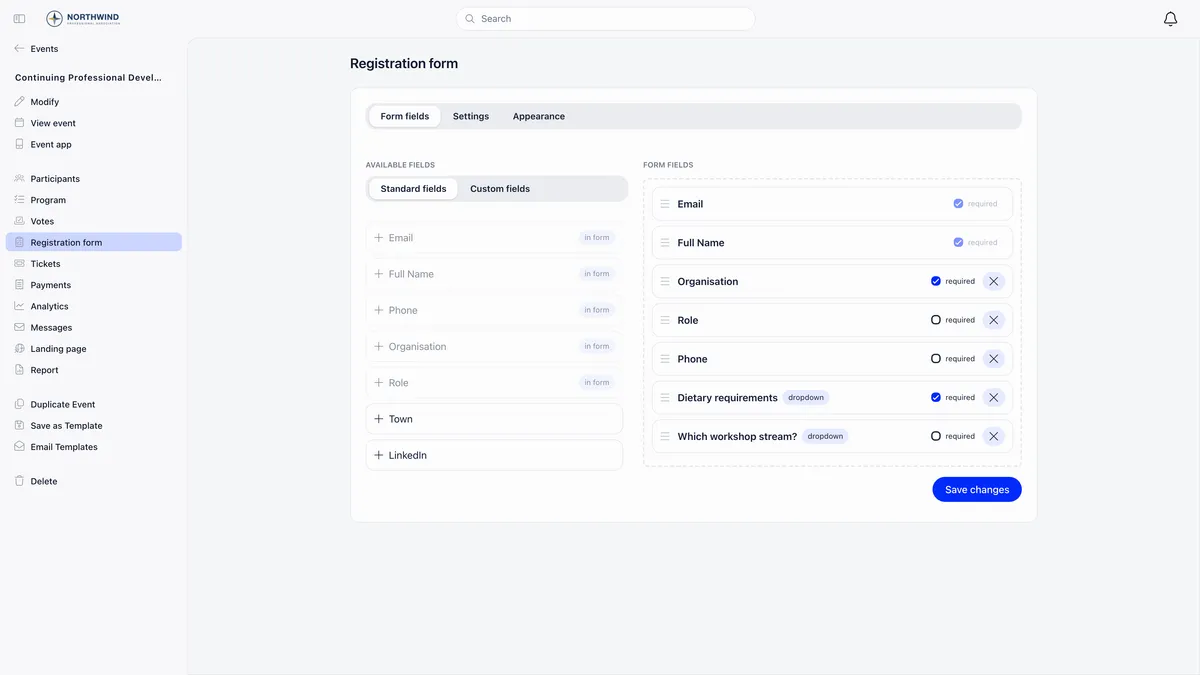
Require registration form for members is switched on and locked. Every buyer goes through the form rather than a one-click RSVP, because a ticket needs at least a name and an email to be issued to.
Max capacity disappears from the event form, and event-level capacity is not applied to ticket sales at all. Cap attendance with Max Seats on each ticket type instead.
The Tickets and Payments entries appear in the event sidebar only for holders of the financial or organisation-wide event permission, and only once the event is Paid.
Every write on the Tickets page, whether a ticket type, an add-on or a voucher, needs the organisation-wide event permission (EVENT_TENANT), which organisation admins carry. A chapter-level event manager (EVENT_LOCAL) can run the event and edit its registration form but cannot change what is on sale.
Ticket type settings
Open the event, then Tickets, then Add ticket.
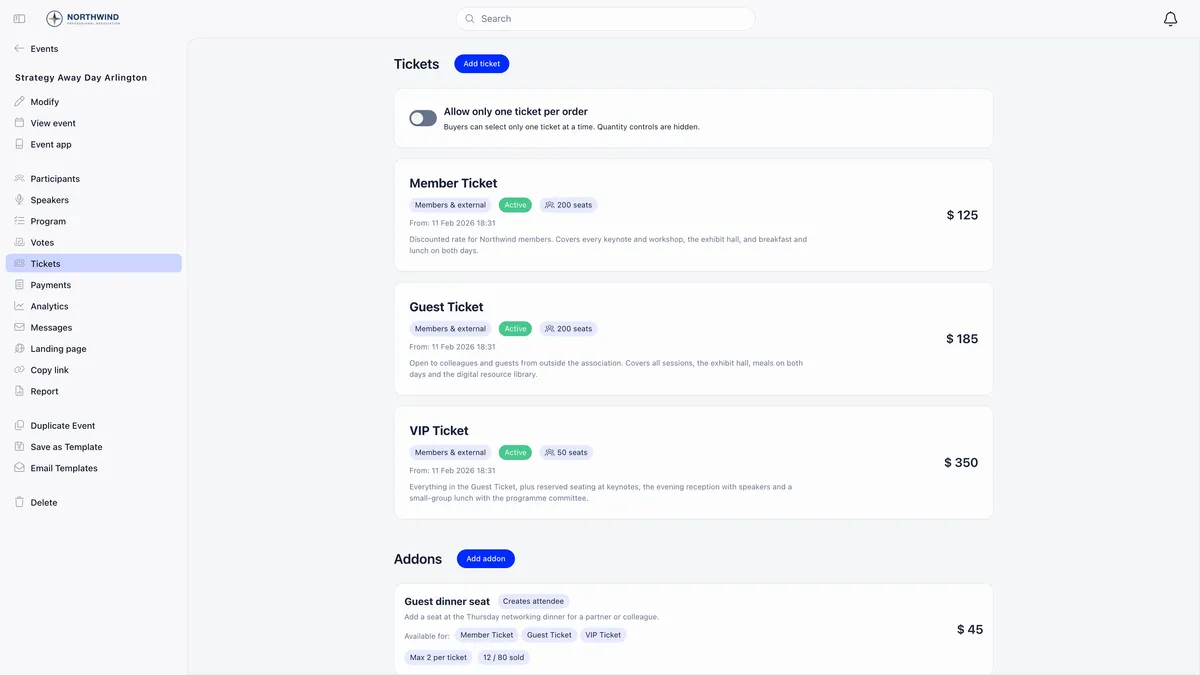
| Setting | What it does |
|---|---|
| Title | What buyers see: Member Ticket, Guest Ticket, Early Bird |
| Price | Amount in your organisation’s currency. Set 0 for a free category |
| Description | Longer text under the ticket name on the event page |
| Availability | Members & external or Members only |
| Restrict to specific membership levels | Members-only tickets only. Empty means every member |
| Max Seats | Seats for this ticket type. Empty means unlimited |
| Available from / Available until | The purchase window |
Allow only one ticket per order, the switch at the top of the page, hides the quantity steppers so a buyer takes one ticket per checkout.
The purchase window has to sit inside the event’s own lifetime: Available from cannot be earlier than the day the event was created, and Available until cannot be later than the event’s end, or its start if no end is set.
The tags on each ticket
The admin list labels tickets automatically: Active, Upcoming when the start date is still ahead, Expired when the end date has passed, Sold Out, Only N left! below 10 seats, Limited availability below 20, and archived. The public page is deliberately vaguer, showing the exact count at 10 or fewer, the word limited between 11 and 20, and nothing above 20.
What you cannot change afterwards
The Price field is read only once a ticket type has been created. There is no edit, and no unlock.
The workaround is a two-step and it is the supported one:
- Add a new ticket type at the corrected price.
- Stop the wrong one selling by setting its Available until to now. It turns Expired, keeps its sales history, and disappears from the buyer’s choices.
If nobody has bought one yet you can delete the wrong ticket type outright instead. Once it has history the delete is refused, and the message names the reason: payments taken against it, attendees registered on it, or use by a ticket bundle. The records pointing at it have to keep pointing at something.
Add-on prices behave the same way, and a purchased add-on cannot be deleted either. Set it to Archived to hide it from checkout while keeping the sales history.
Common ticket structures
Every structure below is built from the same fields. The amounts and dates are examples, not defaults.
| What you want | How to build it |
|---|---|
| Member versus non-member | Two types on one event: Member at 40 set to Members only, Standard at 70 set to Members & external |
| Early bird, then regular | Two types with adjoining windows. Early Bird until 31 March 23:59, Regular from 1 April 00:00. Both stay listed all along, neither is selectable outside its window |
| Tiered by membership level | Members-only tickets, each with different levels under Restrict to specific membership levels. Because only one restricted ticket is allowed per attendee per event, the tiers exclude each other |
| Free event with categories | Price every type 0: In person with Max Seats 120, Online with no limit. A zero-priced ticket skips the card step entirely, and the attendee still fills in the form and still gets a QR ticket |
| Paid event with one free category | Mix them. The zero-priced one completes without a card, the paid ones go to Stripe |
| One ticket per person | Turn on Allow only one ticket per order |
A ticket priced 0 is not the same thing as a members-only ticket priced 0. Price decides whether Stripe is involved. Availability decides who can select it. Combine them freely.
Seats are held for 8 minutes
When a buyer starts selecting tickets, those seats are held so two people cannot buy the last one at the same moment.
- A hold lasts 8 minutes, and adding more of the same ticket restarts it at a fresh 8 minutes rather than extending it.
- One browser session can hold at most 10 tickets per event, counted across ticket types. A company buying 12 places does it in two checkouts.
- Holds are released when the buyer leaves the page, when the purchase completes, or automatically once they expire.
The practical consequence is the one in the FAQ above: a ticket can read Sold Out while your own list still shows free seats. Nothing is broken. Wait for the holds to clear before raising Max Seats.
Vouchers
Vouchers are per-event discount codes, listed under Vouchers on the Tickets page. Buyers enter them at checkout under Have a voucher code?.
| Setting | What it does |
|---|---|
| Voucher code | Stored and matched in upper case, and unique within the event |
| Active | Turns the code off without deleting it |
| Discount type | Percentage or Fixed amount |
| Discount value | The percentage, up to 100, or the fixed amount |
| Max uses | How many separate checkouts may use it. One checkout counts once whatever the quantity |
| Max tickets per use | Percentage only. Caps how many tickets in one order the percentage covers |
| Max discount amount | Percentage only. A ceiling on the money taken off |
| Restrict to ticket types | Empty applies the code to every ticket type |
| Valid from / Valid to | An optional date window |
A voucher that takes the order to zero completes with no card payment at all. Deleting a voucher does not change discounts already applied to past orders.
How a percentage voucher actually calculates
This is the part that surprises people. A fixed amount comes off the order total once. A percentage is applied to the order’s average ticket price, multiplied by the number of tickets it is allowed to cover. It does not pick your dearest tickets.
Written out for that same order of two Regular tickets at 80 and one Student at 25, totalling 185:
| The voucher | Comes off | Why |
|---|---|---|
| 20%, no other limits | 37.00 | 20% of the whole 185 |
| 20%, Max tickets per use 2 | 24.67 | The average ticket is 61.67, two of them is 123.34, and 20% of that is 24.67 |
| 20%, Max tickets per use 2, Max discount amount 20 | 20.00 | The cap wins |
| 20%, Restrict to ticket types Regular | 32.00 | Only the two Regular lines count, so the average is 80 |
Refunding an order never returns a voucher use. Refunds return seats and add-on stock, but the code stays spent. On a limited-use code, raise Max uses by the number of orders you refunded or it retires early.
Add-ons
Add-ons are extras sold alongside a ticket: a meal, a workshop track, parking, a partner place. They live under Addons on the Tickets page and need at least one ticket type first.
| Setting | What it does |
|---|---|
| Tickets | Which ticket types it is offered with. At least one, and the choice locks once the add-on exists |
| Name and description | What buyers see |
| price | Cost per unit, read only after creation. 0 for a free extra |
| Max per ticket | How many one ticket can carry. Empty means unlimited |
| Total inventory | Overall stock across all buyers. Shows Sold Out when it runs out |
| Creates a separate attendee | The buyer supplies a separate name and email, producing its own attendee record, ticket and check-in. This is how you sell a plus one |
What a buyer goes through
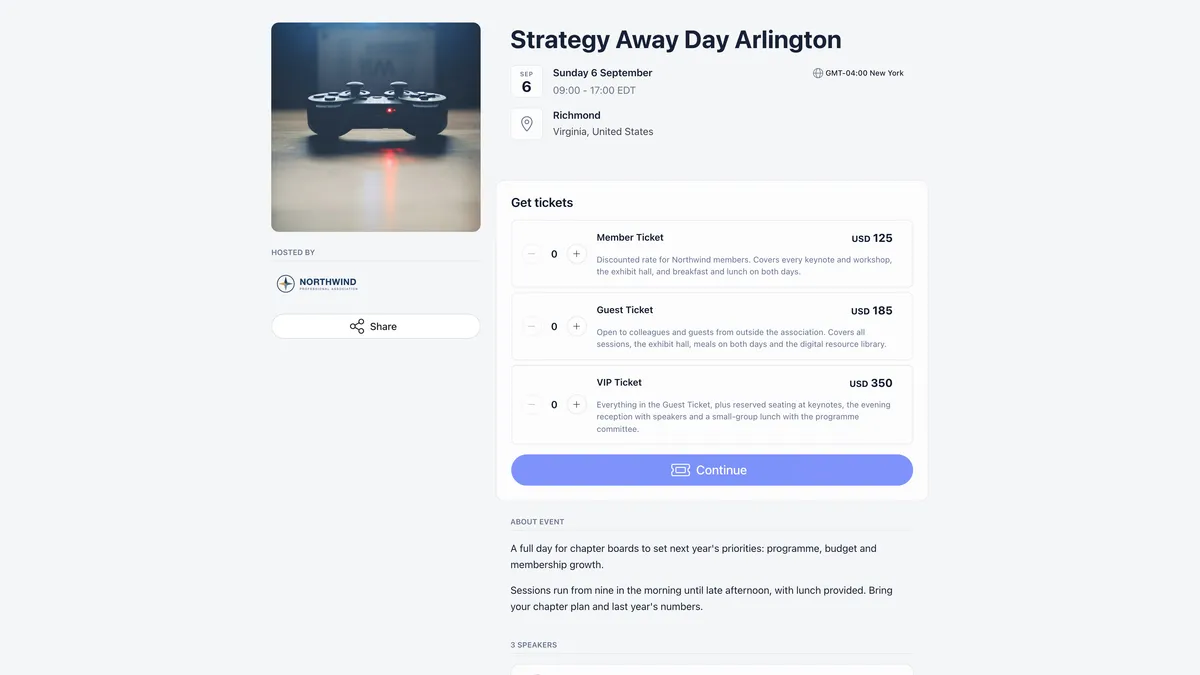
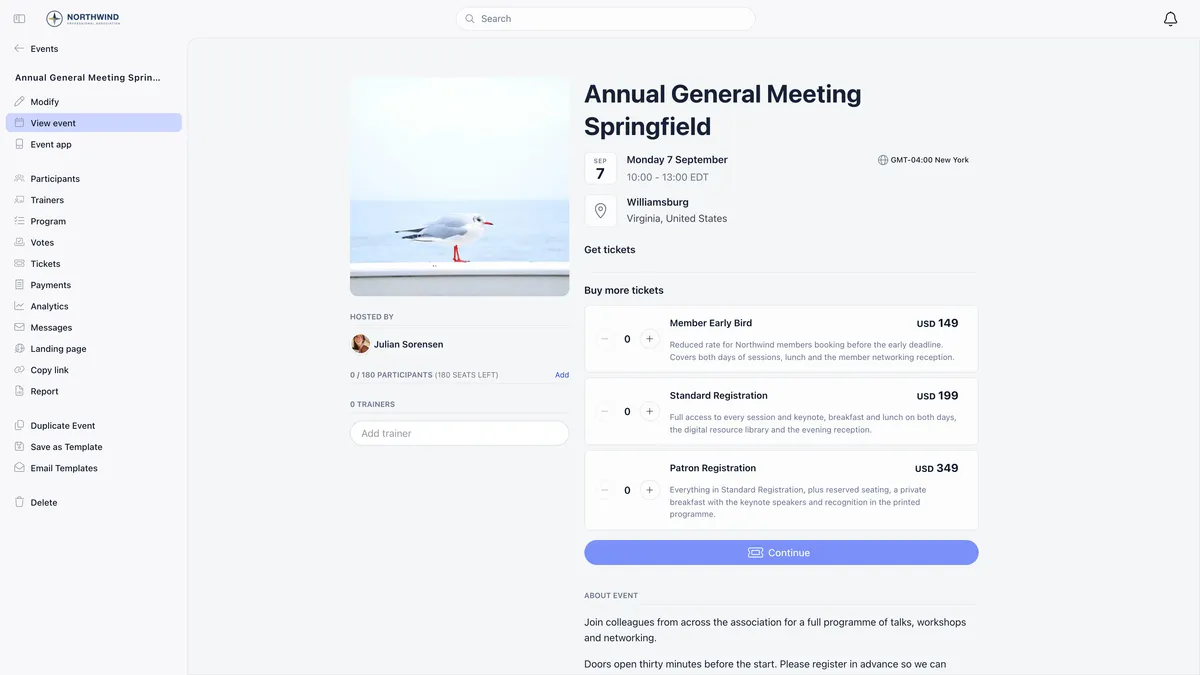
Tickets are listed cheapest first. Sold out, upcoming and expired ones stay visible but cannot be selected, which is deliberate: an expired early bird beside a live regular price tells the buyer they did not imagine the cheaper rate.
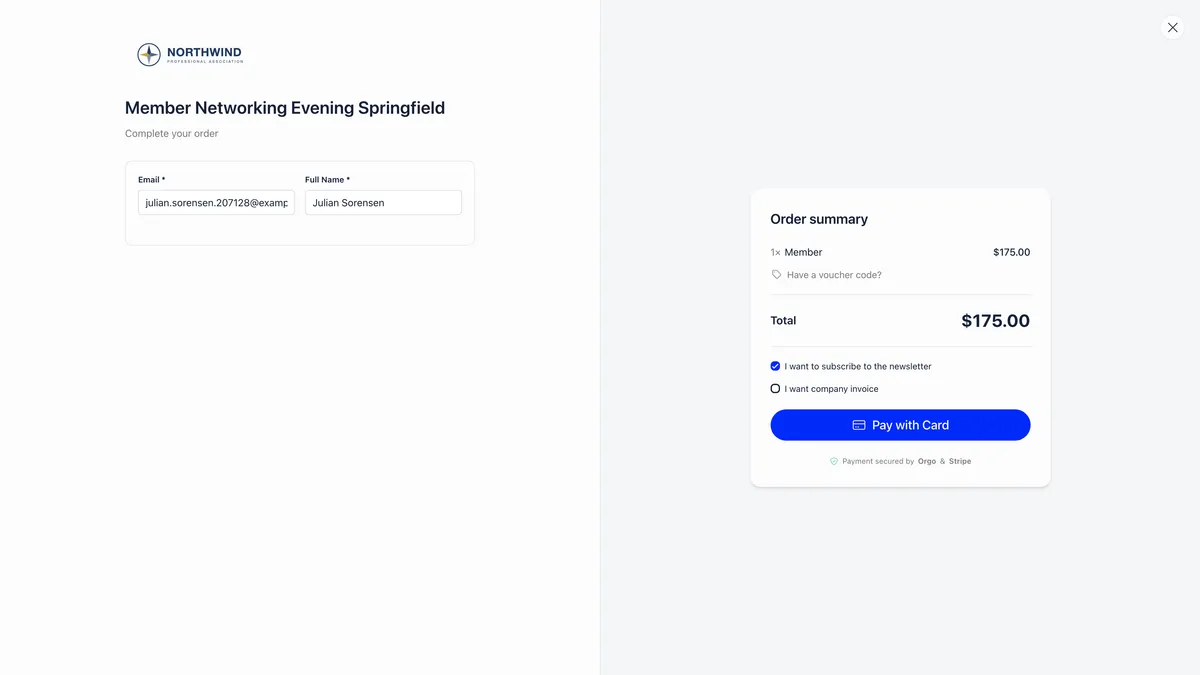
The buyer fills in one registration form card per ticket, adds any extras and a voucher, confirms your policy and terms, then pays inline through Stripe without leaving the page. A paid order sends one confirmation email carrying every ticket as its own PDF, including tickets created by add-ons.
With the Invoices module on, checkout also offers I want company invoice, which adds a billing step and then allows either card or Pay via bank transfer. A bank transfer issues an invoice and confirms the tickets once payment arrives.
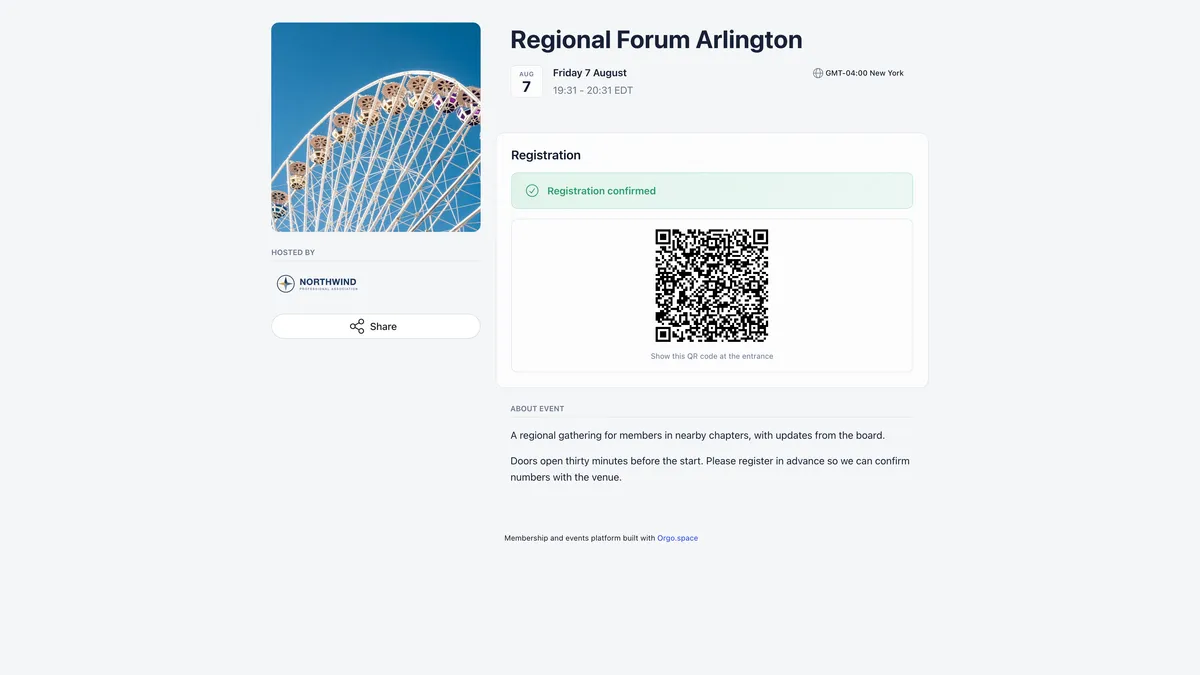
Every ticket ends up as a QR code the attendee shows at the door.
Orders, refunds and revenue
The Payments entry in the event sidebar opens the order list.
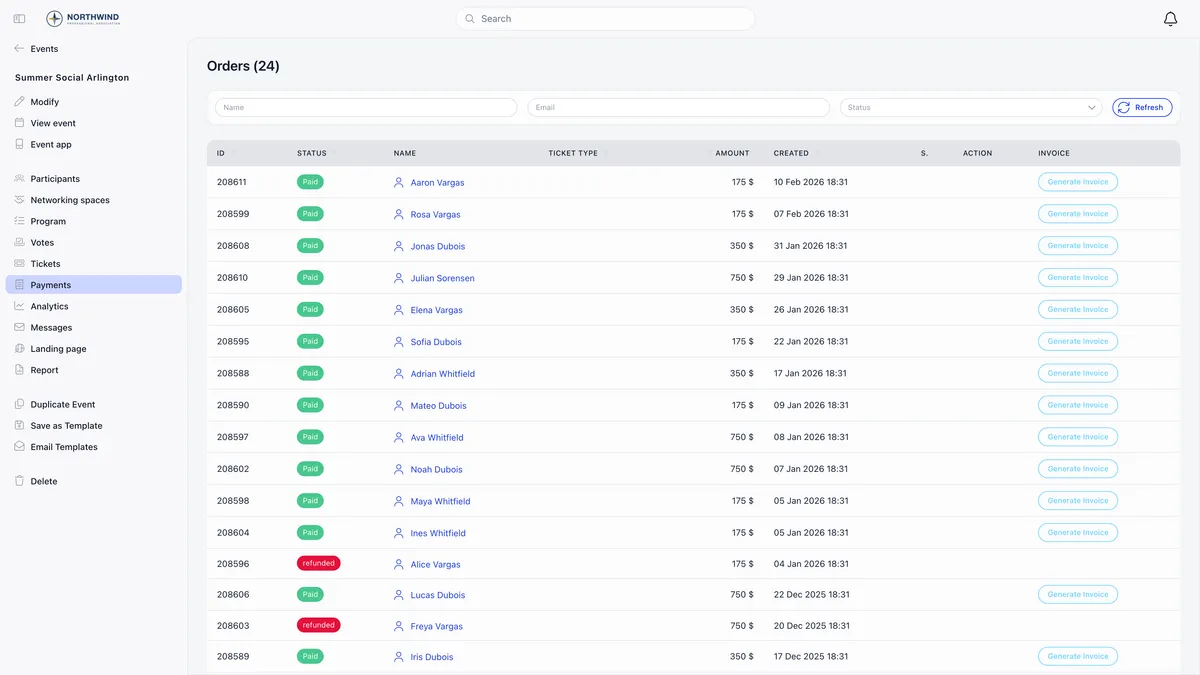
Each row carries the order id, status, buyer, amount, the voucher code if one was used, and the payment date. Filter by name, email or status.
The Ticket type column stays empty on event ticket orders, and that is expected rather than a fault: it reads a fee-product concept, while ticket purchases record the tier elsewhere. To see which tier somebody bought, use the Ticket column on the participant list.
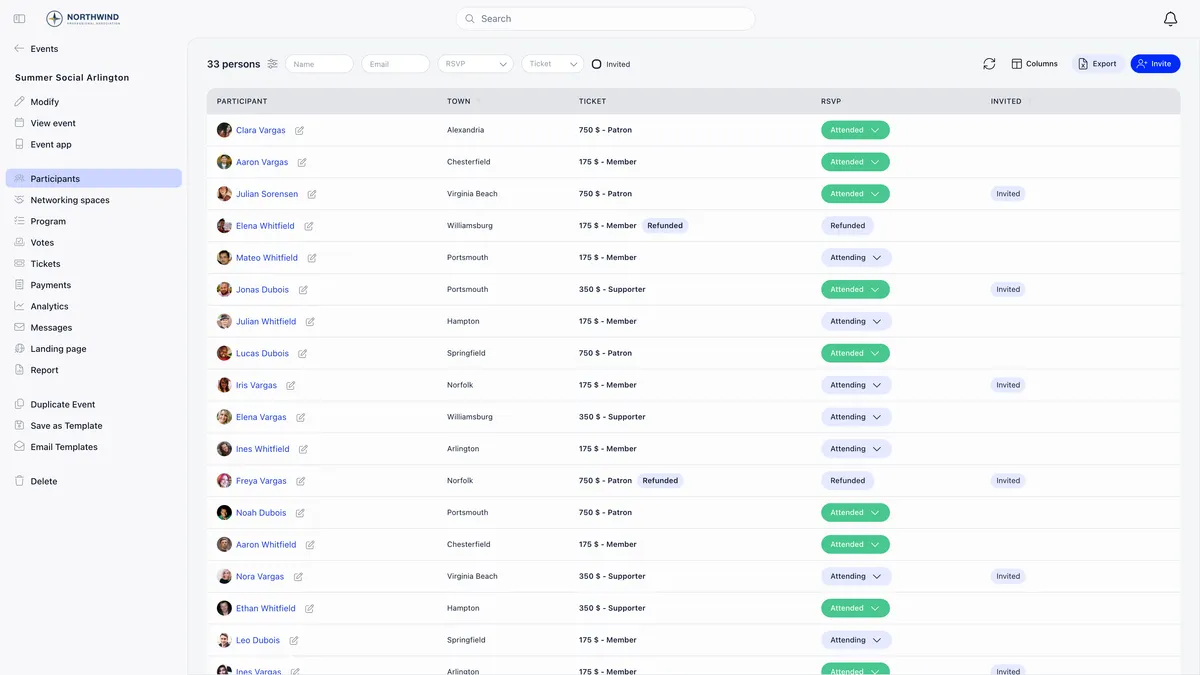
Refund appears on paid orders that were paid by card and needs chapter-level financial rights or higher. It refunds the full amount, with no partial refund in the interface, and on success it cancels every attendee record from that order, returns their seats to the ticket type and returns any add-on quantities to stock. Orders paid by bank transfer have no Refund button; handle those through the invoice.
Troubleshooting
A member cannot select the members-only ticket
If the ticket names specific membership levels, a member who does not qualify does not see it at all, so “cannot select” usually means “cannot find”. Check the level recorded on their profile against the ticket’s list, and check they have a level assigned, since a member with none sees no level-restricted tickets. Then check whether they already hold another membership-restricted ticket for this event, because only one is allowed per attendee per event.
If the ticket is plain Members only with no levels, there is nothing to qualify for: anyone signed in can select it. A member who cannot is not signed in, or is looking at a sold out or expired ticket.
The voucher took off less than the buyer expected
Almost always one of three things: Max discount amount capping the money, Max tickets per use limiting how many tickets the percentage covers, or the percentage landing on the order’s average ticket price rather than the dearest tickets. Read the worked example above.
A voucher code is rejected as invalid
One message covers four causes: the code does not exist on this event, because vouchers are per event and last year’s code does not carry over; it is switched off with Active; it is outside its date window; or it has reached Max uses. Capitalisation never matters, since codes are stored and matched in upper case.
Checkout fails with a message about the name
Name can only contain letters, spaces, hyphens, apostrophes and periods. Something that is not a name went into a name box, most often a phone number. Orgo checks every buyer, attendee and add-on attendee name before the card is charged rather than after, so no money is taken.
Checkout fails because the tickets use different currencies
One order cannot mix currencies. This only happens when ticket types on the same event were saved with different ones. Rebuild the odd one out in the event’s currency.
The buyer is told they cannot hold more than 10 tickets
That is the cap on a single cart, not on the event. They complete that checkout and start another for the rest.
I want to stop sales without deleting anything
Turn on Close registrations on the event form. No new registrations or purchases are accepted and existing attendees keep their tickets.
Related
- Creating an event
- Checking people in at your event
- Taking card payments with Stripe
- Ticketing, the full reference
- Registration forms
- Public event pages
Frequently asked questions
How do I give members a cheaper ticket than non-members?
Create two ticket types on the same event, not one ticket with a discount code. Give the cheaper one an Availability of Members only, and the dearer one Members and external. A logged-out visitor then sees both, can select only the standard one, and gets Login and Register buttons on the member one. Discount codes are per-order codes a buyer types in, so anyone who has the code gets the member price, which is not what member pricing means.
I set a ticket price wrong. How do I change it?
You cannot. The Price field is read only once the ticket type exists. Add a corrected ticket type at the right price, then stop the wrong one selling by setting its Available until to now, which marks it Expired and keeps its sales history. If nobody has bought one yet you can delete it outright instead.
A ticket says Sold Out but I know seats are free. What happened?
Seats sitting in other people's carts count as taken. When a buyer starts selecting tickets Orgo holds those seats for 8 minutes so two people cannot buy the last one at once, and a fresh 8 minutes starts each time they add more of the same ticket. Your admin ticket list subtracts only tickets already sold, while the public page also subtracts held seats, which is why the two disagree. Wait for the holds to expire before raising Max Seats.