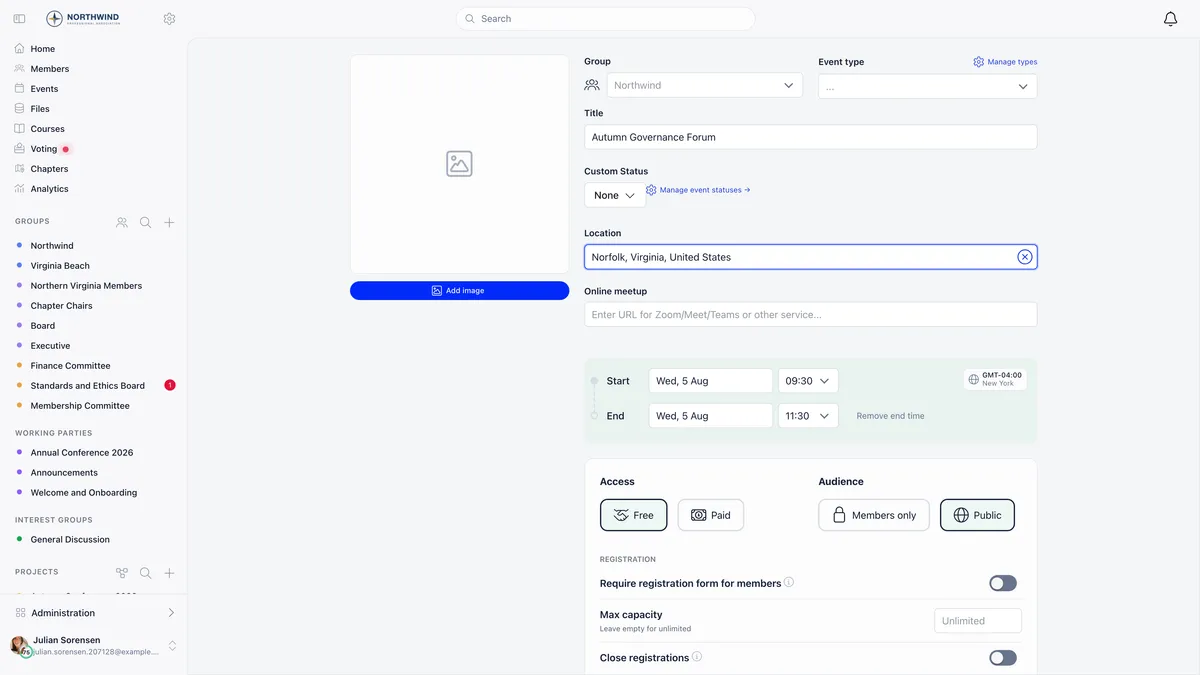
Open the Events destination, choose Create an event, fill in the form and save. The event is created as a draft that only people who can manage it can see, and it goes live when you press Publish Event.
The part worth reading before you start is who may create an event where. Three separate gates decide it, they are checked at different moments, and the third one fails without telling you.
The three gates
Gate 1, reaching the form. You can open it if you hold the permission named in the organisation’s Who Can Create Public Events setting, or if you belong to at least one group. Most members clear this without thinking about it.
Gate 2, saving into the place you picked. The Group dropdown offers your organisation as a whole, your chapters, and the groups you belong to. It offers a chapter whether or not you may actually save into it, so the refusal arrives at the end rather than the beginning.
| Where you host it | What is checked on save |
|---|---|
| Your organisation (the top option) | The Who Can Create Public Events permission. Without it the option is not offered at all |
| A chapter | That chapter’s own Who can create events in this chapter setting |
| A group | Group membership, plus group admin or owner if the group is set so only its admins create events |
Gate 3, marking it Public. The Public option needs the same Who Can Create Public Events permission, and it is never offered for a private, non-joinable group. This is the one that catches people: a request that asks for Public without the permission is saved as Members only rather than rejected, so the event exists, looks fine, and quietly is not public.
Each chapter sets its own bar
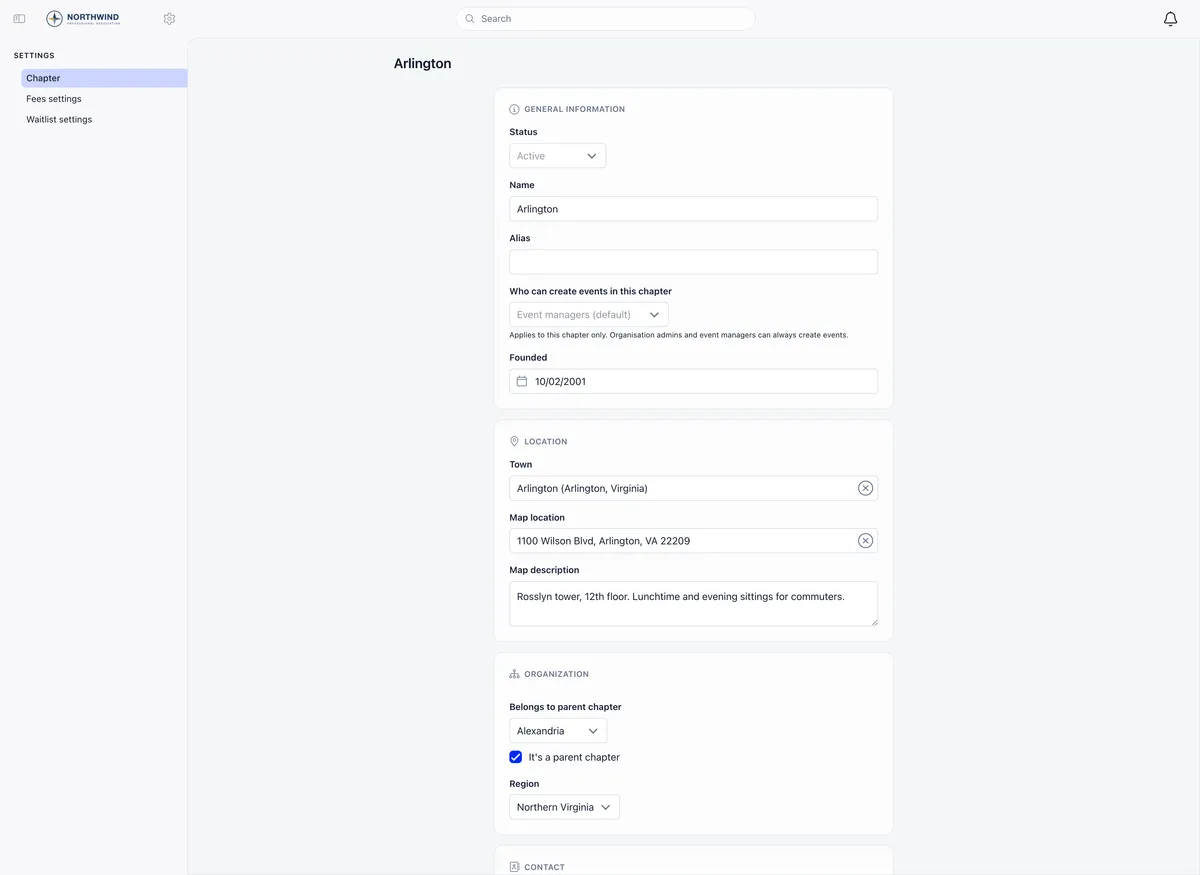
The bar lives on the chapter itself, under Who can create events in this chapter, and it covers only that chapter. It is never inherited by the chapters below it, so opening one chapter to all its members does nothing to the branches underneath.
| Setting | Who may create events there |
|---|---|
| Event managers (default) | Holders of the chapter-level events permission (EVENT_LOCAL) |
| Any member of this chapter | Every member of that chapter |
| Chapter admins only | Chapter admins (ADMIN_LOCAL) |
Organisation admins (ADMIN_TENANT) clear all three. An organisation-wide event manager (EVENT_TENANT) clears the first two but not Chapter admins only, which is satisfied by chapter admins and organisation admins alone. Anyone below the bar is refused on save with You do not have permission to create events in this local center.
The organisation-level ceiling sits in the Events module settings, along with everything else that changes the shape of the form.
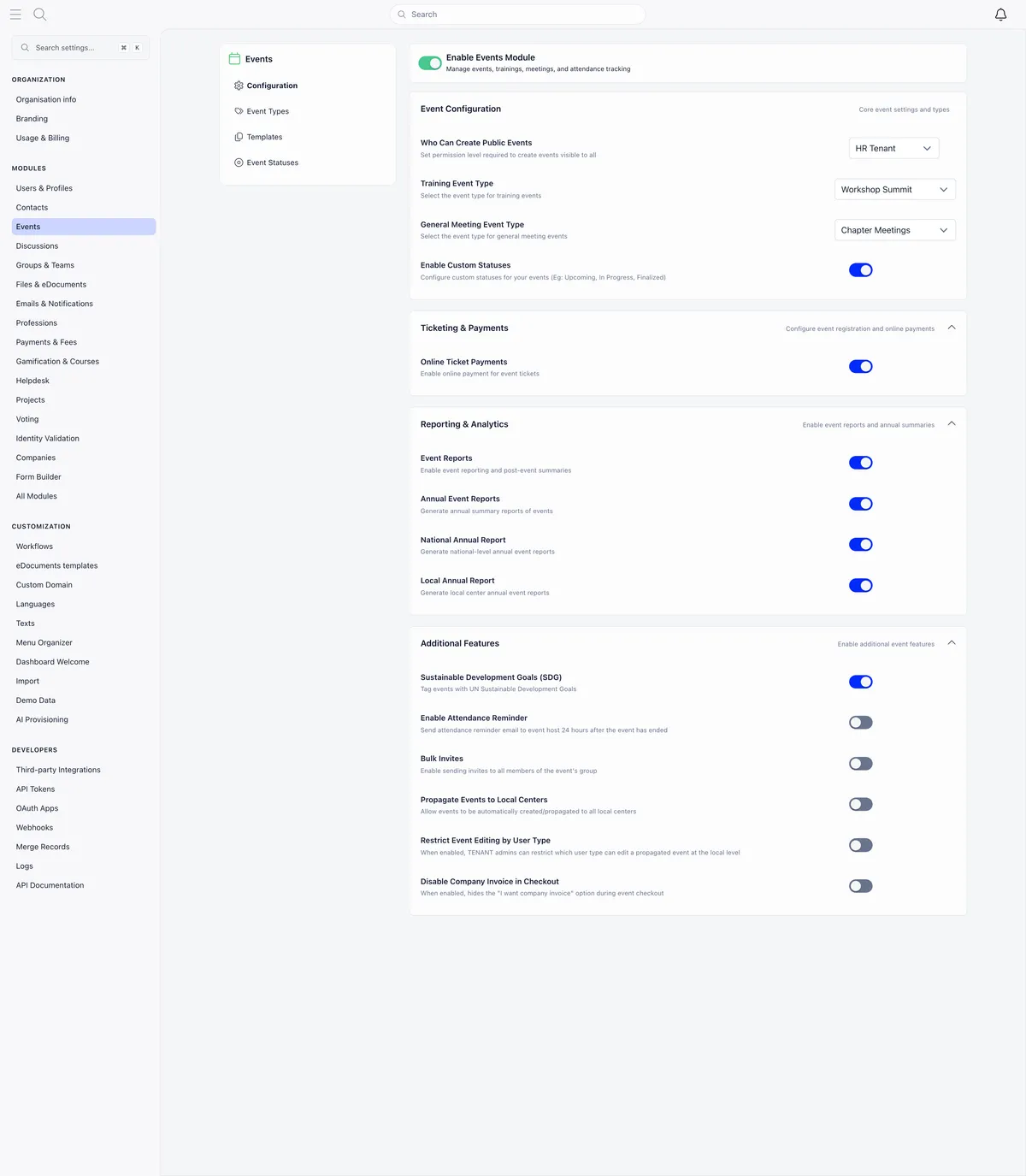
Your sidebar labels are per workspace. The Events destination and the Settings screens can be renamed, moved or hidden through Menu Organizer, so look for the destination and the permission rather than a fixed position in the menu.
Filling in the form
- Open Events and choose Create an event. If your organisation has templates, a Start from template button sits in the header of the panel.
- Add a cover image. A cropper opens so you can position and scale it.
- Set the Group, an optional Event type, and the Title. Title is the only required one.
- Fill in Location, Online meetup, or both for a hybrid event. Picking a location from the address suggestions stores coordinates and draws a map on the event page.
- Set Start, optionally End, and the Timezone. The end row is added with Add end time and removed again with Remove end time.
- Choose Access and Audience, then work down the Registration and Features rows.
- Save.
Covers are square, saved at 800 by 800 pixels. If you keep design templates for event artwork, build them at 1:1. A 16:9 banner is cropped to the centre square, so anything near the left and right edges disappears.
The timezone is set per event and defaults to your own profile timezone, which matters more than it sounds: an organiser in one country scheduling an event in another gets the host’s zone unless they change it.
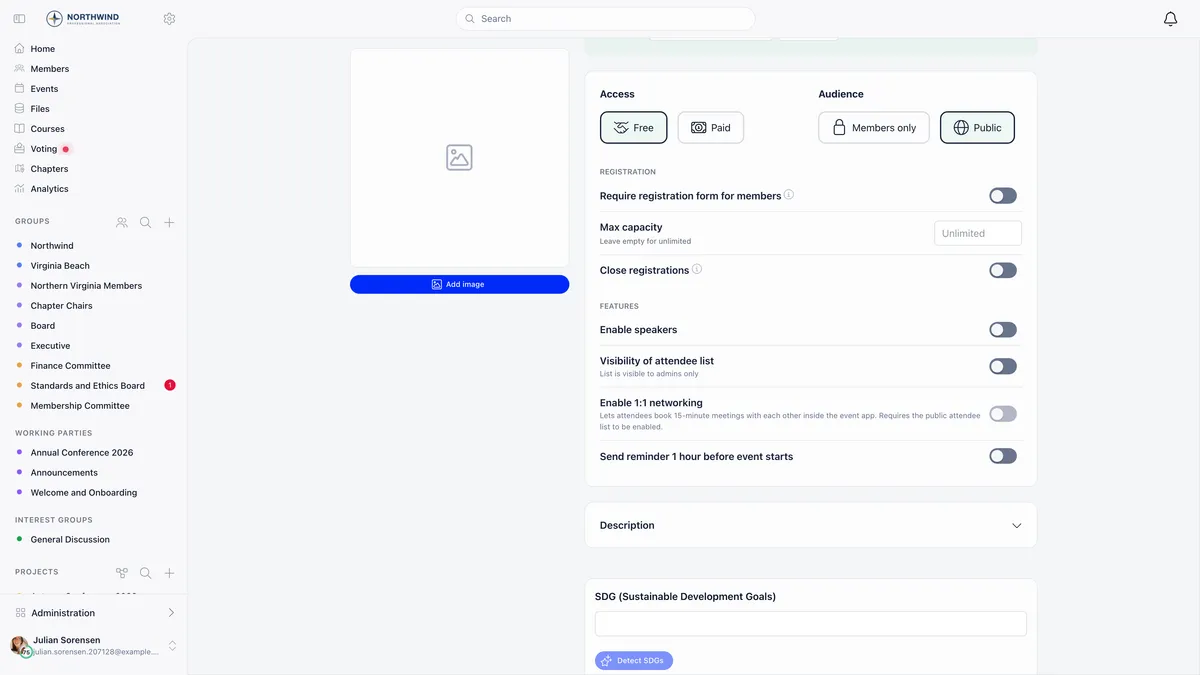
Access is Free or Paid. Paid appears only when online payments are active and you hold the financial or organisation-wide event permission, and choosing it turns the event into a ticketed one. See selling event tickets for what happens next.
Audience is Members only or Public, and it decides who can read the event, not who can register.
Registration and features
| Setting | What it does |
|---|---|
| Require registration form for members | Members fill in a form instead of a one-click RSVP. Forced on and locked for paid events |
| Max capacity | A cap on registrations. Empty means unlimited. Hidden on paid events, where seats are set per ticket type |
| Close registrations | Stops new registrations and ticket purchases without deleting anything |
| Enable speakers | Adds the Speakers entry to the event sidebar |
| Visibility of attendee list | Off means organisers only. On means organisers and attendees |
| Enable 1:1 networking | Lets attendees book 15-minute meetings in the event app. Needs the attendee list visible, and turning that off again clears this |
| Send reminder 1 hour before event starts | Emails registered attendees an hour ahead |
Draft, publish, invite
New events save as drafts. The banner reads Only you can see this event and carries a Publish Event button.
Take that banner at its word. A draft is listed for the person who created it and for nobody else, so a colleague holding organisation-wide event rights will not find your draft in their events list either. Publish it, or send them the link.
One exception is worth knowing. An event whose dates are already in the past is published immediately on save, because there is nothing to announce. That is how you record a meeting that has already happened.
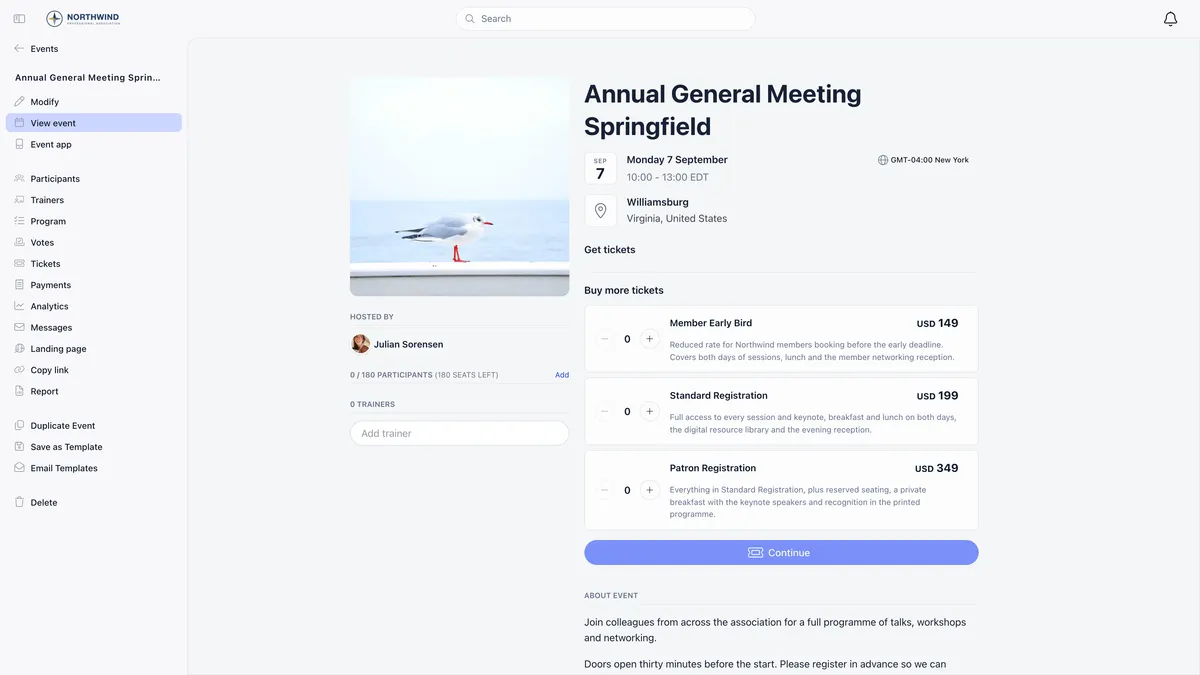
Publishing a future event notifies the members of its group. Publishing a past event notifies nobody.
If Bulk Invites is switched on, publishing then asks whether to invite every member of the group, offering Send Invites and Skip Invites. A published event keeps showing Send Invites to All Members until invites have gone out. Invites cannot be sent while the event is still a draft.
Bulk invite fills the participant list. It does not currently send the invitation email, so announce the event separately through a newsletter or the event’s Messages entry rather than assuming everyone has been contacted.
Making an event repeat
There is no recurrence feature. No repeat control, no weekly or monthly rule. You create each occurrence as its own event, and two procedures make that quick.
Route A: duplicate
Open the event you already ran and use Duplicate Event in its sidebar. It copies everything except attendees into a new draft, optionally into a different group. Change the date, publish, repeat. This is the fastest route for a standing meeting.
Route B: a template
An event template is a saved blueprint: title, type, location, description, cover image, access and audience, registration form, ticket types and discount codes. Organisation admins build them, and every organiser who can create an event sees them.
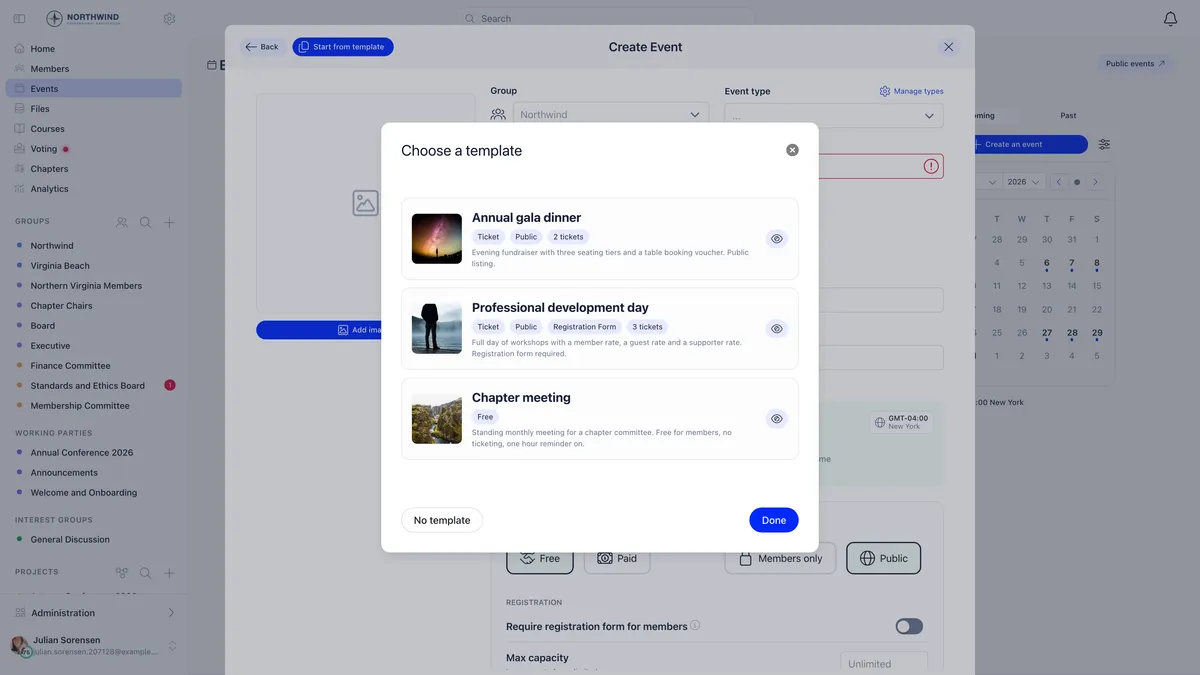
Two ways to build one: Save as Template in the sidebar of an event you already like, or Create Template in the Events module settings. Both need organisation admin rights.
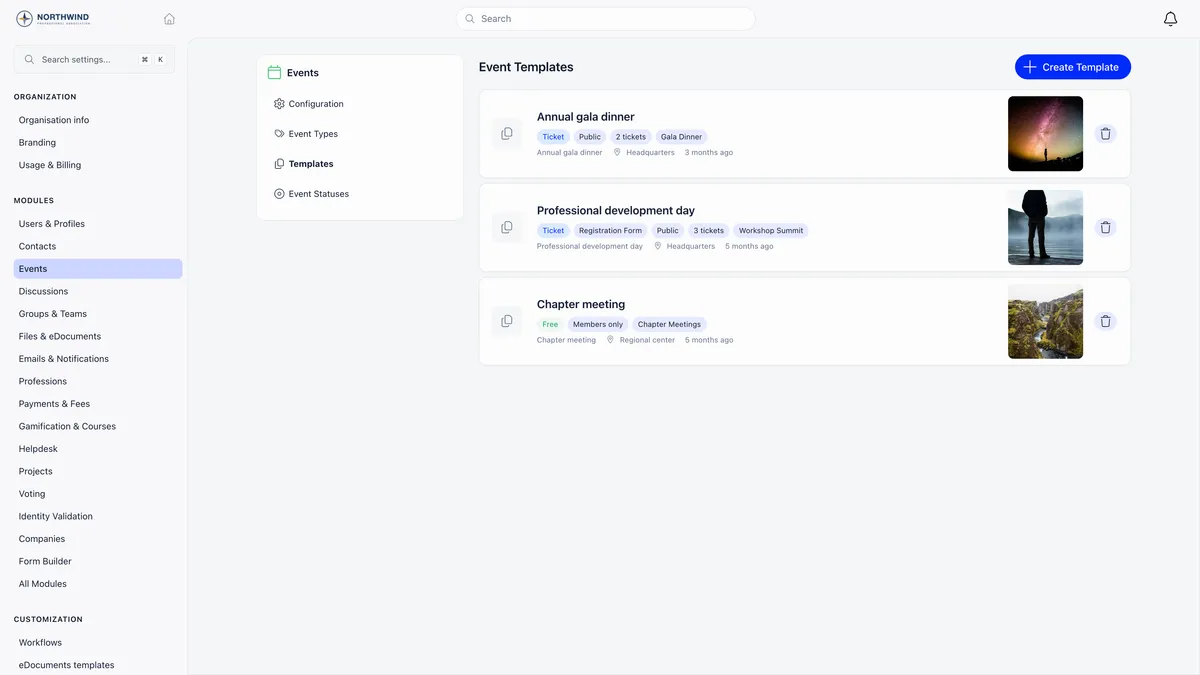
A template deliberately does not carry dates and times, the hosting group, attendees or speakers. Those are decided per event. Changing a template later does not change events already created from it, because a template is applied once, at creation.
Between the two: duplicate copies one specific event, including its group and its agenda, and is quickest for “same event, new date”. A template is the right tool when several people create similar events and you want them all starting from the approved setup.
What locks after you publish
Editing is at Modify in the event sidebar. Everything stays editable except the hosting group, which locks on publish and is shown as a tag from then on.
Attendees are not told automatically when you change details. Send them a message from the event’s Messages entry.
Deleting is blocked while any attendee has a payment attached, because that would orphan the money. Cancel and refund first.
Categories and statuses
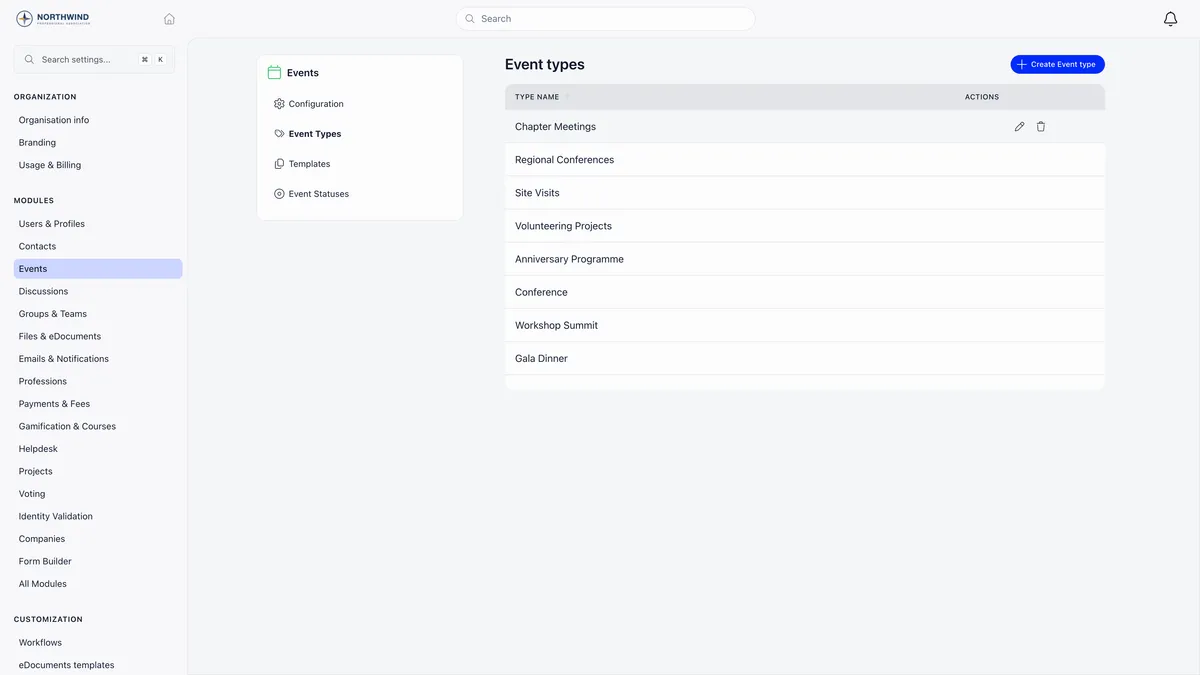
Event types are your own categories, managed in the Events module settings. Two of them can be given a special job in the module settings: one marks trainings, which adds a training type selector to the form, and one marks general meetings, which adds the general meeting checkboxes.
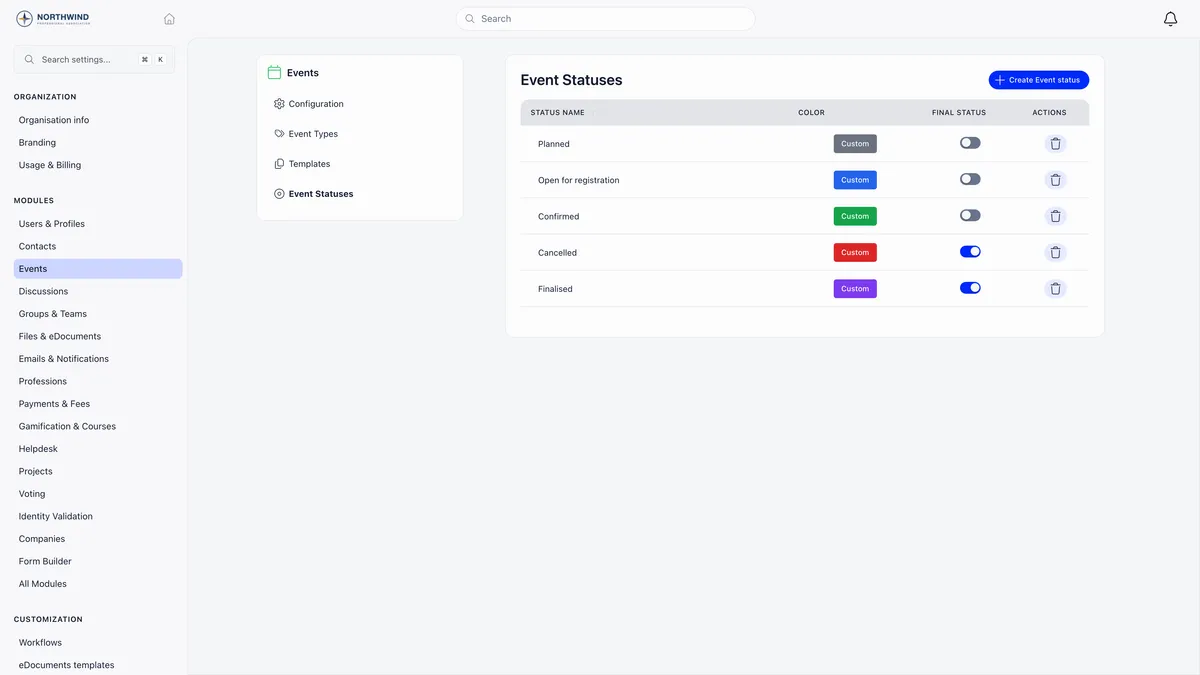
Custom statuses are a separate, optional workflow label that sits alongside draft and published. Switch on Enable Custom Statuses and a Custom Status field appears on the form.
Who ends up seeing it
An event marked Public gets a page anyone can open without signing in, and appears in your public event directory. That directory, the registration flow behind it and the check-in that follows are the visible parts of Orgo’s event management.
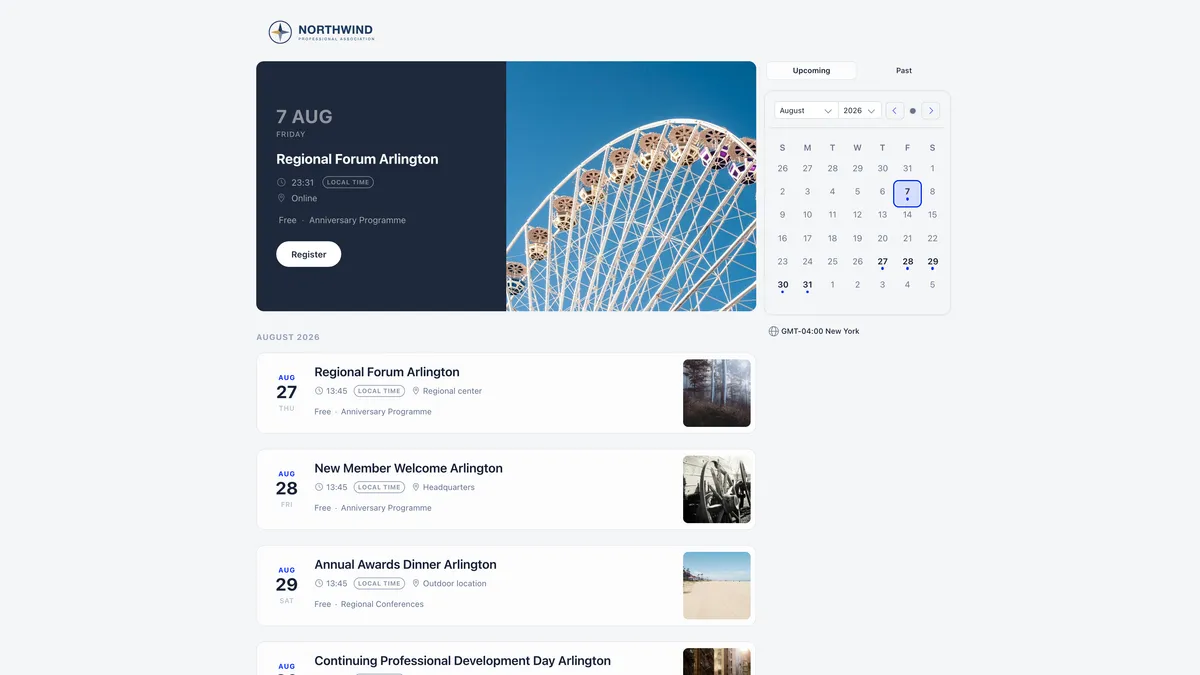
Each public event has its own page with the cover, description, speakers, agenda and a register or ticket card.
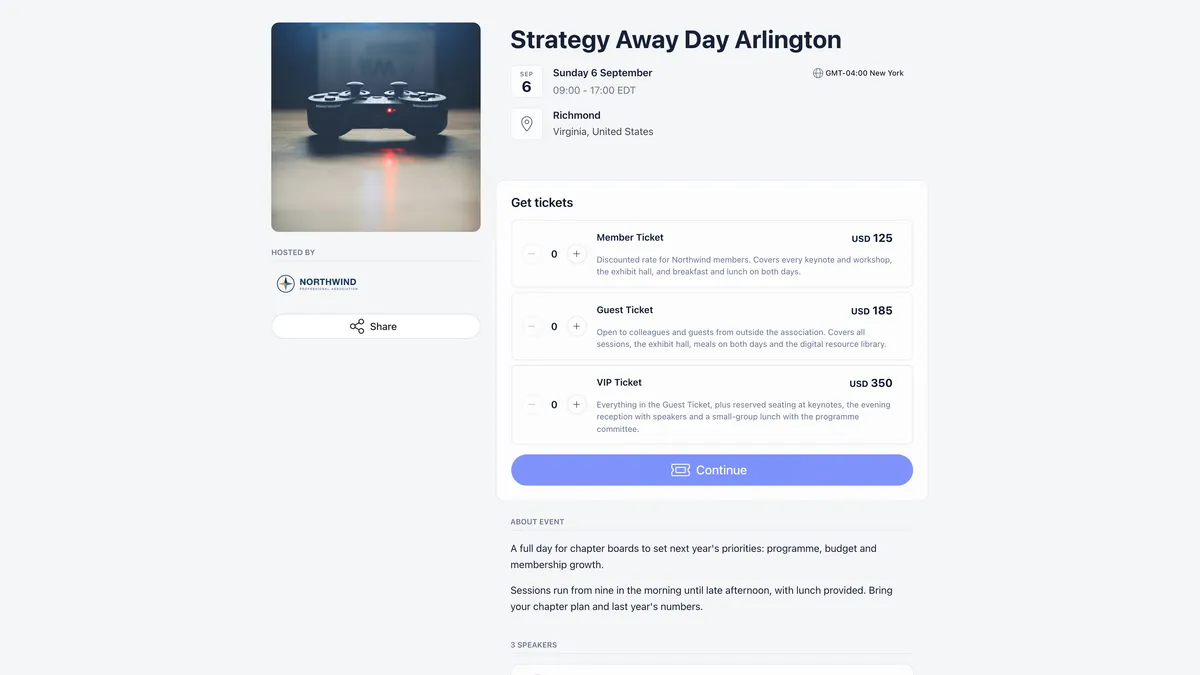
One rule surprises people: an event with ticketing enabled has a public page whether or not it is marked Public. If an event should stay internal, keep it free and use RSVP rather than tickets.
Troubleshooting
Members cannot see a published event
Check the Audience first. If it reads Members only when you meant Public, you were below the Who Can Create Public Events bar when you saved and the flag was dropped silently. Have someone with that permission set it, or raise your own.
Then check the Group. An event hosted by a group is visible to that group’s members, and an event hosted by a chapter to that chapter. Neither reaches the whole organisation.
The Paid option is missing
Online payments have to be active with a Stripe account connected, and the Access block only appears for holders of the financial or organisation-wide event permission. Without a Stripe connection you can create free events and free ticket types only.
The Public option is missing entirely
The event is hosted by a private, non-joinable group. Those can never be public. Host it somewhere joinable instead.
Somebody who runs a chapter cannot create events in it
Read that chapter’s Who can create events in this chapter setting rather than their permission list. If it is set to Chapter admins only, even an organisation-wide event manager is refused there.
One event in every chapter
If you hold the organisation-wide event permission and both the Local Centers module and Propagate Events to Local Centers are on, the creation form offers Propagate event to all local centers. Saving then creates one published copy in every active chapter rather than a single event. It appears on creation only, never on an edit.
Related
- Selling tickets to an event
- Checking people in at your event
- Setting up chapters
- The event form, field by field
- Event templates
- Public event pages
Frequently asked questions
How do I make an event repeat every week?
There is no recurrence feature in Orgo, so you create each occurrence as its own event. Two procedures do this quickly. Duplicate Event, in the sidebar of an existing event, copies everything except attendees into a new draft, so you change the date and publish. An event template, built once by an organisation admin, pre-fills the form for everyone who creates that kind of event. Duplicate is quickest for the same event on a new date; a template is right when several people create the same shape of event.
Why can nobody see the event I created?
It is almost certainly still a draft. New events save as drafts and the banner reads Only you can see this event, with a Publish Event button. Take that banner literally: a draft is listed for the person who created it and for nobody else, so even a colleague holding organisation-wide event rights will not find it. If the event is published and members still cannot see it, check the Audience setting, and check which group hosts it.
Why can I not create an event in one of my chapters?
Each chapter carries its own Who can create events in this chapter setting, and it is checked when you save rather than when you open the form. The chapter is offered in the Group dropdown whether or not you may actually save into it, so the refusal arrives at the end. The setting is one of Event managers, Any member of this chapter, or Chapter admins only, and it is never inherited from the chapter above.