
Every group in Orgo comes off the same form. What makes one different from the next is the Access mode you pick, and that single choice decides who ends up in the space, who can see that it exists, and whether you maintain the membership by hand. Decide that first, then create the group.
The real question is which kind of space you need.
The four access modes, side by side
| Option | Wording in the app | Who ends up in it | Listed under |
|---|---|---|---|
| Auto-enroll all members | Add all members automatically | Every active member, with no way to leave | Community groups |
| Open to join | Anyone in community can join | Members who join themselves, plus anyone an admin adds | Community groups |
| Private | Only invited members have access | Only members a group admin adds | Private groups |
| Role group | Aggregate members by roles or profile | Everyone matching your criteria, recalculated automatically | Teams |
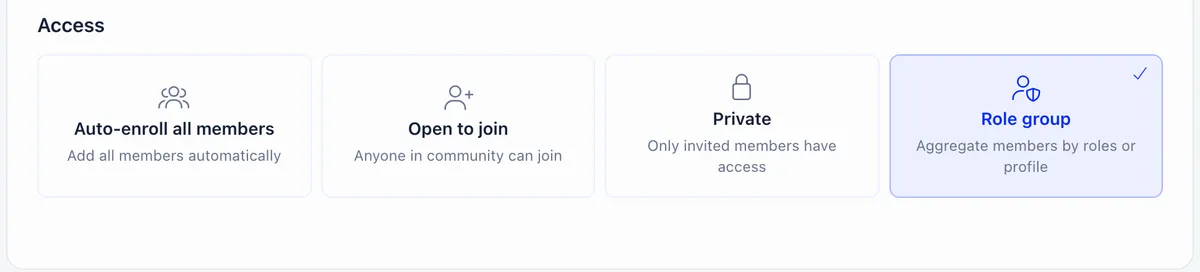
Auto-enroll, open to join and role group always require organisation admin rights. A member without that permission does not see the selector at all and gets a private group. You can change the mode later by editing the group.
Creating a group
- Open Groups and press Create group. Organisation admins with role groups enabled also get Create role group in the same menu.
- Name it for its purpose. “Q4 Marketing Campaign” beats “Marketing Group”. A Menu emoji is optional and shows beside the name in the sidebar.
- Set Access.
- Pick a category, if categories are on. This is offered on auto-enroll and open groups only. Private groups cannot be categorised.
- Choose Features: Discussions, Files, Events. At least one must stay on, and each needs its module enabled for the organisation.
- Set Who can post?: everyone in the group, or only admins. This one control covers discussions, files and events together, and setting it per group is how Orgo’s discussion forum is moderated.
- Add a description if you want one. Once set, it becomes the group’s About tab.
- Save. You become the owner and first admin, and land on the Members tab.
The Groups destination may be renamed or repositioned in your workspace through Menu Organizer, so look for the destination rather than a fixed menu position.
Who can create a group
Two checks apply, in this order.
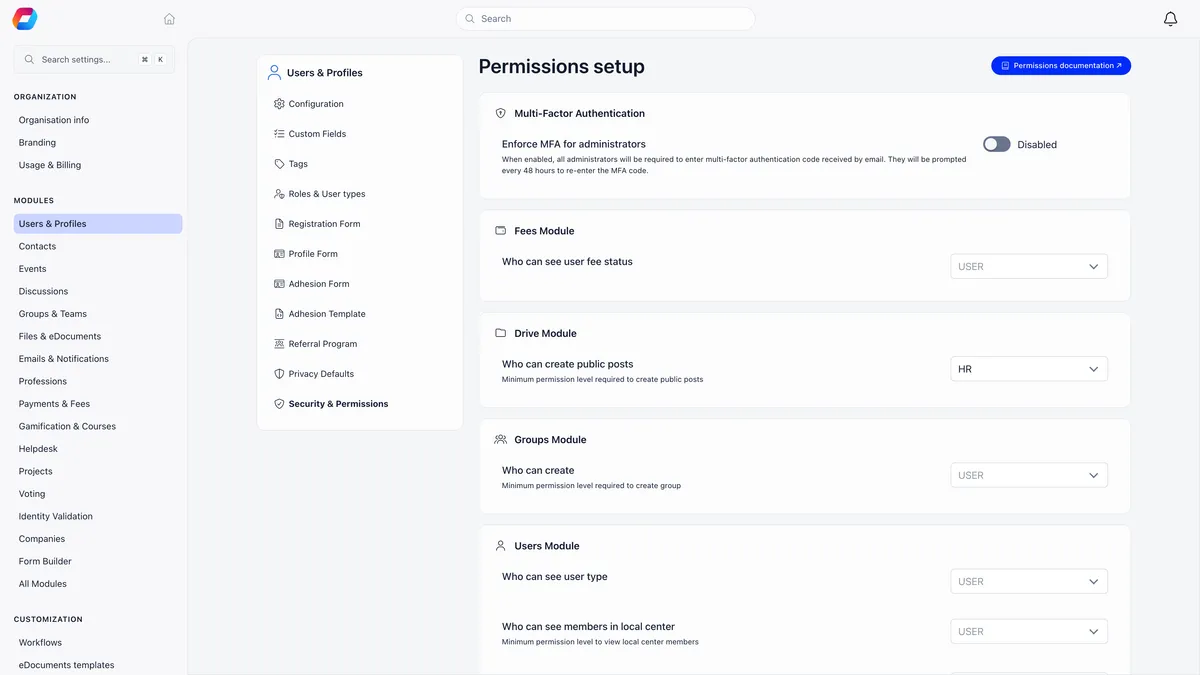
- The organisation-wide minimum, in your users and permissions settings under the Groups module. The default is any signed-in member. Raise it to chapter admin, organisation HR or organisation admin to restrict creation.
- The category minimum, if the group is filed under a category. Each category carries its own permission for creating groups in it.
On top of both, the three non-private access modes always require organisation admin rights. Members who fail the check do not see the Create group button at all.
Turning the pieces on
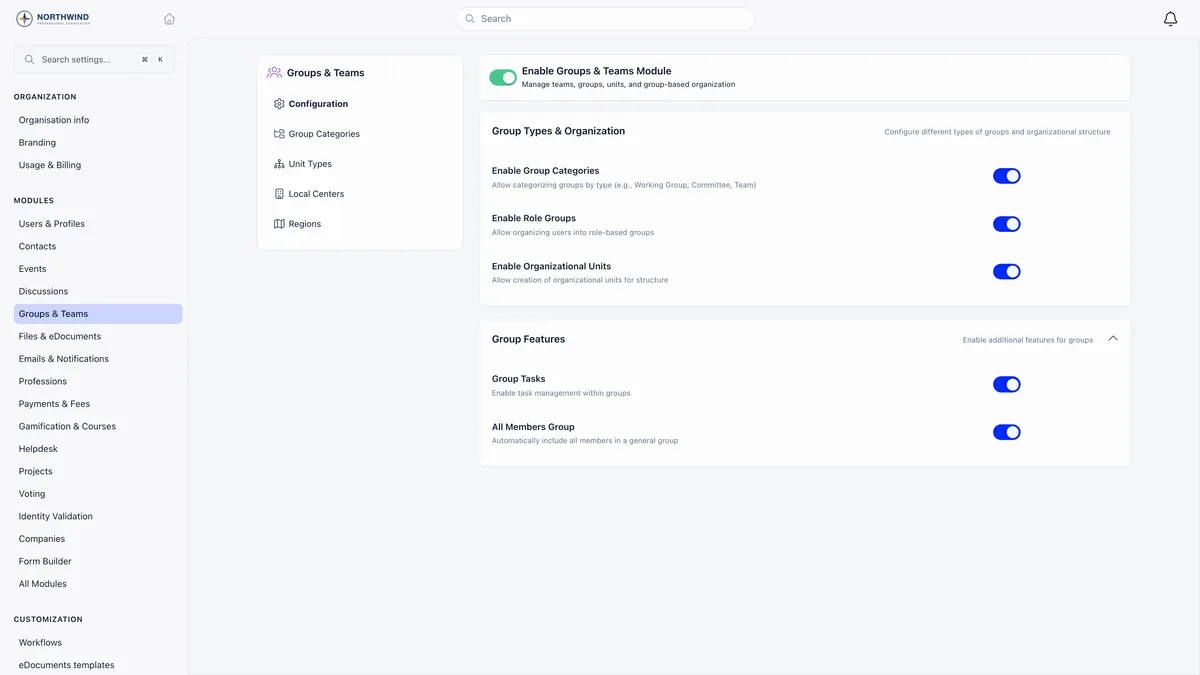
The module and its optional parts live in settings, under Groups and Teams.
| Setting | What it does |
|---|---|
| Enable Groups & Teams Module | Master switch. With it off, the group form does not render. |
| Enable Group Categories | Adds the category picker and a Group Categories page in settings |
| Enable Role Groups | Adds the Role group mode, the Create role group action and the Role groups tab |
| Enable Organizational Units | Adds a Unit Types page for subdivisions inside chapters |
Group Tasks and All Members Group are stored but nothing reads them. Switching them changes nothing members can see. Use the auto-enroll access mode for an all-members space.
Categories, and delegating who can create what
Categories group related spaces on the Groups page and in the sidebar, and let you hand creation rights to different people per category. Managing them needs organisation HR rights, and members only see the categories they are allowed to create in.
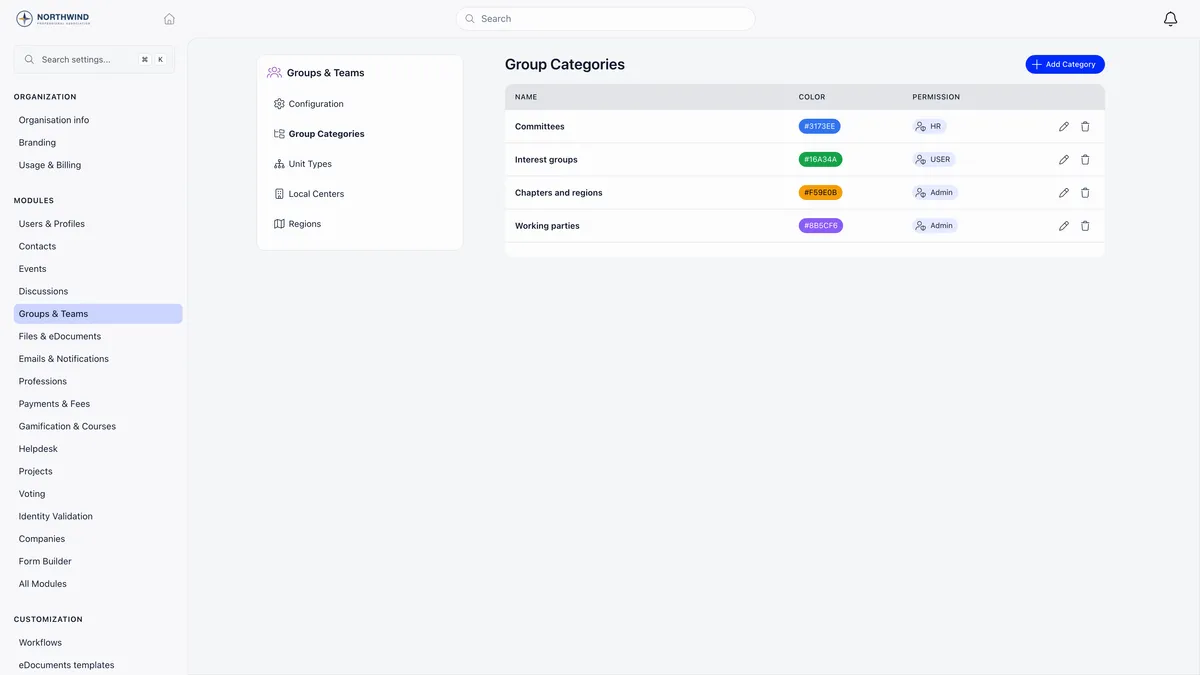
The permission column shortens the options, so the organisation and chapter variants of a permission read the same there. Check the category itself if you need to know which one is set.
Visibility: who sees what
| Situation | Result |
|---|---|
| A non-member opens a private group | Access denied, and the group is not listed for them either |
| A non-member opens an open group | They see it and can join |
| An organisation admin opens any group | Full access, including editing and deleting it |
| A member is removed from a group | Immediate loss of access to its discussions, files and events |
Joining an open group never waits for approval. Anyone who follows the join link is in straight away. If you need to vet people, use Private and add them yourself.
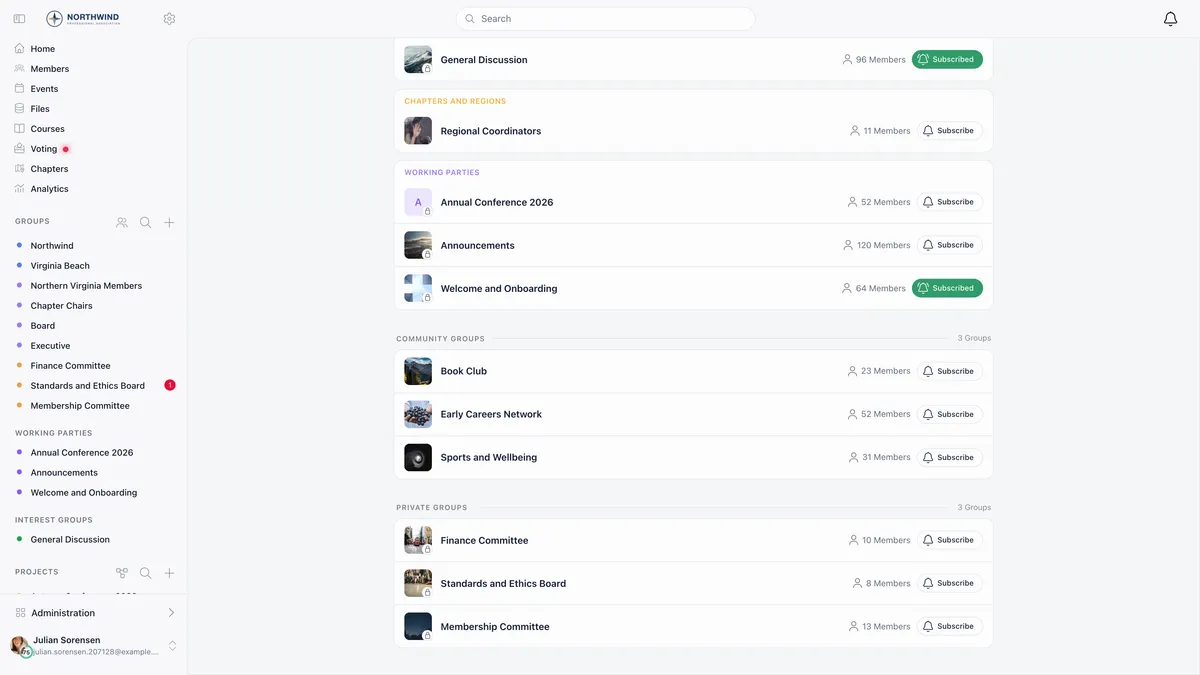
Inside a group, the owner can do everything an admin can plus delete the group, and cannot be removed. Admins add and remove members, promote others and edit the group’s settings. Members can leave, except from an auto-enroll group, and the owner cannot leave their own group.
Role groups: a membership that is a query
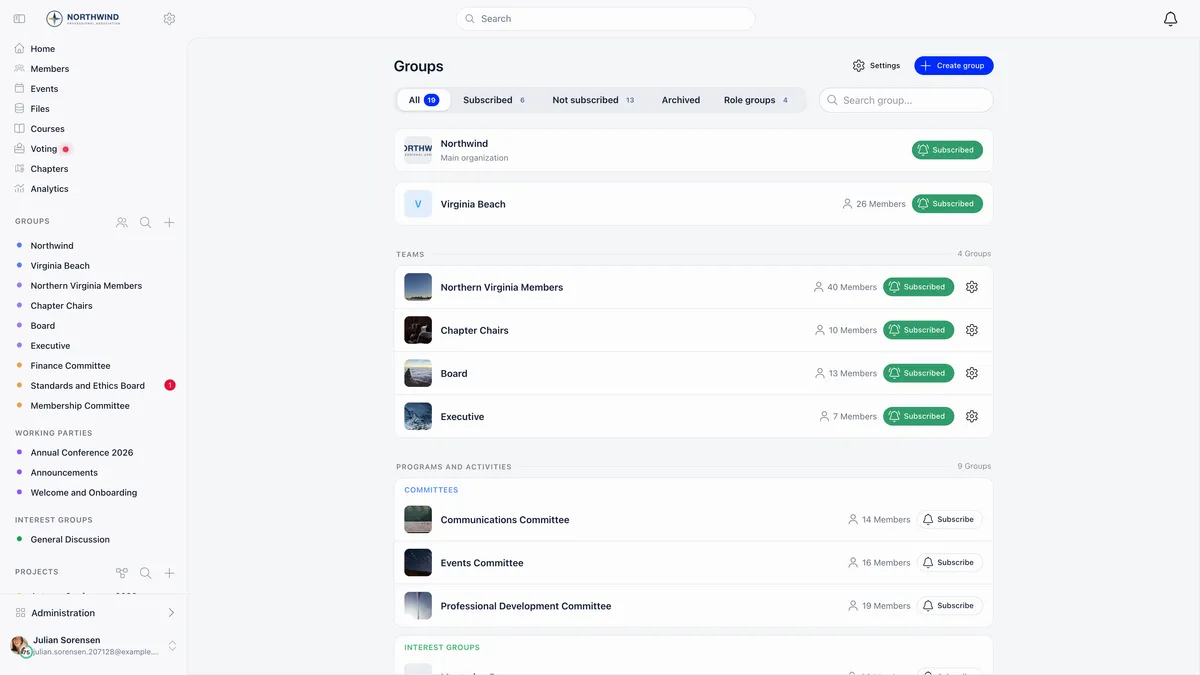
A role group is a space whose membership is a query rather than a list. You set criteria once and Orgo keeps the membership in step with your member data. Role groups appear under Teams.
The Segmentation type toggle switches the criteria between Profile, which is who the member is, and Roles, which is what they have been assigned.
| Segmentation | Criteria available |
|---|---|
| Profile | Min age, max age, gender, region, only full members, membership fee tier |
| Roles | Any of the roles you tick, plus a chapter restriction |
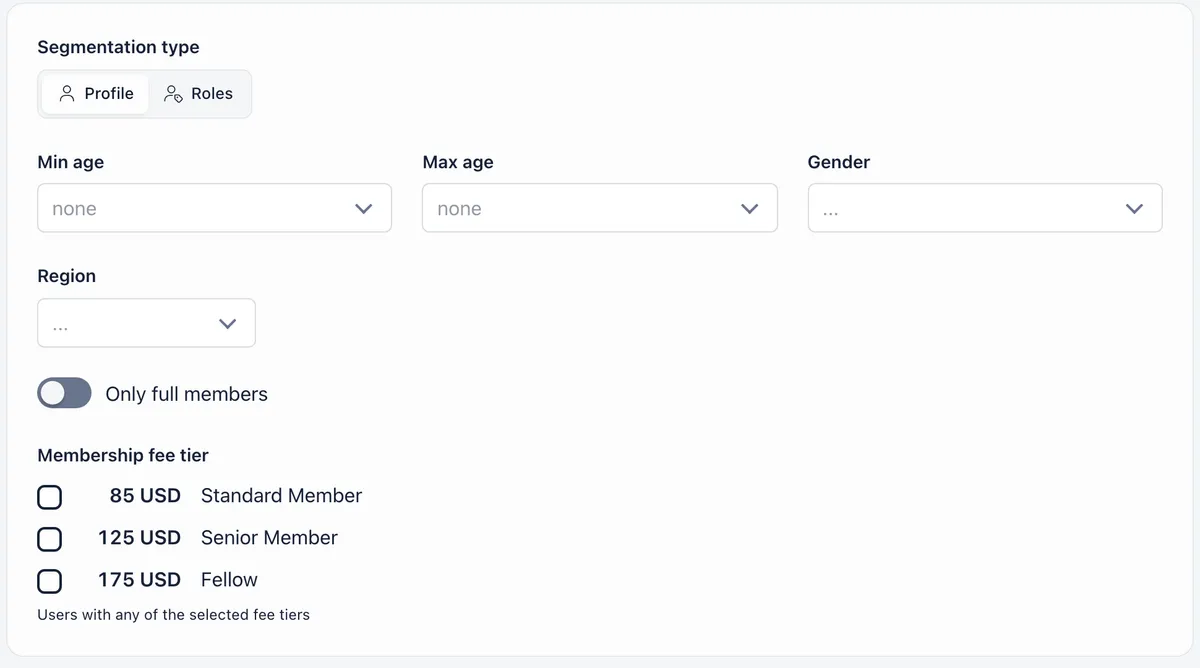
Every field you fill in must match, so criteria narrow the group and an empty field is not applied. The toggle only changes which fields are on screen: values set under Profile stay in effect when you switch to Roles, which is how “leaders over 18” is built. Only members with an active status are ever included, and a member with no date of birth never matches an age filter.
Picking a parent chapter in the chapter restriction covers every chapter beneath it, at any depth.
Role groups cannot filter on custom profile fields. If your segment is defined by a custom field, use a private group and manage the membership yourself.
Why a role group empties out
Membership is recalculated when you save the role group, when a member’s roles are added, changed or removed, when a member’s profile is created or edited, and when a chapter’s region changes. Recalculation both adds newly matching members and drops those who no longer match.
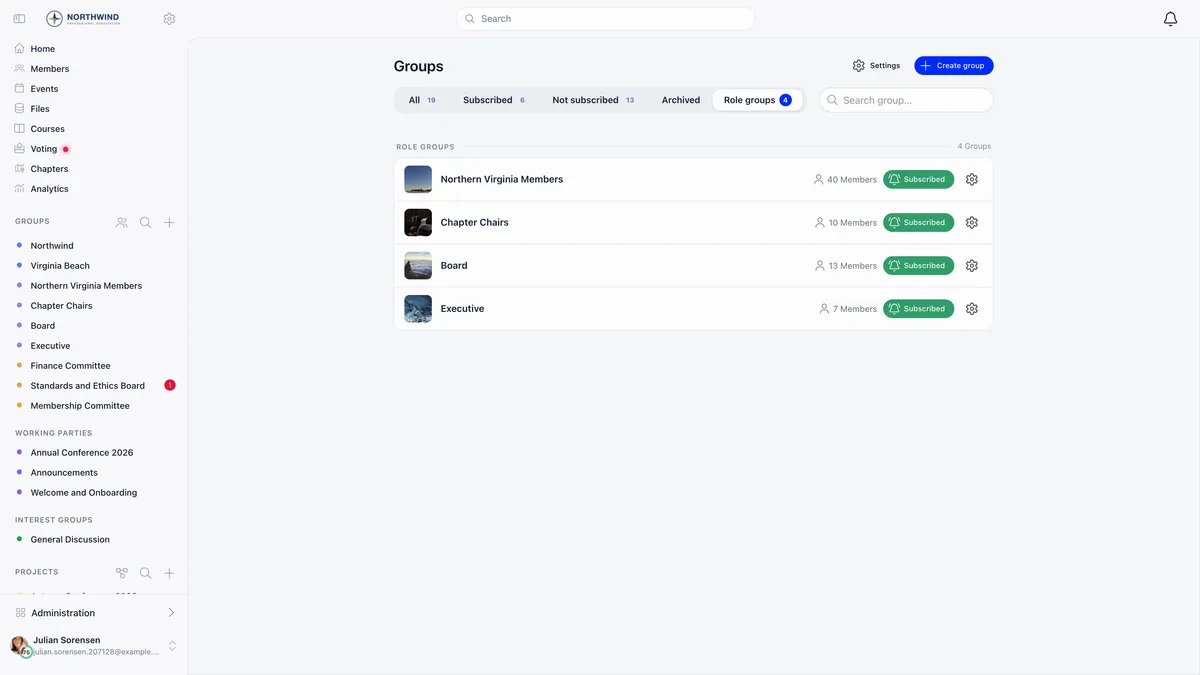
Ordinary members cannot leave a role group, because the membership comes from their profile. They can mute it with the Subscribe button on the Groups page.
Age boundaries are evaluated at recalculation, not on the member’s birthday. Somebody who crosses an age threshold joins or leaves the group the next time their profile or roles are saved, or at the next full rebuild.
Units: when the space is part of the structure
A unit is a named team that lives inside a chapter: a patrol inside a troop, a section inside a branch, a department inside a council. Units are typed, so you name the layers once and then create as many units of each type as you need, and they nest along your chain of unit types.
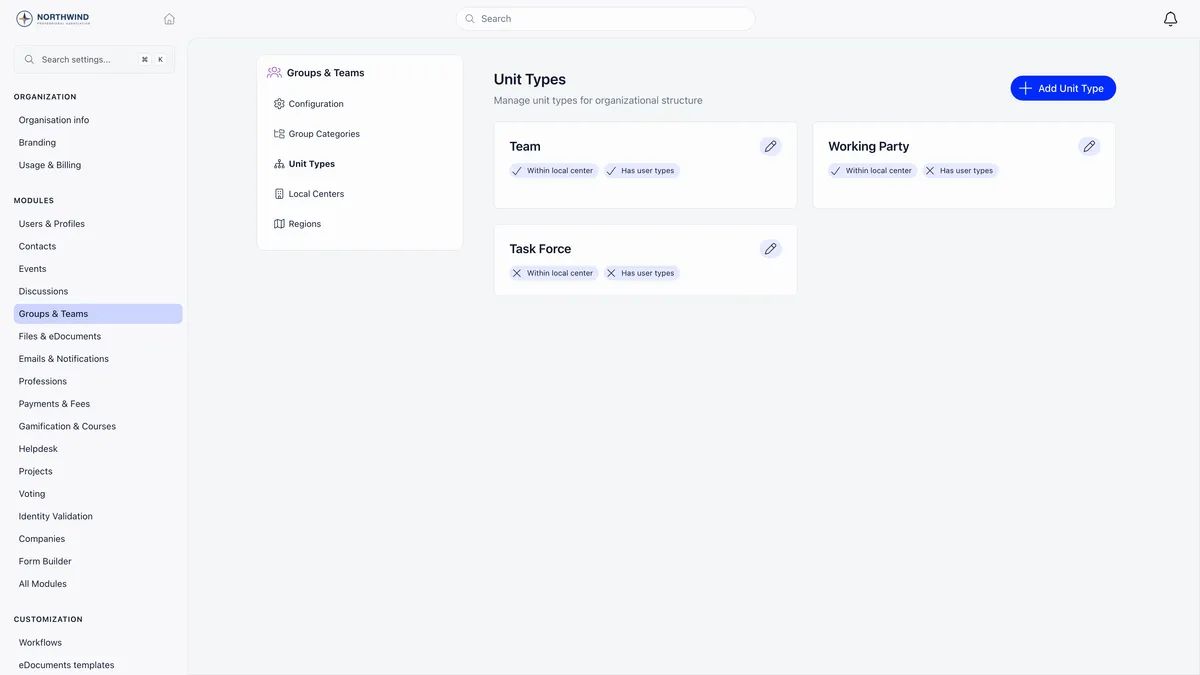
The practical difference: a unit describes where someone sits in the structure, a group describes what they are working on. Use a unit if the committee is a permanent part of the chapter and you want it in the org chart and in fee scoping. Use a private group if it is a working space people join for a project.
Seeing the unit screens needs chapter HR rights, and creating or editing a unit needs chapter admin rights on that chapter.
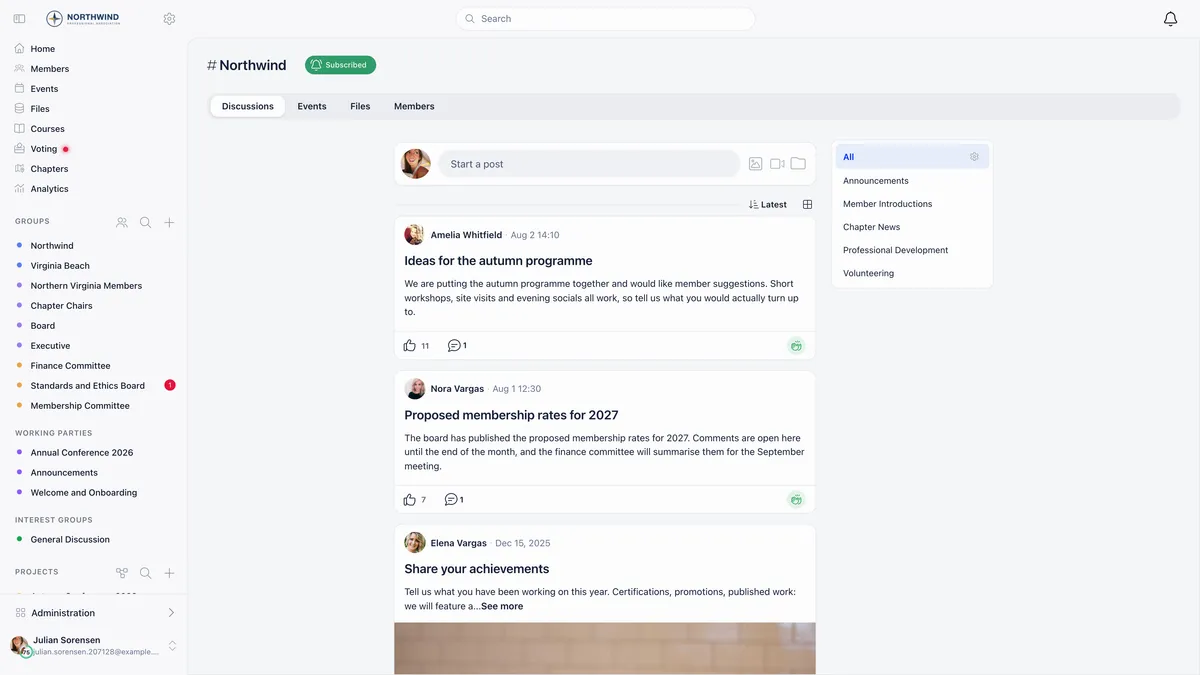
The organisation space
Every organisation has one space that is not a group you create: the main organisation feed, listed first on the Groups page. It carries discussions, events, files and members like any group, and it is where a post goes when it is meant for everybody.
Archiving and deleting
| Action | Who | What happens |
|---|---|---|
| Archive | Owner, group admin or organisation admin | Moves to the Archived tab. Members, discussions, files and events are kept untouched |
| Unarchive | Organisation admin | Restores it exactly as it was |
| Delete | Owner or organisation admin | Permanent, with a confirm dialog and no recovery |
Prefer archiving. It loses nothing and is reversible. A group with a newsletter attached refuses to delete until the newsletter is removed, so archive that one.
Troubleshooting
The role group is empty after I saved it
The criteria are over-narrowed. Every field you fill in must match, and age criteria exclude members with no date of birth. Clear a field to stop applying it.
I cannot see a group a colleague mentioned
Private groups are invisible to non-members and are not listed for them. Opening one you are not in returns an access error unless you are the owner, a member, or an organisation admin.
The group has no Discussions tab
Either Discussions is off in the group’s own Features, or the Discussions module is off for the whole organisation. The same applies to Files and Events. Non-members never see the tabs at all.
Related
- Groups and teams, the full reference
- Private groups
- Role groups
- Units
- Chapters and local centers
- Permissions
Frequently asked questions
I want a space every member is in and nobody can leave. Which one do I pick?
Auto-enroll all members, described in the app as Add all members automatically. Every active member is in it with no way to leave, and there is no Members tab because the membership is simply everyone. Set Who can post to Only admins if you want it to be an announcement channel. Only organisation admins can create this kind of group.
Why did my group come out private when I wanted everyone to find it?
Because the Access selector only appears for organisation admins. A member without that permission who creates a group always gets a private group, which nobody else can see or open. An organisation admin can edit the group afterwards and switch it to Open to join.
A member changed role and is still in the team group. Why?
Two likely reasons. Either the old role assignment has not actually been ended, so the criteria still match them, or they were added by hand on the group's Admins tab. Anyone added there is kept in the group even when they do not match the criteria, and they survive the rebuild that saving the group triggers.