
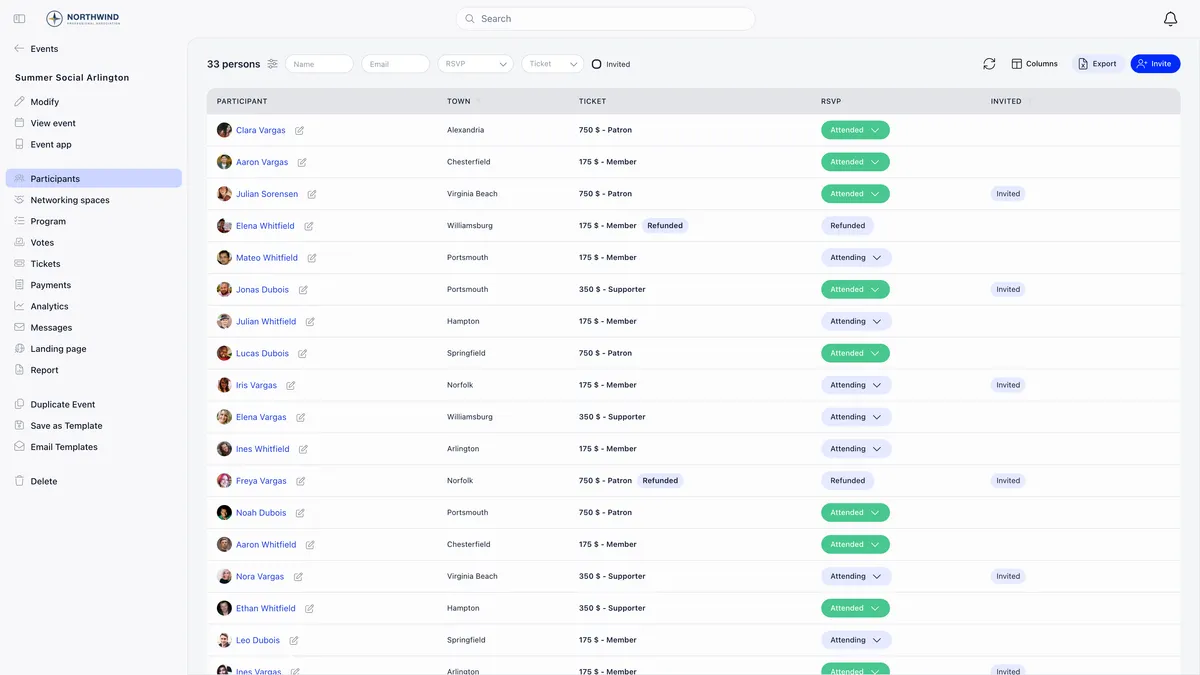
Open the event and go to its Participants screen. That is the list of everyone attached to the event: members who registered, non-members who bought a ticket, people you invited, and guests riding on somebody else’s ticket.
Then read the right column, because this is where attendance figures go wrong. Registration status and RSVP are two different statuses, they live side by side, and counting one when you meant the other is the single most common cause of a wrong number.
The two statuses
Each participant carries both. Neither one implies the other.
Registration status is where the person sits in the sign-up workflow. The column appears only on events that require registration.
| Status | What it means |
|---|---|
| Invited | An organiser added them. They have not confirmed |
| Registered | Sign-up complete, and paid if the event is ticketed |
| Pending approval | Waiting for an organiser to accept them |
| Waiting list | Parked by an organiser. Nothing moves people on or off it by itself |
| Awaiting payment | An invoice was issued and is not settled |
| Canceled | Withdrawn by the attendee or the organiser |
RSVP is the person’s own answer, and after the event it is where attendance is recorded.
| Status | What it means |
|---|---|
| Attending | Coming |
| Maybe | Undecided. Not offered on events that use a registration form |
| Not attending | Declined |
| Attended | Present. This is what check-in sets |
Two consequences worth holding on to. Checking somebody in overwrites their RSVP, so once a person is scanned you can no longer see what they had originally answered. And the registration dropdown greys out as soon as a payment is attached to the row: cancel or refund the payment first, because that status follows the money. The RSVP dropdown beside it stays editable either way.
On an event with no ticketing and no registration form, there is no registration column at all. The list carries RSVP only, which makes it much harder to misread.
Opening the list
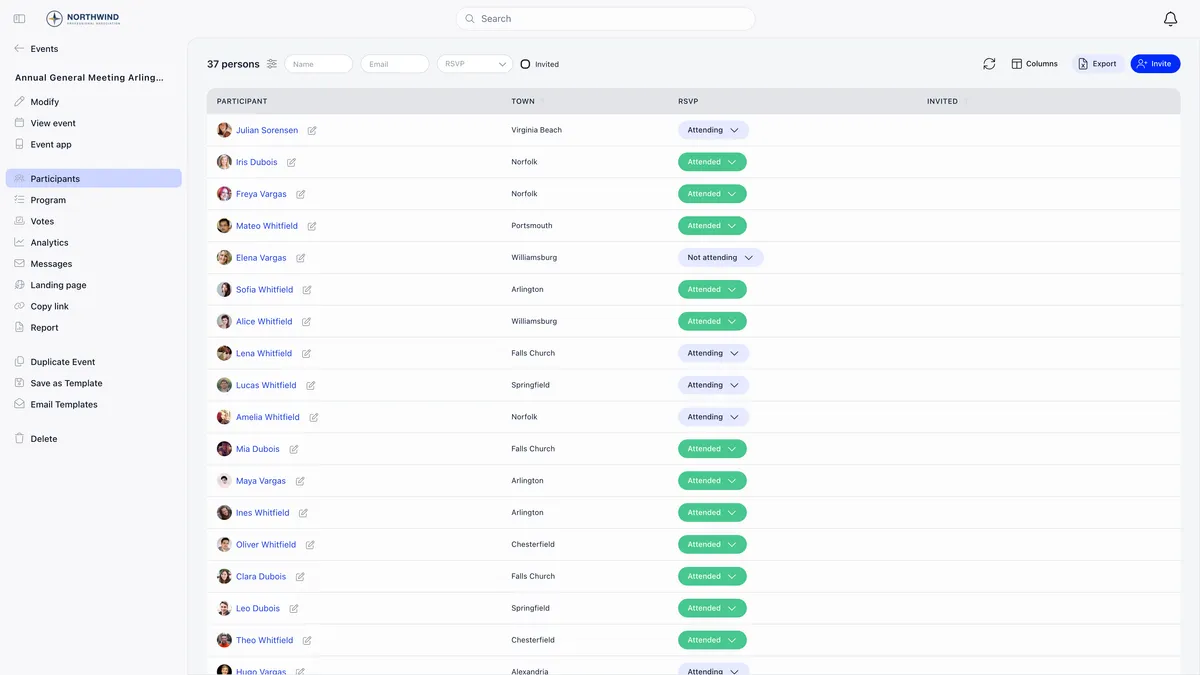
Participants sits in the event’s own sidebar. It opens for the event owner, for holders of EVENT_LOCAL or ADMIN_LOCAL on the event’s group, for EVENT_TENANT or ADMIN_TENANT across the organisation, and for admins of a private group running that group’s events. Your sidebar labels are set per workspace through Menu Organizer, so an entry may be renamed or hidden in yours: look for the destination rather than a fixed position.
Attendees never reach that screen. They see a Participants block on the event page instead, and only when they are registered themselves and the event has Visibility of attendee list switched on. With it off, the list is organisers only.
The control bar filters by name, email, RSVP, registration status, ticket type and an Invited checkbox, and events with an agenda add a session selector. Columns adds Membership, Membership Fee, Organisation, Role, Email, Phone, LinkedIn, Date, and one column per custom field on the registration form.
Whose name ends up on a seat
This is the second big source of surprise. Somebody books three seats, and you get three rows carrying their name rather than the three people who are actually coming. Whether that happens depends entirely on which route was used, and there are four.
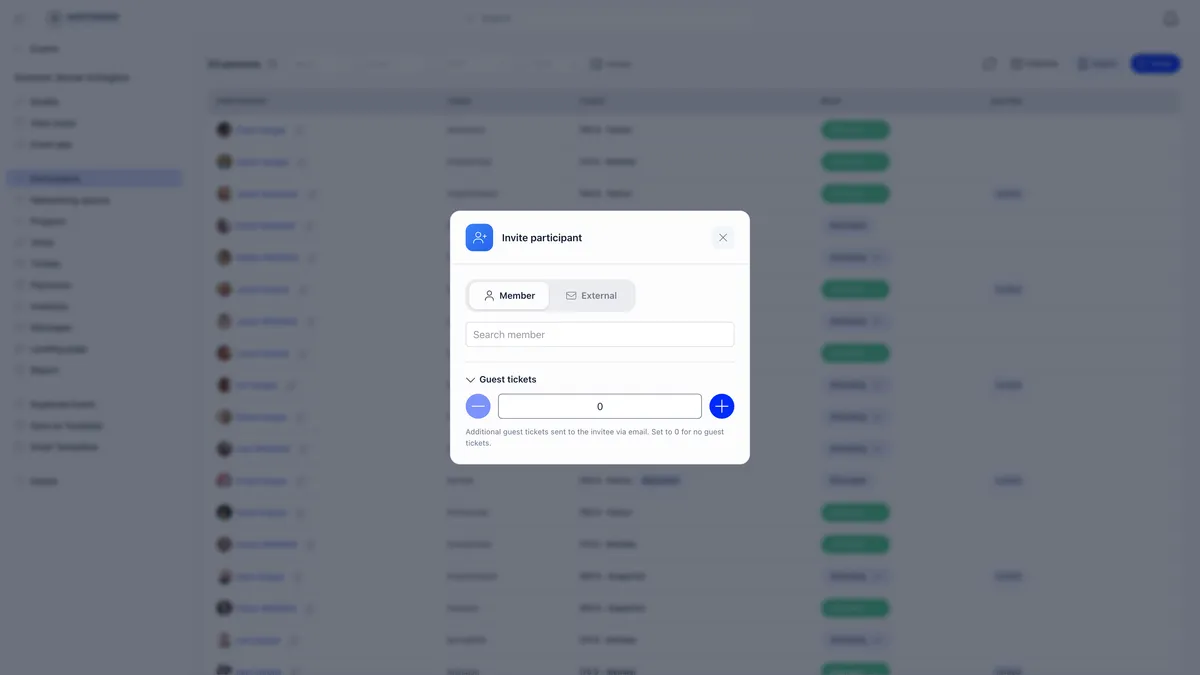
Guest tickets are the route that catches people out most. On the invite dialog you set a number from 0 to 20, and each guest becomes a separate registration and ticket with its own QR code, issued to the same person. There is no name field, by design: it exists so somebody can bring people whose names you do not need. If you do need those names, this is the wrong tool.
A paid checkout normally does ask for a name and email per seat, so an assistant buying three tickets creates three separate people. The exception is when the event offers a send-the-details-later option and the buyer takes it. Then every seat is recorded against the buyer, and if that buyer was signed in as a member, the per-ticket links that would let them reassign the seats are never generated. That combination is the one that produces three identical rows with no way to fix them from the buyer’s side.
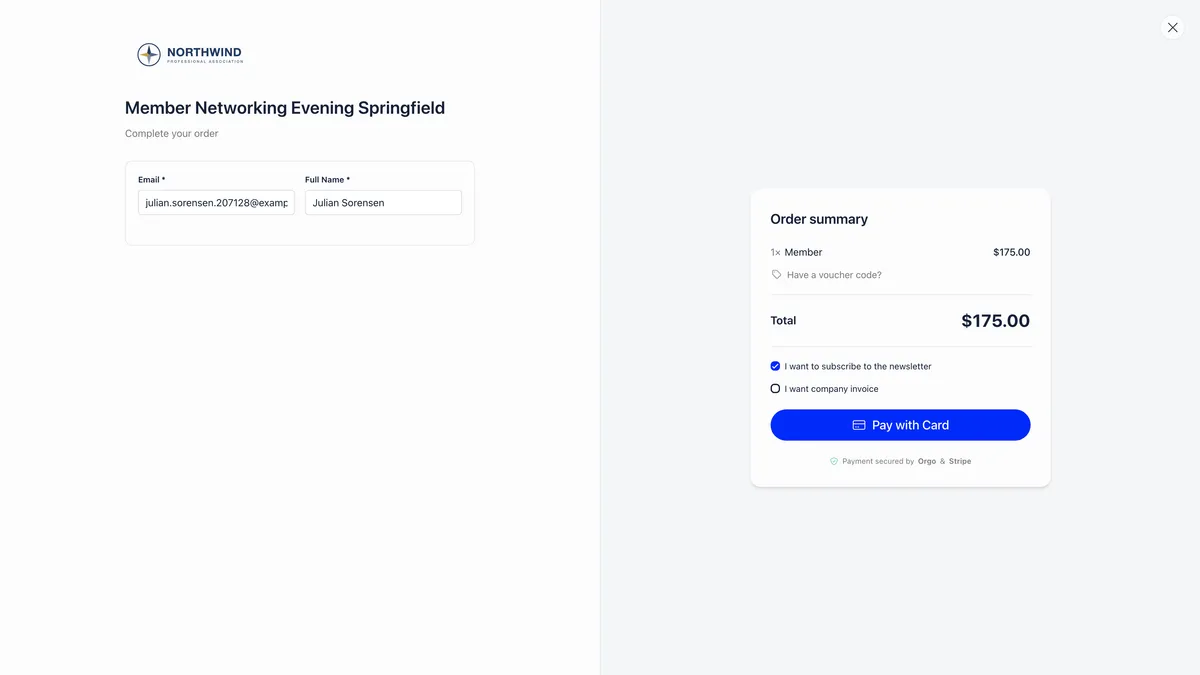
The checkout itself takes one identity, which is a useful thing to picture: one email, one full name, and a quantity beside them.
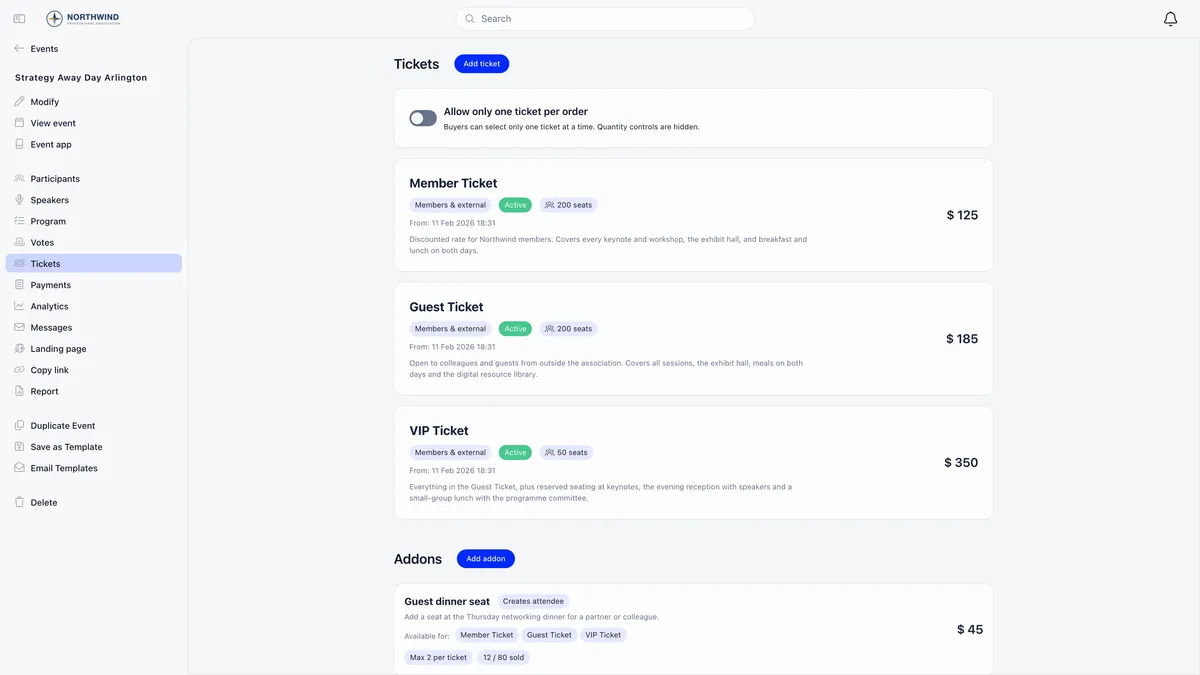
Add-ons are the reliable route when you need the extra person named. An add-on flagged to create an attendee captures its own name and email and produces a real, separately identified participant. The event’s Tickets screen is also where you switch on Allow only one ticket per order, which hides the quantity controls altogether and forces one booking per person.
Adding people yourself
Invite at the top right of the participant list takes two routes. The Member tab searches your directory. The External tab takes a name and email, matches the address against members first and then contacts, and creates a new contact only if neither exists.
Either route confirms the person immediately: registration Registered, RSVP Attending, and an emailed ticket with a QR code and a calendar invite. That is how speakers, sponsors and staff get in without paying.
If Orgo refuses with a message that the member is already attending, they are already on the list, possibly as Canceled or Invited. Change the row you have rather than adding a second one.
Inviting everyone at once does not email anybody
With Bulk Invites enabled for your organisation, a published event offers Send Invites to All Members. It adds every active member of the event’s group as Invited with an RSVP of Maybe, or every member of the organisation when the event has no group, skipping anyone already listed.
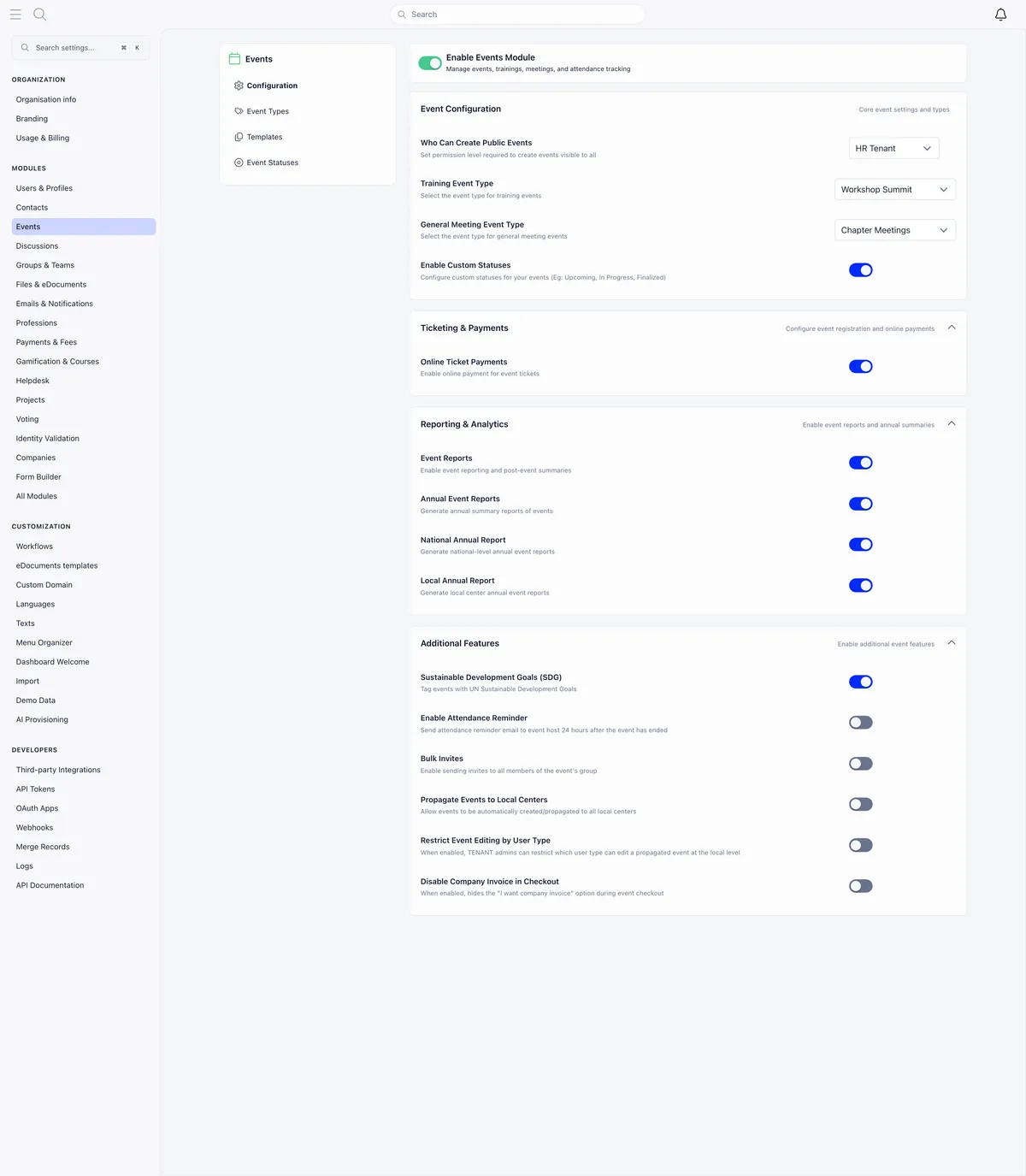
It sends no email. The invitation mail is disabled in the platform, so the list fills up and nobody is contacted. Announce the event separately with a newsletter or the event’s Messages tab. It also runs once per event and the button disappears afterwards, so it is not a reminder tool.
Recording who actually came
Three ways, and all three end at the same place: RSVP set to Attended.
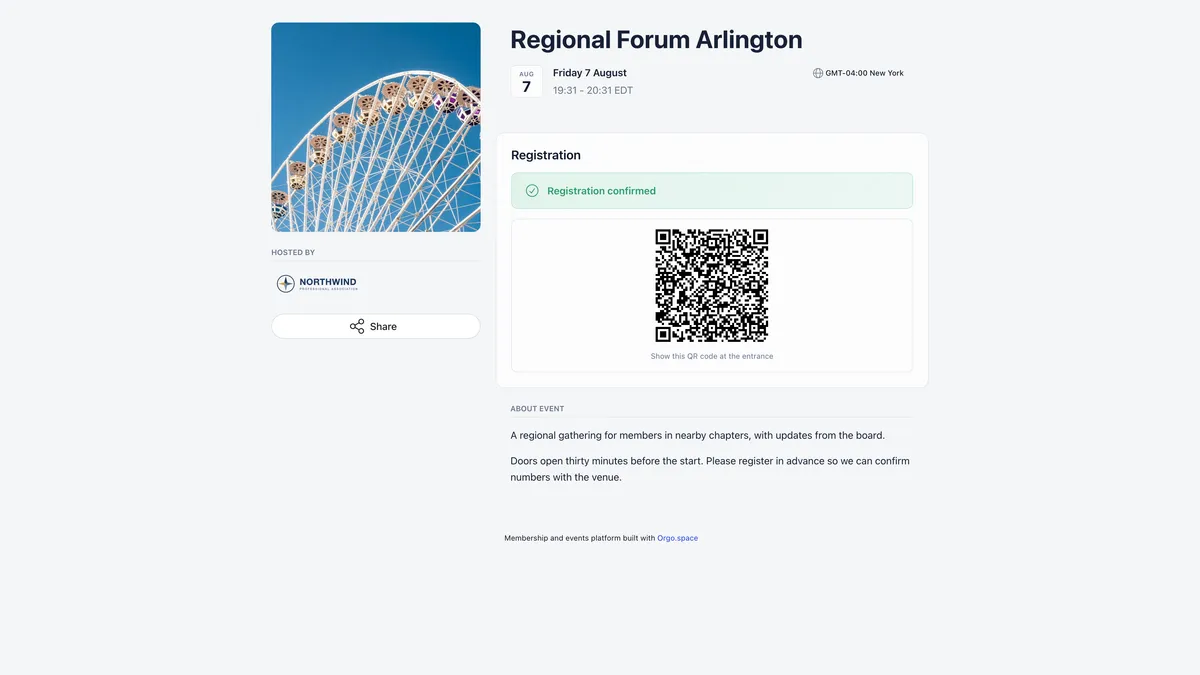
- Scan the QR code at the door. Every confirmed registration carries one, on the ticket email and on the event page.
- Set RSVP to Attended in the list, one person at a time. There is no multi-select and no bulk check-in.
- Walk-ins have to exist on the list first. Add them with Invite, then set them to Attended.
The Logs button on a row shows every status change with a timestamp and who made it, which is the fastest way to settle an argument about who moved somebody to Canceled.
If you would rather be reminded to fill this in, switch on the attendance reminder for your organisation. Each event then gains a Send attendance reminder 24 hours after event ends option, on by default. It goes to the event owner, not to attendees, and it is sent once.
Exporting the list
Export downloads attendees_<event>_<date>.csv. It needs EVENT_TENANT, EVENT_LOCAL on the event, or ownership of the event. A session picked in the agenda filter narrows the file to that session.
| Column | Notes |
|---|---|
| Name, Email | Always present |
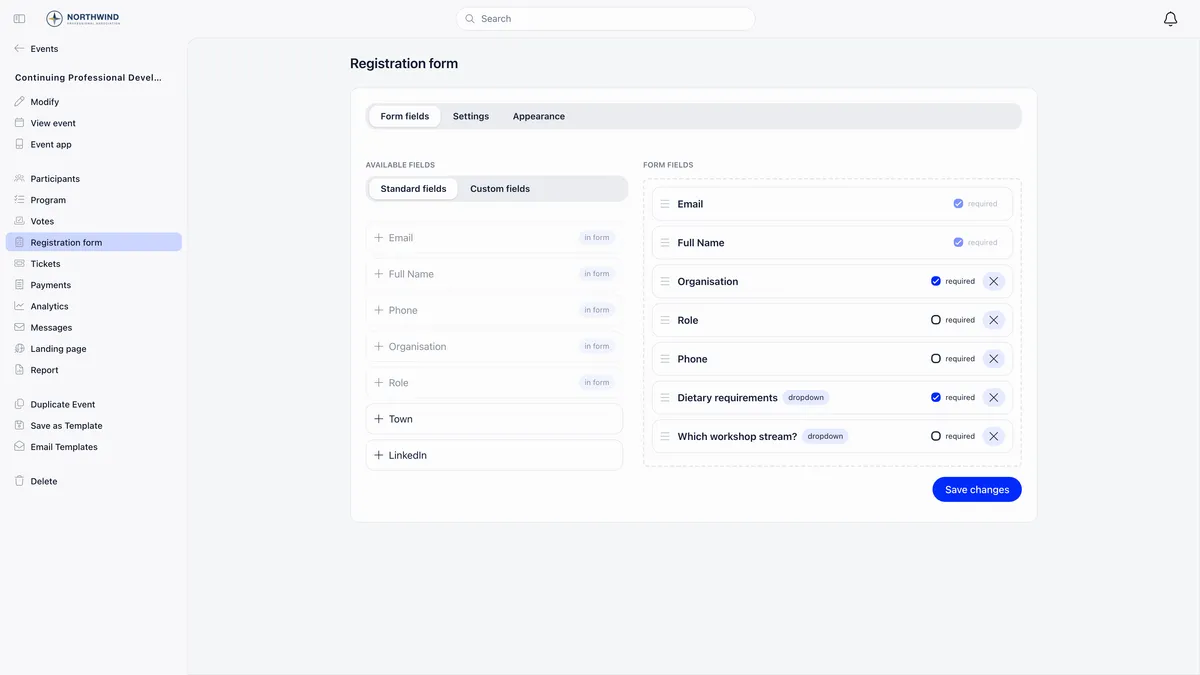
| Profile columns | Phone, Organisation, Role, Town, LinkedIn, X, Instagram, Company Name, Company ID, Company Address, and only the ones your registration form actually collects |
| Ticket Type, Ticket Price | |
| Registration Status, RSVP Status | Both statuses, as separate columns |
| Date Registered | |
| Discount Code | Appears only when at least one attendee used a voucher |
| Partner Name, Partner Email | Appears only when add-ons or guests created extra attendees, numbered when there are several |
| One column per event custom field | Dropdown and checkbox answers written out as their labels |
There is no ticket number in the file. No QR value, no registration reference, no row id. If somebody at the door hands you a ticket and you want to find their row in the spreadsheet, you have their name and email and nothing else to match on. Plan around that: make the email the key you reconcile with, and add a custom field to the registration form if you need an order reference of your own.
Guest tickets are folded into the Partner columns rather than getting rows of their own, where they read as a duplicate of the ticket holder’s own name and email. That is correct behaviour, and it looks exactly like a bug.
Why three screens show three different numbers
The same event will happily report several different figures, and each one counts something slightly different.
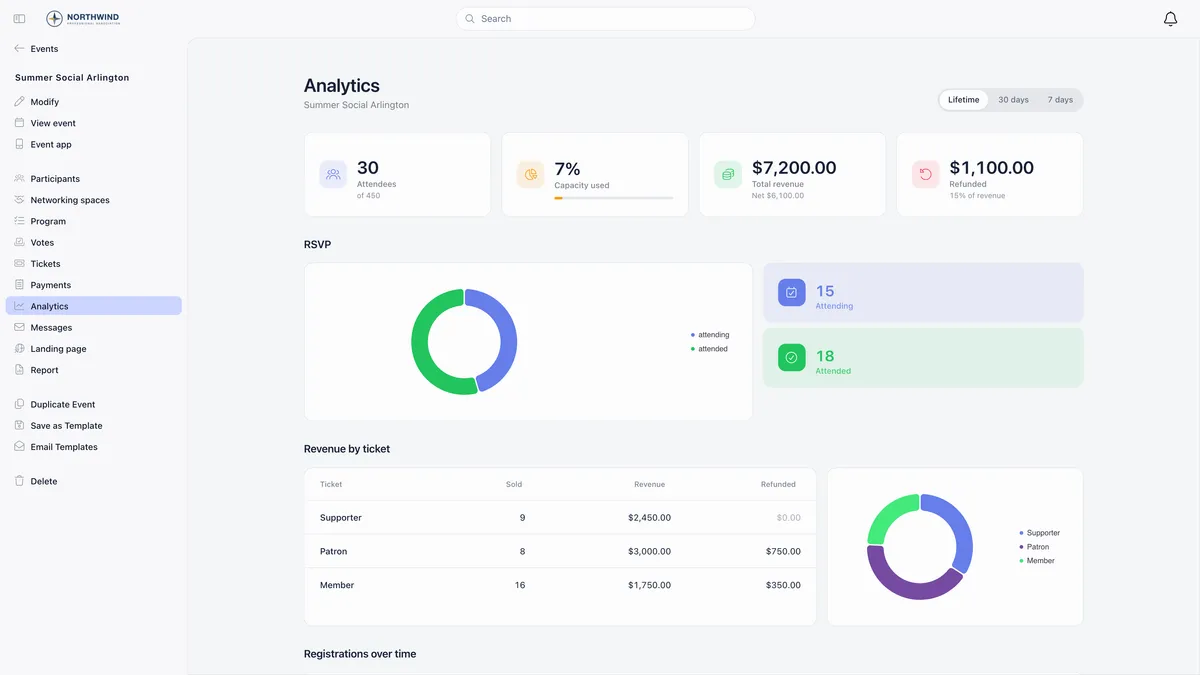
The headline above the participant list counts guest tickets and add-on attendees, while the rows beneath it show only the people those tickets were issued to. Each holder’s row carries a badge telling you how many guests hang off it. Event Analytics then reports its own attendee figure and splits RSVP into Attending and Attended. All three counts read the same participant records, which is how Orgo’s event tools keep registration, ticketing and attendance on one list.
Troubleshooting
I cannot remove somebody from the list
A registration holding a ticket cannot be deleted, because that would orphan the payment. Set it to Canceled and refund the payment if money changed hands.
A member cannot register themselves
Events that use a registration form only accept sign-ups through the form. Organisers can still add people with Invite.
The event is full and nobody moved up
Capacity refuses new registrations once Registered participants reach the limit, and it queues nobody. Move people to Waiting list yourself, then promote them with the confirm action on their row when a place opens, which also sends a ticket.
The count went down after I checked people in
It did not. Check-in changes RSVP from Attending to Attended, so a filter set to Attending empties out as the door queue clears. Filter on Attended instead, or clear the RSVP filter.
Related
- Event attendance, the full reference
- QR check-in at the door
- Registration forms and what they export
- Ticketing, add-ons and refunds
- Sending an email to your attendees
Frequently asked questions
What is the difference between registration status and RSVP in Orgo?
Registration status is where somebody sits in the sign-up workflow: Invited, Registered, Pending approval, Waiting list, Awaiting payment or Canceled. RSVP is the person's own answer, and after the event it is where attendance is recorded: Attending, Maybe, Not attending or Attended. They are two independent fields on the same participant. A headcount for catering comes from RSVP Attending. A record of who actually turned up comes from RSVP Attended, which is what check-in sets.
Someone booked several seats and every row shows their name. Why?
It depends which route they used. Guest tickets carry no name box at all, so every guest row is a copy of the person who was invited. A paid checkout normally asks for a name and email per seat, but if the buyer chose to send the details later, and the buyer was signed in, all the seats are recorded against the buyer with no reassignment link. Add-ons flagged to create an attendee are the one route that reliably captures a separate name, and those appear in the export as Partner Name and Partner Email.
Does Send Invites to All Members email anybody?
No. It fills the participant list and nothing more. Every active member of the event's group is added as Invited with an RSVP of Maybe, and the invitation email is disabled in the platform, so nobody is contacted. Announce the event separately with a newsletter or the event's Messages tab. It also runs once per event, so you cannot use it as a reminder.