
Three places record a payment that arrived by bank transfer, cash or cheque, and they are not interchangeable. Pick by what was paid for, not by which screen you happen to be on.
| What was paid | Where to record it | Permission |
|---|---|---|
| An invoice you raised | The invoice, Mark as paid | ADMIN_TENANT |
| A membership fee period | The member’s Fee tab, Mark as paid | FINANCIAL_TENANT for the organisation fee, FINANCIAL_LOCAL for a chapter fee |
| Anything else, such as a course place, merchandise or a one-off service | The member’s Payments tab, Record payment | FINANCIAL_TENANT |
Four actions that look identical and are not
Ticking a fee, saving the selection, marking as paid and pressing Pay are four different things. Our diagnostic guide on members who paid but show as unpaid has the full four-state table, and it is the first thing to read when a member disputes their status.
One precision that guide leaves open, and that matters here: there are two Pay buttons and they do opposite things.
| Pay button | Where | What it does |
|---|---|---|
| Pay on a member’s own fee card | The member’s profile, visible only to that member | Opens the card checkout. Money moves. |
| Pay [total] above the member fees table | An administrator’s chapter fee table | Writes a bank transfer batch for money that already arrived. Nothing is charged. |
An administrator never takes a card payment on a member’s behalf. Every route in this guide records money that has already reached your bank account, your cash tin or your post.
Which route you used also decides what the payment is stamped with, and whether the member counts as paid straight away.
Marking an invoice as paid
Invoices carry their status on the list: Paid, To pay and Voided. Filter by status to find what is outstanding.
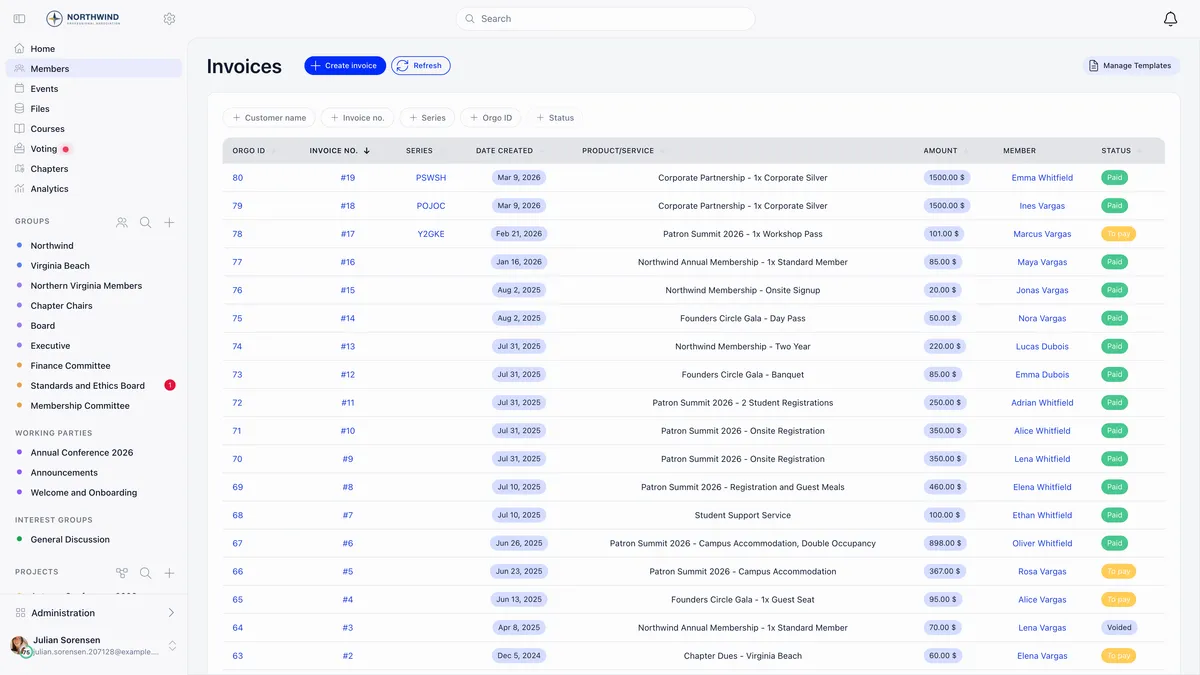
Open the invoice and press Mark as paid. The button is there only while the invoice is unpaid.
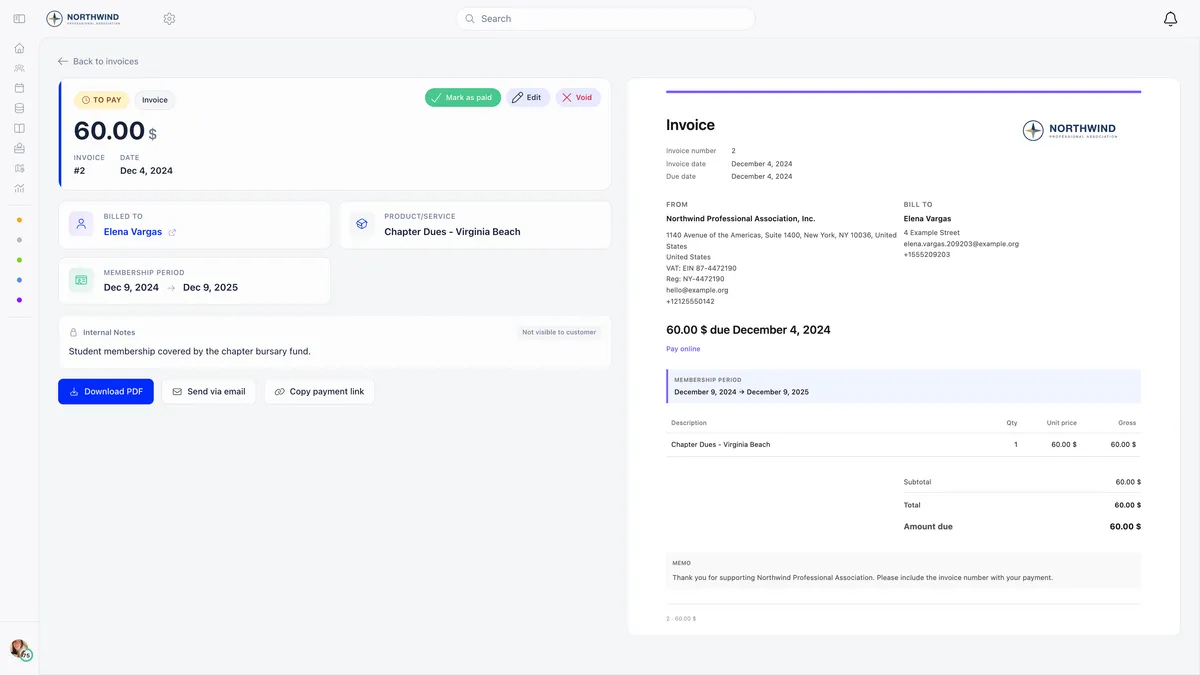
Four things happen at once.
- The invoice becomes paid, and Orgo records which administrator marked it, so the action stays attributable.
- A PAID badge is added to the stored document, the amount due line changes to read as paid, and the “Pay online” link is removed from it.
- A payment record is created for the gross total, net plus VAT, and linked to the invoice. That record is what updates membership status and appears in payment history.
- The paid invoice is emailed to the customer.
Step four catches people out. If you are tidying up historical records, every customer still gets an email. Switch off Send invoice emails automatically in your invoice product settings before doing a batch of corrections.
Membership invoices. If the invoice carries the membership switch, marking it paid also books the membership period on the invoice and moves the member’s validity date forward. For a company it updates the company membership end date, applies the member slots that come with the level, and pushes the new validity date out to everyone the company covers. This is why the level and the dates on the invoice form matter: they are the period being bought.
Event registration invoices. Marking one paid confirms the registrations attached to it. Attendees move from awaiting payment to confirmed and ticket confirmation emails go out. Always record an event payment against the event’s own invoice rather than raising a separate one, otherwise the attendance is never confirmed and check-in and attendee reports stay wrong.
Recording a membership fee period
An invoice is not required. Open the member’s profile, go to the Fee tab, and use Mark as paid. There is one on the organisation fee card and, where chapter fees are on, a second one on the local fee card.
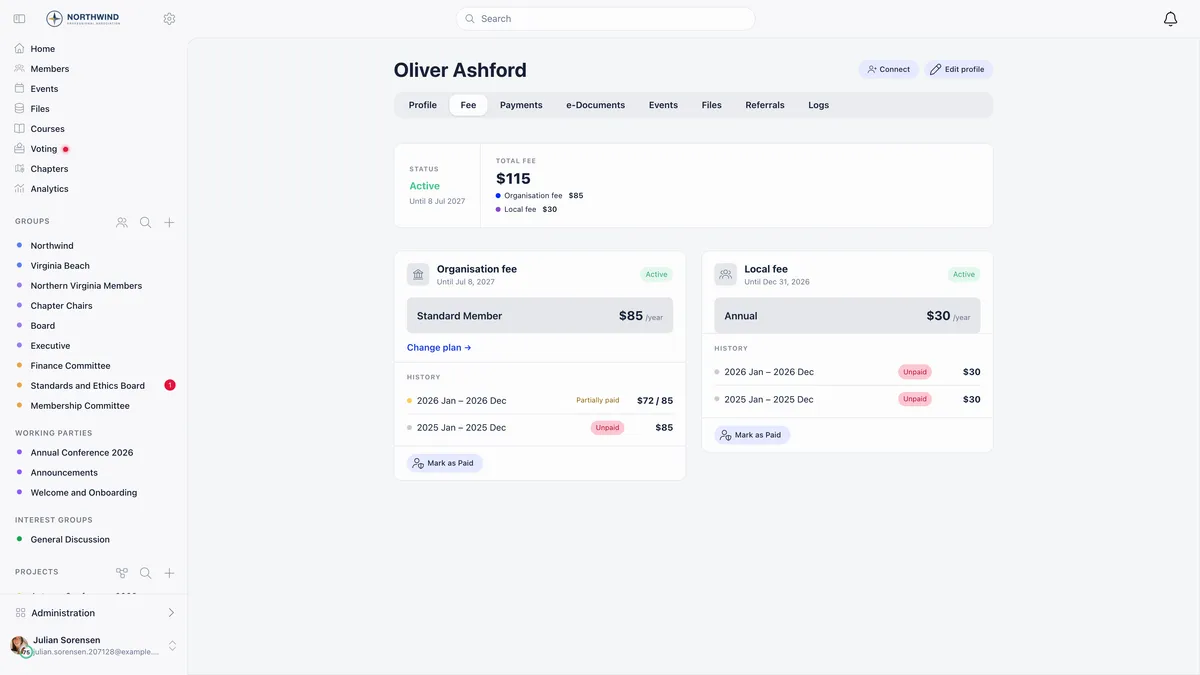
Orgo asks which period you are recording, shows you the period end it works out from your fee configuration, and records the payment using the price that was valid at the period start rather than today’s price.
A few rules are worth knowing before you use it.
- Manual fee payments are stamped with the method check and count immediately. The member’s validity date moves as soon as you confirm, with no approval step.
- An Enter different amount switch appears only if your organisation uses fixed starting dates for fees. Without that setting the amount is locked to the member’s price and a different figure is rejected.
- If part of the period is already covered, Orgo charges only the remainder. A member on a 120 level who has already paid 30 for three months produces a single 90 row when you mark the whole year, so the totals still match what was collected.
- A batch that resolves to nothing, every period deselected or a member with no price for that period, is refused with an explanation rather than saved half formed.
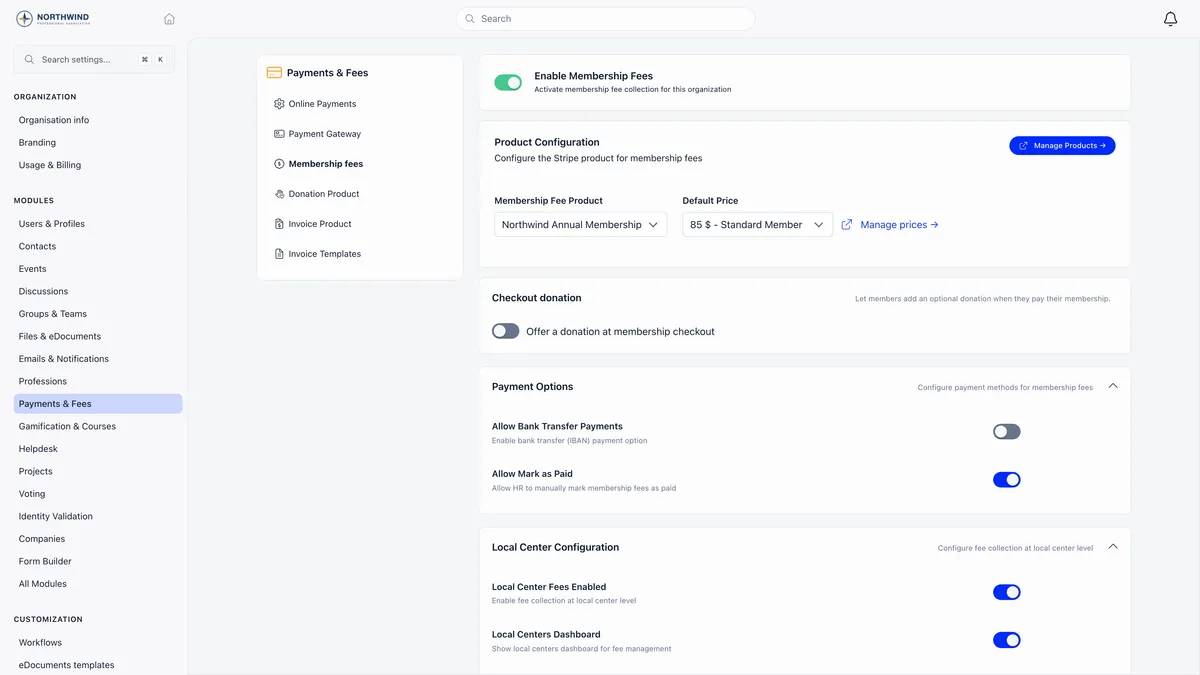
The action needs Allow Mark as Paid switched on in your membership fee settings. With it off, nobody can record a fee by hand and members must pay online. That switch sits with the rest of the fee configuration on the membership management side of Orgo.
Mark as paid is a finance-admin action. A unit administrator who can reach the chapter fee table is not offered it at all.
Recording anything else
For everything that is not membership, use the member’s Payments tab and Record payment. It needs FINANCIAL_TENANT.
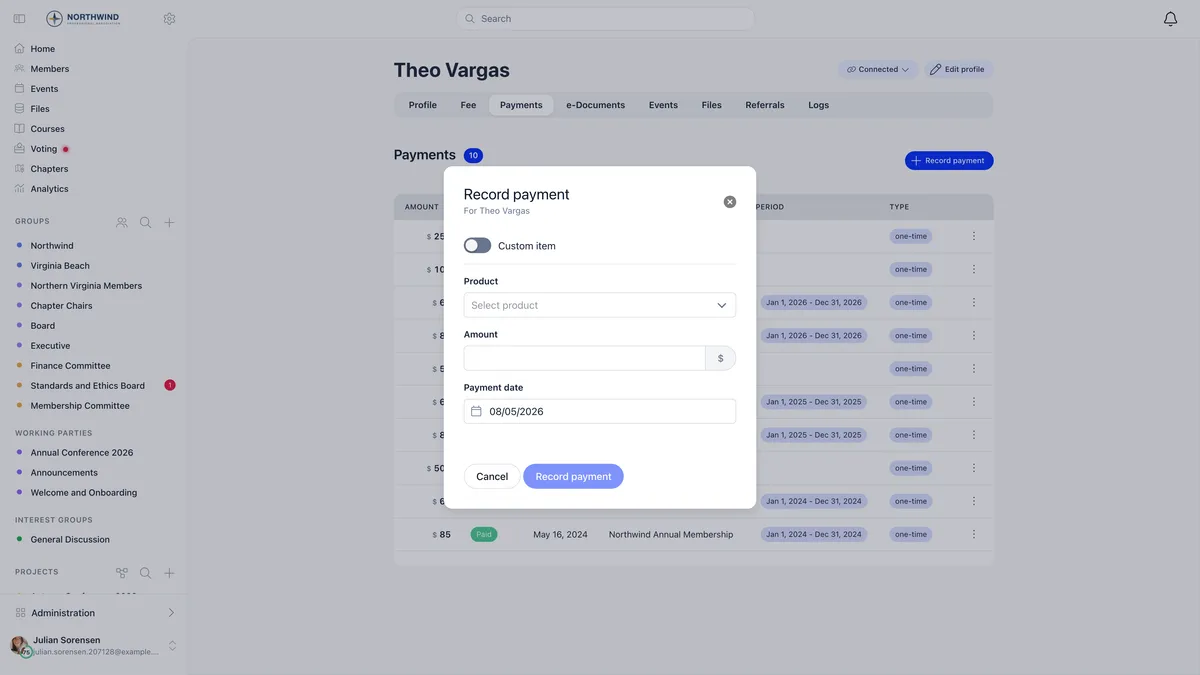
- Choose what was bought. Either pick an existing product, or switch on Custom item and type an item name. A custom item creates a hidden one-off product so the payment has something to hang from without cluttering your product list.
- Choose the price. A product with active prices requires you to pick one, and the amount is then locked to it. Only products configured to accept a custom amount let you type a figure.
- Set the payment date. It defaults to today. Set it to the day the money actually arrived so your reporting lines up with your bank statement.
The payment is saved as successful, stamped with your name as the administrator who recorded it, and carries no Stripe charge. The amount you enter is treated as the net figure with VAT derived on top.
Membership fee products are deliberately not offered here and are rejected if you try, with a message telling you to use the membership route instead. A fee payment has to carry the period it buys, and this form does not collect one. A membership payment recorded here would leave the member unpaid despite the money being logged.
Collecting from many members at once
A chapter treasurer who has collected cash from twenty people at a meeting does not want twenty Mark as paid trips. The member fees table is the screen for that: one row per member, one column per fee period, a checkbox on everything still owed.
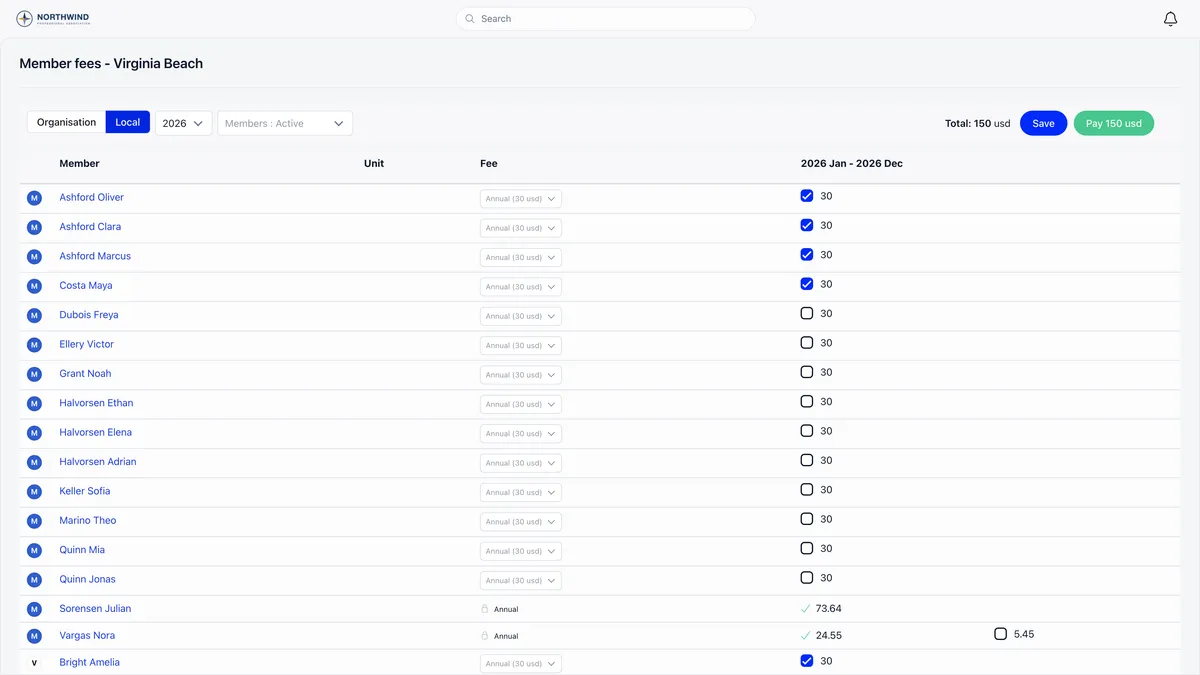
It needs FINANCIAL_LOCAL on the chapter or an active unit-admin role inside it, plus the chapter members table setting. Unit administrators see and manage only members in their own units, enforced on the server as well as on screen.
The approval queue
Pay takes you to the fee payments queue, where the batch sits as pending until an organisation admin approves it.
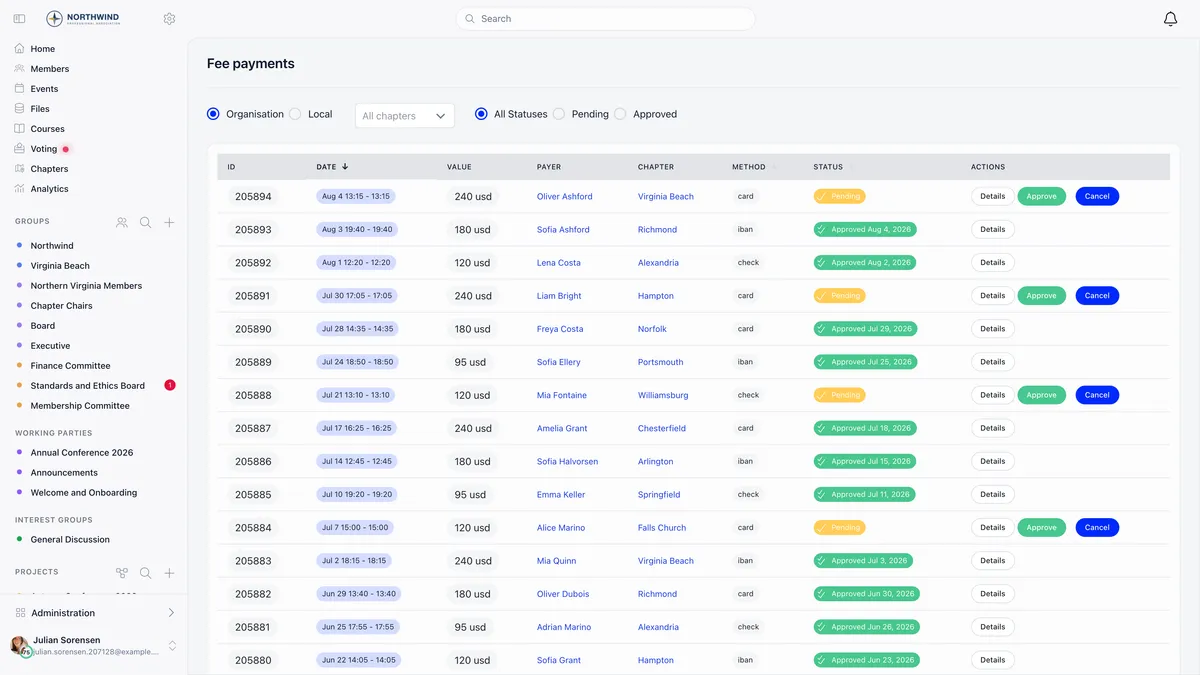
Approving marks every payment in the batch successful and recalculates each affected member’s validity date, the chapter date for a chapter fee product and the organisation date otherwise. Until then the periods show as paid but pending on the fee tables and no validity date moves.
Approve is shown only to ADMIN_TENANT, and only while the batch is pending. A chapter administrator with ADMIN_LOCAL sees Cancel instead, which deletes the batch and every payment row in it. A finance-only administrator sees the queue and the batch details but neither button, so the batch stays pending and the members it covers stay unpaid. That combination is the quiet cause of most “we recorded it and nothing happened” reports.
Members never submit a fee payment for approval. A member paying their own fee by bank transfer raises an unpaid invoice instead, which is settled with Mark as paid on that invoice.
Checking it landed
Whatever route you used, the member’s Fee tab is where you confirm it. A recorded period shows as paid in the history, and the status card carries the new validity date.
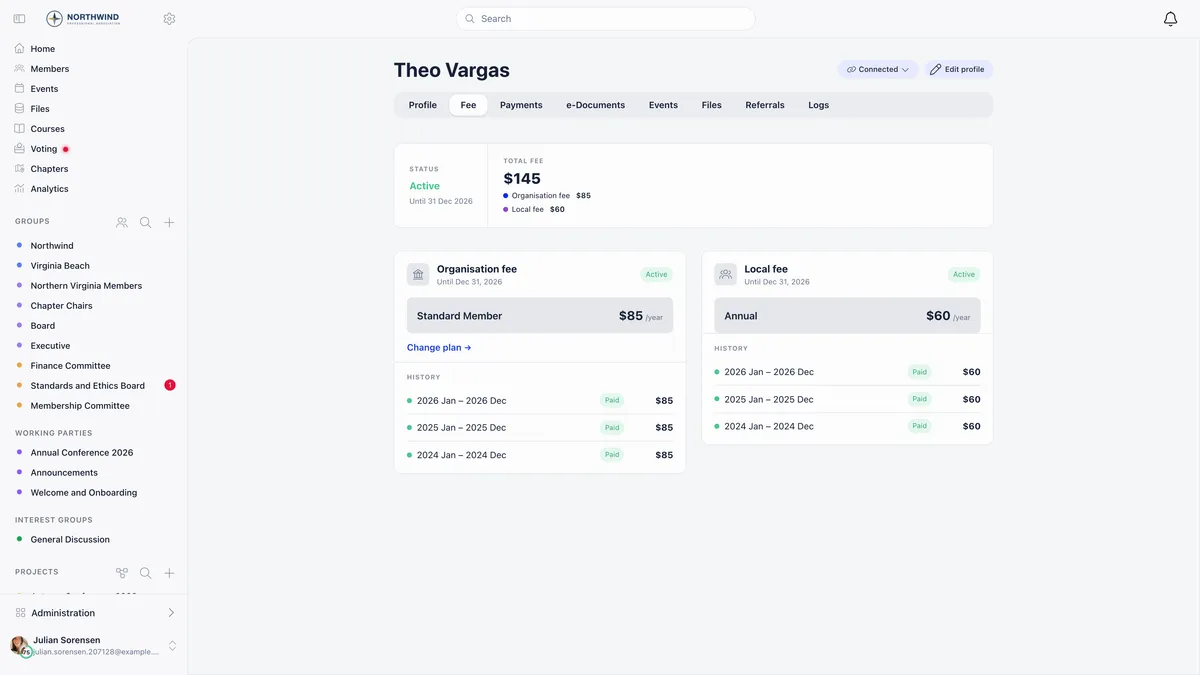
If the member still reads as unpaid, work through the diagnostic guide in its order. The year filter and an unapproved batch account for most of it.
Getting it wrong
If you mark the wrong invoice as paid, do not delete it. Void or credit it instead, so the trail of what happened survives. A tidy list is worth less than a record you can explain to an auditor.
Related
- My member paid but Orgo still shows them as unpaid
- How do I set up membership fees?
- How do I take card payments with Stripe?
- Recording a payment reference
- Cancelling and correcting invoices
- The member fees table
Frequently asked questions
I ticked the boxes and pressed Save. Why is the member still unpaid?
Because saving is not recording. On the member fees table, ticking selects periods and Save stores that selection as a draft so it survives leaving the page. Neither writes a payment. Press Pay to write the batch, then have an organisation admin approve it on the fee payments queue. Until the batch is approved, no validity date moves and every member in it still reads as unpaid.
Someone paid their membership by bank transfer. Where do I record it?
If they raised an invoice for it, mark that invoice as paid, because the invoice carries the membership period being bought. If there is no invoice, open the member's profile, go to the Fee tab and use Mark as paid, which asks you which period you are settling. Do not use Record payment on the Payments tab: membership fee products are rejected there on purpose, because that form does not collect the period.
A payment is sitting as Pending. Who can approve it?
Only an organisation admin with ADMIN_TENANT sees the Approve button, and only while the batch is still pending. A chapter admin with ADMIN_LOCAL sees Cancel instead, which deletes the batch and its payment rows rather than approving them. A finance-only admin sees the queue and the batch details but neither button.