
Open your invoices list, press Create invoice, pick one payer, enter the line, set the dates and save. Saving gives the invoice a number and a series, renders the PDF and, unless you have turned automatic emails off, sends it to the customer straight away.
The thing worth knowing before you start: marking an invoice as paid emails the customer too. That is fine when the money has only now arrived. It is not fine when you are tidying up last year’s records, because those customers get a real email about a real invoice.
Everything here needs ADMIN_TENANT, and the Invoices module has to be on. Your sidebar is per-organisation, so the item may be renamed or hidden in your workspace even when the module is running.
Which document reaches the payer, and when
This is the question behind most invoice support tickets, so here is the whole picture in one place.
Four of the seven invoice actions send nothing at all. That is deliberate, and it is why a customer can be sitting on a refunded invoice with no idea it happened.
Create the invoice
The form is on the left and a live preview of the finished document is on the right, so you can see the wording change as you type.
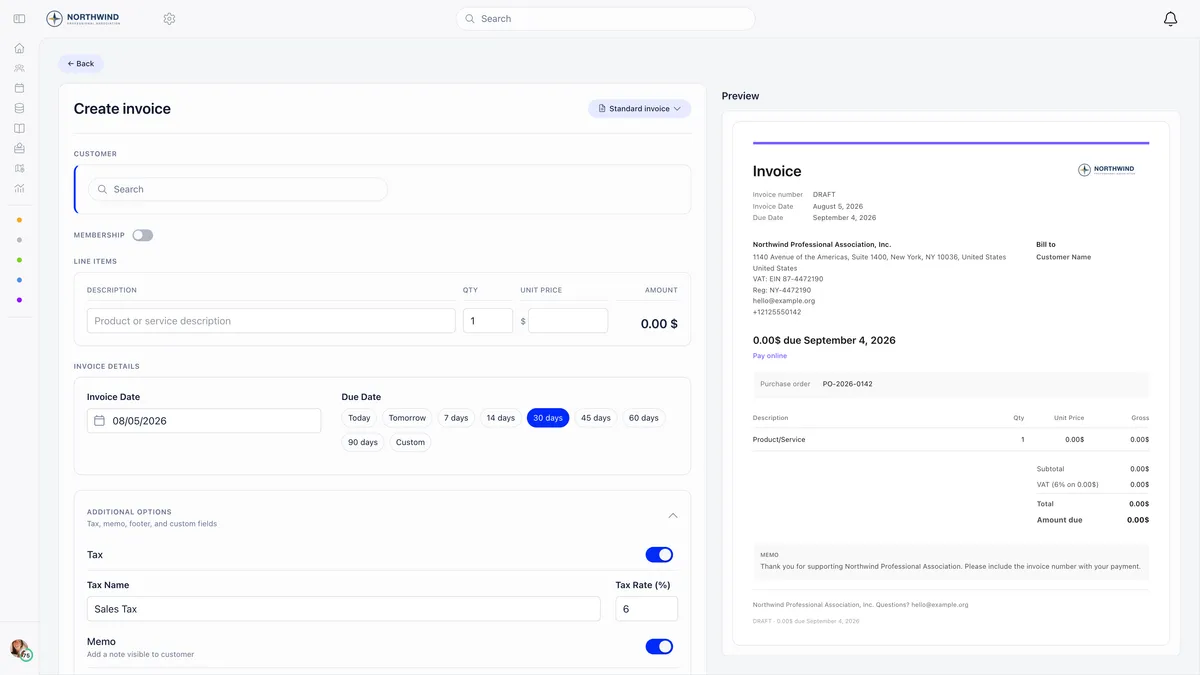
- Pick the payer. Search for a member, a contact or a company. Exactly one of the three, because an invoice cannot be split across two payers. Selecting one loads its billing block, which you can edit for this invoice alone. Leave Also update customer record with these details ticked if you want your edits written back to the customer as well.
- Decide whether it is a membership invoice. The Membership switch adds a level, a start date and an end date. That is what makes marking it paid extend the member’s or company’s membership. Contacts cannot be given membership invoices.
- Enter the line. A manual invoice carries one line: description, quantity, unit price. Multi-line invoices exist, but only on the ones Orgo generates itself for membership payments, where a joining fee is the second line.
- Set the dates. An invoice date, then a due date chip: Today, Tomorrow, 7, 14, 30, 45, 60, 90 days or Custom. Thirty days is the default.
- Add anything else. Additional options holds the tax name and rate, a memo and a footer that the customer sees, and custom fields printed on the document. Internal notes at the bottom are never shown to the customer.
Save, and the invoice exists as unpaid with a number, a series and a rendered PDF.
Numbering and series
Every invoice carries two identifiers, and they are not interchangeable.
| Identifier | How it is set | Where it shows |
|---|---|---|
| Invoice number | The next number after the highest one your organisation has already used. Starts at 1 and does not reset in January | Always. The downloaded PDF is named after it |
| Series | Five random characters, drawn from an alphabet with no I, L or 0 so the code cannot be misread | On the printed document when there is one, falling back to the number |
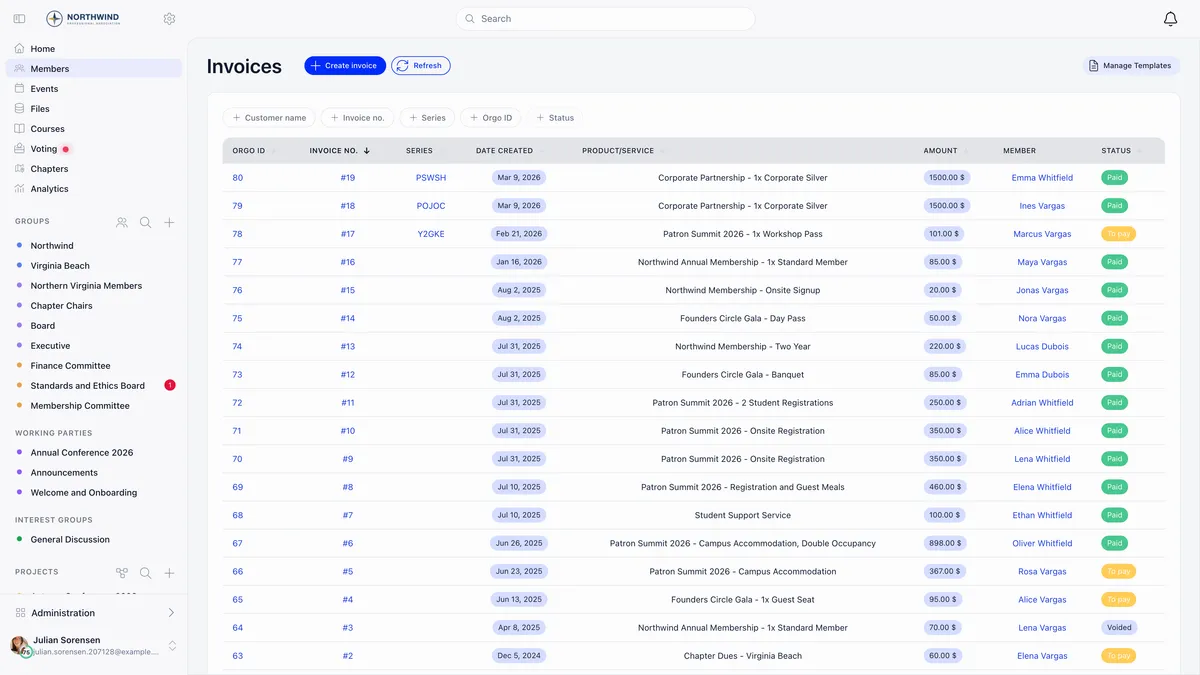
You can search the list on either identifier, plus the customer name and the internal Orgo ID. Note the voided row in the list: voided and refunded invoices keep their number. A gap in the sequence is impossible to explain to an auditor, a voided invoice explains itself.
Editing before it is paid
Edit is on the invoice while it is unpaid, and it stays there after it is paid. It disappears only once the invoice is voided or refunded.
Editing rebuilds the stored document from your changes and sends nothing. Nobody is emailed a correction, so if the customer already has version one, tell them or send the new one by hand.
Three things you cannot change: the number, the series and the status. Everything else on the form is fair game, including the payer, the amount, the dates, the tax, the memo and the billing details.
Getting it to the customer
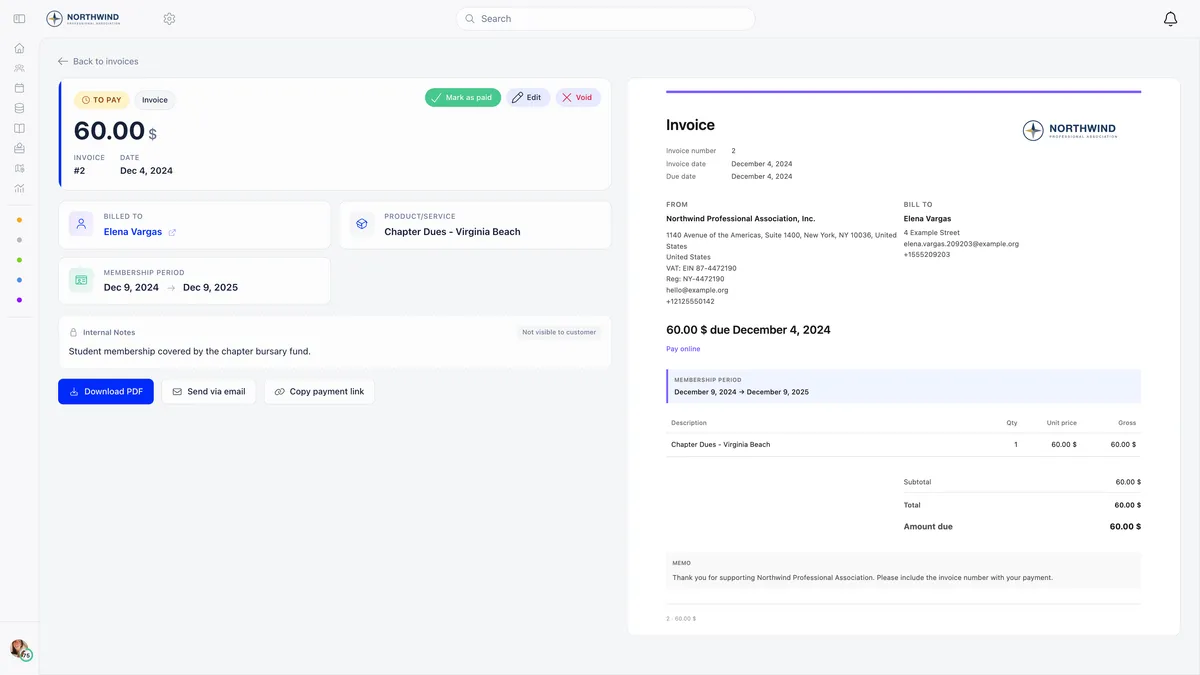
Three actions sit under the document, and each behaves differently.
- Download PDF saves the file named after your organisation short name and the invoice number, not the series.
- Send via email sends it now with the PDF attached, even when automatic emails are switched off. That is the escape hatch for sending one invoice by hand during a quiet batch of corrections.
- Copy payment link copies a public checkout link that needs no login. It works only while the invoice is unpaid. The button stays visible afterwards, so a link copied from a paid, voided or refunded invoice fails when the customer opens it.
The email goes to the member’s address, the company’s contact address with its CC addresses copied in, or the contact’s address. If none of them has an email, nothing is sent and nothing tells you so.
What language it comes out in
The document and the email that carries it are written in your organisation’s default language, never the customer’s.
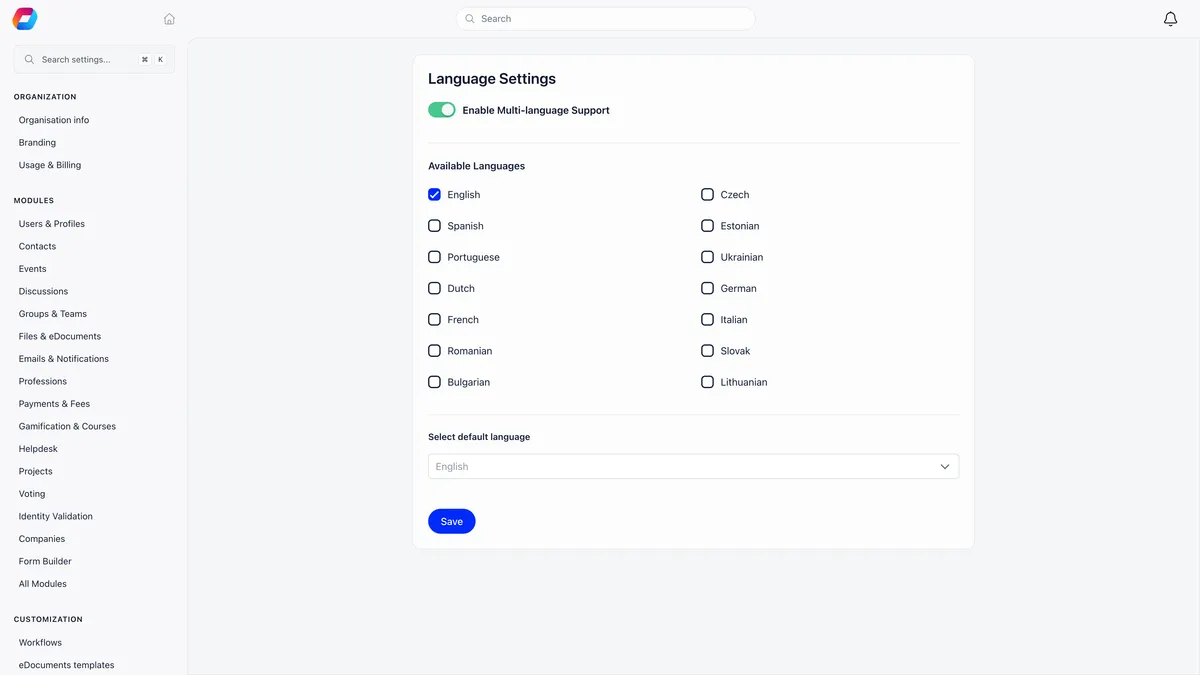
Everyone billed by the same organisation gets identical wording. Fourteen languages are covered and a default outside them falls back to English. A Czech organisation gets Czech headings, Czech tax labels, dates written the Czech way and comma decimals, and the email follows: subject line, the paid or due-on line and the pay button.
What you typed is never translated. Line descriptions, the memo, the footer and your custom fields print exactly as entered, which matters if you write them in a different language from your organisation default.
Void, or mark as refunded
Which one you need depends entirely on whether money changed hands. There is no third option, and neither can be undone.
Mark as refunded is bookkeeping, not a payment. The dialog says so in as many words, and it is worth reading before you confirm.
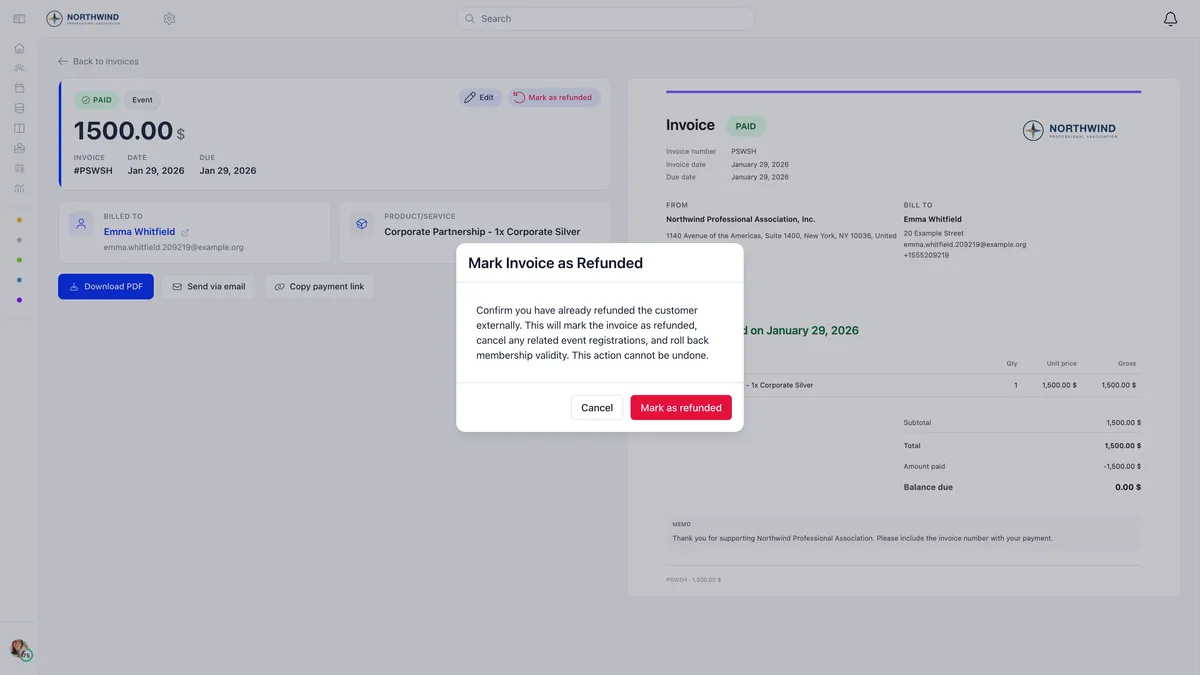
What it does do is unwind everything the payment set off. The invoice gets a REFUNDED badge, the linked payment record drops out of your totals, a member’s fee validity date is recalculated from the payments that survive, and confirmed event registrations are cancelled with their seats released.
If you want the customer’s money actually returned, do that first from the payment itself, then record it here.
Invoicing a payment that already happened
A member paid a fee months ago and now needs a document for it. You do not raise a fresh invoice by hand.
Open your payments list, find the successful fee payment, and use Generate Invoice in the row menu. It appears only on a successful fee payment that has no invoice yet, and never on a registration fee row. Orgo builds the invoice and opens it for you to edit, and sends the payer nothing, so you can check it before pressing Send via email. The fee payment itself, and the membership period it bought, belong to how Orgo manages memberships rather than to the invoices module.
Before you correct a batch of old records
Two settings decide how noisy your invoicing is, and both live with the invoice product.
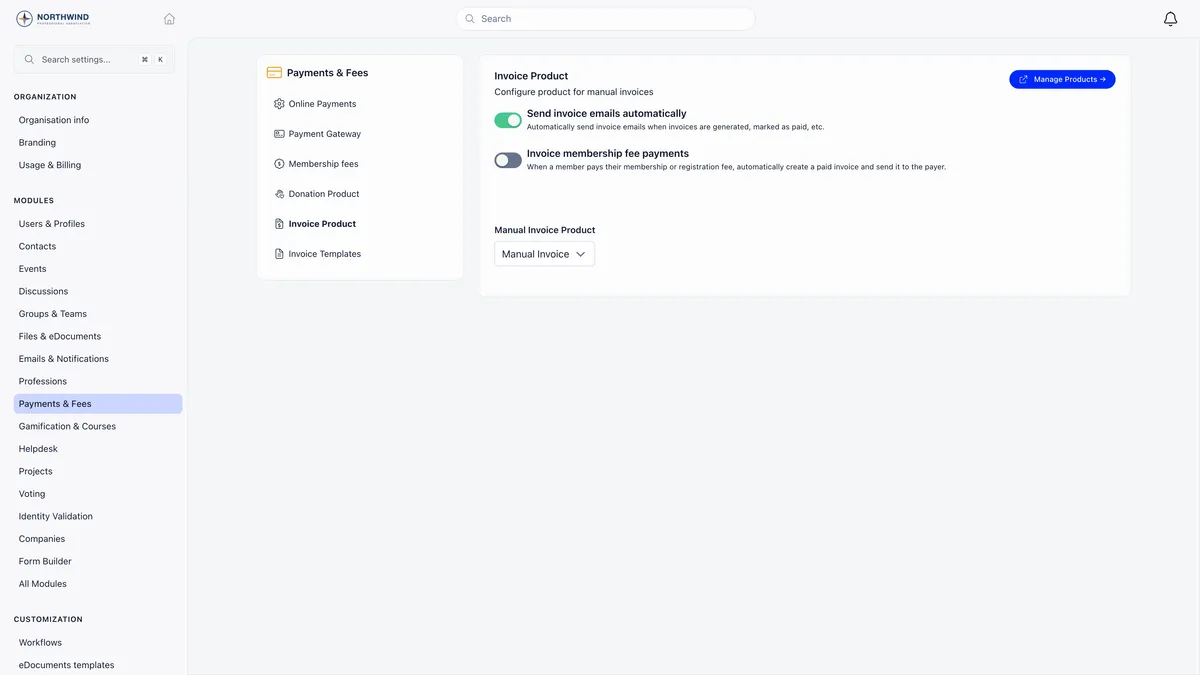
| Setting | What it does |
|---|---|
| Send invoice emails automatically | On by default. Emails the invoice on creation and again when you mark it paid. Turn it off before a batch of historical corrections, then back on |
| Invoice membership fee payments | Off by default. When a member pays a membership or registration fee online, creates a paid invoice and emails it to them |
| Manual Invoice Product | The product every manual invoice is booked against |
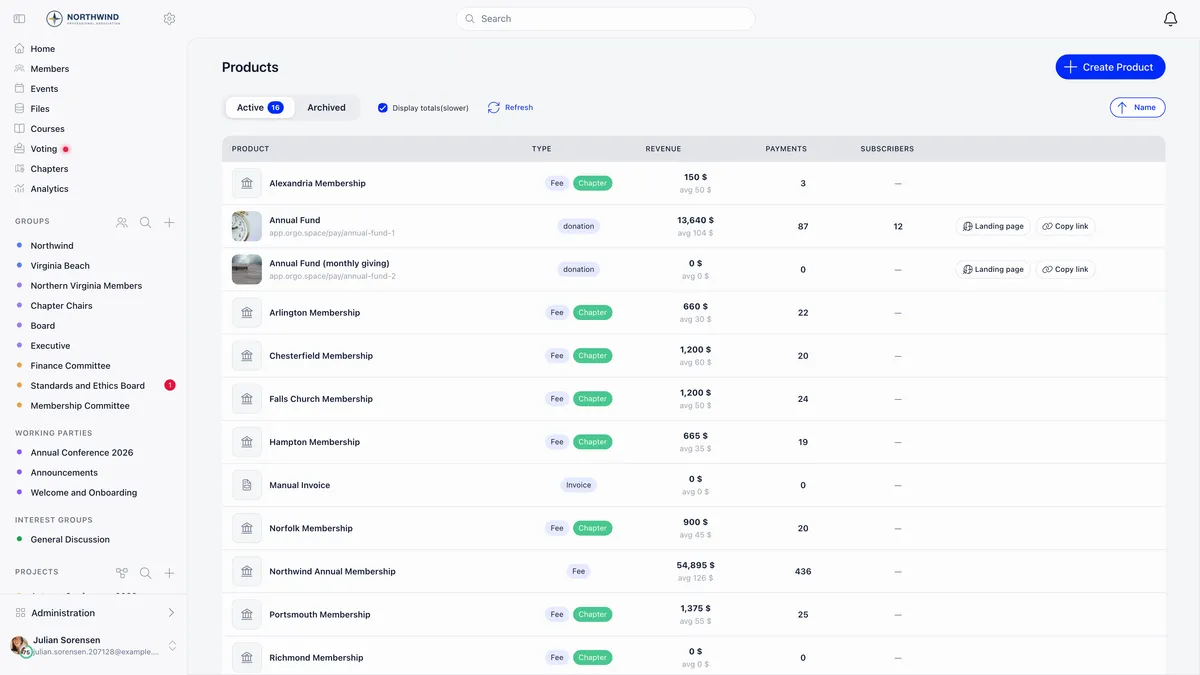
That last one has a trap in it. You can create and send an invoice without it, but marking one as paid will fail with an error pointing you at the invoices module settings. Orgo normally creates the product for you when the module is switched on, so it is usually already sitting in your products list.
Templates, so you do not retype the same things
A template pre-fills the parts of an invoice that never change. Reach them from Manage Templates on the invoices list, or from the invoice template settings.
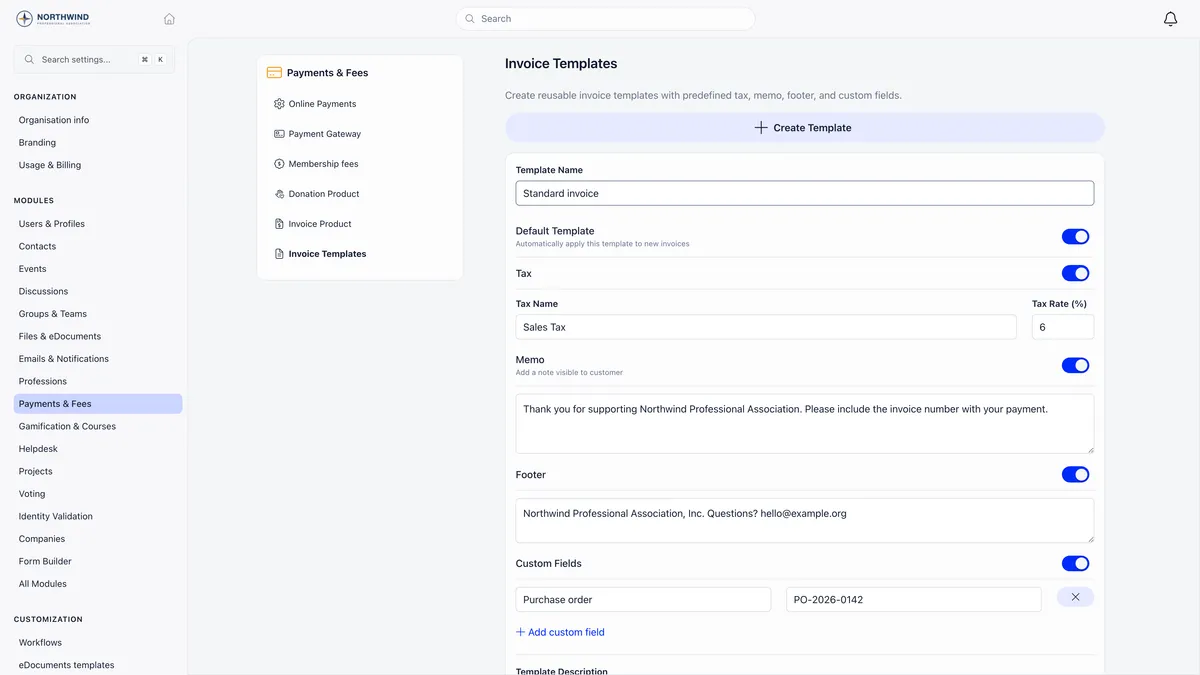
A template carries a tax name and rate, a memo, a footer and custom field pairs, and one of them can be the default applied to every new invoice. A template only fills fields you have not already set, so you can apply one and then override any single value.
Two limits worth knowing. The layout itself is fixed: there are no placeholders to write into a memo or footer, because the organisation and customer details, the line table and the totals are filled in by Orgo. And on membership invoices the template’s flat tax rate is ignored, because each line carries the VAT rate from its own price. That is covered in how to charge VAT.
Related
- How do I charge VAT on membership fees?
- How do I record a payment made outside Orgo?
- My member paid but Orgo still shows them as unpaid
- How do I take card payments with Stripe?
- Cancelling and correcting invoices
- Invoices reference
Frequently asked questions
Does marking an invoice as paid send the customer an email?
Yes. Marking an invoice as paid emails the customer the invoice again, now stamped PAID. This applies to historical corrections as well, so a tidy-up of last year's records sends real email to real people. Turn off Send invoice emails automatically in your invoice product settings before doing a batch, then turn it back on. The manual Send via email button ignores that switch, which is how you still send one invoice by hand while automatic sending is off.
I raised an invoice by mistake. Can I delete it?
Do not delete it, void it. Void is offered while the invoice is unpaid, it cannot be undone, and the invoice stays in your list with its number intact. That is the point: a missing number is unexplainable, a voided one answers the question. If the invoice was already paid, Void is not offered at all and the action you want is Mark as refunded, which moves no money on its own.
Why did my invoice come out in the wrong language?
Because the invoice follows your organisation's default language, not the customer's. Everyone billed by the same organisation gets the same wording, set under Settings, Customization, Languages. Fourteen languages are covered and anything outside them falls back to English. What you typed is never translated, so a line description, memo or footer written in another language prints exactly as entered.