
A custom field is a question you add to member records when Orgo has no column for it: T-shirt size, licence number, dietary needs, a professional registration number. You create it once on the Custom Fields page under Users & Profiles in settings, which needs the organisation administrator permission (ADMIN_TENANT), and then you put it on a form. A field that has been created but not added to a form is not shown anywhere.
Who can see the answer is a separate setting called visibility, and it is the one worth reading slowly. It has three levels, it is enforced on the server for reading and for writing, and one of its effects catches almost everybody: a field set to anything above Public collects nothing at all through your public registration page.
Create the field
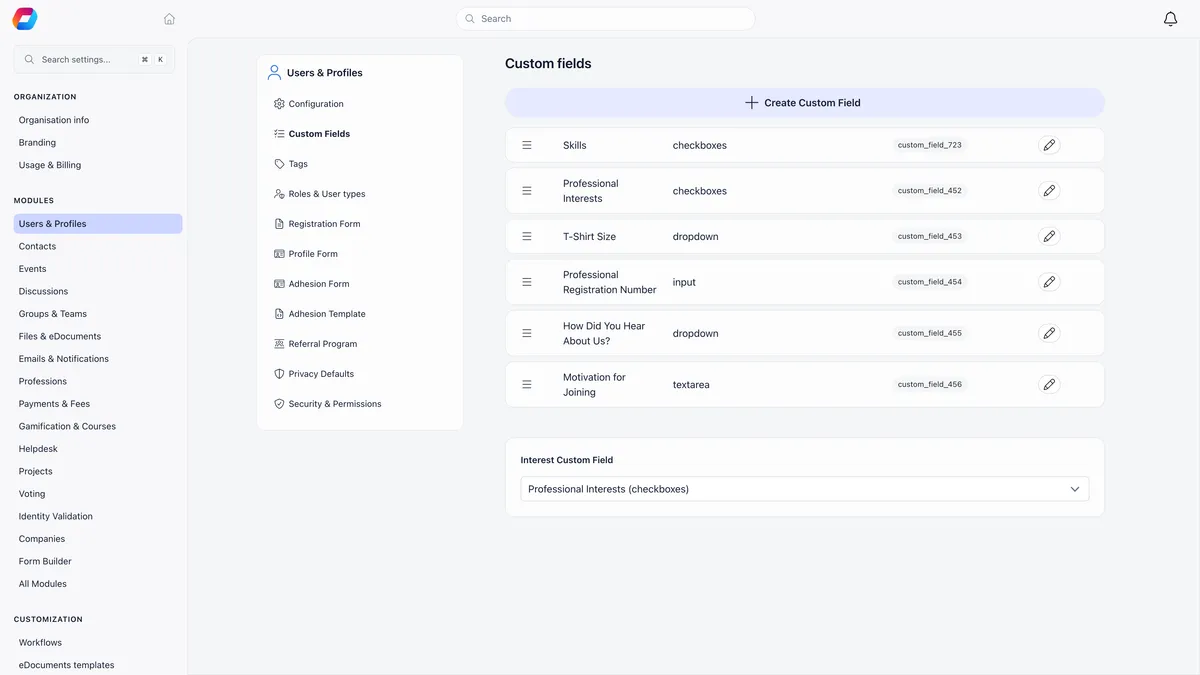
- Open the Custom Fields page and press Create Custom Field. The editor opens inline at the top of the list.
- Give it a title and pick a field type. Save stays disabled until both are set.
- For Dropdown, Checkboxes and Radio choice, fill in the options. Two placeholders are there to start with, and you can add, rename, remove and drag them into order.
- Set visibility to Public, User or Admin.
- Save, then add the field to a form.
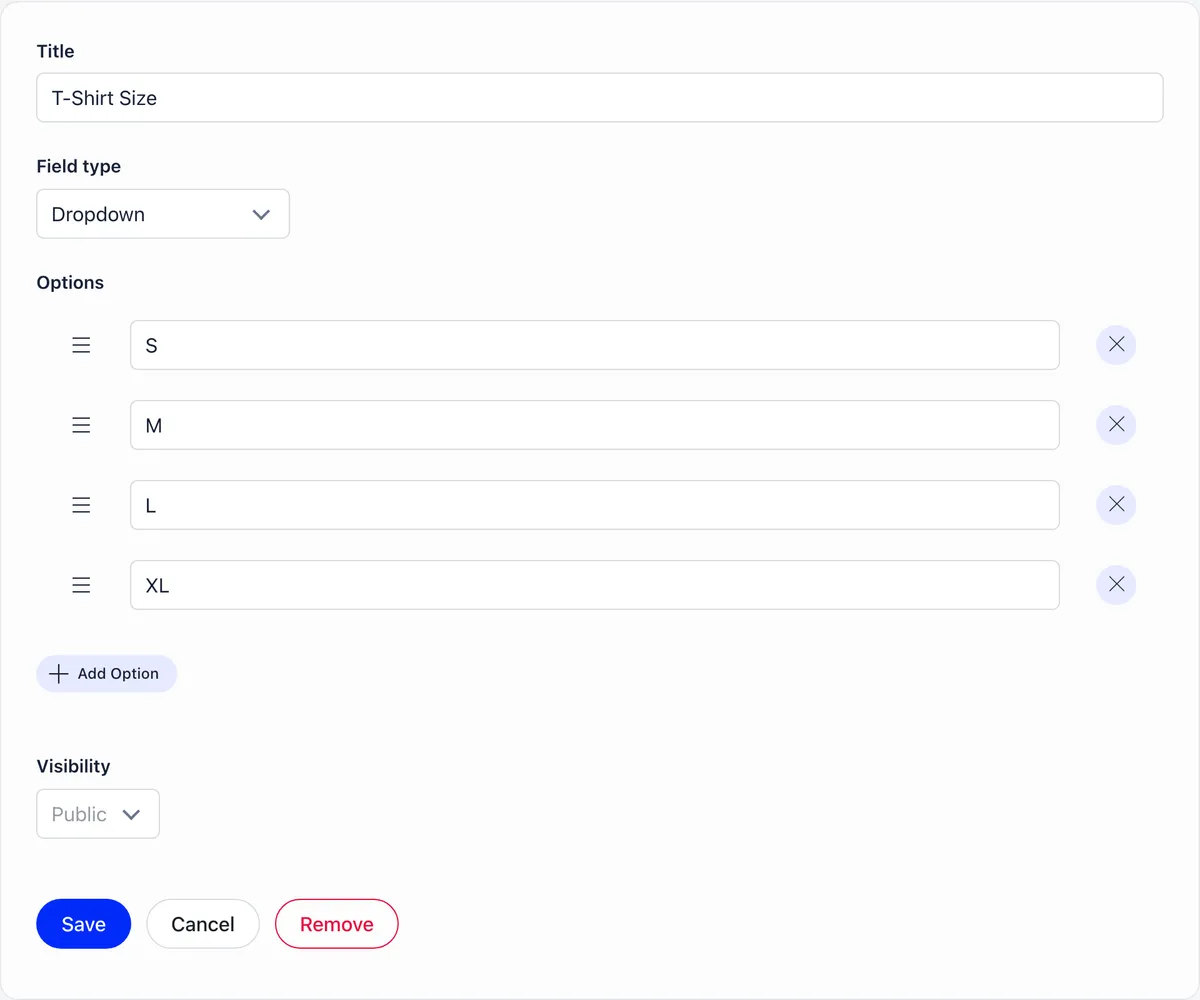
Each row in the list carries a reference tag such as custom_field_453. That is the field’s handle in spreadsheet imports, as the column header, and in e-document templates, as a {custom_field_453} placeholder.
The field types
| Type | Stores | Can be encrypted |
|---|---|---|
| Input text | One line of text | Yes |
| Input numeric | A number | Yes |
| Textarea | Multi-line text | Yes |
| Date | A calendar date | Yes |
| Dropdown | One option from a list | No |
| Checkboxes | Several options from a list | No |
| Radio choice | One option from a list, all shown at once | No |
| Switcher (True/False) | On or off | No |
| File Upload | An uploaded file | No |
There is no URL type and no email type. Use Input text for both.
One trap with choice fields
Dropdown, Checkboxes and Radio choice store the option’s key, not its text, and the label is looked up when the value is displayed. Two consequences follow:
- Renaming an option is safe. The new wording appears everywhere, including in answers members have already given.
- Deleting an option is not. The answers that pointed at it are not deleted. They stop resolving to a label and render as a bare number.
Rename rather than delete and recreate.
Visibility decides who can read the value
| Level | Who can read the value | Who can write it |
|---|---|---|
| Public | Any signed-in member of your organisation, plus the member and your staff | The member and your staff |
| User | The member and your staff. Other members do not see it at all | The member and your staff |
| Admin | Your staff only. The member cannot see it on their own profile | Your staff only |
“Your staff” means an HR or Financial permission held organisation-wide, or the same permission held over the member’s own chapter. Guest accounts see no custom field values at all. On forms, the two narrower levels are labelled “(user only)” and “(admin only)”.
Visibility is set organisation-wide, not per user type. To ask different questions of different kinds of member, use per-type registration forms instead.
Only Public fields survive registration
The write check asks who is signed in at that moment. On a public registration page nobody is, so nothing above Public passes. The value is dropped without an error. The applicant fills the box, the account is created, the success screen appears, and the answer never reaches the profile.
So only Public fields belong on a registration form. If you need the answer at sign-up but not on public display, collect it as Public and control who can open the member’s profile at all through privacy settings. Or ask for it after joining, on the profile form, where the member is signed in and User visibility behaves as you would expect.
Same chapter means the same chapter
Reading a User or Admin value on somebody else’s profile takes either an organisation-wide staff permission or a chapter-level one plus the reader and the member being in the same chapter. That comparison is a direct match, with no walk up the hierarchy.
A regional officer can therefore open a member’s profile in a chapter below their region, read the private phone number, and find the organisation’s own custom fields missing from the same screen. Two different rules on one page: privacy settings on built-in profile data honour a regional permission, and custom field visibility does not.
If a regional role genuinely needs those values across its region, the only permission that delivers them today is an organisation-wide one. Weigh that reach before granting it.
Put the field on a form
A field is available to three forms, each configured under Users & Profiles in settings and each needing ADMIN_TENANT.
The profile form decides what a member profile contains. Custom fields sit on their own tab in the Available Fields panel and can be interleaved anywhere among the built-in ones.
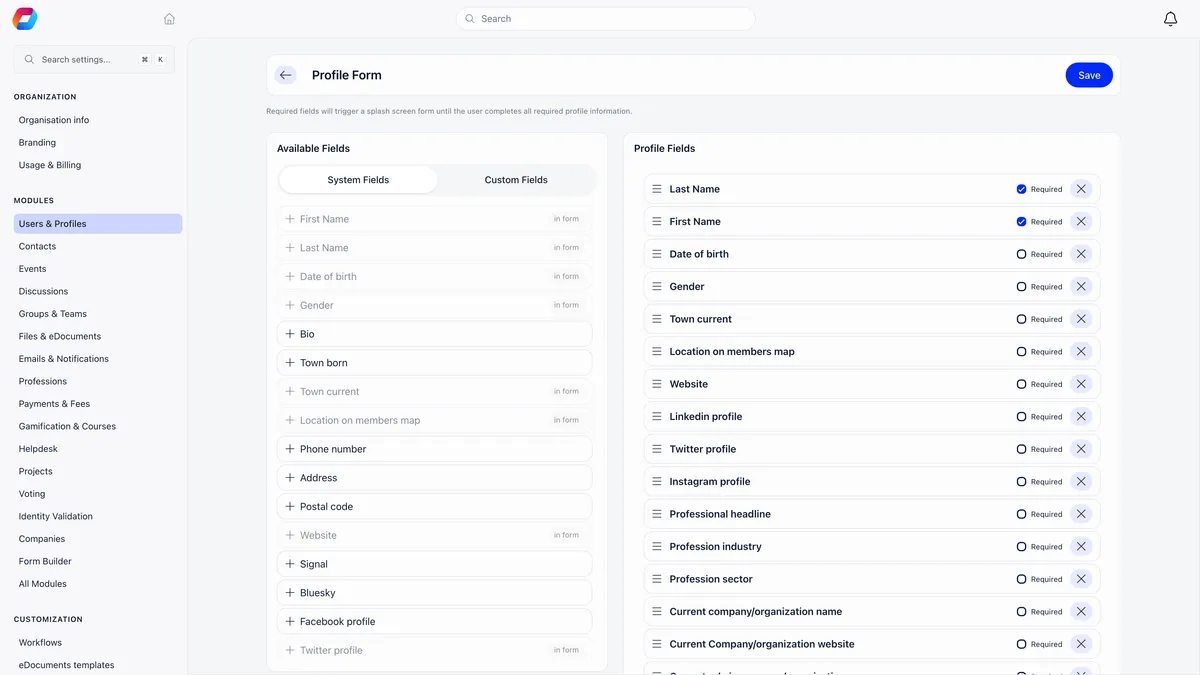
Profile rows offer Required and Immutable. Required is the fastest way to backfill from existing members, because they are asked the next time they open Orgo. Admin-only fields are skipped by that check, so a member is never blocked by a field they cannot see. Immutable locks a field once it has a value, for administrators too.
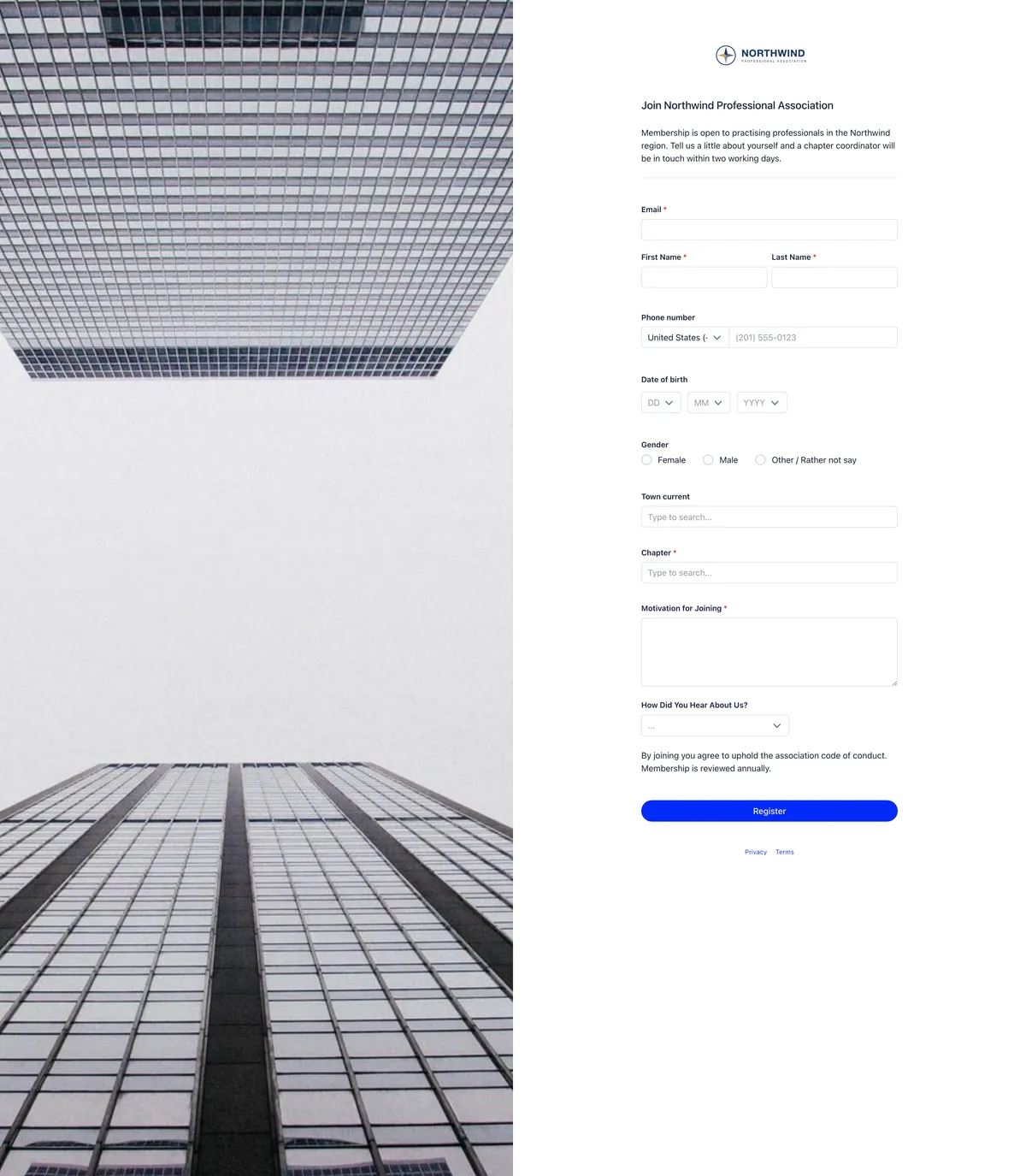
The registration form decides what a new person fills in before they have an account. Two exclusions: file upload fields cannot be used here at all, and admin-only fields never reach the public page.
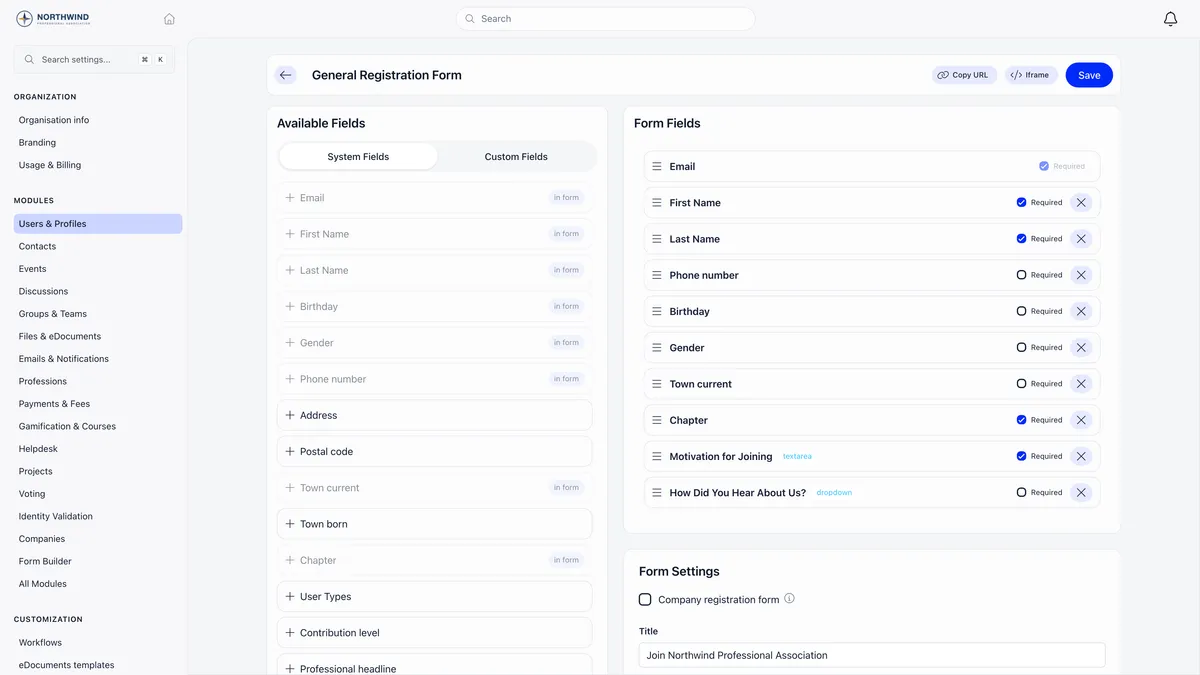
Custom fields appear on the public page in the order you set, mixed in with the built-in ones.
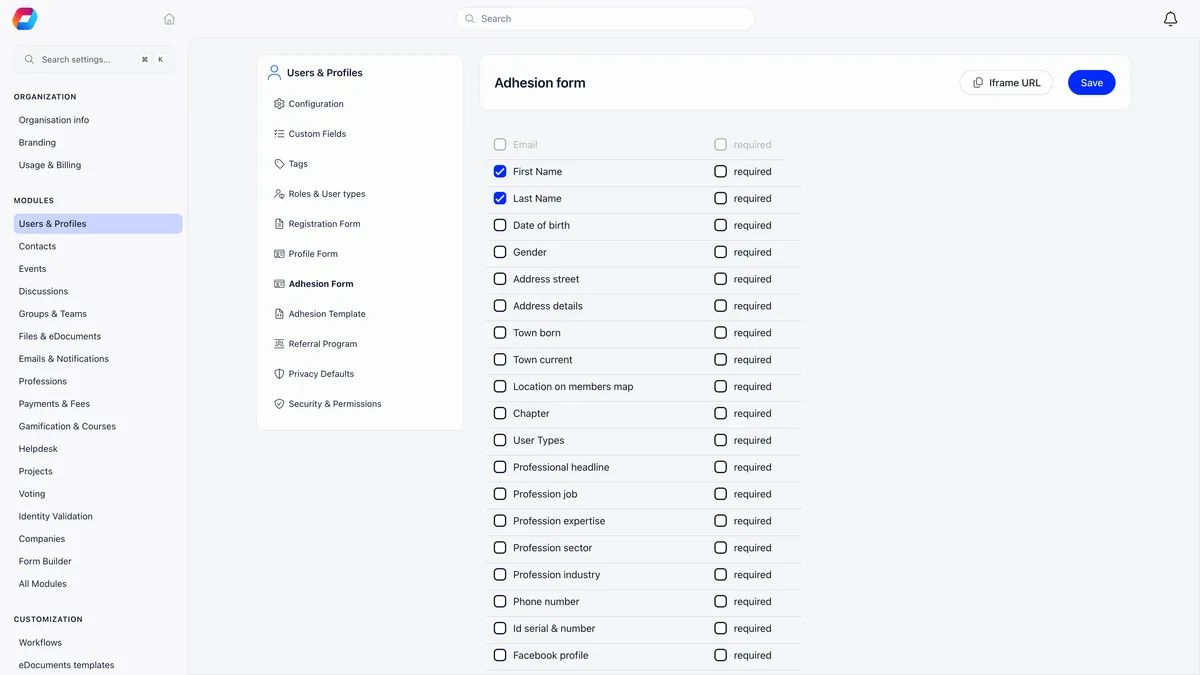
The adhesion form is the membership application. Every custom field you have defined is listed under the built-in fields, each row carrying an include checkbox and a required checkbox.
Contact records reuse whatever is on the profile form. Event registration forms and the standalone form builder create their own fields instead, scoped to that event or that form.
Read the values back
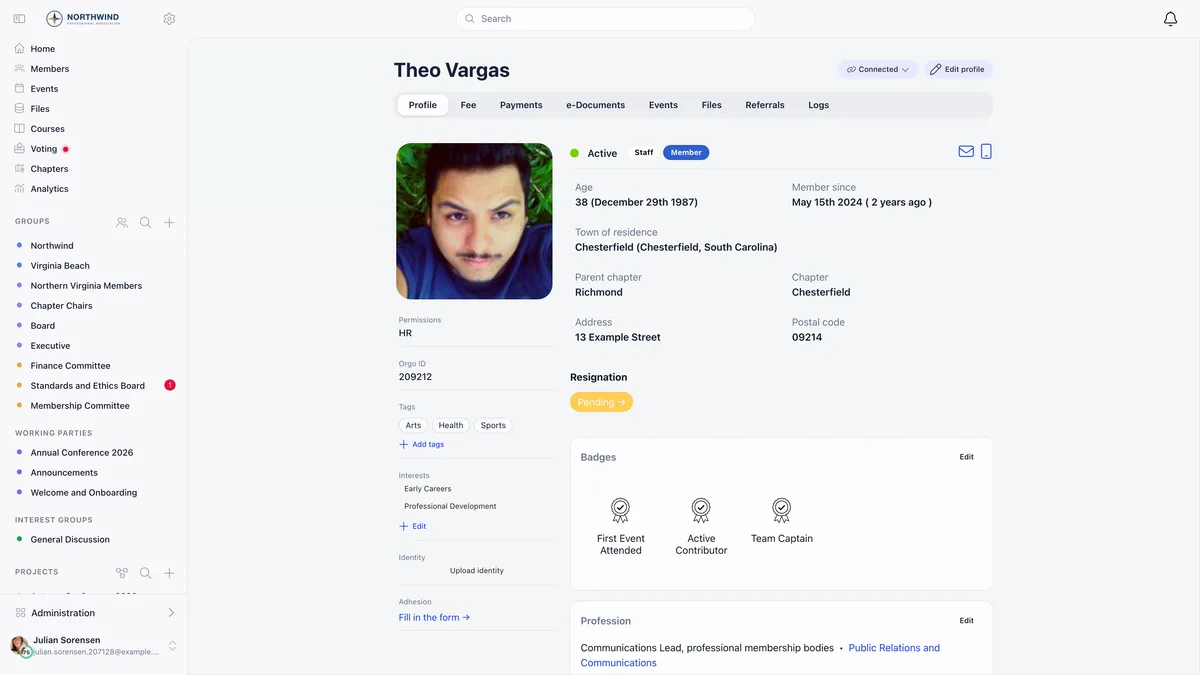
On a member record, custom fields render in the position you gave them on the profile form. One field gets special treatment: the Interest Custom Field selector at the bottom of the custom fields list promotes one Dropdown, Checkboxes or Radio choice field into its own profile section, adds an interests filter to the member directory, and feeds an interests breakdown into organisation statistics.
In the member directory, turn a custom field column on from the table icon above the list. That menu exists in table view only, so nothing appears while you are in Gallery. Both the menu and the columns need an organisation-wide HR permission, or ADMIN_LOCAL while looking at that administrator’s own chapter list.
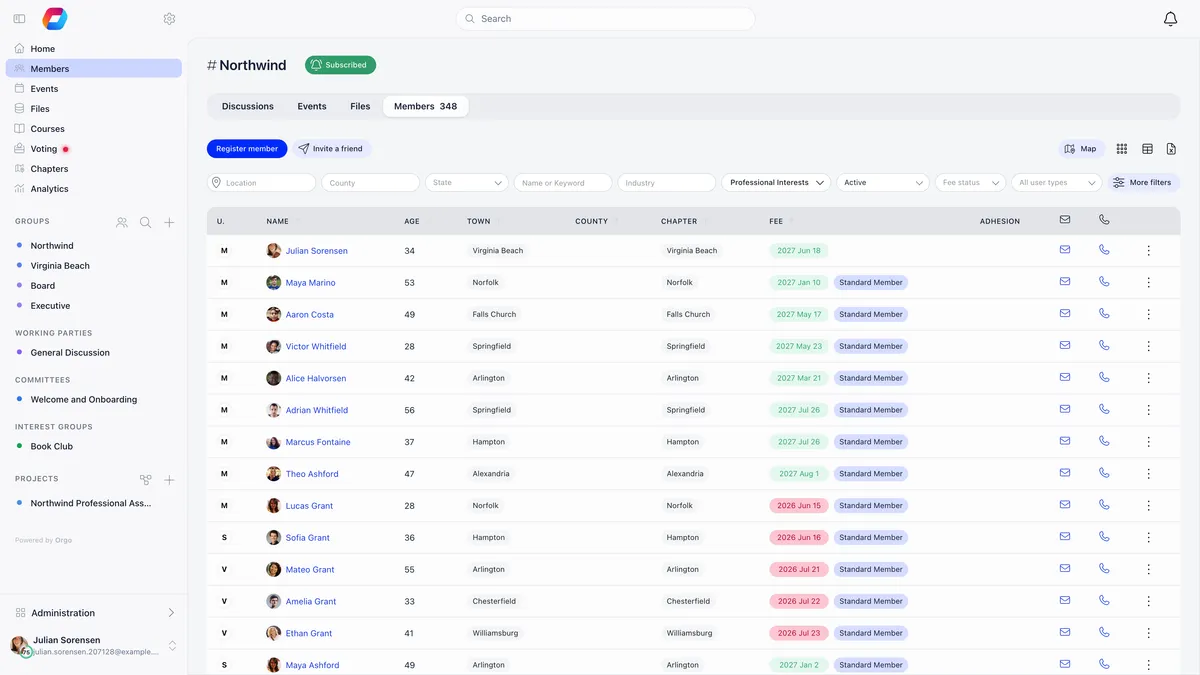
A chapter administrator can therefore add a custom field column to their own chapter’s list but not to the organisation-wide directory. For that, use the profile, export the list, or ask an organisation administrator.
Encrypt the sensitive ones
The encryption toggle sits in the field editor and only an organisation administrator sees it.
- Only Input text, Input numeric, Textarea and Date can be encrypted.
- You get five encrypted fields per organisation. To go past the cap, decrypt or delete one.
- Turning encryption on re-encrypts the stored values and turning it off decrypts them. Both run in the background after you save, and both are recorded in your organisation’s activity log.
- Every read that decrypts a value is logged: who read it, from which address, through which endpoint.
Switching encryption off asks you to type the field’s name to confirm, because it is not a display setting. It rewrites every stored value back to plain text.
Reading and editing an encrypted field is no different from any other. The encryption is invisible on screen.
When a tag is the better answer
Tags are the lighter alternative: a name your staff apply to profiles for filtering and segmentation. Members never see or set their own tags, and a tag carries no value and no type.
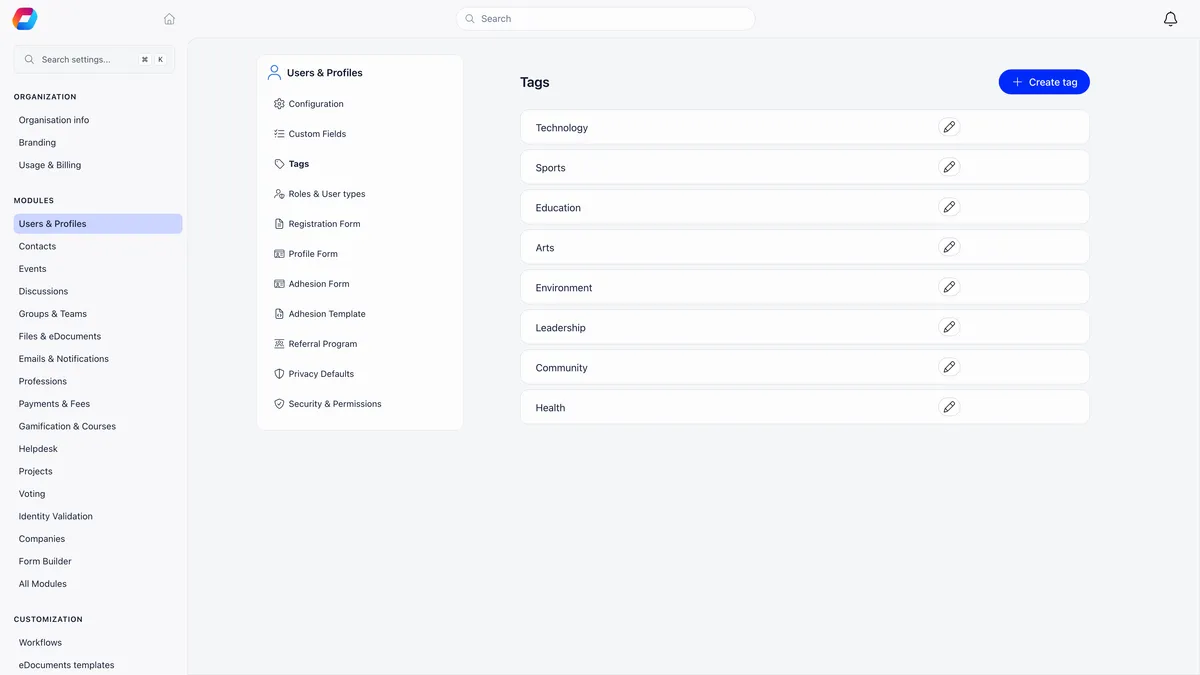
Use a tag when your staff need to label people. Use a custom field when you need a member to answer a question. Both are ways of shaping the member record in Orgo around what your organisation actually tracks.
Deleting a custom field removes every answer members gave and strips the field from all three form configurations. It cannot be undone. To stop collecting a field without losing the data, take it off the forms and leave the definition in place.
Related
Frequently asked questions
Why are the answers from my registration form empty for everyone?
Check the field's visibility. Anything above Public is discarded on the public registration pages, because the write check asks who is signed in and at registration nobody is. There is no error: the applicant fills the box, the account is created, and the answer never reaches the profile. Set the field to Public if you need it at sign-up, or move the question to the profile form, where the member is signed in.
Which custom fields can be encrypted, and how many?
Only Input text, Input numeric, Textarea and Date can be encrypted, and only an organisation administrator sees the toggle. You get five encrypted fields per organisation. Choice, switch and file fields cannot be encrypted at all. Turning encryption on or off rewrites every stored value for that field in the background and files an entry in your organisation's logs.
Why can a regional officer see a member's phone number but not our custom fields?
They are governed by two different rules. Privacy settings on built-in profile data honour a regional permission. Custom field visibility does not: reading a User or Admin value with a chapter-level permission requires the reader and the member to be in the same chapter, compared directly with no walk up the hierarchy. Only an organisation-wide staff permission reads those values across a region.