
Use a newsletter signup widget. You style it inside Orgo, copy one snippet, paste it into your own website, and the people who sign up land in your contacts ready for the next campaign.
Before you build one, make sure a mailing list is what you actually want. Four different things get called “the signup form on our website”, and only one of them collects newsletter subscribers.
Creating a widget
Newsletter subscription widgets sit in the Administration area, under the communication section. You need communication or event rights at organisation level, and the email campaign module has to be switched on. The widget is the collection end of Orgo’s newsletter software; the campaign composer is the sending end.
Press Create Widget, give it a name and save. The styling options appear once the widget exists, so a new widget is always two steps.
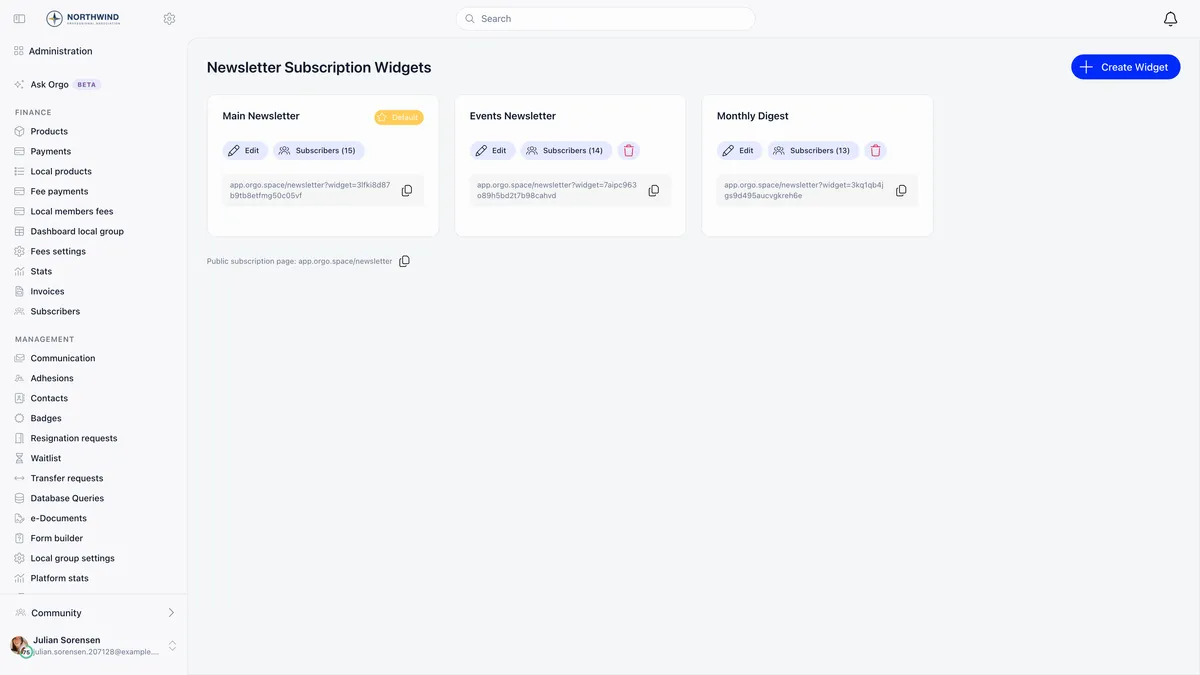
Each card carries the widget’s own public URL, an Edit button and a Subscribers button showing how many people came in through it.
One widget is always the Default, marked with a star. It is the one served when a page asks for your organisation’s form without naming one, including the public subscription page for your whole workspace. You cannot delete the last widget, and you cannot delete the default one either: move the star with Make default on another widget first, then delete.
What you can change, and what you cannot
The editor puts the settings on the left and a live preview plus the embed code on the right.
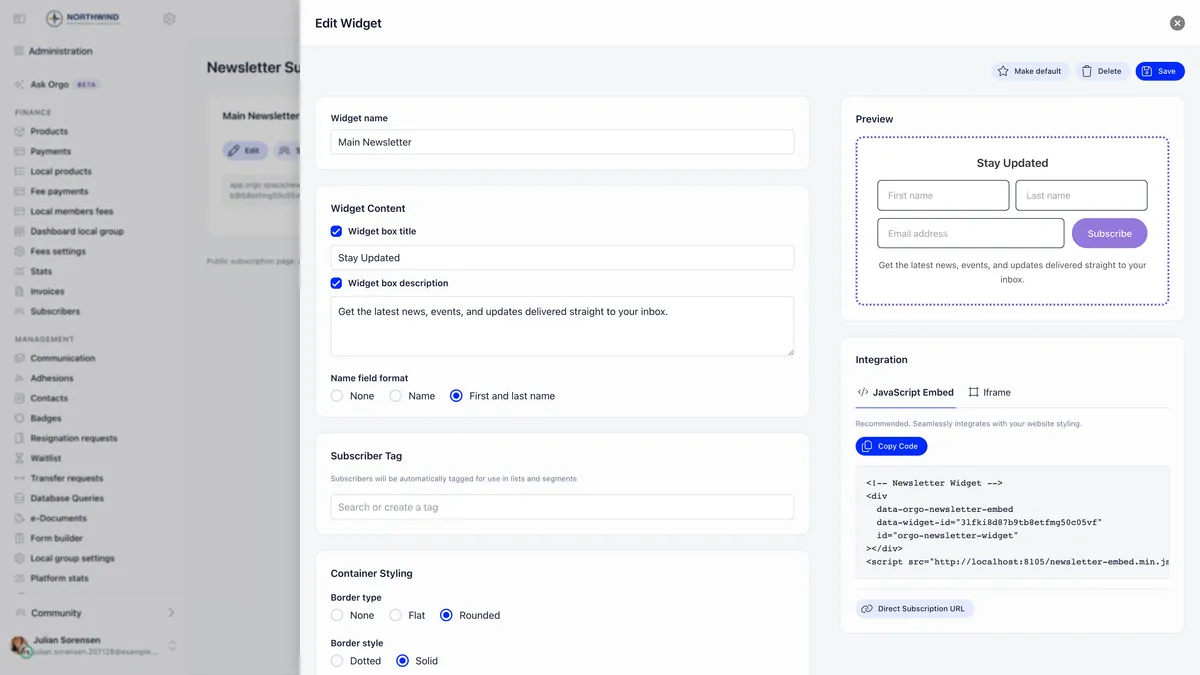
| Section | What it controls |
|---|---|
| Widget Content | The box title and description, each with a checkbox to hide it, and whether to ask for a name: none, one full name field, or separate first and last name fields |
| Subscriber Tag | A tag applied automatically to everyone who subscribes through this widget |
| Container Styling | Border type and style, width, colour, padding, background, text colour, font size, spacing between elements |
| Input Styling | Field padding and corner radius |
| Button Styling | Corner style, background colour, text colour |
Only the email field is ever mandatory. Name fields appear only if you turn them on, and then they are required.
The widget has no language setting, and this is worth knowing before you launch. The title and the description you type are the only wording you control. The field labels, the Subscribe button and the message shown after someone submits come from a fixed set built into the form. Render the embed on your own page and read it before you announce it anywhere. If the surrounding labels do not come out the way you expect, the iframe and the hosted page render inside Orgo and follow your workspace language instead, so either of those is the fix.
The confirmation email is a separate matter again. It follows your organisation’s default language rather than the widget or the visitor, and covers English, Romanian and German, falling back to English for anything else.
Putting it on your site
The Integration panel offers three ways to do the same job.
Use Copy Code rather than retyping anything you see in a screenshot or a guide. The snippet is generated from the address you are using Orgo at, so a copy from somewhere else points at the wrong place and quietly does nothing.
What happens when somebody subscribes
This is the part that produces most of the questions about widgets, and it is worth understanding before you have people asking you why they never hear from you.
When the link is clicked, one of three things happens. An address that already belongs to a member switches that member’s newsletter setting on. An address that already belongs to a contact does the same on the contact. An address Orgo has never seen creates a new contact with its source recorded as the newsletter. In all three cases the widget’s tag is applied and the subscription is counted against the widget.
Two consequences follow from that, and both come up in practice.
Submitting twice in quick succession is refused. A second attempt from the same address within five minutes is turned away so that a double click cannot send two confirmation emails. The embedded form reports this as a general failure rather than explaining it, so somebody who did not see the first email, tried again, and got an error message is looking at the guard rather than a fault.
Confirming an address that is already subscribed does nothing visible. No new subscriber row appears, the widget’s count does not move, and the tag is not applied a second time. That is correct behaviour, and it means a widget’s subscriber count is a count of new subscriptions rather than of everyone the form has ever seen.
Where your subscribers end up
Someone who confirms and was not already on file becomes a contact. The contacts list carries two columns that matter here: Newsletter, which is their subscription state, and Source, which records where they came from.
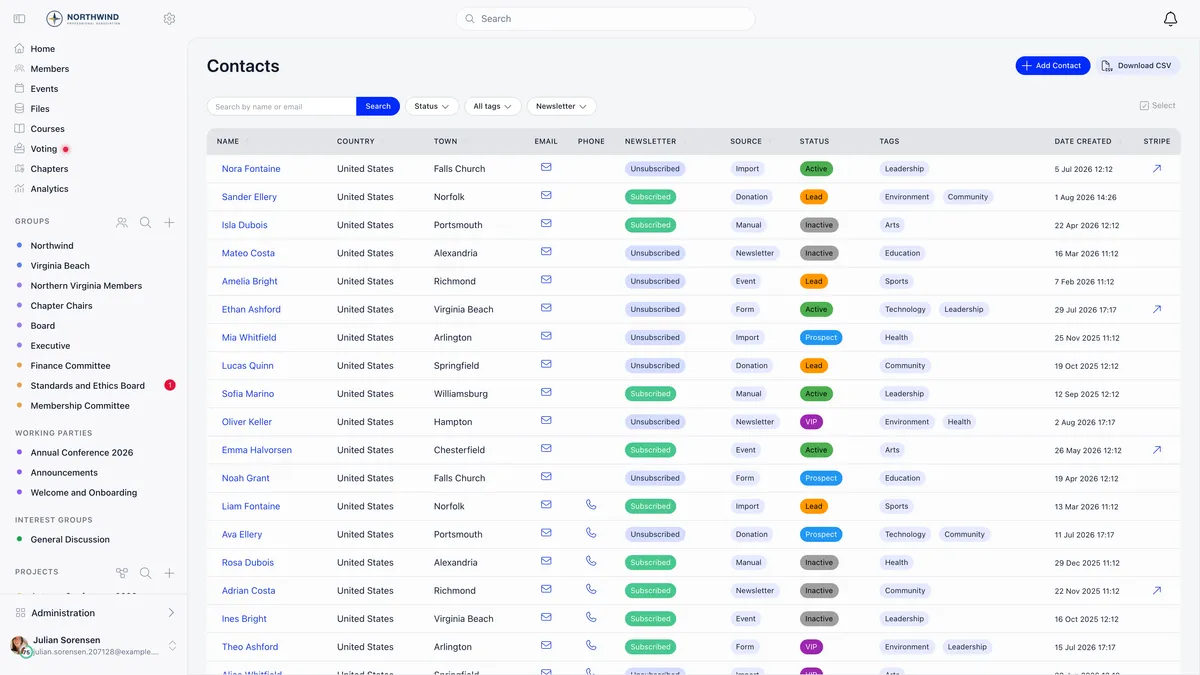
Filter Source to Newsletter and you have everyone your widgets have brought in. Filter Newsletter to Subscribed and you have everyone eligible for a campaign, whatever route they arrived by.
There is no switch on a contact record for marking somebody subscribed by hand. That is deliberate: the subscription record is meant to be evidence that a person asked to hear from you, and an admin toggle would undo that. A member is different, because the newsletter setting is one of their own notification preferences and an admin can change it on their profile. For a batch of addresses collected somewhere else, a data import can carry a newsletter subscribed column, though imported contacts will not show in any widget’s subscriber list because they did not arrive through one.
Using the tag you set
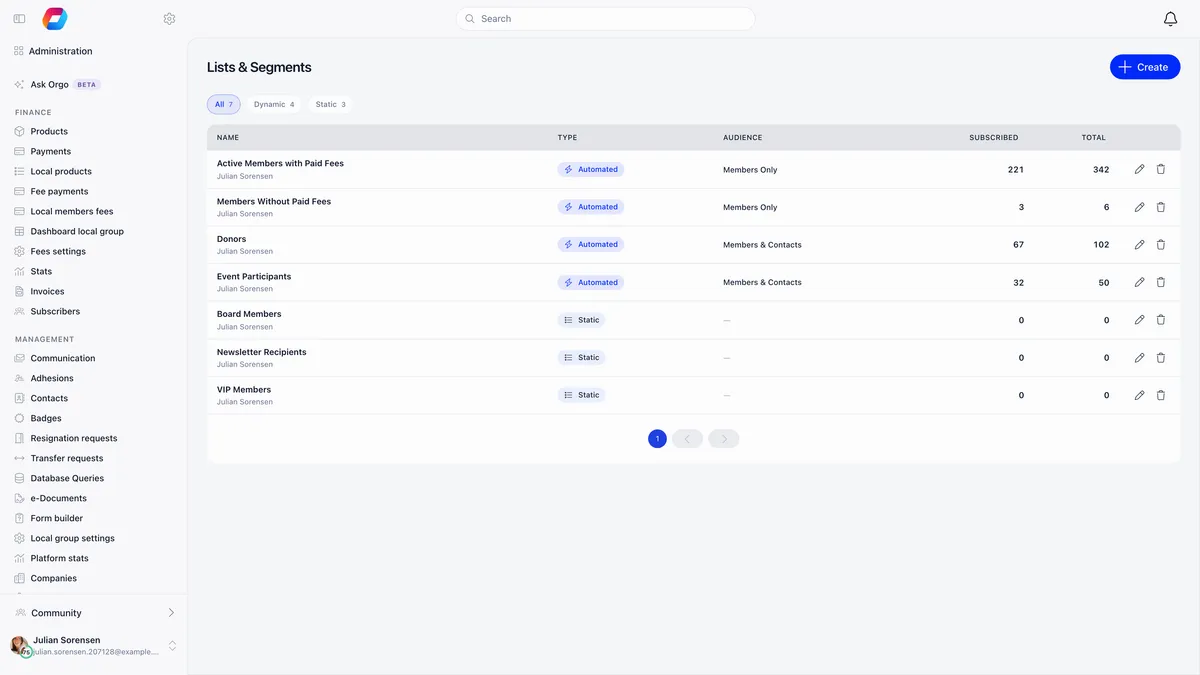
The subscriber tag is the quiet part of the widget editor that pays off later. Every widget can apply its own tag, so one form on your homepage and another on your events page produce two distinguishable groups of people.
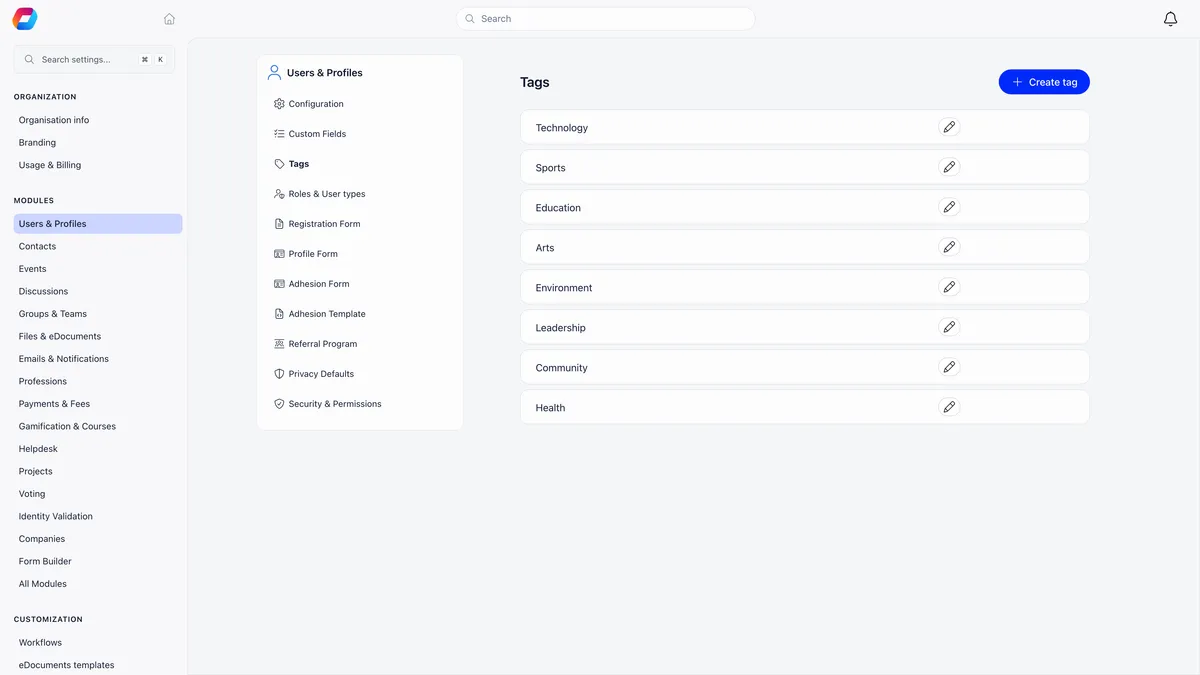
Tags become audiences through Lists and Segments. A dynamic list keeps itself up to date as people arrive, which is what you want for a signup form: build it once against the widget’s tag and it grows on its own.
Sending to them
When you write a campaign, the recipient options on the Configure tab decide who it reaches. All subscribed contacts sends to contacts only, which is usually what a website signup form is feeding. From a list uses the list you built from the widget’s tag. All members and contacts covers both.
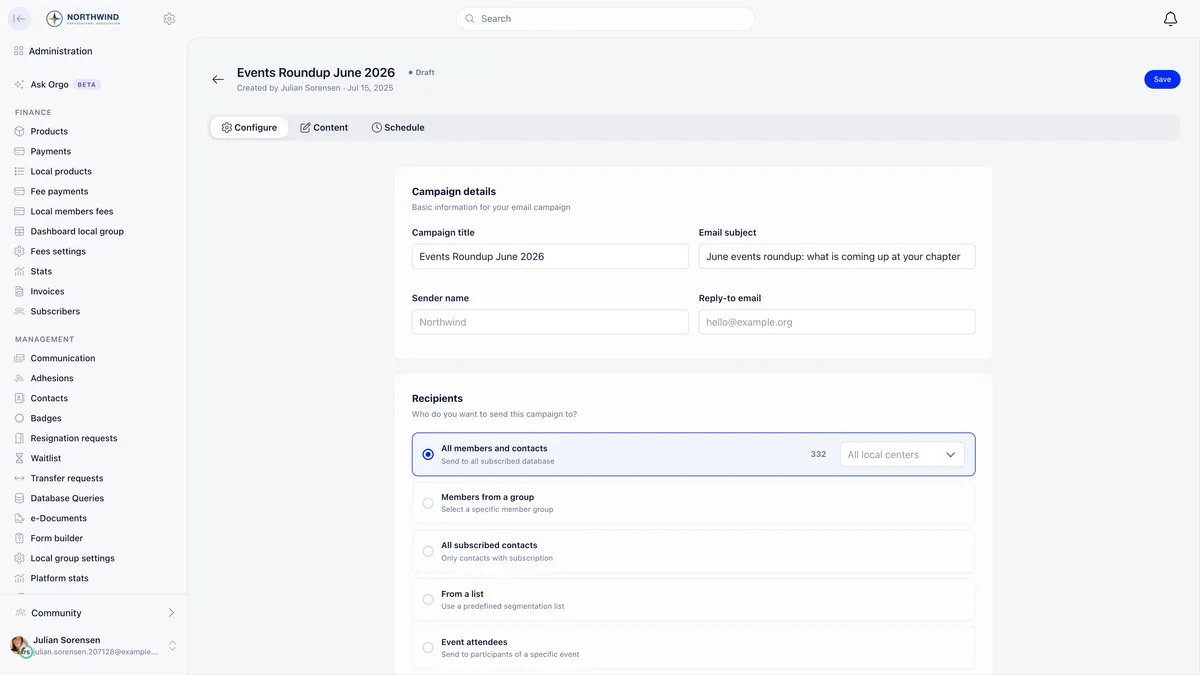
A contact is included when it has an email address and is marked subscribed. A member is included when the account is active, has an email address, and has newsletter email on in their own notification settings. Nothing else filters the list, so addresses that bounced last time are still in it until you clean them out.
The other kind of signup form
If what you actually want is people joining your organisation rather than joining a mailing list, that is your registration page, not a widget. It creates a member account, can ask for a chapter, a date of birth, custom questions and agreement to your terms, and can be configured to need approval.
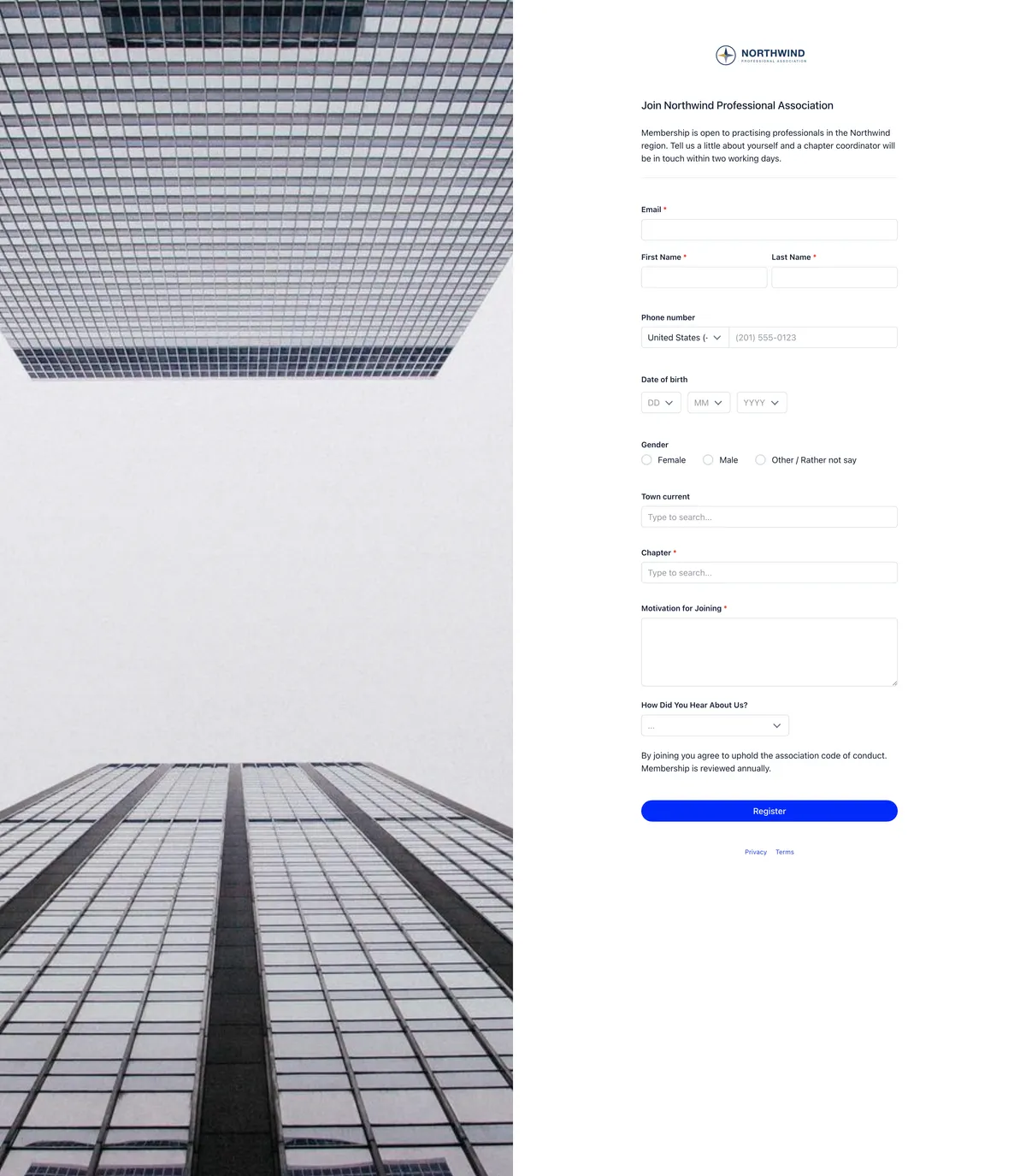
Link to it from your website in the ordinary way. A newsletter widget cannot create members, and a registration page does not subscribe anyone to your campaigns unless your organisation’s default has newsletter on.
Troubleshooting
The form does not appear on our page
Check the snippet came from your own workspace rather than being copied from elsewhere, because the address in it is generated from yours. If your site blocks third-party scripts, or a content security policy is in the way, switch to the iframe, which asks nothing of your page beyond an ordinary frame.
The subscriber count looks too low
It counts confirmations, not submissions. People who filled in the form and never opened the email are not in it, and neither is anyone who confirmed an address that was already subscribed. Both are working as intended.
We want to see who came in through one particular form
Open Subscribers on that widget’s card. It lists everyone who confirmed through that widget, newest first, linked to their member or contact record.
Somebody says they get our campaigns but never signed up
They may have arrived some other way. Open their contact record and read the Source column: import, a donation, an event, a form or added by hand are all possible, and only the newsletter source came from a widget. Every campaign also carries an unsubscribe link that works from their mail client without opening the message.
Related
- Sending a newsletter to the people you collect
- Building a mailing list from a tag
- Newsletter signup widgets reference
- Newsletter campaigns
- Contacts
- Lists and segments
- Registration forms
Frequently asked questions
Someone signed up on our website but never receives our campaigns. Why?
Almost certainly because they never clicked the confirmation link. Signing up creates nothing at all: the address stays pending until the link in the confirmation email is clicked, and only then does a contact record, a subscriber row and the widget's tag appear. Check whether they are in the widget's Subscribers list. If they are not, ask them to sign up again and look for the confirmation email, including in spam.
Can I mark someone as subscribed myself if they missed the confirmation email?
Not for a contact. There is no subscribed switch on the contact form, deliberately, because it would undermine the opt-in record. A member is different: the newsletter setting sits on their profile and an admin can turn it on there. For a larger batch of contacts, a data import can carry a newsletter subscribed column, although imported contacts will not appear in any widget's subscriber list because they did not arrive through one.
Do I have to paste the code again every time I restyle the widget?
No. The snippet only carries the widget's identifier, and the form fetches its current appearance every time your page loads. Change the colours, the padding or the wording in Orgo and the form already on your site updates on its own. You only copy the code again if you point the page at a different widget.