
Three tools answer three different questions. The filter row on the member directory answers a question once. A saved list keeps answering it and can be used as a newsletter audience. The CSV export takes the answer out of the platform.
The member directory
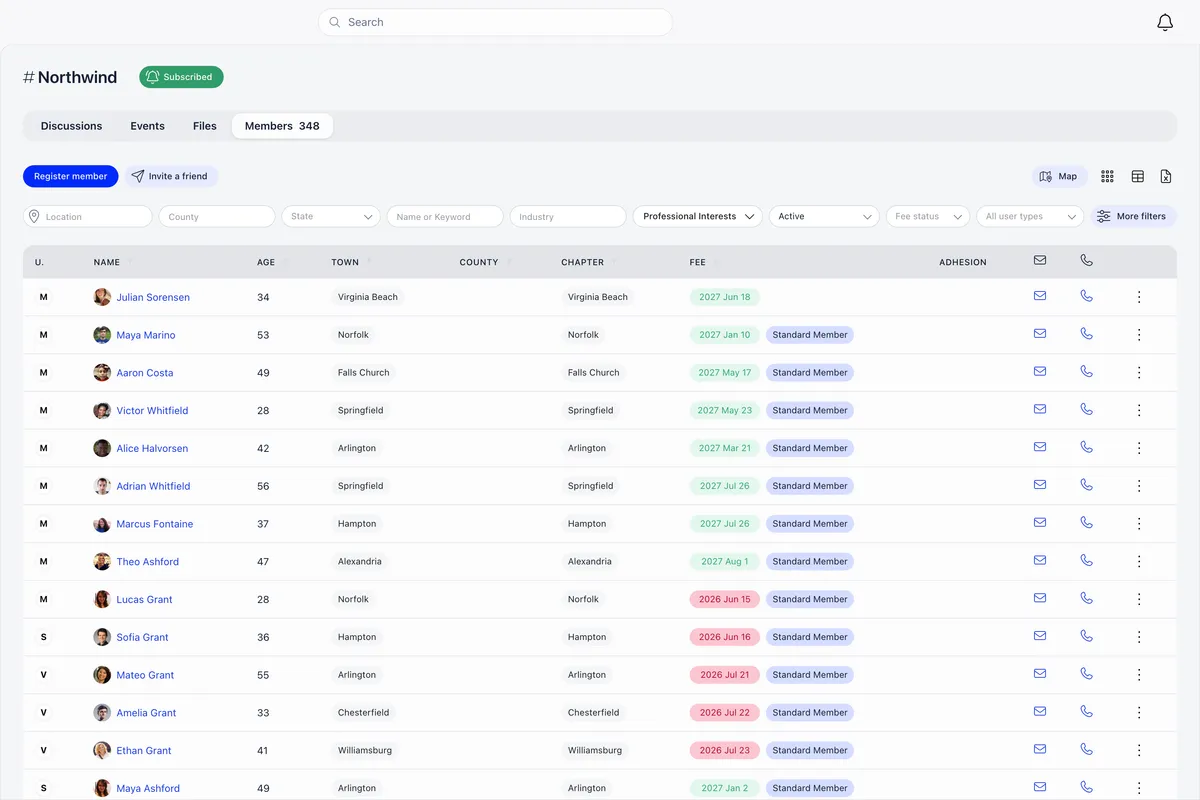
The directory lists everyone in your organisation, and it is the main working surface of Orgo’s membership CRM. Who sees it at all is a setting rather than a permission you hold: Who Can See Members in General Groups, under Users & Profiles in settings, decides between All Users, HR Local, HR Tenant, Admin Local and Admin Tenant. At an admin level, ordinary members never see the directory.
Reach the directory from the sidebar rather than by typing a URL. A bare /users has no scope to show and renders an empty page. The sidebar entry is usually Members, but the sidebar is configured per workspace, so yours may be named or placed differently.
Three views, one set of filters
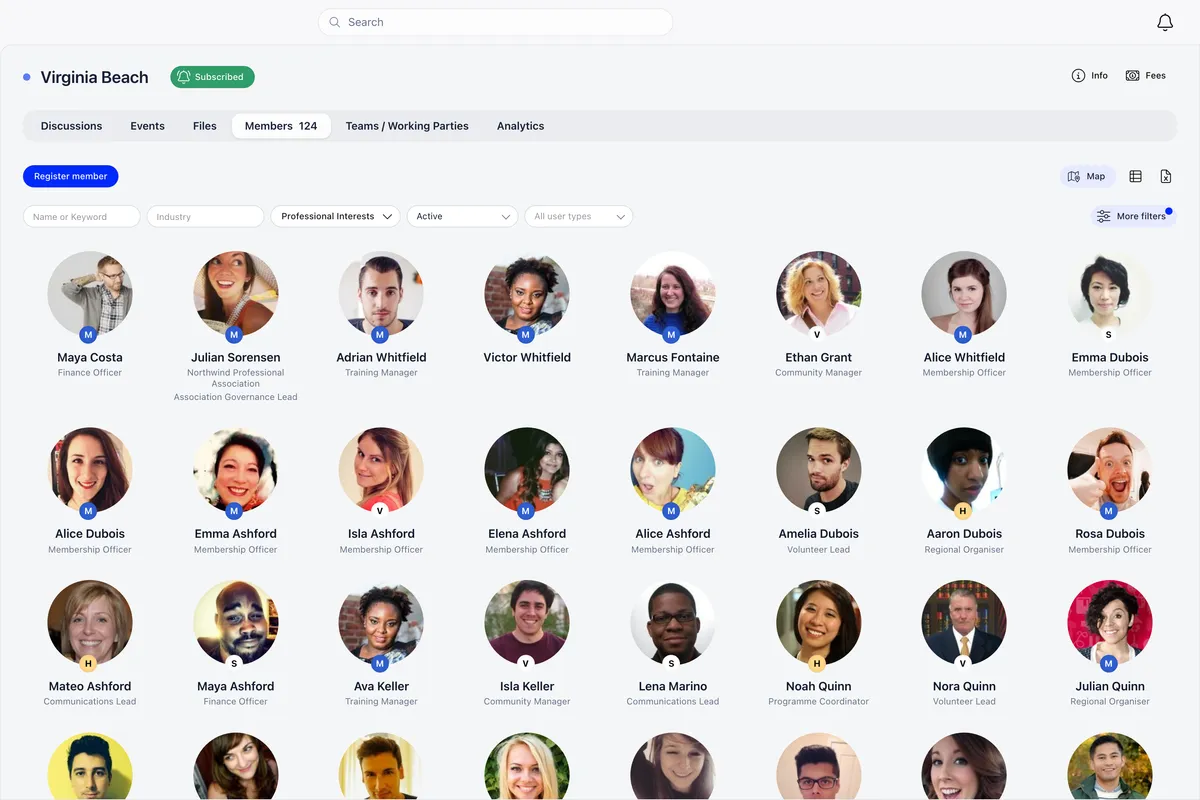
The table, Gallery (photo cards) and Map (members who have a town on their profile) share the same filters. The directory opens in Gallery for everyone who is not an Orgo administrator, and in the table for those who are, which is why a colleague may swear a column is missing when they are looking at the cards. The view toggle sits above the list, and your choice is remembered in that browser.
If a column is what you need, switch to the table first. The column menu is offered in the table view only.
What the search box actually searches
This is the single most common surprise on this screen. Name or Keyword matches four things and no others:
| It matches | It does not match |
|---|---|
| Full name, in first-name-then-last-name order | Email address |
| Profession headline | Phone number |
| Company | Card or member ID |
| Role at that company | Town |
Two consequences worth knowing. Typing an email address returns nothing, even when that member is right there in the list. And typing “Whitfield Rosa” returns nothing for a member named Rosa Whitfield, because the name is matched in one order only. Partial words work, so “whit” finds Whitfield.
Card ID has its own filter, and it appears once Enable Card/Member IDs is on.
The filter row
The filters you see change with your permissions and the modules you have on. These are all of them.
| Filter | What it matches | Shown when |
|---|---|---|
| Name or Keyword | Name, profession headline, company, role at that company | Always |
| Location | Town of residence | Organisation-wide and role-group lists |
| Country / County / State | Country for international organisations, county or state otherwise | Depends on the organisation country |
| Status | One member status | HR_LOCAL on that chapter, or HR_TENANT organisation-wide |
| Fee status | Fee paid, Fee not paid, or Grace period | Fees module on and HR_TENANT |
| Fee type | A specific membership fee price | Fees module on and HR_TENANT or FINANCIAL_TENANT |
| Card ID | Partial match on the member card number | Enable Card/Member IDs is on |
| Profession | Profession industry | Professions module with industries on |
| Skills, interests, Availability | Values from those profile fields | The matching field is enabled |
| User type | One user type | Who Can Filter Users by Type allows you |
| Chapter | Local center | The organisation has local centers |
| All members / Only full members | Full membership | Full Membership Status is on |
| All permissions | Members holding one or more permissions | ADMIN_TENANT only |
Grace period only appears when the fee is mandatory, automatic deactivation on expiry is on, and the deactivation delay is more than zero days. It finds members whose fee has expired but who are still inside that delay.
The permission and user-type filters are enforced on the server, so asking without the required permission returns access denied rather than an unfiltered list. A date-joined range, From and Until, exists in the mobile filter sheet only. The desktop bar has no equivalent.
Four separate gates, not one
Being able to read the list does not mean you can see every column, filter by what you can see, or export it. These are four independent checks, and confusing them is behind most “why can my colleague see this and I cannot” questions.
Sorting, columns and row actions
Sortable headers include name, user type, full member, age, card ID, town, chapter, fee date and status. Sorting applies to the whole result set rather than only the page you are looking at, so the first row after sorting is genuinely the first row.
Columns are permission-gated rather than chosen, with two exceptions you can turn on from the column menu: Groups, and one column per custom field. The column menu itself is the table icon above the list, it needs HR_TENANT, and it only appears in the table view.
Each row’s menu holds View Profile, Modify Profile and Modify Roles. There is no multi-select: actions apply one member at a time. If you need to act on many people at once, the answer is usually a list plus a newsletter, or an export.
Getting a CSV out
The Excel icon above the list exports the current filtered, sorted view. What you filtered and how you sorted is what you get.
Exports are paged at 500 profiles. Below that you confirm and download. Above it you pick which page, so an organisation of several thousand members needs several exports. Each export is written to the audit log with the exact query used, which is worth knowing before you export somebody else’s chapter.
If the export icon is not there, it is the gate rather than a bug. A chapter secretary who has HR_LOCAL but sees no button is usually on the organisation-wide list rather than their chapter’s. Pick the chapter in the Chapter filter first.
Saved lists and segments
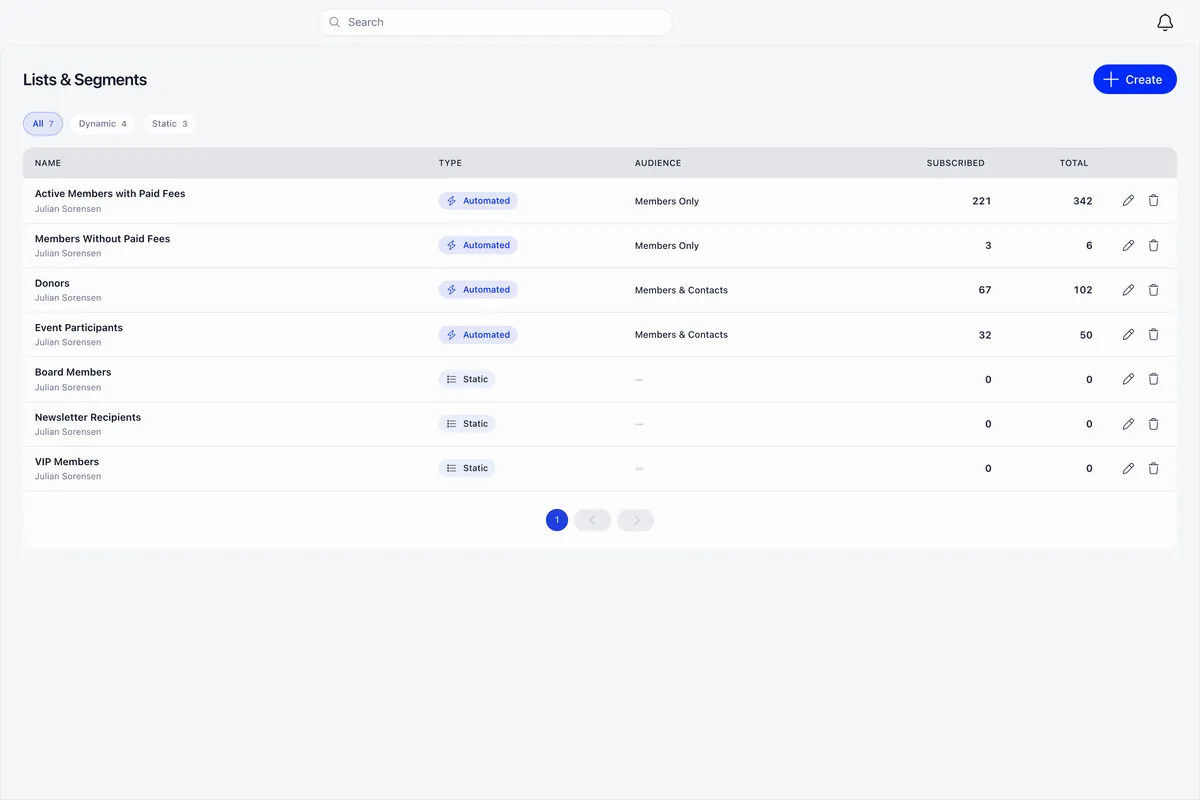
A list is a reusable set of members and contacts: everyone who joined this year and has not paid, everyone with an active recurring donation, everyone who attended last year’s conference. Lists are what you pick as the audience when you send a newsletter.
They live under Communication in the administration area, they need the newsletter module, and the entry appears for COMMUNICATION_TENANT. HR_TENANT also has full access.
Two kinds, and the choice is permanent
Automated lists are defined by criteria and re-evaluate themselves. Somebody who becomes eligible tomorrow is in the list tomorrow, with no action from you. Manual lists contain exactly the people you put in them.
The type and the audience scope are fixed when the list is created, and both controls are locked on the edit screen. If you build a manual list and later want it to maintain itself, you create a new automated list. The one audience setting you can still change afterwards is the member status.
Building one
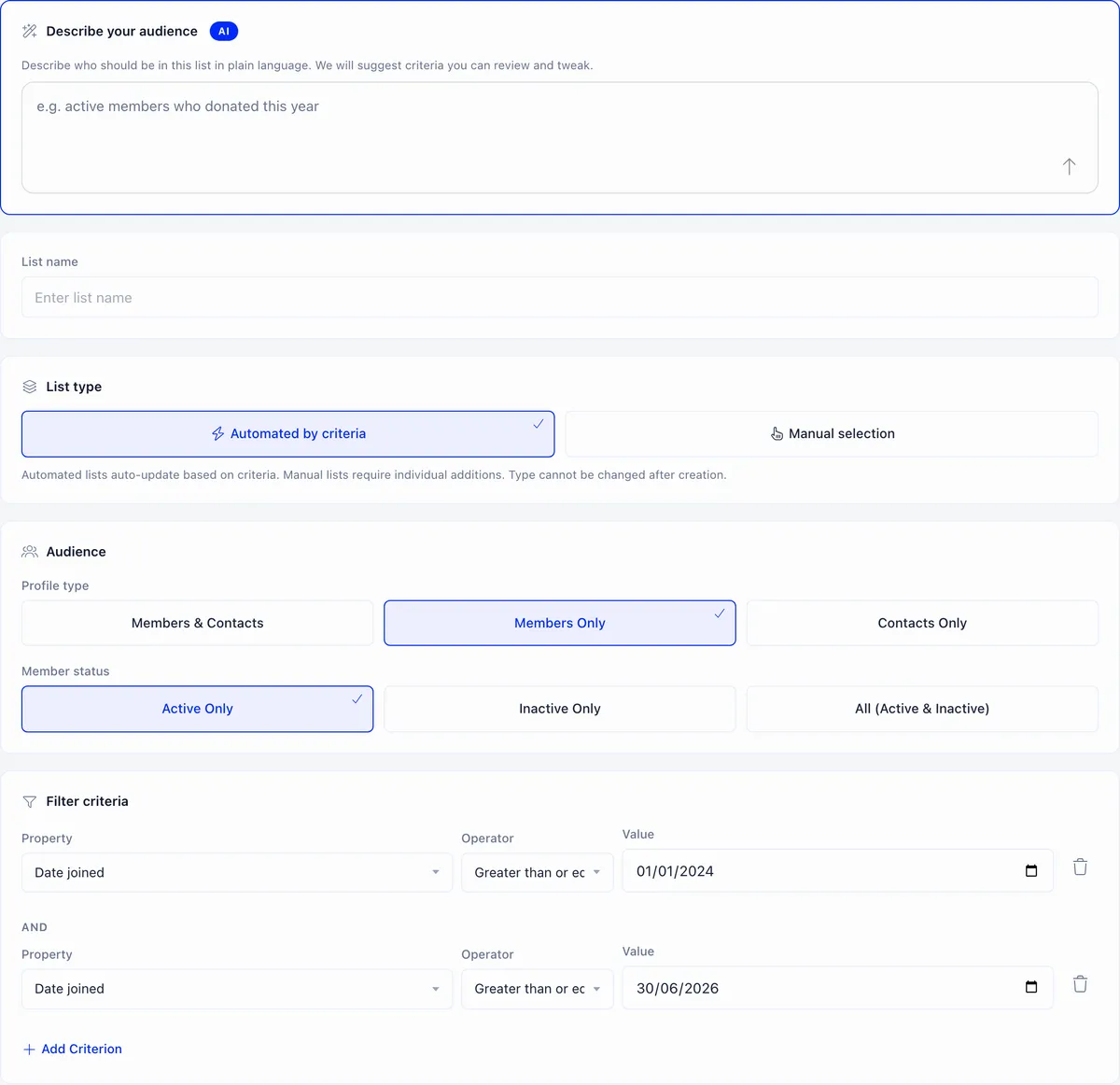
- Describe your audience, or skip it. The panel takes a plain-language description, for example “active members in Norfolk who joined this year and have not paid”, and turns it into a name, a scope and a set of criteria. It is a starting point, not the saved definition, so review what it produced before saving.
- Name the list and pick the type. Automated by criteria, or manual selection. This cannot be changed later.
- Set the profile type. Members and Contacts, Members Only, or Contacts Only.
- Set the member status. Active Only is the default, so a list silently excludes lapsed members until you widen it.
- Add criteria.
Criteria always combine with AND
What you can filter on depends on the profile type, because members and contacts do not carry the same data. Status, tags, date joined, age, payments, recurring payments, event attendance and local center are available across the board. Valid fee date, date joined as full member, only full members and membership fee status are members-only.
The dates, Age and Only full members get the full set of comparisons: equals, not equals, greater than, less than, and their variants. Tags gets has tag, has all tags and doesn’t have tag. Everything else is an exact match, and the operator dropdown is hidden when only one comparison applies.
Reading a saved list
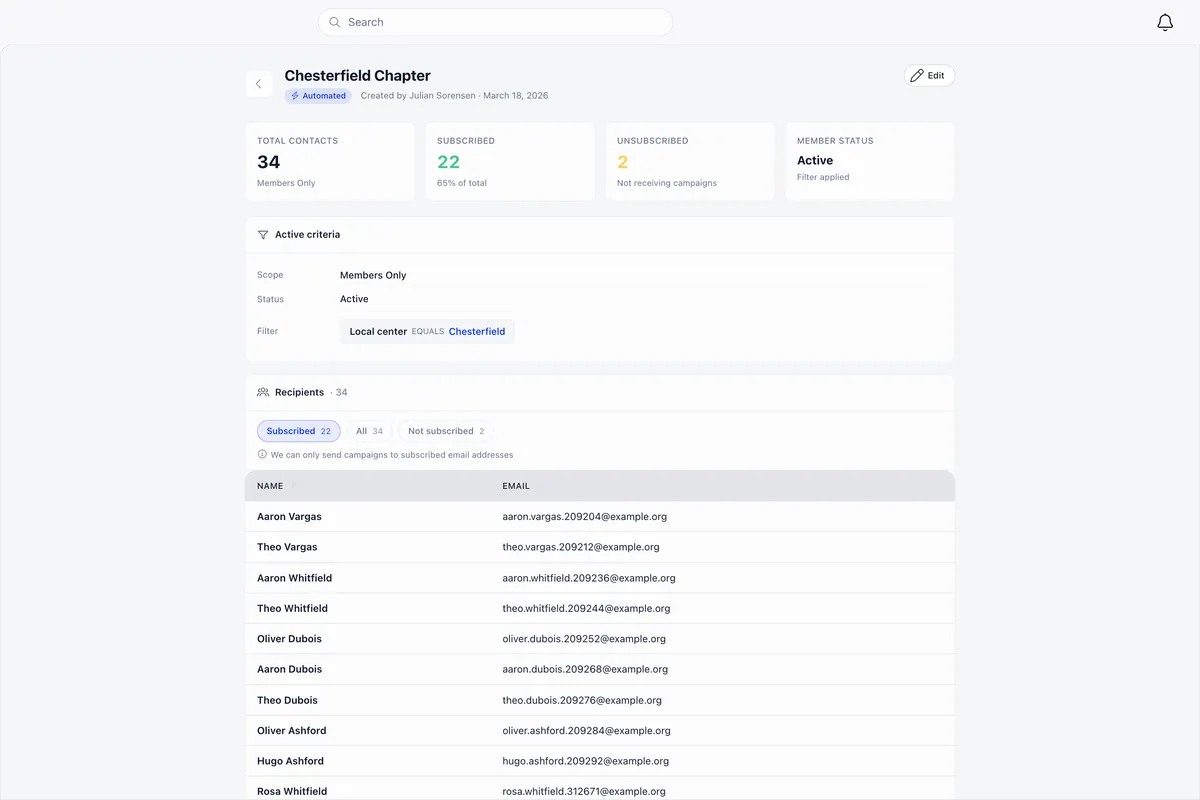
Four tiles open the page: the total, how many are Subscribed, how many are Unsubscribed, and the member status the list applies. Active criteria spells the saved definition out in plain terms, and Recipients lists the people.
Subscribed means the person has not opted out of email. Campaigns only reach subscribed addresses, so a list whose total is much larger than its subscribed count sends to fewer people than it appears to hold. When you pick the list as a newsletter audience, the count shown next to it is the subscribed count, not the total.
Lists over 100 people do not load their members automatically. Use Show recipients.
On a manual list you also get Add, which searches by name, Add CSV for bulk additions, and a remove button per row. Those three controls are visible to COMMUNICATION_TENANT but the calls behind them require ADMIN_TENANT, so if you manage manual lists you need ADMIN_TENANT. Automated lists have no add or remove buttons at all: to change who is in one, change its criteria.
When the question is a count rather than a list
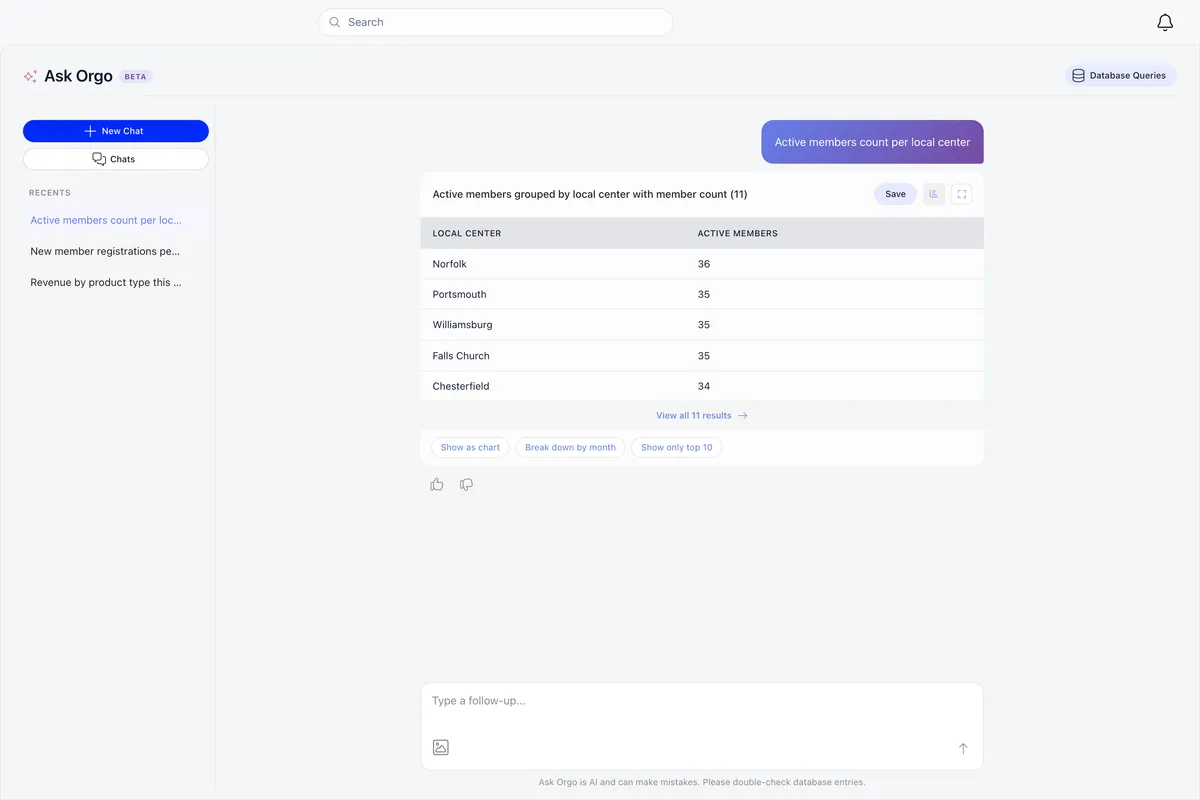
Ask Orgo takes plain-language questions about your data and answers them as a table you can save or open as a chart. It suits “how many active members per chapter” better than the filter row does, because the filter row lists people and this counts them.
When the answer is a set of people rather than a number, you can carry it into the list builder, which opens with your question already in the describe box.
Ask Orgo is AI-assisted, so check the numbers against a filtered list before you put them in a board paper.
Related
- How to add members to Orgo
- How to import your member list
- Users and profiles
- Lists and segments
- User statuses
- Permissions
Frequently asked questions
Why can't I find a member by searching their email address?
The Name or Keyword box does not search email addresses. It matches the member's full name in first-name-then-last-name order, their profession headline, their company, and their role at that company. Search by name instead, or open the member from a list filtered another way.
Where is the export button on the member list?
Export is gated separately from reading the list. On the organisation-wide list it needs HR_TENANT. On a chapter's list it needs HR_LOCAL on that chapter, which means picking the chapter in the Chapter filter first. FINANCIAL_LOCAL, ADMIN_LOCAL and HR_ASSISTANT_LOCAL can all read the list without being able to export it.
What is the difference between a filter and a saved list?
A filter answers a question once and forgets it. A saved list keeps the definition, re-evaluates itself as people become eligible, and can be picked as the audience when you send a newsletter. If you are going to ask the same question again next month, build a list.