
Open the Registration Form page in your organisation settings, under Users & Profiles, then drag the fields you want onto the form and save. You need ADMIN_TENANT, and the page only appears while Enable Registration Form is on.
That part takes a few minutes. The two things that generate real support tickets come later, and both are silent: a profile field marked Required does not always prompt anyone, and any custom field above Public visibility has its answer thrown away at signup. Both have their own section below.
Turn registration on before you build anything
Enable Registration Form lives on the Configuration page under Users & Profiles. While it is off, self-registration is refused with “Registration is not possible.” and the Register link disappears from the login page. Invitation links are the exception: a valid one opens the same form.
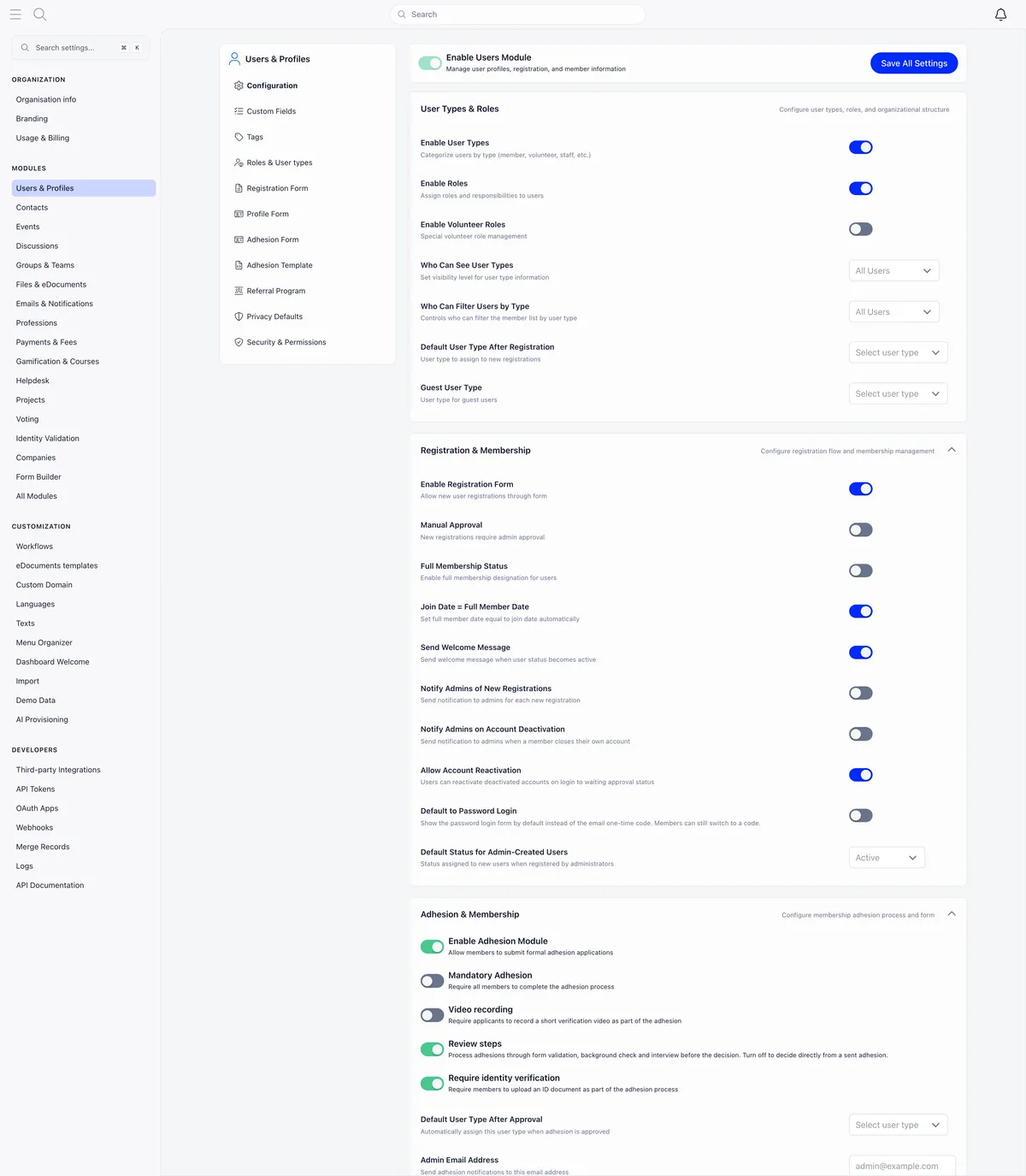
Two settings on this page change what your form does:
- Manual Approval holds every new member at Unapproved until an administrator acts. See approving membership applications.
- Default User Type After Registration is applied last and wins. It overrides the type an applicant picks on the form and the type implied by a
/joinlink. Leave it empty if you use per-type forms.
What you can ask at signup
The builder has two panels. Available Fields on the left carries a System Fields tab and a Custom Fields tab. Form Fields on the right is your form. Click or drag a field to add it, drag the handle to reorder, tick Required, and use the X to remove.
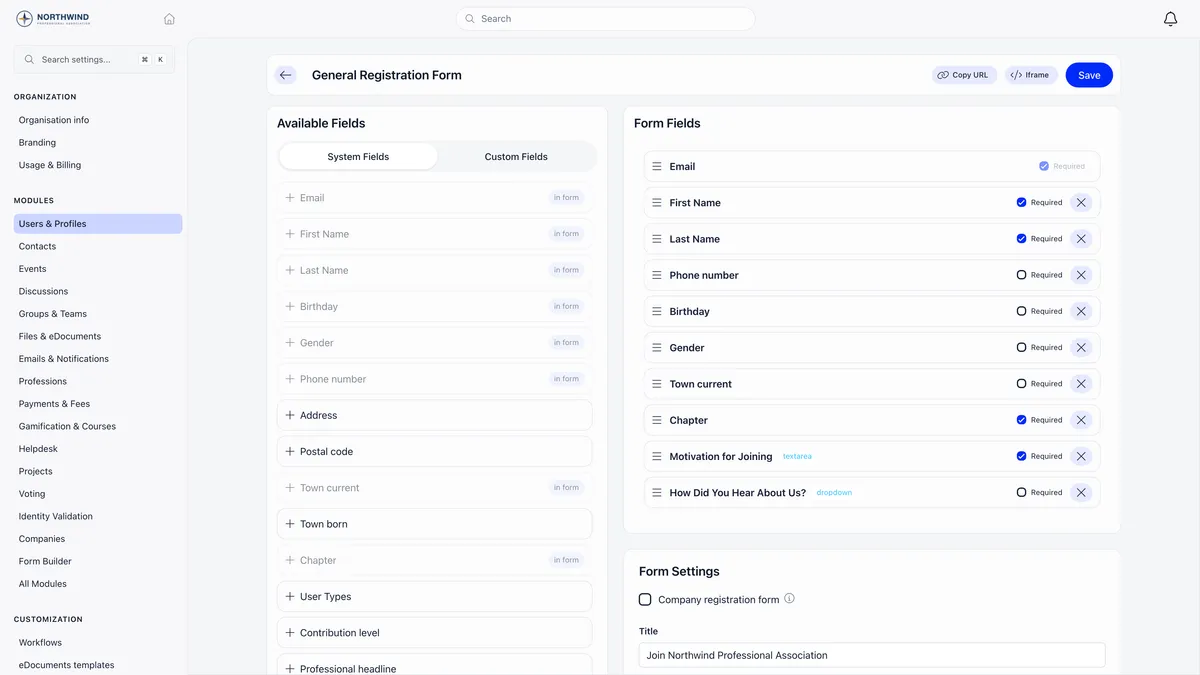
Email is permanent. It is always on the form, always required, and the builder will not let you remove it or untick its Required box. It is also what members sign in with.
| Group | Fields on offer |
|---|---|
| Identity | First name, last name, birthday, gender |
| Location and contact | Phone number, address, postal code, town current, town born |
| Membership | Chapter, user types (general form only), fee level |
| Professional | Headline, industry, current organisation and role |
| Company | Identifier, name, address, registry number |
| Links | Website, Facebook, Twitter, LinkedIn, Instagram, Telegram, TikTok |
| Your own questions | Every profile custom field, on the Custom Fields tab |
These are the default labels. If you rename your vocabulary, the builder and the public page both follow. The fee level field appears only once a membership fee product exists, which is covered in setting up membership fees.
Build it and see what applicants see
- Add the fields you need, keeping the list short. Every extra box costs you completed signups.
- Drag to set the order. Custom fields can sit anywhere, including between built-in ones.
- Tick Required on the answers you cannot go without.
- Fill in Form Settings: a title, text above the form, text below it. Company registration form adds a company details block and creates a company alongside the account.
- Press Save. Nothing is stored until you do.
Consent checkboxes are added for you, and become required, whenever the matching link is filled in on your organisation profile.
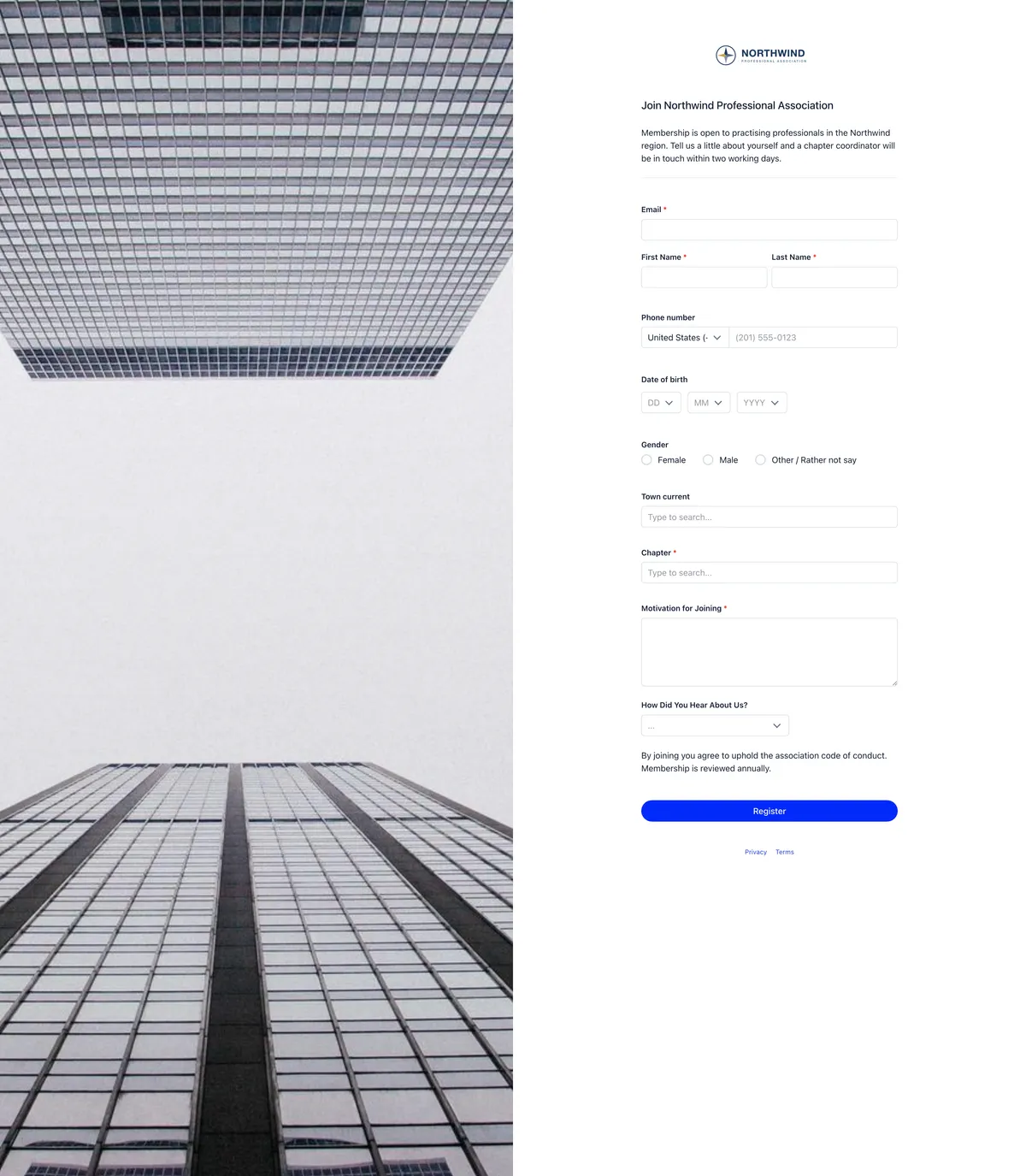
Two checks run on submit that you do not configure. A hidden field must stay empty, and the form must take at least three seconds to fill in. Failing either returns “Invalid submission detected”.
No password is asked for. Orgo emails a six digit code, valid for five minutes, and the member sets their own password at first login. Where the account lands after that depends on your waitlist, referral and approval settings: with none of them in play the member is Active and signed in straight away, and with Manual Approval on they wait at Unapproved until somebody acts.
Your organisation administrators and the new member’s chapter administrators are emailed either way, so nobody has to watch the page.
A separate form for each user type
Each user type can have its own form, its own wording and its own public link. Start by giving the type a URL Slug on the Roles & User types page, which also needs ADMIN_TENANT.
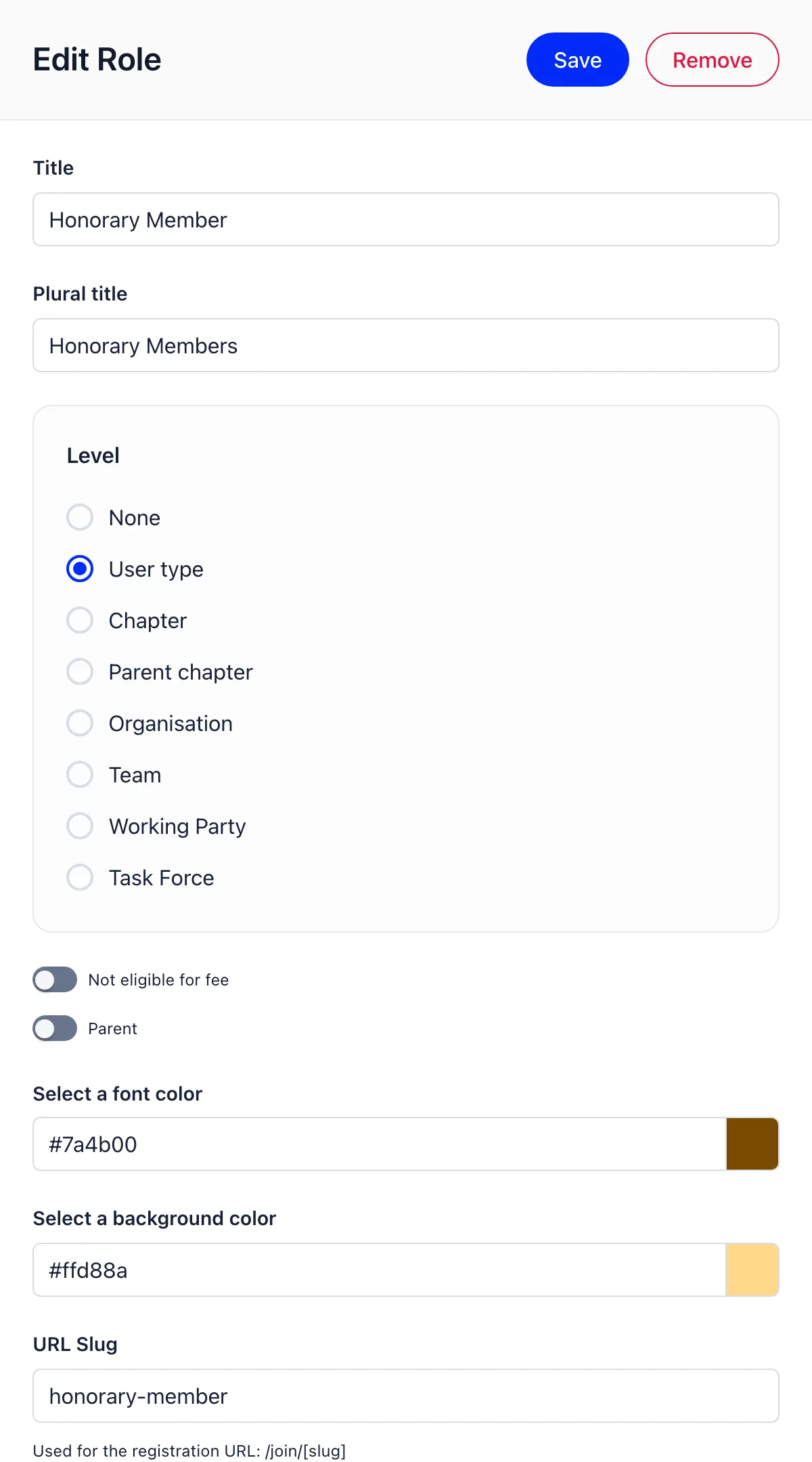
The slug produces the public address /join/<slug>. Orgo refuses to save a per-type form while the type has no slug, and the Copy URL button tells you the slug is missing.
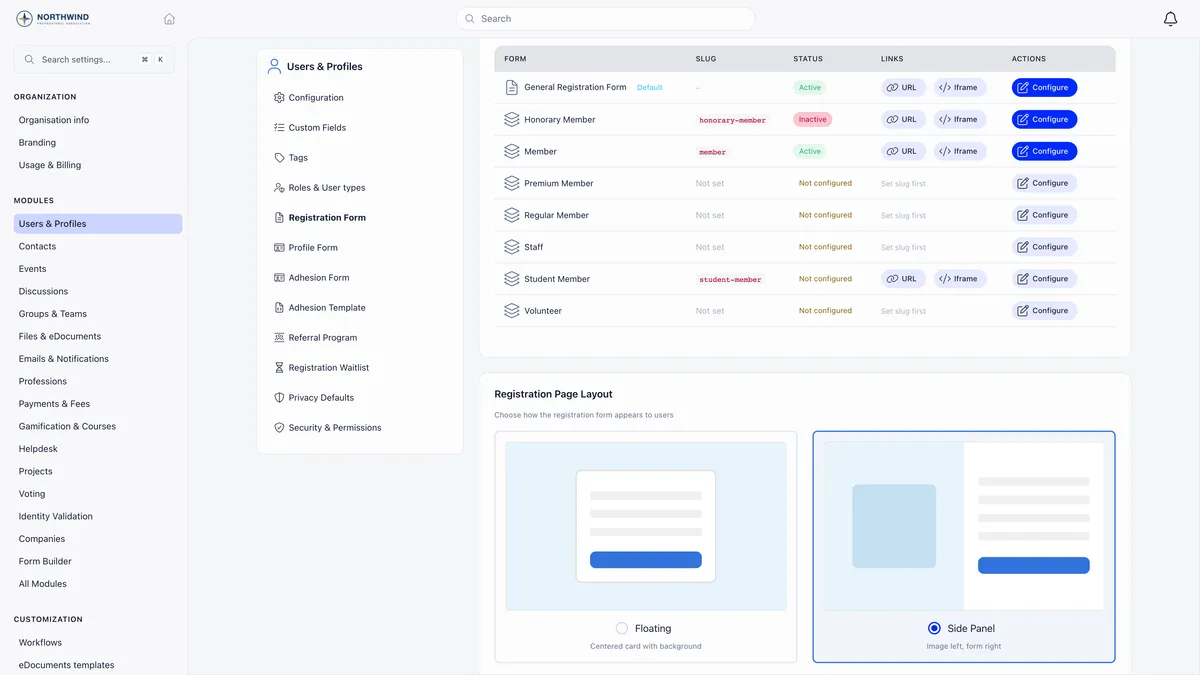
The general form sits at the top, tagged Default, and is always active. Every other row shows Active, Inactive or Not configured, with URL and Iframe copy buttons once a slug exists. To put either form on your own site, see adding a signup form to your website.
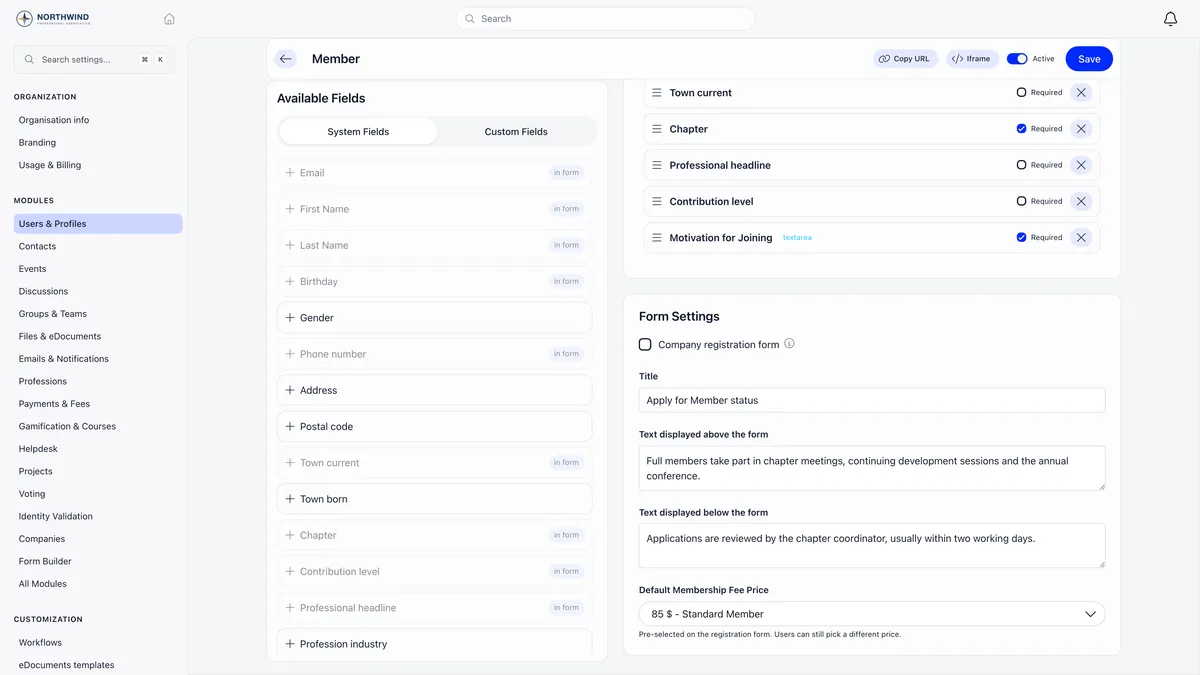
A per-type form adds an Active switch and a Default Membership Fee Price, which preselects a price the applicant can still change.
If a /join link shows “This registration form is not available or has been disabled”, the form was never saved, its Active switch is off, or the slug matches nothing. That public page is cached for an hour, so switching Active back on can take that long to appear.
Trap one: Required does not always prompt anyone
The profile form, a separate page under Users & Profiles, decides what a member profile contains and which fields they must complete. Marking a field Required there sends any member with it empty to a completion screen on their next page load, and they cannot navigate away until it is filled in.
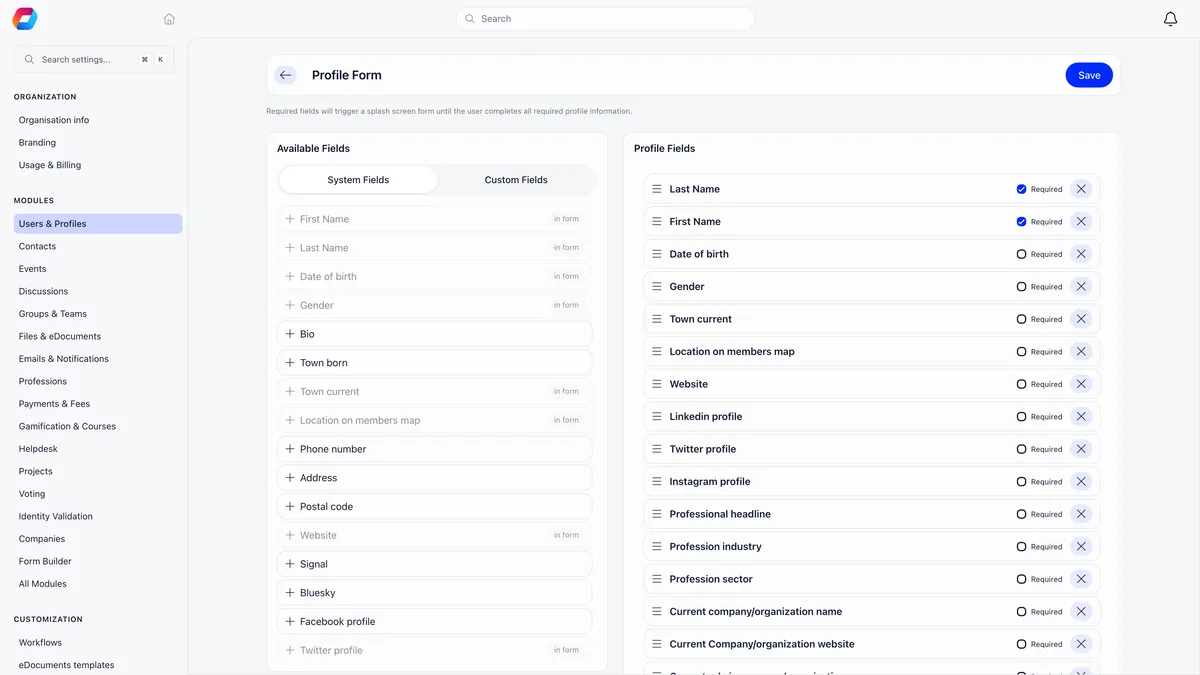
That only works for fields on an enforced list. Every other field shows a Required tick on the builder and is then ignored, so no member is ever stopped for it and no one tells you.
The workaround is short: if you must have the answer, ask it as a custom field and mark that required. Custom fields are enforced whatever they contain.
Trap two: only Public custom fields survive registration
Every custom field carries a visibility of Public, User or Admin, set when you create it under Users & Profiles.
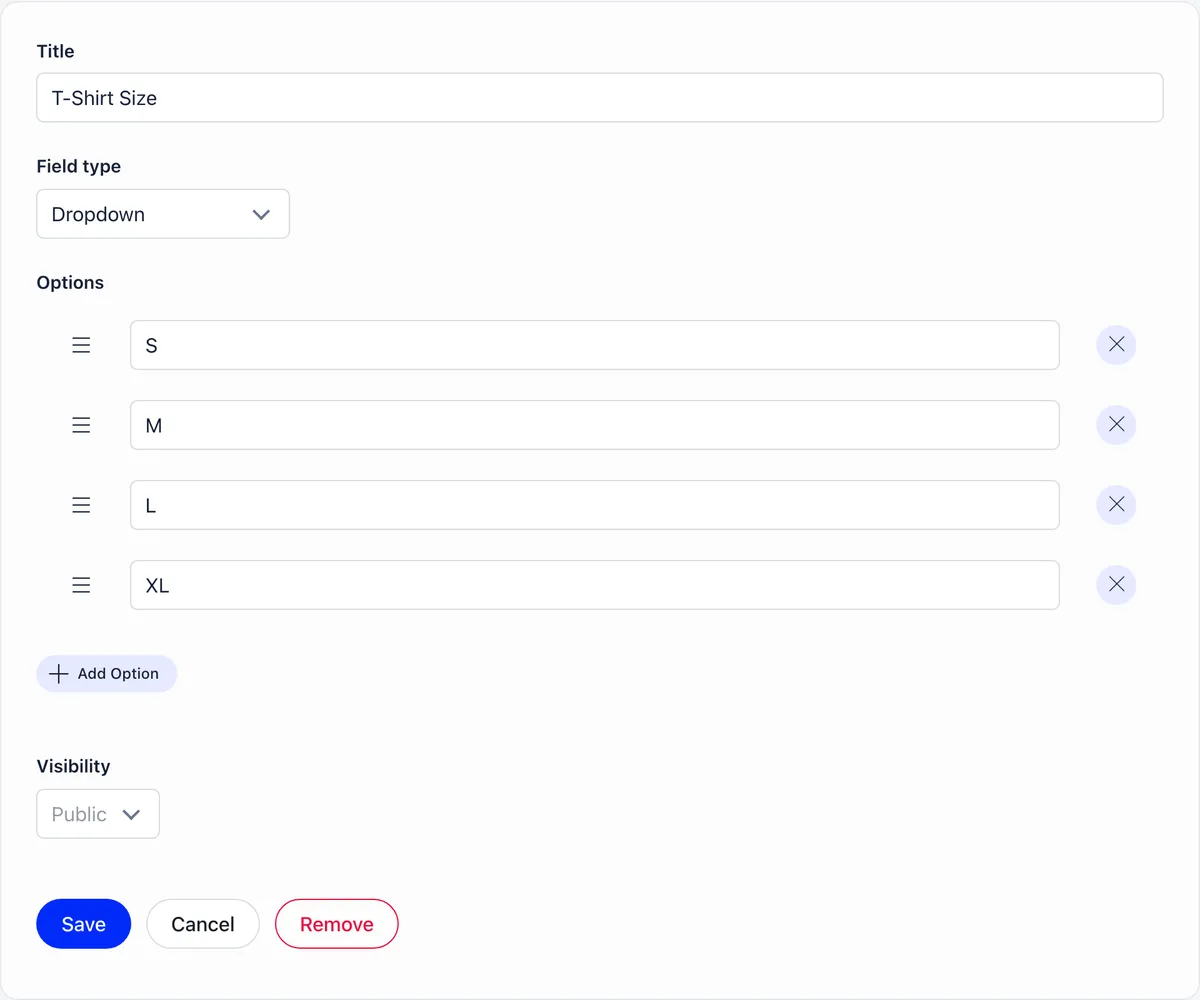
Visibility gates writing as strictly as it gates reading, and the write check asks who is signed in at that moment. On a registration page nobody is signed in, so anything above Public fails that check and the value is dropped. There is no error. The applicant fills the box, the account is created, they see a normal success screen, and the answer is not on the profile.
The tell is that the answer is missing for every member who signed up themselves, while the same field is filled in for members your staff entered or you loaded from a spreadsheet. Those routes have a signed-in writer, so the value saves at any visibility.
If you need the answer at signup, set the field to Public and control who sees the profile with your privacy settings. If it is sensitive enough that Public is wrong, ask it on the profile form instead, where the member is signed in and User visibility behaves as you expect.
Registration form or profile form
They look alike and behave differently. Use the registration form for the minimum you need to create an account, and the profile form for everything you want on the record afterwards. Both write to the same member record that the rest of membership management in Orgo works from.
| Registration form | Profile form | |
|---|---|---|
| When it is asked | During signup | After login, on the member’s profile |
| What Required does | Blocks the submission in the browser | Sends the member to the completion screen, if the field is on the enforced list |
| Who it affects | New signups only | Every member, on their next visit |
| Immutable option | Not available | Available for custom fields |
Required on the registration form is a browser check on that page and nothing more. Members created by any other route arrive without those answers, because they never see the form: a member an administrator registers by hand, anyone loaded through an import, and a child registered by a parent inside the app. People arriving through an invitation link are the exception, because they fill in this same form.
Changing the form never touches existing members. To collect something from people who already joined, put the field on the profile form and mark it required.
Related
- How do I add members to Orgo?
- How do I approve membership applications?
- How do I add a signup form to my website?
- How do I set up membership fees in Orgo?
- Custom fields
- Profile fields
Frequently asked questions
I marked a field required but nobody is being asked for it. Why?
Only some built-in fields can trigger the completion screen. First name, last name, date of birth, gender, phone number, address, town born, town current and the six social links are enforced. Bio, postal code, website, the members-map pin, Signal, Bluesky and everything on the Profession tab display a Required tick on the form and are then ignored, so no member is ever stopped for them. Custom fields are always enforced, so if you genuinely need the answer, ask it as a custom field.
Everyone who signs up is missing one of my custom field answers. Where did it go?
Check that field's visibility. Only Public custom fields save at registration. The write check asks who is signed in, and during signup nobody is, so User and Admin fields are dropped without an error. The box appears on the page, the applicant fills it in, the account is created and the answer never reaches the profile. Set the field to Public, or move the question to the profile form where the member is signed in.
I turned registration off but my /join link still shows a form. Is that broken?
No. Enable Registration Form is checked when the account is created, not when the page is served, so a /join page keeps loading normally and the applicant is refused only after pressing submit. To take one campaign link down, turn off that form's own Active switch on the Registration Forms page, which shows a clear message before anyone types anything.